
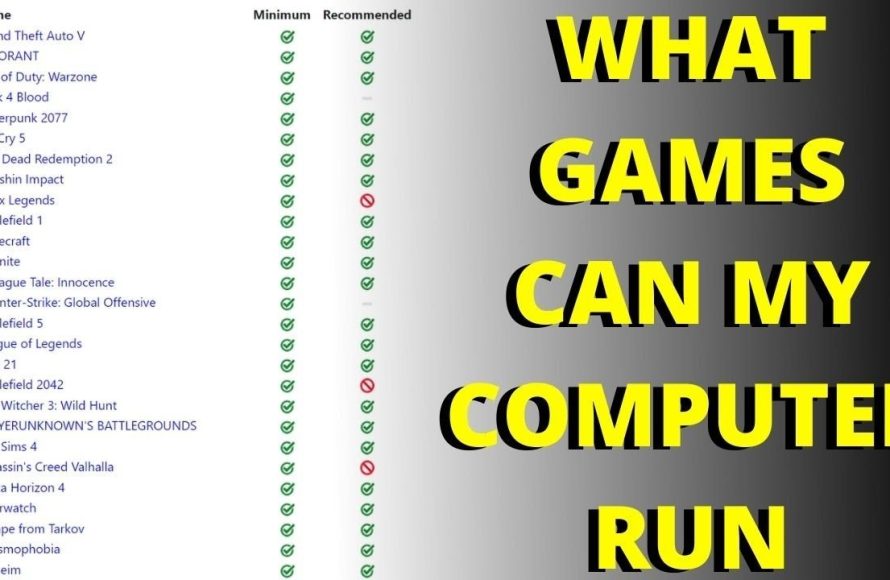
Whether this game will run on your computer depends on whether your system meets the minimum and recommended specifications listed by the game developers.
It’s a question every gamer asks before hitting that ‘buy’ button: will this game run on my computer? The excitement of a new release can quickly turn to frustration if your rig can’t handle it. No one wants to spend their hard-earned cash on a game that ends up being a slideshow.
So how do you avoid this potential gaming disaster? Checking your system specs against the game’s requirements is absolutely crucial. This will help you determine if your computer has the necessary components.

Will This Game Run on My Computer?
So, you’ve got your eye on a shiny new game, maybe one with dragons or spaceships or super speedy race cars. But before you hit that “buy” button, a big question pops up: “Will this game even work on my computer?” It’s a super common worry, and luckily, there are ways to figure it out. We’re going to break down all the important stuff so you can avoid that sad feeling of a game not running correctly. Let’s dive in!
Understanding System Requirements
Every game has a set of rules, called “system requirements.” These rules tell you what kind of computer parts you need to play the game smoothly. Think of it like a recipe. If you want to bake a cake, you need certain ingredients. Games are the same way – they need specific parts to work their best. These requirements come in two main flavors: minimum and recommended.
Minimum System Requirements
The minimum requirements are the absolute lowest the game needs to start and be somewhat playable. If your computer barely meets these requirements, you might be able to play, but don’t expect a super smooth experience. It might be a bit slow, maybe the graphics won’t look great, or it could even be glitchy. Imagine it like driving a very old car – it can get you from point A to point B, but it’s not going to be a fun or comfortable ride.
- What to Expect with Minimum Specs:
- Lower graphic settings.
- Lower frame rates (may look choppy).
- Potential for lag or stuttering.
Basically, hitting the minimum requirements means you can play the game, but it won’t be the prettiest or smoothest experience.
Recommended System Requirements
Now, the recommended requirements are the computer parts the game makers suggest for the best gaming experience. This means the game will run smoothly, look great, and you can enjoy all the cool visual effects. It’s like driving a brand-new sports car – it’s fast, looks great, and makes the journey super fun. If your computer matches or exceeds the recommended requirements, you should have a great time playing the game!
- What to Expect with Recommended Specs:
- High or maximum graphic settings.
- High frame rates (smooth gameplay).
- Fewer chances of experiencing lag or stuttering.
Aiming for these recommended specs ensures you get the most out of the game’s visuals and performance.
Key Computer Components to Check
So, what are these important “parts” we’re talking about? Let’s break down the key computer components that game makers usually mention in their system requirements.
Operating System (OS)
The operating system is like the foundation of your computer. It’s the main software that makes everything work. Games are made to work with specific operating systems, like Windows, macOS, or sometimes Linux. Make sure your OS matches what the game needs. Common versions are Windows 10, Windows 11, etc. Some older games may need older versions of Windows. Always check the listed operating system on the game’s page.
- Common Operating Systems:
- Windows 10
- Windows 11
- macOS (specific versions)
Processor (CPU)
The CPU, or Central Processing Unit, is like the brain of your computer. It does all the thinking and calculations that make the game run. A more powerful CPU will handle the game’s tasks more efficiently. Game system requirements will often list a specific brand and model number or a similar-performance CPU to achieve the best experience. Examples include Intel Core i5-12400 or AMD Ryzen 5 5600. If your CPU is below the minimum specifications, the game might not even start, and you might need to upgrade.
Graphics Card (GPU)
The GPU, or Graphics Processing Unit, is what draws all the cool pictures on your screen. This is super important for games because they have tons of visuals to handle. A more powerful GPU means the game will look better and run smoother. Game system requirements will list specific GPUs, like an NVIDIA GeForce RTX 3060 or AMD Radeon RX 6600. Make sure to check the exact model numbers. Using a GPU below the minimum requirements can severely impact the game’s visual quality and frame rate.
Memory (RAM)
RAM, or Random Access Memory, is like the computer’s short-term memory. It helps the computer quickly access data needed for the game. The more RAM you have, the smoother the game will run. A common standard today is 16GB of RAM, but many games list 8GB for minimum requirements. If your RAM is below the minimum requirements, the game may crash or be very choppy.
- Common RAM amounts:
- 8GB RAM (minimum for many games)
- 16GB RAM (recommended for most modern games)
- 32GB RAM (high-end gaming)
Storage Space
Every game needs space on your hard drive or SSD (Solid State Drive) to install all its files. Make sure you have enough storage space free to fit the game. The system requirements usually list how much space is needed. Sometimes it is best to install a game on an SSD for faster load times. For example, the game might need 50 GB of hard drive space. Make sure you have enough available. Running out of space might prevent installation.
DirectX Version
DirectX is a set of tools that helps games communicate with your computer’s hardware, especially the graphics card. Games often require a specific version of DirectX to run properly. Make sure you have the correct version installed on your computer. DirectX is usually part of the Windows operating system, and updates to Windows usually include updated versions of DirectX. It’s usually a good idea to have the latest version of DirectX available to have better chances of playing most of the games.
How to Find Your Computer’s Specs
Okay, so you know what to look for. But how do you find out what kind of parts are inside your computer? It’s easier than you think!
On Windows
Here’s how to find your computer specs on Windows:
- Click the Start button (usually at the bottom-left of the screen).
- Type “System Information” and click on the result.
- Look for the following information:
- Operating System: The name and version of Windows.
- Processor: Your CPU’s brand and model.
- Installed Physical Memory (RAM): The amount of RAM.
To find your graphics card:
- In the “System Information” window, expand “Components”.
- Click on “Display”.
- Look for the “Name” field, which lists your graphics card.
On macOS
Finding your specs on a Mac is just as simple:
- Click the Apple logo (top-left corner of the screen).
- Select “About This Mac”.
- You’ll see a summary that includes your operating system, processor, and RAM.
To find your graphics card on a Mac:
- In the “About This Mac” window, click “System Report”.
- Select “Graphics/Displays”.
- You’ll find your graphics card details.
Comparing Your Specs to Game Requirements
Once you’ve found your computer’s specs, it’s time to compare them to the game’s requirements. This is the most important step! Here’s how to do it:
- Find the Game’s System Requirements: Most game retailers (like Steam, Epic Games Store, or the game’s official website) list the requirements on the game’s page. Look for a section labeled “System Requirements”, “Minimum Specs”, “Recommended Specs”, or something similar.
- Compare Each Component: Go through each part of your computer and compare it to both the minimum and recommended requirements. See how your CPU compares to the listed one, then check the graphics card, the RAM, etc.
- Don’t Forget the OS: Make sure the game supports your operating system. For example, if the game requires Windows 10 or Windows 11, and you have Windows 7, you might have issues.
What if Your Computer Doesn’t Meet the Requirements?
Sometimes, your computer might not perfectly match the game’s requirements. Here’s what to consider if your PC falls short:
If You Barely Meet the Minimum Requirements
If your PC barely meets the minimum requirements, you might be able to play the game, but it might not be a smooth experience. You might need to turn down the graphics settings or expect choppy frame rates. The game might also crash frequently. You should probably play a bit of it, and then decide if the performance is good enough for you. Some people are more tolerant to lower frame rates than others.
If You Meet the Minimum Requirements, But Not the Recommended
If you meet the minimum requirements but not the recommended ones, you will probably be able to play the game. You may want to compromise the game’s settings in order to have an improved framerate. Lowering the settings can greatly improve performance in most games. You might not have the smoothest visuals or the highest frame rates, but the game should be playable and enjoyable.
If You Don’t Meet the Minimum Requirements
If your computer doesn’t meet even the minimum requirements, the game might not work properly, or not start at all. It’s important to understand that running a game below the minimum requirements is not a good idea. In those cases you could look into:
- Upgrading Your Computer: This can be costly, but it’s the best way to ensure your computer can handle modern games. You could look into upgrading the graphics card, the RAM, or even the CPU, depending on your needs.
- Cloud Gaming Services: Cloud gaming lets you play games on servers, and the game’s video is streamed to your computer. This can be a good option if your computer is not powerful enough, as you don’t have to worry about the game’s performance on your PC.
- Choosing a Different Game: You might consider finding games with lower system requirements. There are plenty of great games that can run on less powerful computers.
Using “Can You Run It” Websites
There are websites that can automatically check if your computer can run a specific game. These are very useful, and you should look into it. These sites usually check your system against a game’s requirements. This can save you a lot of time and effort. Here’s how they work:
- Go to a “Can You Run It” website, some popular ones are systemrequirementslab.com or game-debate.com.
- Search for the game you want to check.
- The website will ask you to run a small program that scans your computer for its specs.
- The website will compare your specs to the game’s requirements and show you whether you meet the minimum or recommended specs.
Remember that these tools should be used as a quick guide, and not as a final answer. Sometimes these websites aren’t 100% correct, so always check the game’s website requirements as well.
Other Factors That Might Affect Performance
Besides the basic components, there are other factors that might affect how a game runs on your computer. These might include:
- Background Applications: Running other programs while playing games, like web browsers, or other background apps, can use your computer’s resources and slow down the game. Try closing extra applications before starting a game.
- Drivers: Make sure that your graphics card drivers are up to date. Outdated drivers can cause performance issues. Download the latest drivers directly from the GPU manufacturer’s website.
- Overheating: If your computer overheats, it can slow down its performance and even damage components. Make sure your computer has good ventilation.
Game Optimization
Sometimes games aren’t optimized well for all computers. Even if your computer meets the requirements, you might encounter issues. Game optimization is the process where developers try to make their game run smoothly on various types of computers. If a game isn’t optimized well, it can cause:
- Poor performance
- Bugs and glitches
- Random crashes
Game developers regularly release patches to fix these issues. Always make sure you have the latest version of the game for a better chance of smooth gameplay.
So, before getting too worried about your PC’s specs, it’s helpful to learn if there have been any negative reports about a game’s optimization.
Checking if your computer can handle a game can feel a bit daunting, but by understanding the system requirements, checking your computer’s specs, and comparing the two, you can make sure your gaming experience will be fun, and not frustrating. Always do your research, and remember that there are plenty of games out there that can run on a variety of different computers. Happy gaming!
This website will tell you if your computer can run the game you're planning to play
Final Thoughts
Checking the minimum and recommended specifications is must. Compare those against your system specs. If your computer matches or exceeds the minimum, the game should run. Performance, however, might vary.
If you meet the recommended specs, you will likely have a smoother experience. It’s always a good idea to check gameplay videos for a visual representation. So, ‘will this game run on my computer?’ The answer lies in a detailed comparison.

