
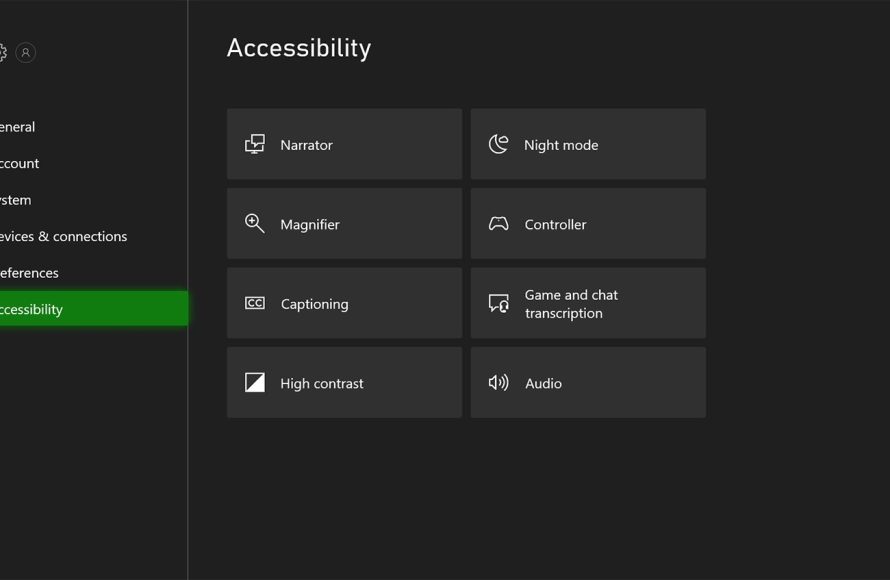
Xbox accessibility options enable players to customize their gaming experience with features like controller remapping, text-to-speech, and subtitle adjustments.
Gaming should be enjoyable for everyone, and the Xbox platform understands this. That is why they have included comprehensive settings to personalize your playtime. These adjustments make gaming much more inclusive, allowing everyone to participate fully.
Exploring the many Xbox accessibility options allows you to tailor the console to your needs. From adjusting visual elements to modifying controls, these changes can enhance your gaming journey. You can find exactly what fits your style and enjoy the games fully.

Exploring the World of Xbox Accessibility Options
Xbox isn’t just about amazing games; it’s about making sure everyone can join in the fun! Microsoft has put a lot of effort into creating settings that make gaming more accessible for players of all abilities. These options aren’t hidden away; they’re right there, ready to be used. Let’s dive into what makes Xbox so great at helping everyone play.
Controller Customization for Every Player
The controller is our main tool for playing, so it’s important that it works well for everyone. Xbox offers a variety of ways to change how the controller works, making it fit your needs perfectly.
Button Remapping: Putting Buttons Where You Need Them
Imagine you have a favorite button you use all the time, but it’s in a spot that’s hard to reach. With button remapping, you can move that button to a place that’s more comfortable for you. You can swap any button with another, so the controls make sense for your hands. You can even choose different layouts for different games, giving you complete control. Let’s say you have difficulty pressing the bumpers; you could map those actions to the face buttons instead. This kind of personalization can make a world of difference.
Stick and Trigger Adjustments
Sometimes, pushing down on a stick or squeezing a trigger can be tricky. Xbox lets you change how these inputs respond. You can adjust the sensitivity of the sticks, making them less or more reactive to your movements. You can also change how far you have to pull the triggers to activate them. These adjustments are important for players who might have limited hand strength or range of motion. It means you don’t have to exert as much pressure to get the desired action.
Copilot Mode: Team Up with Another Controller
Have you ever wanted to play a game with a friend, but they needed a little help with the controls? Copilot mode allows two controllers to act as one. You and a friend can play together, each controlling different parts of the game. If one person finds movement difficult, the other can take over the left stick while the first player focuses on aiming or using other abilities. Copilot mode is great for teamwork and can help players with different skill levels play together.
Vision Options: Making Games Easier to See
For players who have vision issues, Xbox provides a set of tools that make games easier to see and understand.
High Contrast Mode: Making Things Stand Out
Sometimes, the colors in a game can blend together, making it hard to see important things like characters or menus. High contrast mode changes the colors of the game interface and menus, using colors that are easier to tell apart. This can greatly improve clarity and help players with low vision easily navigate the system and the game itself. It can be really helpful when a game has lots of bright or similar colors.
Text to Speech: Hearing What’s On Screen
Reading all the on-screen text in a game can be hard for some people. That’s where Text-to-Speech comes in. It reads menus, messages, and other text aloud, so you don’t have to read it yourself. This is helpful for people who struggle with reading, or who might have difficulty seeing small text. It allows them to still fully participate in the game, even if they can’t see every word.
Screen Magnifier: Zooming In On The Action
Need to see something in more detail? The Screen Magnifier on Xbox works like a magnifying glass, letting you zoom in on any part of the screen. This is great for looking at small text, examining details in the game world, or just getting a better view of the action. You can adjust the zoom level and move the magnified area around the screen to get the perfect view. No more squinting or missing out on small details!
Audio Options: Hearing Every Sound
Sound is a big part of gaming, and Xbox has features to help everyone hear clearly.
Mono Audio: All Sounds in One Place
Usually, game sounds are played separately through the left and right sides of your headphones or speakers. This is called stereo audio. But if you only have hearing in one ear or you have other hearing challenges, this can make it hard to hear some sounds. Mono audio combines all sounds into one single channel, so you can hear everything clearly with one earpiece or speaker. This makes sure you don’t miss any important cues or dialogue.
Volume Customization: Finding the Perfect Sound Level
Everyone has different preferences for volume levels. Xbox lets you adjust the volume of different types of sounds. You can make the game sounds louder and the music quieter, or do it the other way around. Being able to control each part of the sound mix ensures that you hear the important bits while not being overwhelmed by other noises. This is especially helpful for players who have trouble processing certain sounds or who need different volumes for different in-game actions.
Chat Transcription: Read What Others Are Saying
Communicating with other players is a lot of fun in multiplayer games. But if you have difficulty hearing other people’s voices, Xbox’s Chat Transcription feature is really handy. This feature turns spoken chat into text on the screen, so you can read what other players are saying. This way, you won’t miss out on any game strategies or friendly conversations, even if you can’t hear clearly. If you prefer to type, you can also use voice to text, speaking into your microphone to make your chats visible.
Gameplay Adjustments: Making Games Fair for All
Beyond controls and display, Xbox offers changes that affect the way the game actually plays, making it a more level playing field for everyone.
Difficulty Settings: Finding the Right Challenge
Many games offer different difficulty levels. This feature isn’t just about making the game easier or harder; it’s about finding a level that matches your skills and preferences. If a game is too difficult, it can be frustrating and hard to enjoy. But with the option to reduce the difficulty, you can have a more fun and rewarding gaming experience. If a game has multiple difficulty options, try each one to find the perfect fit. Some games even have accessibility-focused difficulty settings that make enemies weaker or puzzles simpler, allowing players with different skill levels to explore and enjoy them.
Input Prompts: Visual Guidance for Actions
Some games have complex controls, making it hard to remember the right button to press. Xbox input prompts display on the screen that shows which button to use and when to use it. This is helpful, because it helps you learn new moves and makes the game less confusing. Input prompts make games more intuitive, removing some of the barriers that might hold a player back from enjoying their favorite games.
Quick Time Event Assistance
Quick Time Events, or QTEs, are sections of a game that require you to press specific buttons quickly and correctly. These can be challenging for a few reasons. Some players have trouble hitting the buttons quickly enough. Xbox helps players with QTE challenges. It can slow down the time, letting you see what you have to do and give you the space to react more easily. With settings that adjust QTE speed and difficulty, the games become more enjoyable, ensuring everyone can make it through these action-packed moments.
Xbox Adaptive Controller: A Custom Controller for All
For players who can’t use a regular controller, Xbox offers the Adaptive Controller. It’s a special controller that can be changed and customized to meet many different needs.
Expanding Functionality Through External Devices
The Adaptive Controller has ports for many external buttons, switches, and joysticks. Players can plug in any device they need. For example, someone who can’t use a thumbstick might plug in a joystick that they can move with their head or foot. This ability to connect different inputs means that the Adaptive Controller can be adapted to different disabilities, making it so everyone can be in the game.
Creating Custom Setups
There are many ways to use the Adaptive Controller. It’s not one fixed design but a hub for creating your own personalized controller setup. By adding different buttons, switches, and joysticks, it can be changed to match the way you play. This means it can be easily tailored to fit anyone, making it a very adaptable tool.
Community Support
The Xbox Adaptive Controller also comes with a community of support. There are many groups and individuals online who share ideas and tips on how to use it. These communities help players learn from each other, discover new ways to use the device, and enjoy their games. This support from others is a huge part of why the Adaptive Controller is so amazing.
More Accessibility Features
The accessibility options on Xbox are not just the things we have discussed. There are many more smaller settings you can adjust in your Xbox. These make playing games even better for all players.
Narrator and Screen Reader
The Xbox also has a narrator and a screen reader that provides verbal cues for navigation on the Xbox interface, including game menus and settings. It describes what’s on the screen out loud so that people who can’t see or have a hard time seeing can operate the system.
Colorblind Modes
Colorblind modes change the colors in games to help players who have colorblindness. This mode swaps out colors that are hard to distinguish with colors that are clear and easy to tell apart, making it easier to see all the action and understand the game world better.
Ease of Access Settings
Ease of Access settings bring all the Xbox accessibility features into one place. This is where you will find most of these features and customization options, allowing you to adjust your Xbox and your games just the way you like. You can easily see and change all available options from this setting.
Xbox is committed to making gaming accessible for everyone. With a variety of options that can be changed and customized, you can find the settings that are best for you. By providing these features, Xbox makes sure that more players can enjoy the games they love and have a great time playing with their friends. The possibilities that these features provide are amazing and are helping to build a future where gaming is truly for everyone. The features detailed in the article represent the commitment Xbox has to inclusiveness. It’s a continuous effort, with new settings and updates always being considered.
PS5 and Xbox Series X/S Accessibility Features Explained
Final Thoughts
Xbox accessibility options offer a wide range of features to personalize gaming experiences. Players can adjust controls, audio, and visual settings. These settings ensure more inclusive gaming for everyone.
Customizable features include button remapping and text-to-speech capabilities. These are essential for gamers with diverse needs. Xbox accessibility options make gaming more enjoyable and approachable.

