
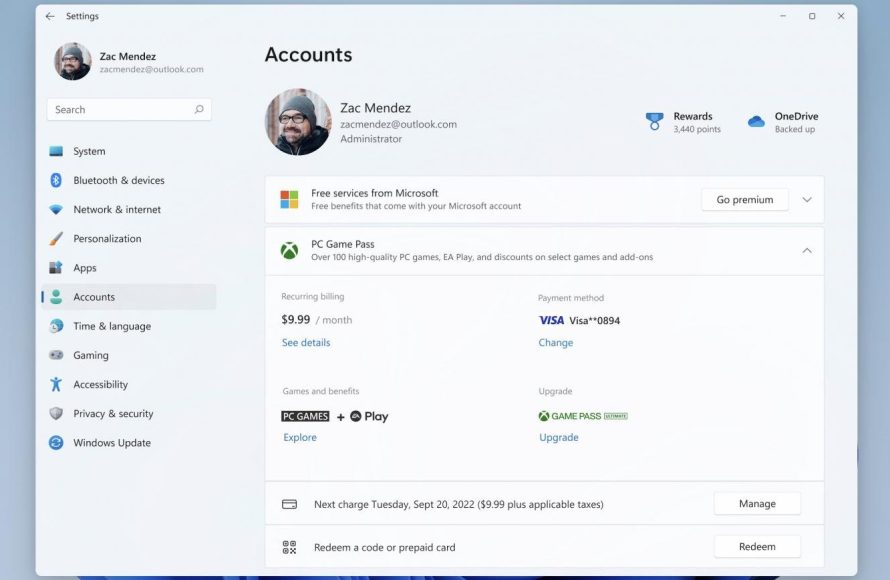
Xbox account management involves controlling your profile, privacy settings, subscriptions, and family settings all from one place.
Have you ever felt lost navigating the settings on your Xbox? It’s easy to get overwhelmed with the different options available. Knowing how to use Xbox account management effectively makes your gaming experience much smoother.
Properly managing your account means you can customize your profile, keep your data secure, and also control who can interact with you online. This is important for both personal and family use. With a little bit of knowledge, you can take full control.

Xbox Account Management: Your Guide to a Smooth Gaming Experience
Having an Xbox account is like having a key to a whole world of games, friends, and fun. But like any key, you need to know how to use it and take care of it. That’s where Xbox account management comes in. It might sound complicated, but it’s really about making sure your gaming life is easy and secure. Let’s take a closer look at everything you need to know to handle your Xbox account like a pro.
Setting Up Your Xbox Account: First Steps to Gaming Glory
Before you can dive into the latest games, you need an Xbox account. This is your unique identity in the Xbox universe. If you’re just starting out, here’s what you need to do:
Creating a Microsoft Account
An Xbox account is built on top of a Microsoft account. If you use services like Outlook, Hotmail, or OneDrive, you likely already have one. If not, don’t worry! It’s easy to create one. Just go to the Microsoft account website and follow the steps to sign up. You’ll need to provide some basic information like your name, email, and a password. Remember to choose a strong password that’s hard for others to guess.
Creating Your Xbox Gamertag
Your gamertag is your name in the Xbox world. It’s how your friends will find you and how you’ll be known to other players. When you sign up for Xbox, you’ll get a chance to create your gamertag. Choose something that’s unique, easy to remember, and represents you well. If the name you want is already taken, you’ll need to try something else. Xbox will even suggest some names if you’re stuck! Also, be aware of the Xbox community standards. Avoid any names that might be offensive or inappropriate.
Understanding Your Account Settings
Once you have your account setup, take some time to explore your account settings. This is like the control center for your Xbox experience. You can adjust all sorts of things here, from your privacy settings to your payment information.
Privacy Settings: Keeping Your Information Safe
Privacy settings are a super important part of account management. They let you control who can see your profile, who can chat with you, and who can see your activity. This helps you feel safe and comfortable while playing online. Here are some things you can control:
- Who can see your activity: You can choose if everyone, only friends, or only you can see what games you’ve been playing and other actions.
- Who can chat with you: You can limit who can send you messages and talk to you in voice chat.
- Who can add you as a friend: You can choose if anyone can send you a friend request, or if you want to limit it to certain people.
It’s a good idea to check these settings regularly and make sure they are set how you prefer. If you have children who use Xbox, it’s vital to check their settings as well to make sure they have a safe online environment.
Payment and Billing Information
You’ll need to add payment information if you plan to buy games, add-ons, or subscriptions from the Xbox Store. You can add a credit card, debit card, or even use PayPal. It is important to keep this information secure. Here’s what you should know:
- Adding a payment method: Carefully type in all the required information. Make sure to double-check for any errors.
- Removing a payment method: If you want to remove a payment method, you can do so in the account settings. This is useful if a card expires or you’re no longer using a certain payment method.
- Setting up payment confirmation: You can set up payment confirmation, which will prompt you for your password before a purchase. It’s an extra layer of security that can prevent accidental or unauthorized purchases.
It is a good idea to review your purchase history from time to time to ensure there aren’t any surprises.
Subscription Management
Xbox offers various subscription services like Xbox Game Pass and Xbox Live Gold. These subscriptions give you access to many games and online multiplayer functionality. Here’s how you can manage them:
- Checking your subscriptions: You can see which subscriptions you have, their renewal dates, and the payment method used.
- Cancelling a subscription: If you don’t want a subscription to renew, you can cancel it. You’ll still be able to use it until the end of the current billing period.
- Changing a subscription: You may be able to upgrade or downgrade your subscription type in your account management section.
Family Settings: Managing Accounts for Kids
If you have children who use Xbox, you can manage their accounts with family settings. This allows you to create a safe and controlled gaming environment for them. It is all about giving kids a fun experience while providing parental safeguards.
Creating a Child Account
When you’re creating an account for a child, it’s set up as a child account linked to your parent account. This gives you special controls that you wouldn’t have for an adult account.
Parental Controls
Parental controls allow you to set limits on how your children use Xbox. Here are some of the controls you can manage:
- Screen time limits: You can set how much time your child can play games on Xbox. You can set different limits for weekdays and weekends.
- Content restrictions: You can limit the games and apps your child can access based on their age. This helps make sure they are not playing games that aren’t appropriate for their age.
- Communication restrictions: You can choose who your child can talk with online. You can restrict communication to only friends or disable it completely.
- Spending limits: If your child has access to purchasing games, you can set spending limits to control how much they can spend in the Xbox Store.
Parental controls are a great way to ensure your children are safe and gaming responsibly. It’s a good practice to review these settings regularly, as your children grow and their gaming habits change.
Securing Your Account: Staying Safe Online
Keeping your Xbox account secure is extremely important. It helps protect your personal information and prevents unauthorized access to your account. There are several steps you can take to keep your account safe.
Strong Passwords
Using a strong password is one of the most important things you can do to protect your account. A strong password should be:
- Long (at least 12 characters)
- A mix of uppercase and lowercase letters
- Includes numbers and symbols
- Not something easily guessable, like your name or date of birth
Avoid using the same password for multiple accounts. If one account gets compromised, the others could also be at risk. It’s a good idea to change your password regularly.
Two-Step Verification
Two-step verification, also known as multi-factor authentication, adds another layer of security to your account. When you log in from a new device, you’ll be asked for a code in addition to your password. This code can be sent to your phone or email. This makes it much harder for anyone to access your account, even if they know your password. It’s highly recommended that you enable two-step verification on your Xbox account.
Recognizing Phishing Attempts
Phishing is when someone tries to trick you into giving them your account information. They might send you an email or message that looks like it’s from Xbox. These messages will often ask for your password or other personal details. Don’t ever give out your information in response to an unsolicited request. Always double-check any links before you click on them. If you are unsure about an email or message, contact Xbox support directly through their official website.
Account Activity Monitoring
Keep an eye on your account activity. Your Xbox account has a history of when and where you have logged in. If you see any unusual logins, like a device you don’t recognize or from a different location than where you live, it’s a good idea to change your password immediately and enable two-step verification. You might want to contact Xbox support for help as well.
Recovering Your Account: What to Do if You Lose Access
Sometimes, you might lose access to your account. Maybe you forgot your password or your email has been compromised. Here’s what you can do to recover your account.
Password Reset
If you can’t remember your password, you can reset it. Go to the Microsoft account login page and click “Forgot password?” You’ll be asked to confirm your email or phone number, and then you’ll get instructions on how to reset your password. Make sure you create a new strong password that you will be able to remember.
Account Recovery Form
If you are unable to reset your password through email or phone, you can use the account recovery form. This will ask you questions about your account, like past passwords or other information related to your account. Provide as much accurate information as you can to help Microsoft verify you are the owner of the account. The more information you can provide, the better chance you have of getting your account back.
Contacting Xbox Support
If you’re having trouble recovering your account by yourself, you can contact Xbox Support for help. They have a team of experts who can guide you through the recovery process. You can reach them through the official Xbox website.
Gamertag and Profile Customization
Your gamertag and profile represent who you are in the Xbox world. Let’s explore how you can make them unique to you.
Changing Your Gamertag
If you want to change your gamertag after creating your account, you can do it. You will need to go to your profile settings. Some gamertag changes might be free, while others might cost a small fee. If you decide to change your gamertag, you will need to select a new one. Also keep in mind that if you change your gamertag, the change could have an impact on your friends list.
Customizing Your Profile
You can customize your profile page. You can upload a profile picture, write a short bio, and add a background image. It’s a way to personalize your Xbox presence. Your profile is something that other players can see when they view your account.
Managing Multiple Xbox Accounts
Sometimes, you may need to manage multiple Xbox accounts. Maybe you have accounts for different family members, or you have a secondary account. Here’s what you should be aware of when managing multiple accounts on your console:
Switching Between Accounts
On your Xbox console, you can easily switch between different accounts. This is helpful if you are sharing the console with others in your household. You will need to select the other account that you want to use from the sign in options in your console settings menu.
Account Conflicts
If you use multiple accounts on the same console, you need to make sure you don’t have conflicts between them. Be careful about what account is set to make purchases on the console. You also need to make sure you don’t mix up the achievements or game saves between accounts.
Xbox account management can seem like a lot at first, but it’s all about making your gaming time the best it can be. By understanding your settings, keeping your account safe, and knowing how to manage family settings, you can make sure your Xbox experience is fun and trouble-free.
30 Xbox Series X S How to Make Account Primary!
Final Thoughts
Efficient Xbox account management ensures a smooth gaming experience. You should regularly review your privacy settings. Secure your account by using a strong, unique password.
Understanding your subscription details helps avoid unexpected charges. Keep your payment information current for uninterrupted service. Proper Xbox account management contributes positively to your overall enjoyment.

