
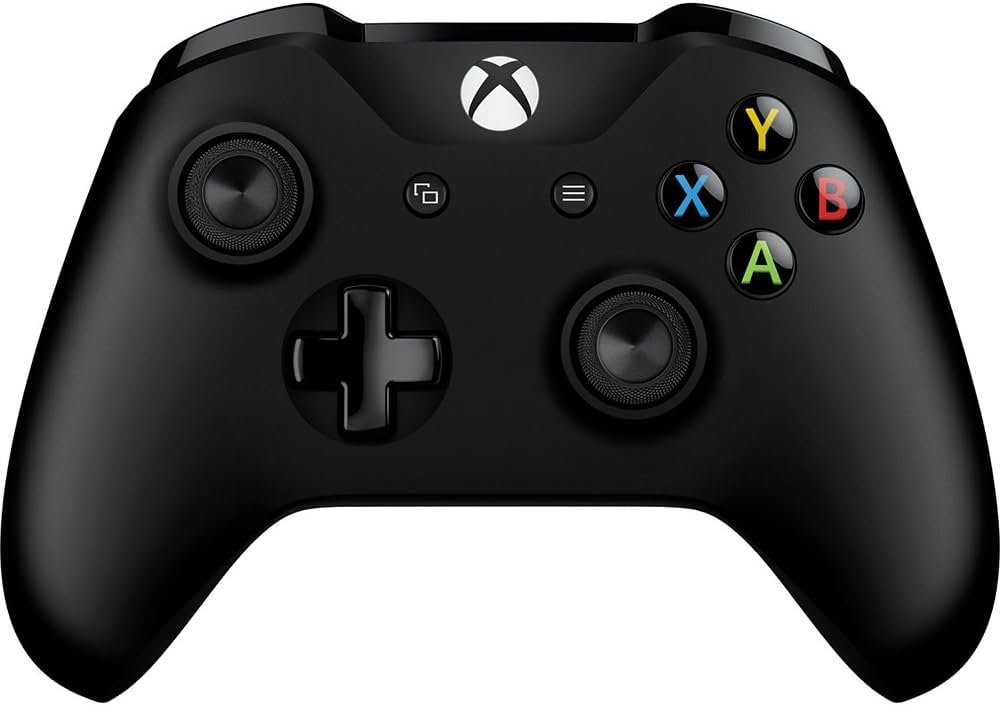
Xbox controller wireless connections utilize Bluetooth or Xbox Wireless protocols for pairing with consoles and other devices.
Ever get tangled up in controller cords during an intense gaming session? Many people enjoy the freedom that an Xbox controller wireless setup provides. This freedom lets you move around without being tethered to the console or PC.
These controllers offer simple pairing options. They quickly connect so you can get right back to playing your favourite games, offering a practical solution. They provide gaming without the restrictions of wires.

Xbox Controller Wireless: Freedom to Play
Have you ever been tangled in a web of wires while trying to play your favorite Xbox game? It’s not fun, right? That’s where the magic of an Xbox controller wireless connection comes in. No more tripping over cords or accidentally yanking your console off the shelf! The ability to play wirelessly changes everything about how you enjoy video games. We’re going to dive deep into the world of the Xbox controller wireless, exploring everything from how it works to ways to keep it working well. Let’s get started!
How Does the Xbox Controller Wireless Connection Work?
Okay, let’s talk about the tech magic behind the wireless connection. It’s not actually magic, but it’s still pretty cool! Xbox controllers use something called “Xbox Wireless” technology. This isn’t the same as your home Wi-Fi. Instead, it’s a dedicated radio frequency that allows the controller to communicate directly with your Xbox console or a Windows PC. Think of it like a secret handshake that only your controller and console know.
Here’s a breakdown:
- Radio Waves: Your controller sends out tiny radio waves. These waves carry signals that tell the game what you’re doing – like pressing a button or moving a joystick.
- Xbox Console Receiver: Your Xbox console has a receiver that picks up these radio waves. It then translates those signals into actions within the game.
- Quick Communication: This whole process happens super fast! That’s why when you press a button, the action happens almost immediately on the screen. This quick connection is what makes playing games feel responsive and smooth.
The Xbox Wireless connection is very reliable, meaning it doesn’t lose connection often. It also doesn’t have much delay, called latency, so you won’t feel a delay between your actions and what happens in the game. This is crucial for games that require quick reactions.
Understanding the Range of Xbox Wireless
You can’t go too far with your wireless controller. Like how you can’t whisper a secret across a football field, the Xbox wireless connection has a range. This is typically about 15 to 20 feet, though things like thick walls or other electronics can sometimes shorten this distance. Think of the range like your house. If you stay in the same room, your controller will work great. But if you try to play from the basement while your console is on the second floor, you might have some issues.
Connecting Your Xbox Controller Wirelessly
So, how do you actually connect your Xbox controller wirelessly? It’s usually quite simple! Let’s look at the different ways:
Connecting to an Xbox Console
This is the most common way to use your wireless controller. Here’s how to do it:
- Turn on your Xbox: First, make sure your Xbox is on and ready to go.
- Turn on the Controller: Press the Xbox button on the controller. This is the big, glowing button in the middle.
- Sync Button: Look at both your controller and your console. You’ll find a small button on both, called the “Sync” button. It often looks like a small circle with some little lines next to it. On the console, the sync button is usually located near the power button or the disc drive slot. On the controller, the sync button is on the top side of the controller, near the USB port.
- Press the Sync Buttons: Press the sync button on the console, and then press the sync button on the controller. You usually have to press the console’s button first and within a short time press the button on the controller.
- Wait for Connection: The Xbox button on the controller will start blinking rapidly. When the blinking stops and the light stays solid, the controller is connected!
That’s it! Your controller is now wirelessly connected to your Xbox. You only need to do this the first time you connect. After the initial setup, it should connect automatically each time you turn on the controller and the console.
Connecting to a Windows PC
You can also use your Xbox controller on your Windows PC for playing computer games! There are two main ways to connect wirelessly.
Connecting Using Xbox Wireless Adapter
For the most reliable wireless connection on PC, you’ll want an Xbox Wireless Adapter for Windows. This is a small USB device you plug into your computer that enables your PC to talk to your Xbox controller. Here’s how it works:
- Plug in the Adapter: Insert the Xbox Wireless Adapter into a USB port on your PC.
- Install Drivers (If Necessary): Windows will usually automatically install the necessary drivers for the adapter. If not, you might have to get these from Microsoft’s website.
- Turn on your Controller: Press the Xbox button on your controller to turn it on.
- Sync Button: Press the sync button on the Xbox Wireless Adapter, then press the sync button on your controller.
- Connection: Wait for the Xbox button on your controller to stay solid, which means the controller and the adapter are connected.
Connecting Using Bluetooth
Some newer Xbox controllers have Bluetooth built in. This is another way to connect to a PC (or even some phones and tablets). Here’s how:
- Turn on Bluetooth on PC: Go to your PC’s settings and turn on Bluetooth.
- Put Controller in Pairing Mode: Turn on your controller by pressing the Xbox button. Then, press and hold the sync button for a few seconds until the Xbox button starts blinking faster. This puts the controller in pairing mode.
- Select the Controller: On your PC’s Bluetooth menu, look for your Xbox Wireless Controller and select it to pair.
- Connection: The Xbox button on your controller will go solid when the Bluetooth pairing is complete.
Bluetooth is usually a little easier to setup, but it might not be quite as stable or have as low a delay as the Xbox Wireless Adapter connection. But for most people playing on their PC, Bluetooth works great.
Troubleshooting Common Xbox Controller Wireless Problems
Even the best technology can have its hiccups sometimes. Here are some common problems you might run into with your Xbox controller wireless and how to fix them:
Controller Won’t Connect
If your controller isn’t connecting, here are a few things to try:
- Check Batteries: Make sure your controller has enough battery power. Try replacing the batteries or using a fully charged rechargeable pack.
- Restart: Sometimes turning everything off and on again can fix problems. Restart your Xbox console or your PC, and also turn off your controller. Then try connecting again.
- Move Closer: Make sure you’re within the recommended range of your console or PC. Move closer to see if the connection improves.
- Resync: Follow the steps for syncing your controller with the console or PC again.
- Interference: Other electronic devices can sometimes interfere with the wireless signal. Try moving other wireless devices away from your console and controller.
Controller Disconnects Frequently
If your controller keeps disconnecting during play, try these solutions:
- Batteries/Rechargeable Pack: Again, make sure your batteries or rechargeable pack has enough charge. Low power can cause unstable connections.
- Obstructions: Keep obstacles away from both the controller and the console. Things like furniture or thick walls can block the wireless signal.
- Update Controller Firmware: Outdated controller software can cause connection problems. Check for any controller updates through your Xbox console settings or PC settings.
- Wireless Interference: Sometimes a wireless signal is being interfered with by a different signal in the house, try turning off other wireless devices to see if they are interfering with the controller and console connection.
Controller Has Lag or Slow Response
If you’re noticing a delay between when you press a button and when the action happens on screen, it could be due to latency. Here’s what you can try:
- Move Closer: The closer you are to your console, the less likely you are to have lag.
- Check Wireless Interference: Reduce interference by moving other wireless devices.
- Switch Connection Method (PC): If you’re using a Bluetooth connection on PC, try using an Xbox Wireless Adapter instead. The adapter is designed for better performance.
- Close Background Apps: On PC, close any unnecessary programs that might be using up your computer’s processing power. This can improve the performance of your games and reduce lag.
Maintaining Your Xbox Controller Wireless Connection
Keeping your controller in good shape and maintained can help prevent connection issues, here are some tips:
Battery Care
- Use Good Batteries: If you use regular batteries, get good-quality ones that last longer.
- Rechargeable Packs: Rechargeable packs are a great investment. They save money and prevent interruptions in gameplay. Make sure to charge them fully before playing.
Proper Storage
When you’re not using your controller, store it in a safe place. Here’s a few pointers:
- Avoid Extreme Temperatures: Don’t leave your controller in hot or cold places for too long, because this can damage the batteries and other internal parts of the device.
- Keep It Clean: Wipe down your controller every so often to remove dirt and grime. Use a soft, slightly damp cloth.
Software Updates
Make sure you keep both your controller and your Xbox system updated. These updates often improve performance and fix any bugs that might cause connection problems.
By doing these things you can keep your controller in good working condition and ensure a solid connection.
Why Wireless is the Way to Go
Okay, so we’ve talked a lot about how wireless connections work, how to set them up, and how to troubleshoot issues. But why go wireless in the first place?
- Freedom: Wireless controllers let you play without the annoying tangle of wires. You can move around the room without being tethered to the console.
- Comfort: No wires means you can sit more comfortably, wherever you want.
- Cleanliness: Without wires, your play area looks cleaner and less cluttered.
- Safety: No tripping hazards! Wires can be a real problem, especially around kids and pets. Wireless controllers help prevent accidents.
The Xbox controller wireless technology is really great, its dependable and easy to use. It really makes your gaming experience so much more enjoyable. Now you can game with greater freedom and more comfort. It’s a step up from the days of wired controllers and the tech gets better every year.
Wireless technology for Xbox is here to stay, providing us with better and more dependable gaming experiences. It really changes how we interact with video games.
The BEST Xbox controller you’ll ever see
Final Thoughts
In short, the Xbox controller wireless option provides convenient gaming. It frees you from cables, offering mobility. Wireless connection works great with consoles and PC.
This added flexibility makes gaming more enjoyable. Many games benefit greatly with this freedom. Xbox controller wireless enhances overall experience with easy setup and reliable gameplay.

