
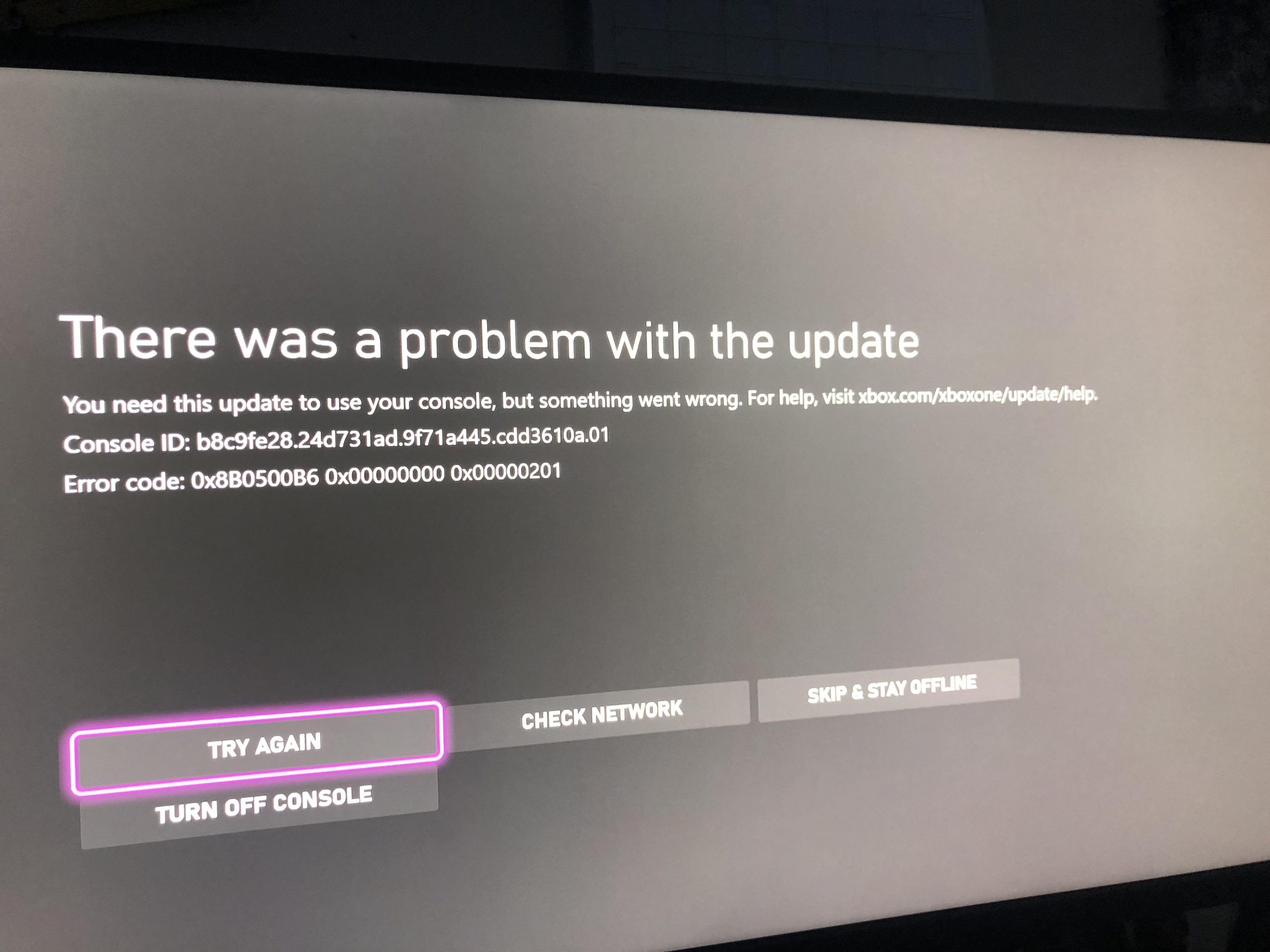
Xbox error code solutions typically involve troubleshooting steps such as restarting the console, checking network connections, and updating software.
Frustrating error messages interrupting your game? Nobody enjoys that, especially when you’re deep into an intense gaming session. Let’s dive into how to tackle those pesky glitches.
We’ll explore various common issues and provide some straightforward Xbox error code solutions. From connection hiccups to software snags, this will guide you.

Xbox Error Code Solutions
Let’s face it, seeing an error code pop up on your Xbox screen is never fun. It can stop you right in the middle of an epic game or prevent you from enjoying a movie night. These codes are basically your Xbox’s way of saying, “Hey, something’s not quite right!” But don’t worry, almost all of these issues have fixes, and we’re here to help you become an expert at dealing with them. In this guide, we’ll take a look at some common Xbox error codes, what they mean, and, most importantly, how to get your console running smoothly again.
Understanding Xbox Error Codes
Xbox error codes are usually a mix of numbers and letters. Each code tells you something different about the problem. Sometimes, the code might point to a simple issue, like needing to restart your console, while other times it might mean something more complicated, like a problem with your internet connection or even hardware. When you see an error, it is very useful to write it down or take a picture, so you can easily look it up for specific instructions. Knowing what kind of error it is will save you time and stress. Think of it like a secret language your Xbox speaks, and we’re going to learn how to translate it!
Categories of Error Codes
Error codes often fall into a few main categories. These categories help us narrow down where the problem might be.
- Network Errors: These errors happen when your Xbox can’t connect to the internet or to Xbox Live. Common codes might include anything that says “network” or has to do with a connection.
- Update Errors: These codes usually mean there’s a problem when trying to download or install a system update. They might show up during the process or after it fails.
- Game Errors: Sometimes, a game itself has an issue and causes an error. This could be due to a bad disc, corrupted game files, or a problem with game data on the Xbox or server.
- Hardware Errors: These are often more serious and might point to an issue with your Xbox console itself, like the hard drive or some other internal component.
- Account Errors: Problems related to your Xbox account are also another category of error codes. These might be related to your login, subscriptions, or family settings.
Common Xbox Error Codes and Their Solutions
Now let’s get to the nitty-gritty and explore some of the most common error codes that Xbox users run into and how to fix them. Remember, even if your exact code isn’t here, the tips and advice can still be helpful to understand similar errors. Many of the solutions involve basic troubleshooting steps that you can apply for various issues.
E100, E101, E102, E105, and E106 – System Update Errors
These errors pop up when your Xbox is having trouble updating the software. It’s like when your phone can’t download the newest update. Often, these are caused by a poor internet connection, problems with the Xbox servers, or even a full hard drive. Here’s how to approach these:
- Check Your Internet: First things first, make sure your internet is working properly. Try restarting your router and modem. Make sure your Xbox is connected via Wi-Fi or ethernet, and it can get a signal.
- Restart Your Xbox: Sometimes a simple restart is all it takes. Hold down the Xbox button on the console until it shuts off completely, wait a few seconds, and turn it back on. This is known as a hard reset, and you should do that.
- Check Xbox Status: Go to the official Xbox status page. If the Xbox servers are down, that’s likely the cause. In that case, the only thing to do is wait it out.
- Clear the Cache: Clearing the system cache can solve some update problems. Go to settings > system > storage > clear local saved games and follow the on-screen instructions.
- Manual Update: If all else fails, you can try a manual update by downloading the latest update from the Xbox website onto a USB drive and installing it from the drive.
- Factory Reset: As a last resort, consider a factory reset. Be aware that this will delete all your data, including games and settings. You will have to start the setup all over again.
0x80070005 – Access Denied
This code typically means the Xbox cannot access certain files. This can occur during game installations, updates, or even when launching a game. It’s often a permission issue and can sometimes be very frustrating.
- Restart Your Xbox: Again, this is a very common first step for solving this issue. It is similar to restarting your computer if it is not working properly.
- Check Your Storage: Make sure you have enough free space on your hard drive. if the space is full then you might see this kind of problem.
- Update the Game or App: If the error happens with a particular game or app, try checking for updates and installing them.
- Reinstall: If the error continues to occur even after updates, then uninstall the game or app that is throwing this error and then install it again from the Microsoft store.
0x8027025A – Installation Problem
This error code pops up when there are issues with installing a game or app on your Xbox. It can be related to storage, network connection or Xbox services issues.
- Check Your Internet Connection: Confirm that your network connection is stable. Sometimes it helps to restart your modem and router.
- Clear the Download Queue: Cancel the current downloads and try installing again, one item at a time.
- Free Up Storage Space: Make sure you have plenty of storage space available. If your hard drive is almost full, delete any games or apps you do not need.
- Restart Xbox: Similar to the above solution, restarting your console can also fix the 0x8027025A issue
- Try a Different Region: Some users have reported that changing the region can fix this issue. However, it might affect the content that you see on the store.
- Factory Reset: If none of the above solutions work, then you can consider a factory reset. Make sure to back up all your data before doing that.
0x800705B4 – Windows Update Error
This error is more common on Windows systems but can sometimes appear during an update for your Xbox operating system. This error is related to the update process itself and might be related to the downloaded files. Let’s see what you can do:
- Restart Xbox: This is the most common first step you should take if you see this error code.
- Check the Xbox Servers: Verify the status of the Xbox servers on the official website. If the servers are down, there’s not much you can do except wait.
- Check Your Internet: Verify that you have a stable internet connection. Try restarting your router and modem.
- Clear Update Files: In the settings, navigate to storage and then remove partially downloaded updates. After that, restart and try the update again.
- Manual Update: A manual update through a USB drive might also fix this issue, just make sure that you download the correct update version for your console.
- Factory Reset: If everything else fails, then consider the factory reset option as a last resort, but remember to make a backup of your important data first.
0x800704C6 – Login Error
This error generally occurs when there is some kind of problem with Xbox’s login servers or with the login credentials. If you see this code you should:
- Check Xbox Status: Check the Xbox services page to confirm that everything is working correctly.
- Check Your Account: Ensure that your Microsoft account email and password are correct. Try logging in on a computer to verify that you know the password.
- Restart your Xbox: Sometimes a simple console restart fixes the issue with the login servers.
- Remove and Add Your Account: Delete your account from the Xbox and add it back again. This will force the Xbox to download the account information again.
- Two-Factor Authentication: If you are using two-factor authentication make sure that you have the right app installed or you have the right phone number.
0x8027025A – App or Game Launch Error
This is a common error when the game or app is not launching properly. It usually happens when the game files are corrupted or something is wrong with the installation.
- Restart Your Xbox: Just like with the previous errors, you should always start with a simple restart of your console.
- Check for Updates: Sometimes there are updates that fix this issue. check to see if the game or app has any available updates.
- Check the Game Files: Some games allow you to check if there is any issue with the game files. The option is usually in the game settings or console settings.
- Reinstall the Game or App: You can uninstall the game or app and then install it again. This is a good option for fixing corrupted game or app files.
- Free Up Space: Make sure you have enough free storage on your console. Sometimes a full hard drive can cause this issue.
8015DC02 – Account Sign-in Error
This error code is a very common problem for most Xbox users. You might see this when there is an issue with Xbox services or with your Microsoft account. Let’s see how you can fix it:
- Check Xbox Status: Go to the official Xbox status page. If the Xbox servers are down, that’s likely the cause and the only thing you can do is wait it out.
- Verify Microsoft Account: Go to the Microsoft account page on a browser and confirm that your account is active. Check for any error messages or messages about any suspension.
- Remove and Re-add Your Account: Remove your account from the Xbox console and then add it back again. This might resolve the issue with corrupt account data.
- Restart Your Console: Try restarting your console, sometimes this simple step resolves the sign-in issues.
- Check Your Internet: Confirm that you have a stable and fast internet connection, sometimes an issue with your network can cause this error code.
Error 0x80a4001a – Xbox Network Connection Error
This error means there is a problem with the network. Usually, it can be related to the Xbox server issues or with your personal network.
- Check Xbox Service Status: The first step is to confirm that the Xbox services are online and available.
- Restart Your Router: Try restarting your router and modem, and then try the internet connection again.
- Use Wired Connection: If possible use a wired connection via Ethernet cable to test if it works. Sometimes Wi-Fi signal can be the cause of the issue.
- Check Xbox Network Settings: Check your Xbox settings to confirm that the correct network is selected and that your Xbox is getting the right IP address.
- DNS Settings: Try changing your DNS servers to Google or Cloudflare for better performance and try the connection again.
- Update Your Console: Ensure your Xbox has the latest system update installed. Sometimes new updates fix network issues.
Advanced Troubleshooting Steps
Sometimes, the simple fixes don’t cut it. If you’ve tried the above solutions and are still having problems, here are a few more advanced steps you can take. Remember to proceed carefully and make sure that you’re comfortable with the changes you’re making.
Port Forwarding
Port forwarding can sometimes help with network connection issues, especially if you are facing problems with party chat or online gaming. It involves opening specific ports on your router to allow your Xbox to communicate more effectively. Here’s how to do it:
- Find Your Xbox IP Address: Go to your Xbox network settings and write down the IPv4 address.
- Access Your Router Settings: Open a web browser on your computer and type in your router’s IP address (usually 192.168.1.1 or 192.168.0.1).
- Locate Port Forwarding: Look for a section called “Port Forwarding,” “NAT Forwarding,” or something similar.
- Add New Rules: Add new rules for the following Xbox Live ports, pointing to your Xbox’s IP address:
- Port 88 (UDP)
- Port 3074 (UDP and TCP)
- Port 53 (UDP and TCP)
- Port 80 (TCP)
- Port 500 (UDP)
- Port 3544 (UDP)
- Port 4500 (UDP)
- Save and Restart: Save your changes and restart your router.
Checking Your Internet Connection Speed
A slow internet connection can cause all sorts of issues. Here’s how to check your connection speed:
- Use Speed Test Websites: Use a site like Speedtest.net or Google’s speed test.
- Compare With Your Plan: Check if your download and upload speeds match your internet plan. If your speed is slower than what you’re paying for, contact your internet service provider.
Contacting Xbox Support
If none of the above solutions worked, it’s time to call in the experts. Here’s how to contact Xbox support:
- Xbox Website: Go to the official Xbox support website and search for your specific error code. They have a lot of very useful guides.
- Live Chat: Usually you can chat with a support agent on the Xbox support page and talk to them about your specific problem.
- Phone Support: Call their support phone line and speak to an agent directly for a guided solution.
Hardware Issues
Sometimes, the errors are caused by hardware issues. If you’ve tried all the troubleshooting tips and the error codes persist, it may be a sign of a bigger problem. In those situations, it is best to contact the Xbox support directly.
Error codes can be frustrating, but with a little patience and the right approach, most of them can be fixed at home. Don’t get discouraged when you run into a problem, take the time to understand the error, and try the appropriate solution. You’ll be back in the game in no time!
How To Fix Xbox Error E102! Xbox Error E102 Easy Fix!
Final Thoughts
We have explored different fixes for common Xbox problems. Many issues stem from network connectivity, software glitches, or hardware faults. Always check your internet connection and ensure the console’s system is up to date.
If basic troubleshooting fails, consider a full power cycle or factory reset. These actions can resolve persistent software conflicts. Remember to back up your game saves before resetting your console.
Ultimately, finding the best path often involves a bit of experimentation. Xbox error code solutions require patience and systematic investigation. Consistent monitoring of your setup aids in preventing future problems.

