
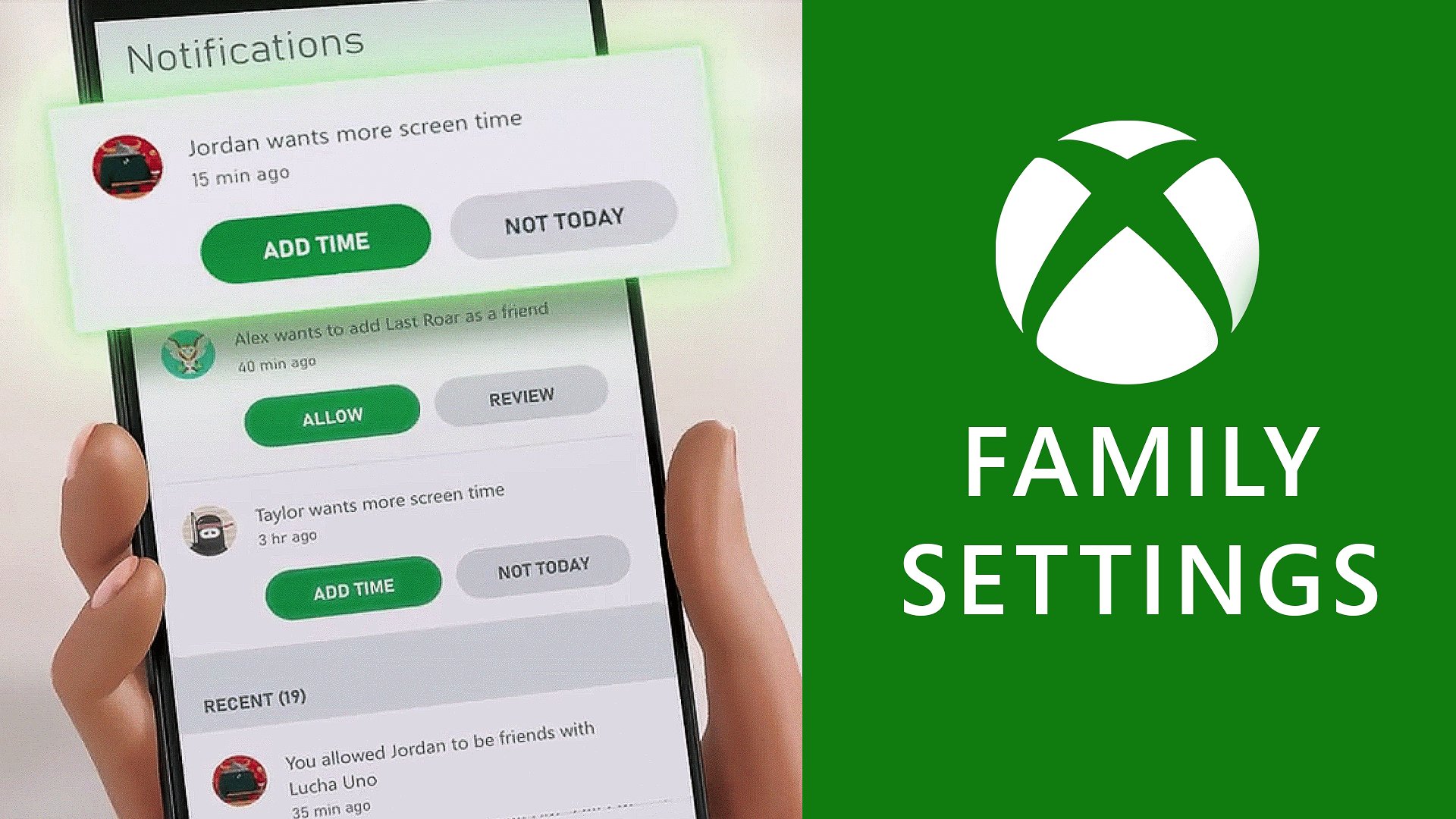
Xbox family settings allow parents to manage their children’s gaming activity, including screen time, communication, and content access.
Managing screen time for kids can be a real challenge, especially with the allure of video games. But, did you know that Xbox provides tools to help with that? Xbox family settings give parents the control they need to create a safer and healthier gaming environment.
These settings enable you to set limits on how long your child plays each day, what they can access, and who they can communicate with online. You can customize everything to suit your family’s specific needs. This helps maintain a balanced lifestyle.

Xbox Family Settings: Keeping Fun Safe for Everyone
Video games are super fun! They can let us explore amazing worlds, race cool cars, and even work together as a team. But like any activity, it’s important to play safely. That’s where Xbox family settings come in. They’re like special tools that parents can use to make sure their kids have a positive and secure gaming experience. Let’s dive into what these settings do and how you can use them to create the best gaming environment for your family.
Understanding the Basics of Xbox Family Settings
Think of Xbox family settings as a control panel for your child’s gaming world. They let you manage what your kids can see, who they can talk to, and how long they can play. These settings aren’t just about restricting things; they’re about guiding your children to use technology in a responsible and healthy way. You can access these settings through your Microsoft account, which is connected to your Xbox console.
What Can You Control With Family Settings?
- Screen Time: You can set limits on how much time your child spends playing games each day or each week. This can help make sure they’re getting enough time for school, homework, and other activities.
- Content Restrictions: You can control what kinds of games and apps your child can access, based on their age. This helps keep them away from content that isn’t suitable for them.
- Communication Limits: You can choose who your child can chat with online, or even turn off voice and text chat completely. This helps to protect them from talking to strangers.
- Purchase Controls: You can prevent your child from making purchases without your permission, so you don’t get any surprise bills.
Setting Up Family Settings: A Step-by-Step Guide
Setting up family settings might seem tricky, but it’s actually pretty simple. You’ll need to use a computer or smartphone to manage things through your Microsoft account. Here’s how you do it:
Creating a Child Account
- Go to the Microsoft website and sign in with your parent account.
- Look for the “Family” section, usually under your profile settings.
- Click on “Add a family member” and select “Create an account for a child.”
- Follow the prompts to create a new account, using your child’s information. Remember to enter their real birthdate, so age ratings work correctly.
Linking Your Child’s Account to Your Xbox
After setting up your child’s Microsoft account, make sure it’s linked to your Xbox console. This lets the family settings apply to their gameplay.
- Turn on your Xbox console and sign in with your parent account.
- Go to “Settings” and then “Account”.
- Select “Family settings” then “Manage family members.”
- Choose “Add to family” and follow the prompts to add your child’s account.
Configuring Content Restrictions
Now that your child’s account is set up, it’s time to fine-tune the content settings. Here’s how:
- Go back to the “Family” section on your Microsoft account online or in the Xbox Family Settings app.
- Select your child’s account.
- Go to “Content restrictions”. Here you can set age limits for games and apps. You can block specific games and apps that you don’t think are right for your child, even if they are within the age range.
- You can choose the maturity rating level for content. For example, you might select ‘E’ for ‘Everyone’ or ‘T’ for ‘Teen’ depending on your preferences.
- Consider turning on filters for content. These filters help block potentially offensive language or visuals.
Remember, every child is different. You know your child best, so choose the restrictions that feel right for your family.
Managing Screen Time
It’s important to balance screen time with other activities. Xbox family settings make it easy to set daily and weekly time limits. Here’s how to manage your child’s play time:
- In the “Family” section of your Microsoft account, select your child’s account.
- Go to the “Screen time” option.
- Here you can set specific hours when your child can use their Xbox, and you can also set time limits for each day of the week.
- You can also set different time limits for games and apps separately.
- There’s also the option to give your child extra screen time on special occasions or when they’ve earned it as a reward.
Be consistent with these limits, and talk to your child about why they are in place. This can help avoid conflict and make them understand the importance of balance.
Controlling Communication
Online communication can be great, but it also needs careful management. Xbox family settings let you choose who your child can talk to and how. Here are some options for communication controls:
- Friends Only: This setting only allows your child to chat with people they’ve added as friends. This can be a good option if you’re comfortable with their current list of friends.
- No One: You can turn off voice and text chat completely. This is a good option for younger children or if you are concerned about them interacting with strangers online.
- Allow: You can allow your child to chat with everyone. Be sure your child understands the potential dangers of online communication with strangers if you choose this option.
- Custom Settings: This option allows you to set up the communication settings individually and can let you control whether or not your child can communicate with other people in the same game or in a party.
Talk to your child about online safety and encourage them to tell you if anything makes them feel uncomfortable.
Managing Purchases
Nobody wants unexpected charges on their credit card! Xbox family settings let you control what your child can buy. Here are your options:
- Require Approval: You can get notified and approve all purchases your child makes before they can complete the transaction. This can be a good learning opportunity for kids about the value of money.
- Turn Off Purchases: You can choose not to allow any purchases on your child’s account, which is a good option if you don’t want them to buy things without your knowledge.
Beyond the Basic Settings: Tips and Tricks
Family settings can be very useful, and here are some more ways to get the most out of them.
Using the Xbox Family Settings App
Instead of managing everything online, you can use the Xbox Family Settings app on your smartphone. This app provides an easy way to check your child’s activity, adjust settings, and even give them extra screen time as a reward, on the go.
Regular Check-ins
It’s important to have regular check-ins with your child about their gaming. Here are some things to talk about:
- What games are they playing? This can help you understand their interests and ensure the games are appropriate.
- Who are they playing with? This helps you monitor their online interactions.
- How much time are they spending? Make sure they are getting enough sleep and have time for other activities.
- Are they seeing or hearing anything that makes them uncomfortable? It’s vital to create a safe space for them to talk about their experiences online.
Adjusting Settings as They Grow
As your child grows, their needs and maturity levels will change. You should regularly adjust your family settings. You might decide to increase screen time or loosen content restrictions as they get older. Make sure you talk to them about this and explain the reasoning behind your decisions.
Working Together
Family settings work best when they are part of a larger conversation about responsible tech use. Talk to your children about:
- Online safety: Discuss the dangers of interacting with strangers online and the importance of keeping personal information private.
- Digital citizenship: Teach them how to be kind and respectful online, just as they would be offline.
- Time management: Talk about the importance of balancing gaming with other activities.
- Financial responsibility: Educate them about the value of money and the consequences of impulsive purchases.
Dealing with Common Issues
Even with the best-laid plans, sometimes challenges can arise. Let’s look at some common issues and how to deal with them:
My Child is Upset About Screen Time Limits
It’s normal for kids to be upset when their screen time is limited. Here are some ways to approach this:
- Explain the reasons: Don’t just say “because I said so.” Talk to your child about why you’re setting limits and how they’ll help them in the long run.
- Involve them in the process: Let them help choose the time slots or days when they can play. This makes them feel more in control.
- Offer alternatives: Suggest other fun activities they can do when they’re not playing video games, like spending time with family or doing some creative activity.
My Child is Trying to Bypass Settings
Sometimes, kids can try to find ways around family settings. Here’s what you can do:
- Stay calm: Avoid getting angry. Talk to your child about why it’s important to follow the rules you’ve set.
- Talk it through: Discuss the situation with your child, and try to understand why they’re trying to bypass settings.
- Adjust the settings: If they’re finding ways around the settings, it’s possible the rules aren’t working for them. See if there are other ways you can adjust the settings to make them suitable.
- Strengthen account security: Make sure your accounts are password-protected and that your kids don’t have access to your login details.
I Can’t Access the Family Settings
If you are struggling to access your family settings, here are the steps you can try:
- Check your internet connection: Make sure you’re connected to the internet if you are using a mobile phone or computer to access the settings.
- Restart your devices: If it’s a glitch you are experiencing, restarting your devices might help.
- Verify your account: Make sure you are signed in to the correct account and that your child’s account is also associated with your parent account.
- Contact support: If all else fails, reach out to Microsoft customer support, as they have trained professionals who can help you through this.
Using Xbox Family Settings: A Summary
Xbox family settings are a fantastic tool for helping your kids have fun while staying safe online. They allow parents to manage playtime, restrict unsuitable content, and control who children can talk to. Remember to stay involved, talk to your kids about their gaming habits, and adjust settings as needed. You’re not just setting rules; you’re also teaching them about responsible technology use. This can help them become great digital citizens.
By setting clear boundaries and having open communication, you can make video games a fun and positive part of your family’s life. The key is to be proactive, involved, and willing to adjust as your child grows and their needs change. Remember, it’s not about limiting fun, but about guiding your children towards a safe and enjoyable gaming experience.
How the Xbox Family Settings App Works
Final Thoughts
Xbox family settings provide powerful tools for managing your children’s gaming experience. Parents can easily control screen time and access to content. These settings help create a safer and more balanced digital life for kids.
You can monitor online interactions and purchases. Xbox family settings let you customize limits to suit each child’s needs. This approach is vital for family harmony.

