
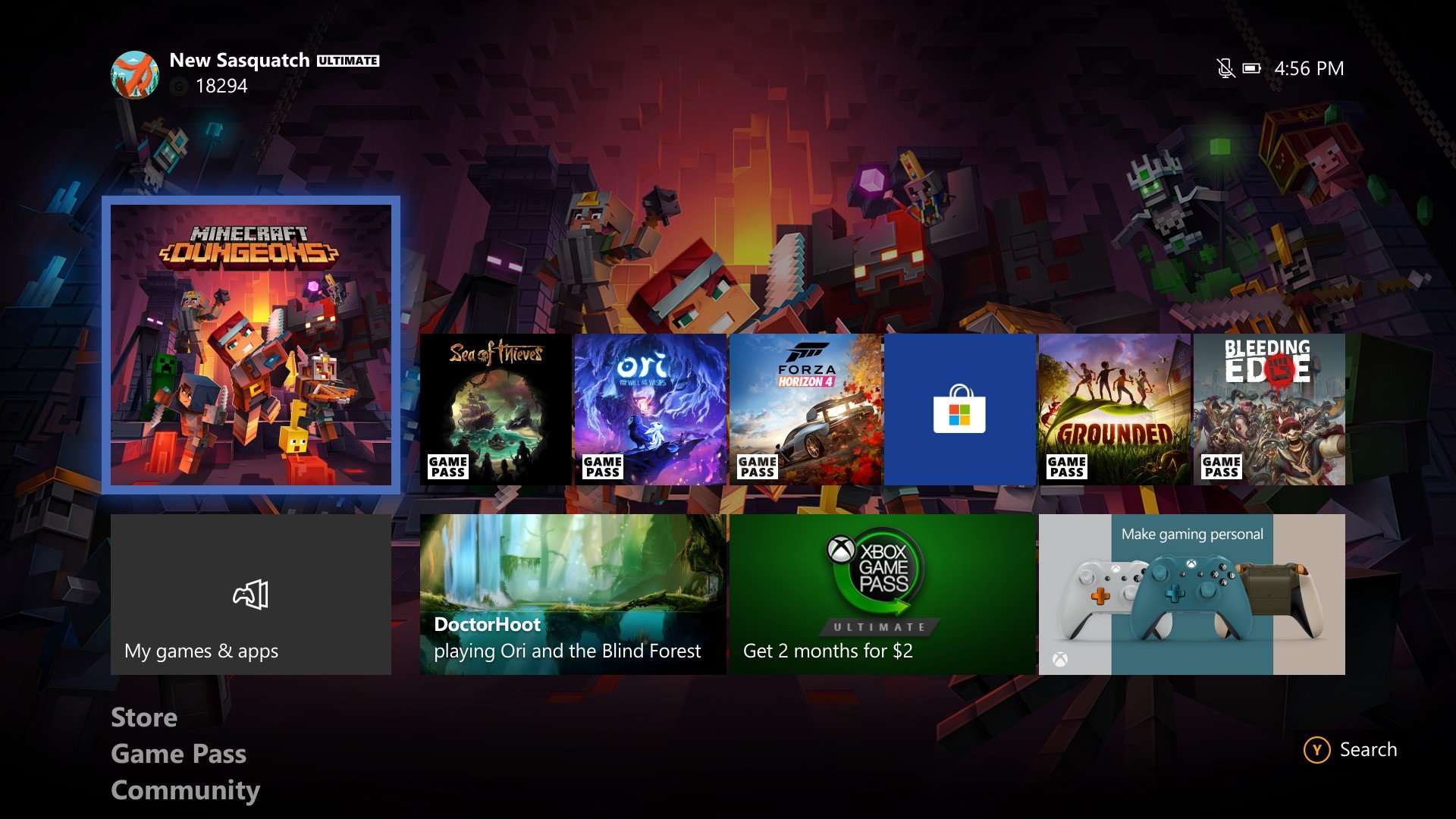
Managing your Xbox game library involves actions like installing, uninstalling, and organizing your games using filters and collections.
Juggling a growing collection of Xbox games can feel overwhelming, right? It’s easy to lose track of what you own, what you’ve played, and what you want to try next. Xbox game library management is essential for keeping things tidy.
We’ll explore the best ways to navigate your game list, find those hidden gems, and quickly access your favorite titles. A well-organized library improves your gaming experience.

Xbox Game Library Management
Having a huge collection of Xbox games is awesome! But sometimes, it can feel a little messy, like trying to find your favorite toy in a giant toy box. That’s where good Xbox game library management comes in. It’s like having a super organized playroom for all your digital games. Let’s explore how to keep your Xbox game collection tidy and easy to navigate.
Why Bother Organizing Your Xbox Games?
You might be thinking, “Why do I need to organize? I can just scroll through all my games!” And, yes, you can do that. But imagine trying to find that one game you really want to play when you have hundreds to look through. It can be a pain! Organizing your games helps you:
- Find Games Faster: No more endless scrolling. Locate the games you want to play quickly.
- Keep Track of What You Own: See all the games you have, and which ones you haven’t played yet or finished.
- Plan Your Playtime: Decide what to play next based on your game library.
- Reduce Confusion: No more accidentally buying games you already own.
- Make Your Xbox Experience More Enjoyable: It’s just nicer to have everything neat and tidy!
Understanding Your Xbox Game Library
Before we start organizing, let’s make sure we know where our games are kept on the Xbox. Your game library is where all your downloaded games and disc-based games live. You can access it from your Xbox dashboard. It’s like a big book where each game has its own page. You can see all the games you own and the games that you have access to via Xbox Game Pass and EA Play.
Navigating Your Library
Here’s how to find your game library on your Xbox:
- Turn on your Xbox console.
- Press the Xbox button on your controller to open the guide.
- Navigate to “My games & apps.”
- Select “See all.”
- You’ll see two main sections: “Games” and “Apps”. We’re focusing on the “Games” section.
Inside the “Games” section, you’ll see a list or grid of all your games. You can scroll through these and select a game to play.
Methods for Managing Your Xbox Games
Okay, so now you know where your games are. Now let’s talk about ways to make your library even better.
Using Groups to Organize Your Games
One of the most useful features for organizing your Xbox games is using “Groups.” Groups are like folders where you can put games of a similar type. This way, you can see your favorites, games you want to play later, or games for multiplayer sessions all in one place.
Creating a Group
Here is how you create a group of games:
- Go to “My games & apps” and select “See all.”
- Highlight a game you want to add to a group.
- Press the “Menu” button on your controller (the one with three lines).
- Select “Add to a group.”
- You can then select an existing group or create a new one.
- If creating a new group, give it a name like “Favorites,” “Multiplayer,” or “To Play Later.”
Tips for Grouping Your Games
Here are some ideas to get the most from creating groups:
- Favorites: Place the games you love the most in this group for quick access.
- Multiplayer: Keep all your games that you play online with friends in one place.
- Games To Finish: Track games you want to go back to and finish.
- New Games: Store the new games you have so you can try them out when you want.
- Genre Based: Group by genres like Action, RPG, Sports, etc.
- Family Games: For games that kids and the whole family can enjoy.
- Game Pass Games: A group dedicated to Xbox Game Pass titles for easy browsing.
Modifying or Deleting Groups
You are not stuck with the groups you make. You can add games, take away games, rename groups, and even delete them.
To edit a group, select it and press the “Menu” button. You will see the options to rename, delete, or add more games. Deleting a group won’t delete the games from your library, it just removes the group.
Utilizing the Xbox App (Mobile and PC)
Did you know you can manage your Xbox game library from your phone or computer? The Xbox app is a free tool that allows you to see your library, create groups, and even download games remotely. This is useful when you want to start a download while you’re away from your Xbox.
Using the Xbox Mobile App
The Xbox mobile app is available for both Android and iOS. Here is how you can use it:
- Download and install the Xbox app from your phone’s app store.
- Sign in with your Microsoft account that is connected to your Xbox.
- Go to the “Library” section. You can view your library of games here.
- You can add games to groups, create new groups, and manage downloads using this app.
Using the Xbox App for Windows PC
If you play games on PC you might already know that Xbox is also available on Windows PC. The Xbox app is a tool for managing games on the PC, but it can also help you manage your games on the console. The PC app works much like the mobile app. Here is how you use it:
- Download and install the Xbox app from the Microsoft Store.
- Sign in with your Microsoft account that is connected to your Xbox.
- Go to the “Library” section. You can view your library of games here.
- You can add games to groups, create new groups, and manage downloads using this app.
Sorting Your Library
Sorting is another good way to see your games differently. On your console you can sort the list by:
- A-Z: Sort games alphabetically by title.
- Last Used: Sort games by which you last played.
- Install Size: See which games take up the most storage space.
Sorting can help you find games in different ways than just using groups.
Hiding Games
Sometimes you have demos, beta games, or old games you don’t really want in your library. The good news is, you can hide them. Hiding games removes them from your main library list. It will make it less messy and easier to find games you actually want to play. Here’s how to do it:
- Go to “My games & apps” and select “See all.”
- Highlight the game you want to hide.
- Press the “Menu” button on your controller.
- Select “Hide” from the options.
If you ever want to see hidden games again, there is a place to do it:
- Go to “My games & apps” and select “See all.”
- Filter the list by selecting the “Hidden games” filter.
From the list of hidden games you can unhide them when you want.
Freeing Up Storage Space
As you add more games to your library, your Xbox storage can get full. Managing your storage space is a part of managing your library because it lets you install and play the games you want. You can:
- Uninstall Games: Uninstall games you are not actively playing. You can always download them again later.
- Use an External Hard Drive: Plug in an external USB drive and move games to it.
- Move Games Between Internal/External Storage: When your external drive is connected, you can move games between the storage devices to help manage space.
Xbox Game Pass and EA Play
If you subscribe to Xbox Game Pass or EA Play, these games will also appear in your library. You can manage them as well like your regular games. Keep in mind, though, that if you cancel your subscription, you will no longer be able to access those games unless you purchase them individually. The Xbox app can also show which games are leaving soon from the services.
Tips for a Smooth Experience
Here are a few extra tips to keep your game library running smoothly:
- Regularly Update Your Console: Keep your Xbox software updated for better performance.
- Check for Updates for Games: Make sure your games are updated for best performance.
- Restart Your Console: Sometimes restarting your console can help if you have issues.
- Delete old data: Clear out old saved data if you need to free up space, but be careful doing this.
Managing your Xbox game library might seem like a small thing, but it can have a big impact on your enjoyment. Taking a little time to organize your games will make gaming so much better.
By using these tricks, you’ll always be able to find that perfect game whenever you want to play. With the tips we have looked at here you’ll be set up for a great gaming experience. Enjoy your organized games!
Microsoft Shutting Down Xbox in 2027?!
Final Thoughts
Effectively managing your Xbox game library involves sorting, filtering, and utilizing groups for better organization. This helps you easily find titles you want to play. Proper library curation reduces clutter.
Quick navigation is key, allowing you to access your favorites faster. Knowing how to utilize folders and custom groupings significantly improves the overall experience. Xbox game library management becomes effortless with practice.

