
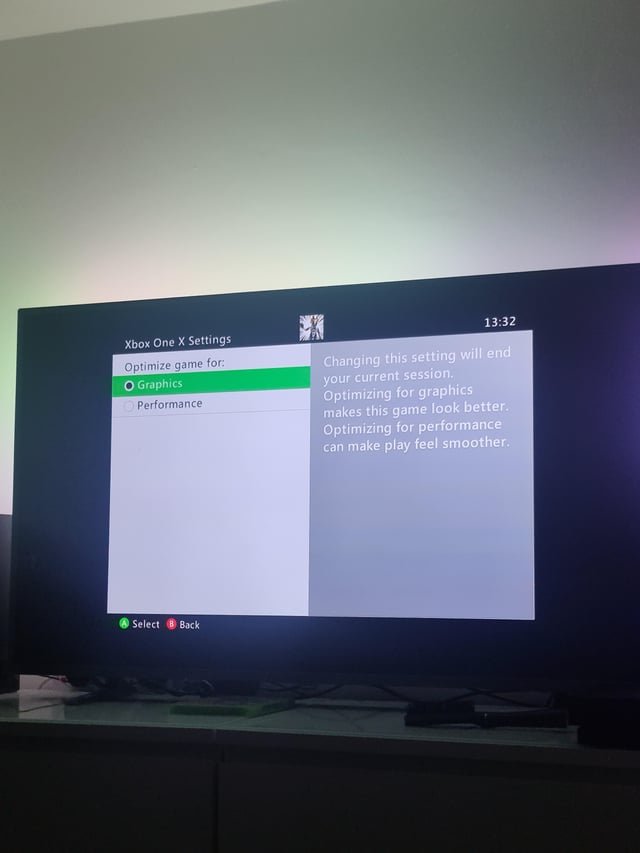
Xbox game settings optimization involves adjusting graphics, performance, and accessibility options within a game to achieve the best balance of visual quality and smooth gameplay on your console.
Struggling to get your Xbox games running just right? Many players experience issues with performance or graphics. The right Xbox game settings optimization makes all the difference. It can provide a better gaming experience. Finding those ideal settings does not have to be difficult. We’ll help guide you through common adjustments to get the most out of your games.

Xbox Game Settings Optimization
Okay, so you’ve got your Xbox, you’re ready to play, but sometimes things just don’t feel quite right. Maybe the game looks a little fuzzy, or maybe it’s not running as smoothly as it should. That’s where tweaking your Xbox game settings comes in! It’s like giving your games a little tune-up to make them play and look their very best. And guess what? It’s not as complicated as it sounds. Let’s explore how to get your Xbox games playing like a dream.
Understanding Display Settings
First things first, let’s talk about how your game looks on your TV or monitor. This is all about the display settings. Making sure these are set correctly can make a HUGE difference. It’s like making sure your glasses are clean before you try to read a book – you wouldn’t want blurry words, right?
Resolution: The Sharpness of the Picture
Resolution is like the number of tiny dots that make up the picture on your screen. The more dots, the clearer the picture. You’ll often see resolution described with numbers like 720p, 1080p, 1440p and 4K. Here’s a quick breakdown:
- 720p: This is an older, lower resolution. It’s not as sharp as the others and you might see some fuzziness on bigger TVs.
- 1080p (Full HD): This is the most common resolution, and it looks great on most TVs. It’s a good balance between sharpness and performance.
- 1440p (QHD/2K): This is sharper than 1080p, offering more detail. It is a nice middle ground for people who have high quality monitors or TV’s that are capable.
- 4K (Ultra HD): This is the sharpest resolution. If your TV and Xbox support it, games can look incredibly detailed. Be aware that it can sometimes put more strain on your Xbox.
How to Adjust: Go to your Xbox Settings, find “General,” then “TV & Display options.” You’ll see a dropdown menu under “Resolution” where you can pick the best option for your TV or monitor. Start with the highest resolution your TV supports and then come down to a lower resolution if you notice lagging or gameplay issues.
Refresh Rate: How Smooth the Picture Moves
The refresh rate is how many times your screen redraws the image each second, measured in Hertz (Hz). The higher the refresh rate, the smoother movement will appear. Common refresh rates are 60Hz and 120Hz.
- 60Hz: This is pretty standard and works great for most games.
- 120Hz: This is a higher refresh rate and offers smoother motion, which is perfect for fast-paced action games or shooters.
How to Adjust: In the same “TV & Display options” menu, look for a “Refresh Rate” setting. Choose the highest refresh rate your TV or monitor supports, if your display and Xbox both support it.
Color Depth & Color Space
These settings determine how many different colors your TV can display. Most of the time, the default settings are good, but sometimes tweaking them can improve the vibrancy and accuracy of the colors. Look for settings related to “color depth” and “color space”. Most TV’s and monitors are fine on the defaults, but if you notice color banding, or washed out color, playing with these settings is recommended.
Game-Specific Settings
Now, let’s dive into the settings within individual games. Each game has its own options to control how it looks and plays. These options can vary wildly from game to game, so let’s talk about some common ones and why they matter.
Graphics Quality
Many games offer settings for graphics quality, often with options like “Low,” “Medium,” “High,” and “Ultra.” These determine how much detail the game shows. For example, on higher settings, you might see more complex shadows and reflections, or the level of detail visible far in the distance might be greater. High quality settings can look stunning, but they can also put more strain on your Xbox and potentially make the game run slower.
How to adjust: When you’re in a game, look for a “Settings” or “Options” menu. Often, there will be a “Graphics” section where you can adjust these settings. If a game is choppy or slow, try turning the quality down a notch or two to see if that helps. The best approach is to start at “High” or “Ultra”, and if the game does not perform well, scale it back till you have good performance.
Motion Blur
Motion blur is a visual effect that makes things appear blurry when they move fast. Some people like it, because they feel it makes the game look smoother, and feel like there is more realistic movement, while others find it distracting. If the game feels like it is blurring a lot when there is quick movement on the screen, you may consider disabling it.
How to adjust: You’ll often find a “Motion Blur” option within the game’s graphic settings. You can toggle it on or off to see which you prefer.
Field of View (FOV)
Field of view is how much of the game world you can see at once. A wider FOV means you can see more, which some players like because it can make them feel more aware of their surroundings. Others may find it distorting, so they like it narrower. However, setting the FOV to high, can impact performance, especially in older or less optimized games.
How to adjust: Look for a “Field of View” or “FOV” setting in the game’s display or graphics options. Adjust it to find a comfortable level that works well for the game you are playing.
V-Sync (Vertical Sync)
V-Sync can help prevent “screen tearing,” which happens when the top and bottom parts of the screen don’t line up properly. This is often seen when moving quickly in games and can sometimes cause visible lines to appear in the screen. Turning V-Sync on helps to align the images to the refresh rate of the monitor, making the game appear smoother. However, V-Sync can sometimes cause input lag (where it takes longer for your actions on the controller to show up on the screen). Consider turning this on, if you notice screen tearing issues, and if you are not experiencing input lag.
How to adjust: You’ll usually find V-Sync in the graphics settings. Try toggling it on or off to see if it helps and if you don’t see input lag issues.
HDR (High Dynamic Range)
HDR is a feature that allows for a wider range of colors and brightness, making the game’s visuals more vibrant and realistic if your display supports it. Make sure HDR is turned on both on your console and your TV. This setting is more visual than performance based, but HDR being on will put some extra load on the graphics processor, and if the game already has performance issues, consider turning it off.
How to Adjust: Enable HDR in your Xbox’s TV and display settings. You may also need to enable it within some games’ graphics options. It is also worth noting that some games may not perform well with HDR, in this case it is best to keep HDR disabled when playing them.
Performance Settings
Beyond display, there are settings to help your Xbox perform at its best. These settings help the game run smoothly and consistently, without slowdowns.
Frame Rate
The frame rate is how many images the game shows per second, measured in frames per second (FPS). A higher frame rate means the game looks smoother and more responsive. A lower frame rate can look choppy. Some games will offer performance modes that prioritize higher frame rate (like 60 FPS or 120 FPS), while others may have a quality mode that offers better visual quality. If your game is feeling slow, consider selecting the performance mode.
- 30 FPS: This is playable, but it may appear less smooth.
- 60 FPS: This is very smooth and feels much more responsive for most players.
- 120 FPS: Very smooth, and offers a very responsive experience, but requires an Xbox that supports this frame rate, and a display that can display it.
Reducing Input Lag
Input lag is the delay between when you press a button on your controller and when you see the action happen on screen. It can make games feel less responsive and make it harder to play accurately. For the most responsive experience possible, try these tips
- Try a wired controller. Sometimes, wireless controllers can have a tiny bit of extra delay.
- Enable game mode on your TV. TVs can sometimes do extra processing which can delay the image reaching the screen. Game mode turns off most of these features, reducing input lag.
- Turn off any extra post processing on your TV like dynamic contrast, noise reduction, and so on.
- Disable V-Sync on the game and/or console if you are not experiencing screen tearing issues. V-Sync can increase input lag.
Accessibility Settings
Accessibility settings help you customize your gaming experience to meet your specific needs. These settings can help make your games easier to see, hear, and play. Even if you don’t have accessibility needs, playing around with these settings can sometimes enhance the way you play.
Subtitle Settings
Most games offer subtitle options. You can change the text size, font style, color, and even add a background for better readability. This can be helpful if you need to read what the characters are saying.
How to adjust: Look for “Subtitles” or “Accessibility” in your game or Xbox settings.
Audio Settings
You can adjust the volumes of different sounds in the game, like music, character voices, and sound effects. This can help you hear what you need to hear more clearly. If you have trouble with music being too loud, or your character’s dialog being too quiet, adjusting these settings is highly recommended.
How to adjust: Go to your game or console settings, and adjust the audio levels for different components of the game.
Controller Customization
The Xbox has various controller customization options. You can rebind the buttons on your controller to whatever is more comfortable. Some games also have their own specific controller remapping options.
How to adjust: You can do this in the Xbox settings under “Accessibility,” then “Controller,” or within individual games’ options.
Color Blindness Options
If you have trouble distinguishing certain colors, some games offer colorblindness settings, making it easier to see important elements on the screen. These settings can alter the color palette to make the game accessible to colorblind individuals. It’s also beneficial for anyone who is struggling to see, or distinguish the colors.
How to Adjust: Look for settings such as “Colorblind Mode” or similar within the game’s accessibility or graphics menu.
Tips for Getting the Best Settings
Now that we know what all the options do, here are some tips on how to get things just right:
- Start with defaults: Many games come with pretty good default settings. If you’re not sure where to start, just begin with those.
- Adjust one at a time: Don’t change a bunch of settings at once. Change one thing, play for a bit, and see how it feels before changing something else.
- Experiment: Don’t be afraid to try things out! You might find that something you thought you wouldn’t like actually improves your experience.
- Read the descriptions: Many settings have a short description. Take the time to read them so you understand what they do.
- Consult the game’s community: Sometimes other players have found the optimal settings for a particular game. See what others are using. Check online forums or youtube videos for this information.
- Keep your Xbox updated: Make sure your Xbox software is up to date. This will help your system run smoothly and ensure it’s getting the latest updates and features.
- Test each setting, don’t assume: Don’t assume that higher settings will always be better. Sometimes a lower setting might give you better performance with no major visual drop. It is worth trying each setting in the same game.
By taking the time to adjust your game and system settings you will have an enjoyable and smooth gaming experience. The more familiar you get with the different options and what they do, the easier it will be to fine-tune your games to perfection.
Here's How To Get The Best Settings On Your #Xbox
Final Thoughts
Fine-tuning your Xbox game settings greatly improves the gaming experience. Adjusting visual options, like resolution and frame rate, can lead to smoother gameplay. It also reduces input lag for better response times.
Sound settings adjustments are crucial too. Optimize audio output for clear positional audio which helps in competitive play. Proper Xbox game settings optimization is key for maximum enjoyment.

