
Xbox game sharing options let you share digital games with one designated friend or family member on their Xbox console.
Have you ever wished your friend could play that new game you just bought? Well, the good news is that with Xbox game sharing options, it’s actually possible! You can share your digital library with someone else without needing to physically swap discs.
This feature allows you to designate another console as your ‘home’ Xbox. This means that anyone who signs in to that console can play your games and even access your Xbox Live Gold subscription benefits. This clever setup maximizes your purchase and lets more people enjoy great games.

Xbox Game Sharing Options
Sharing is caring, right? And when it comes to video games, sharing can mean playing awesome games with your friends and family without having to buy multiple copies. The Xbox system offers some cool ways to share your games, and we’re going to dive into all the details. We’ll talk about how it works, what you need to know, and answer some questions you might have along the way.
What is Xbox Game Sharing?
Basically, Xbox game sharing is like lending a book to a friend, but instead of a book, it’s a digital game. It allows you to share your purchased digital games and Xbox Game Pass subscription with another person, usually someone in your household. This means both of you can enjoy the same games, without paying for them twice. It’s a great way to save money and get more value out of your Xbox.
How Does it Work? The Home Xbox Setting
The magic behind Xbox game sharing happens through a setting called “Home Xbox.” Every Xbox console can have one “Home Xbox” assigned to it. When you set a console as your “Home Xbox,” anyone who signs in on that console can play the games in your digital library, even if they are using their own Xbox account. Think of your “Home Xbox” as your main console for the whole family, and your other Xbox as your personal console.
Let’s break it down:
- Your Account: This is your personal Xbox account where you buy your games and Xbox Game Pass.
- Your “Home Xbox”: This is a console where you sign in with your account and designate it as your “Home Xbox.”
- The Other Person’s Account: This is the account of the person you’re sharing with. They don’t need to buy the game; they simply play it on your “Home Xbox.”
- Your Personal Xbox: You can still play your games on another Xbox, but you’ll need to be signed in to your account. It’s like keeping the book with you when you’re not at home.
Setting Your Home Xbox
To start sharing games, you have to first set your chosen console as your home console. Here’s how:
- Sign In: On the Xbox you want to be your Home Xbox, sign in to your account. This is the account with the games you want to share.
- Go to Settings: Press the Xbox button to open the guide, go to “Profile & system,” select “Settings.”
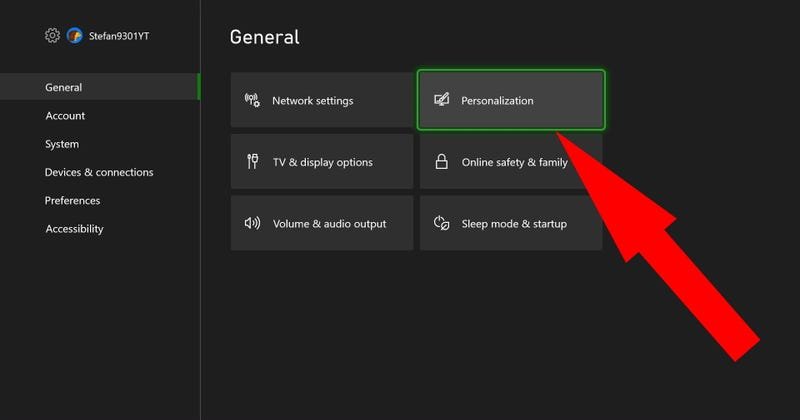
- Navigate to General: Choose “General,” then “Personalization.”
- Select My Home Xbox: Click on “My home Xbox.”
- Make This My Home Xbox: If it’s not set, choose “Make this my home Xbox.” If another console is set, it will tell you, and you can change it if needed.
That’s it! Your “Home Xbox” is set up and ready for game sharing. Remember, you can only have one “Home Xbox” at a time. If you change it, the previous “Home Xbox” will no longer have access to your games unless the account owner is signed in on it.
Who Can Benefit from Game Sharing?
Xbox game sharing is awesome for a few groups of people:
Families
Families with multiple gamers under one roof are the primary beneficiaries of game sharing. Instead of buying multiple copies of the same game, you can buy one digital copy and everyone in the family can play on their own accounts and their own consoles. Let’s say you have a console in the living room that everyone uses, and you also have your own Xbox in your room. By designating the living room console as your ‘Home Xbox’, your family members can play all of your purchased digital games on the living room console, while you can play the same games on your personal console. Similarly, if you are using Game Pass, they can also play the titles from Game Pass too. This is great for saving money.
For example:
- Mom, Dad, and the kids can all play the latest sports game without purchasing multiple copies.
- Siblings can enjoy the same co-op games together, even if they have their own separate consoles.
- One person can get the Xbox Game Pass, and the whole family can enjoy the games in its library.
Friends Sharing Accounts
While not the main intention of the feature, some friends sometimes share their account with each other. This is not something that is explicitly encouraged by Xbox, but the console allows this to happen. This approach has its own risks. Keep in mind, you are essentially giving another person full access to all of your purchased content. If this friend damages your account, you might lose access to the content you purchased. Therefore, exercise caution while opting for this type of account sharing.
For instance, if you want to play games with a friend who lives nearby, one of you can buy a digital game, set the other’s console as your “Home Xbox,” and you can both play the game together. You can’t play on the same account at the same time, but this allows you both to save on costs, because you will only buy it once.
Understanding the Limitations of Game Sharing
While Xbox game sharing offers many benefits, there are certain limitations to be aware of.
Only One Home Xbox at a Time
As mentioned before, you can only have one “Home Xbox” linked to your account at a time. This means if you try to set a new “Home Xbox,” the previous one will lose access to your library, unless someone is signed in under your account. This can be changed as many times as you want, but there is a limit on how many times you can change it within a certain timeframe.
Playing on Your Personal Console
When you are not on your “Home Xbox,” you need to be signed into your account to play your purchased games. You can’t share your games on a second console that is not your “Home Xbox” unless your account is actively signed in. The game is not tied to the console, but it is tied to your account. However, this also means that anyone else can also play the games from your account if you sign in on their console.
Game Restrictions
Most digital games are shareable, but there might be a few exceptions depending on specific game licenses or conditions. Generally, anything you buy on the Microsoft Store and download is sharable, provided you follow the procedures mentioned above. It is not possible to share physical disk copies of games, since they are tied to the disc, not the account.
Multiple Accounts on the Home Xbox
Many different profiles can play your games on your “Home Xbox”. If you have a family of four that all have different Microsoft accounts, they can all play any of your shared digital games or Game Pass titles, which is useful. Every account has its own saves, trophies, achievements, etc. as the shared games appear in their own game library. This allows each person to have their own custom setup for every game.
Tips for Effective Xbox Game Sharing
Here are some tips to make your Xbox game sharing experience smoother:
Plan Before Setting a Home Xbox
Before you set a Home Xbox, talk to the people you want to share with. Decide which console will be the most convenient for everyone. Don’t just rush to set one console to be home. Make a proper plan before proceeding to change these settings.
Communicate Changes
If you decide to change your “Home Xbox,” let everyone you share with know beforehand. This way, nobody gets surprised by suddenly losing access to their favorite games. Keep everyone in the loop when you are changing things that impact them.
Double Check Settings
Always double-check your “Home Xbox” setting after making changes. Sometimes, we make changes quickly without realizing that we may have set things up incorrectly. Make sure to always double-check if everything has been done correctly.
Utilize Xbox Game Pass Sharing
Xbox Game Pass sharing is also a great way to share more games. If you have Xbox Game Pass Ultimate, everyone on your “Home Xbox” will also have access to all of the games included in the subscription.
Game Sharing and Xbox Game Pass
Sharing your Xbox Game Pass subscription is one of the best benefits of the Home Xbox feature. When you have an Xbox Game Pass subscription, particularly the Ultimate tier, all the games included in Game Pass can be shared with other people who play games on your home console. This includes hundreds of games. This means that you don’t need to buy each game individually, and your family or friend can also play these games without having their own Game Pass. This drastically reduces the overall cost of gaming.
Benefits of Game Pass Sharing
- Access to a Huge Library: Share the entire Game Pass library with your family or friends on your “Home Xbox”.
- Save Money: Only one Game Pass subscription is required for the whole household.
- Try New Games Together: Explore new games from Game Pass with others, without added costs.
Troubleshooting Common Issues
Sometimes things might not go as planned. Here are a few common problems and how to fix them:
Not Able to Play Games
If you can’t access your games on your console, double-check to make sure that the correct “Home Xbox” has been set up. Make sure your account is signed in if you are not using the “Home Xbox”. If the game is still not working, make sure you have a stable internet connection. Then, try restarting the Xbox console, which usually fixes the issue. If the issue persists, contact Xbox support.
Error Message About Sharing
If you’re seeing an error message about sharing, it might mean your “Home Xbox” setting needs to be changed or reset. Check the settings carefully to make sure everything is set up as intended. Try removing the “Home Xbox” setting, and setting it up again. Sometimes, this does the trick and the error message disappears. If the issue persists, contact Xbox support for more guidance.
Games Locked
If games are showing as locked, make sure you are either playing on the “Home Xbox” with other accounts, or make sure that your account is signed in, if you are not on your “Home Xbox”. If your account is signed in, try to re-download the game from the Microsoft store. If that doesn’t work, there may be an issue with your Microsoft account. Contact Microsoft support for further assistance.
Is Game Sharing Right for You?
Xbox game sharing is an incredibly useful and great way to save money and share your favorite games with family and friends. If you have multiple gamers in your household, or if you want to game share with a friend, then game sharing might be the perfect fit for you. Just keep the limitations in mind, plan ahead, and follow the steps outlined in this article and you will be sharing your games in no time!
Remember that you can use game sharing to give your family access to the full power of Game Pass, so you are not limited to just sharing digital game licenses. This can be incredibly useful if you are trying to stay within a tight budget.
If you find that game sharing does not work for you, remember that you can always change the “Home Xbox” setting. So you have nothing to lose if you decide to try out this feature of the Xbox ecosystem. The feature is designed to make sharing games easier for friends and family. Always keep your account secure, and make sure to not share your account passwords with anyone. The Home Xbox setting is more secure than sharing your account details with other people. So, always prefer to use this feature, instead of sharing account details.
By using the Home Xbox feature, you are guaranteed to get the most value out of your Xbox, by only buying games once, and sharing them with your loved ones.
How to Game Share on Xbox ~The Easy Way~
Final Thoughts
In short, Xbox game sharing options offer a fantastic way to enjoy titles with friends and family. You can designate a home console to share your digital game library. This allows others on that console to play your purchased games.
Furthermore, you can also share your games with a friend by logging into their console. This grants them access to your library while you aren’t actively using it there. Xbox game sharing options make gaming more affordable and convenient.

