
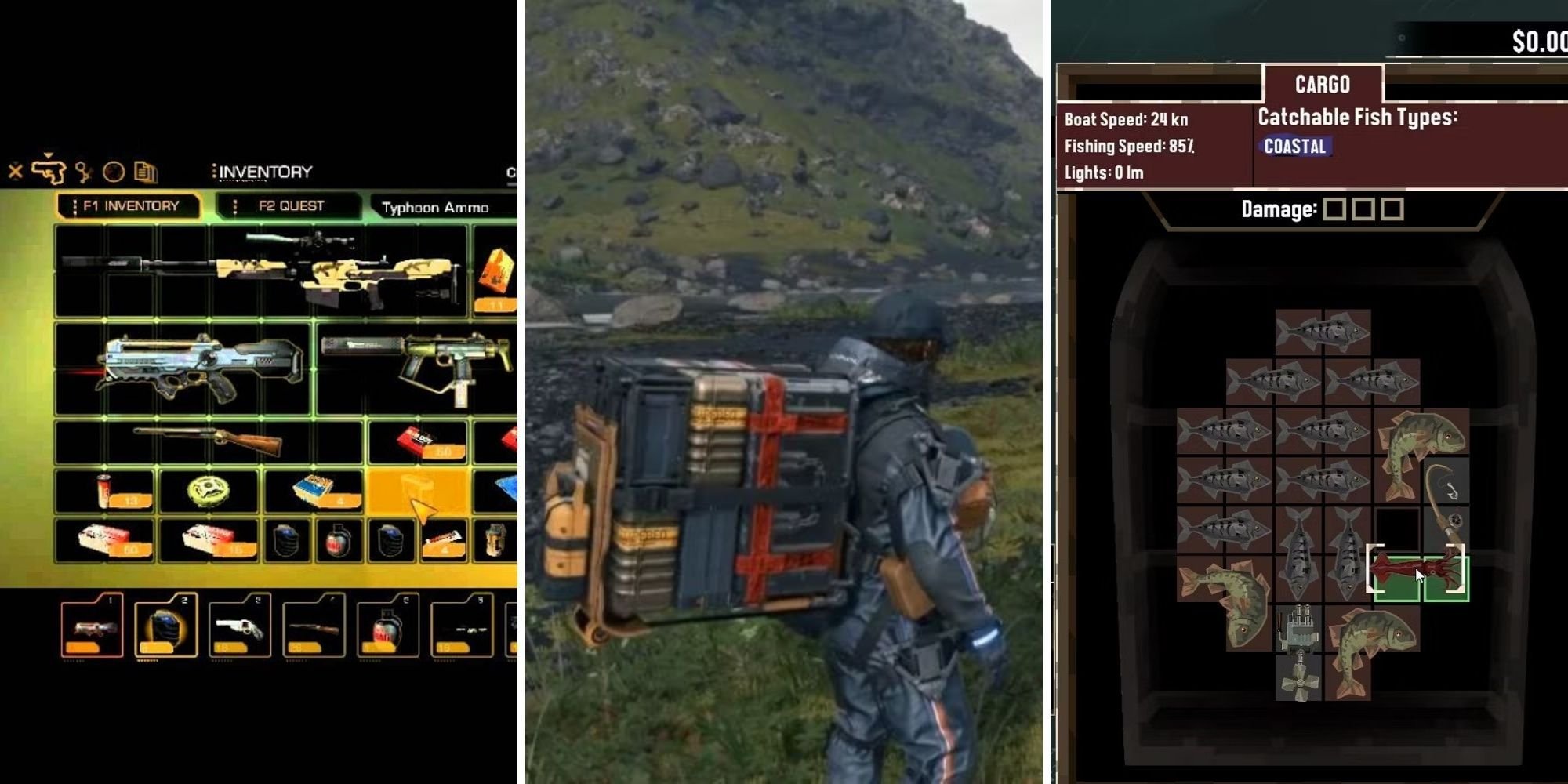
Xbox inventory management systems allow players to organize and access their in-game items efficiently.
Navigating the complex world of Xbox games often means accumulating a wide array of items. Managing these items effectively can make a difference between a frustrating experience and an enjoyable one. Therefore, understanding the different aspects of Xbox inventory management systems becomes vital for any gamer. Games implement various methods for sorting, storing, and retrieving collected loot. This article will give you a useful overview.

Xbox Inventory Management Systems
Have you ever felt like you’re drowning in a sea of digital games and add-ons on your Xbox? You’re not alone! Managing all that cool stuff, from games to DLC (downloadable content), can feel tricky. That’s where understanding Xbox inventory management systems becomes super helpful. It’s like having a tidy closet for your digital goodies, making it easier to find what you want and play what you love. Let’s explore how it all works.
Understanding Your Xbox Library
Think of your Xbox library as the main place where all your games hang out. It’s like the bookshelf of your digital gaming world. This is where you see all the games you own, whether you bought them from the Microsoft Store or got them through Xbox Game Pass. But it’s more than just a list. It’s also a starting point to manage your entire gaming collection. Here’s a breakdown of what your library holds:
- Owned Games: This section lists the games you purchased and have full ownership of. They’re yours to play whenever you want, as long as you have space on your Xbox storage.
- Game Pass Games: If you subscribe to Xbox Game Pass, this section displays the many games available to you through the service. Keep in mind that these games might not be available if your subscription ends, but you can always buy them if you want to keep playing.
- Ready to Install: Here, you’ll find all the games you own but haven’t installed on your console yet. This is a great place to see what you can install when you have some free time.
- Installed Games: This part shows the games that are currently on your Xbox, ready to play. It also shows where the games are stored whether it’s in your Xbox’s hard drive, External Hard Drive or in the cloud.
Navigating the Xbox Library
Moving around your Xbox library is simple, even for someone new to the console. You can use your controller to easily scroll through your games, use the search function to quickly locate a specific game, filter games by console, or even group them in different ways like the last played game, recently installed game or alphabetwise.
Using Filters and Sort Options, you can easily manage your entire library by using filters and sort options. You can filter your games based on if it is installed or not. By sorting the options, it will be easy for you to find your games, which can be grouped by last used or alphabetically.
Mastering this helps you quickly find any game in a library, especially if it gets very large. This makes your game playing experience much smoother.
Managing Storage Space on Your Xbox
Storage space is essential on your Xbox. You need enough room to download games and all their extra content. Over time, you might find yourself running low on storage. The Xbox provides a few options to manage space and make sure you don’t run out:
Internal Storage
Every Xbox has built-in storage, but it might not be enough for all the games you want to play. Modern games, especially, can be quite large. This internal storage is usually the fastest place to keep your games.
External Storage
You can add an external hard drive to your Xbox for more space. This can be a lifesaver if you have many games. The external drive needs to be formatted correctly ( the Xbox will help you with this step ). Once formatted, you can easily store games and other content on it. Just plug it into one of the USB ports on your Xbox and follow the instructions.
Moving Games Between Storage Locations
Want to free up some space on your internal storage? The Xbox makes it easy to move games from the internal storage to an external drive, and back again.
Here’s how it works:
- Go to your Settings menu on the Xbox.
- Choose ‘System’ and then ‘Storage’.
- Select the drive you want to move games from.
- Choose ‘Move or Copy’.
- Select the games you want to move.
- Choose your destination drive.
- Follow the prompts to complete the process.
It’s very useful when you want to keep your most played games on your Xbox’s internal drive for speed and less-played games on the external drive to save space.
Uninstalling Games
Sometimes, the best way to make space is to uninstall a game you are not playing currently. This is simple and will allow you to free up space if you are low on it. You can always download the game again if you want to play it later.
Here’s how you uninstall a game:
- Go to ‘My games & apps’.
- Find the game you want to uninstall.
- Press the menu button on your controller (the button with three lines).
- Select ‘Uninstall’.
- Confirm your choice.
Smart Storage Management
Xbox also tries to help you manage storage by providing notifications. These notifications can remind you when you are close to running out of space, allowing you to move or uninstall games before you are unable to download new games. This is a good feature to ensure that you have space, when you want to download new games.
Managing Game Add-Ons and DLC
Many games have add-ons or DLC, like new characters, levels, or items. These enhance the game and can be a big part of your gaming experience. Managing them correctly ensures that everything works smoothly. It is vital to know, how to manage these add-ons to enjoy your game to its fullest potential.
Finding Your Add-ons
To see which add-ons you own for a specific game, you can easily look at them. Here’s how:
- Go to ‘My games & apps’.
- Select the game you want to see the add-ons for.
- Press the menu button on your controller.
- Select ‘Manage game & add-ons’.
- You’ll see a list of all add-ons you have for the game.
Installing Add-ons
Sometimes, you might need to manually install the add-ons for them to appear in the game. This step is only for certain types of DLC. Here is how to install an add-on manually
- From the same ‘Manage game & add-ons’ menu.
- Select the add-on you want to install.
- Choose ‘Install’.
Redeeming Game Codes
Sometimes, you might get a code for a game or add-on, either from a store purchase, promotion or gift. Here’s how to redeem that code on your Xbox:
- Press the Xbox button on your controller.
- Select ‘Store’.
- Choose ‘Redeem’.
- Enter the code.
- Follow the on-screen instructions.
This makes getting new games or add-ons very simple and efficient.
Cloud Saves and Game Backups
Your Xbox automatically saves your game progress to the cloud. This means if you play on a friend’s Xbox or get a new console, your progress will still be there. Cloud saves make sure you never lose your gaming work.
How Cloud Saves Work
When you play a game, your progress is stored on the Xbox and also automatically backed up to the cloud. This happens in the background, so you don’t need to worry about it. If you play on another Xbox, your saved game progress will be there. This makes it possible to switch between Xbox consoles easily without losing any progress.
Managing Cloud Storage
There are not many settings to manage your cloud storage. It all happens behind the scenes. However, keeping an eye on your storage space on your Xbox is a good way of ensuring your saved games are not overwritten. If you run out of local storage, your cloud saves might not be able to upload properly. You can also keep a local copy of save files if you want to backup them manually.
Organizing Your Games and Apps
With all the games and apps, it’s useful to keep them organized. The Xbox provides ways to group and sort your games, making it easier to find your favorites.
Creating Groups
You can create custom groups for your games and apps. This means you could create groups for your favorite games, games you play with friends, or any other grouping you can think of.
Here’s how:
- Go to ‘My games & apps’.
- Highlight a game or app.
- Press the menu button on your controller.
- Select ‘Add to group’.
- Choose either a new group or an existing one.
This function makes it super easy to find what you want to play.
Sorting and Filtering Options
Besides groups, you can also sort your games and apps by different criteria, such as:
- Alphabetical order
- Last used
- Most recently installed
These options can help you find what you want quickly, especially if you have many games or apps.
Xbox Game Pass Management
Xbox Game Pass is a subscription service that gives you access to many games. Managing your Game Pass subscription and the games included is important if you are using the service.
Browsing Game Pass Titles
The Game Pass tab on your Xbox shows all the available games. You can see them by:
- New additions
- Popular titles
- Games leaving soon
This makes it easy to see which games are worth playing and which you might need to download before they leave the service.
Managing Your Subscription
You can manage your Game Pass subscription on your Xbox, which includes settings like canceling it, managing your payment method and checking out how many games are available in the game pass. It is recommended that you keep track of your subscription in case you don’t want to continue the service.
Downloading and Uninstalling Game Pass Games
Downloading and uninstalling Game Pass games is the same as any other game. The main difference is you won’t have access to Game Pass games if your subscription ends. This is why it’s important to keep track of your subscription.
Troubleshooting Common Inventory Issues
Sometimes, things might not go as planned. Here are some common issues and how to fix them:
Games Not Showing in Library
If a game you bought is not showing in your library, make sure you are using the same account you bought the game with. Then, try restarting your console. Also, check if the Microsoft Store indicates you own the game, as sometimes games are accidentally hidden.
Add-Ons Not Working
If add-ons aren’t working correctly, try restarting your game or console. Also, make sure your add-ons are installed and are compatible with your game version. Sometimes you have to uninstall and reinstall the add-ons. Checking for game or add-on updates is also important.
Cloud Saves Not Syncing
If cloud saves are not working correctly, check your internet connection. Also, you can check your Xbox network settings to see if they are working properly. If you still have trouble, try signing out and back into your Xbox account. This might help resync the saves to the cloud. If you continue having issues, contact support.
Storage Issues
When you have storage issues, it’s important to uninstall games you aren’t playing. Moving games to an external hard drive can help. You should always check your free space on your drives and see if any games are taking up space and that you don’t need anymore. Making space for new game is important so you can download all your favorite titles.
By understanding and utilizing these management systems, you can ensure a smooth and enjoyable gaming experience on your Xbox. It might seem like a lot, but once you get used to it, you will find it is not that hard. Remember to explore these options to help improve your gaming experience. Keeping everything in order will make your games more fun and easier to access. Happy gaming!
Advanced Inventory Management With The Controller In Baldur's Gate 3
Final Thoughts
Optimizing your digital game library is essential. Players can benefit greatly by learning efficient organization strategies. These methods help keep track of what you own and what you wish to play next.
Understanding various sorting features is key. Proper tagging and categorization further enhance your experience. It will allow you to find desired games quickly.
Ultimately, good Xbox inventory management systems improve enjoyment. Using these tips helps you maintain a neat and accessible library.

