
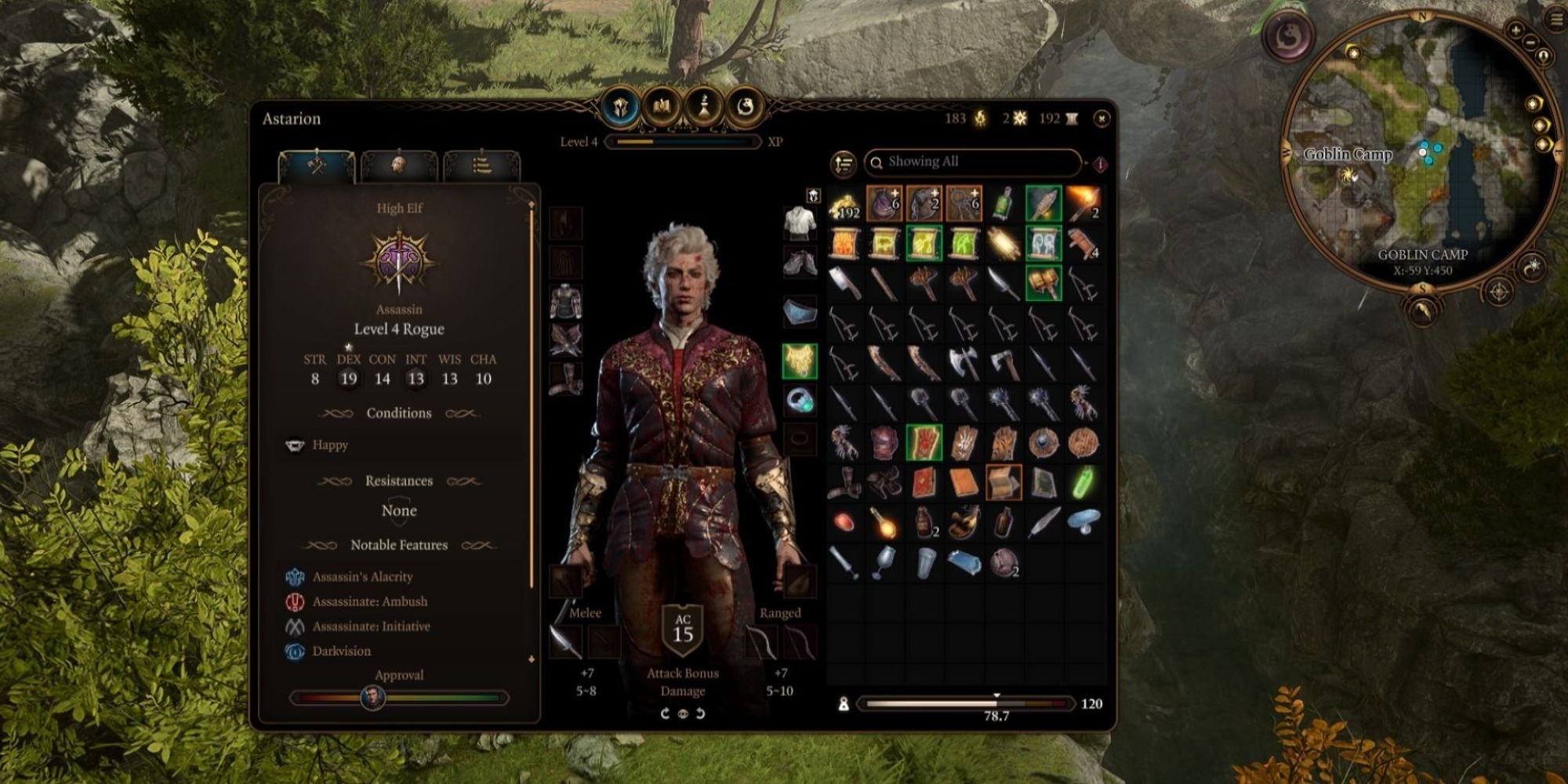
Xbox inventory management techniques involve carefully sorting items, using filters, and frequently checking storage to avoid over-encumbrance.
Struggling with a jam-packed inventory in your favorite Xbox games? Many players face this issue, which can interrupt gameplay. Effective Xbox inventory management techniques are crucial for a smooth and enjoyable experience.
Learning to organize your loot and equipment saves time and frustration. These strategies will keep you focused on the action, not on juggling items.

Xbox Inventory Management Techniques
Okay, gamers, let’s talk about something that’s super important but often gets overlooked: managing your Xbox inventory. We’re not just talking about having cool games; we’re talking about keeping everything organized so you can find what you need quickly and easily. Imagine wanting to play your favorite game, but you can’t find the disc because your collection is a big, jumbled mess! Nobody wants that. So, let’s dive into some simple but powerful techniques to make your Xbox life a lot smoother.
Understanding Your Digital and Physical Game Libraries
Before we get into the nitty-gritty of organizing, it’s essential to understand that your Xbox world is made of two main parts: digital games and physical games. Digital games are the ones you download from the Xbox store. They live on your console or an external hard drive. Physical games are the discs you buy at the store. Both types of games need some sort of management.
Digital Game Library Management
Managing digital games can be super easy once you know the ins and outs of your Xbox interface. Your Xbox stores all your purchased digital games in “My Games & Apps.” From here, you can see all the games you own, whether they are currently installed or not. It can be a long list, especially if you’ve been gaming for a while, so here are some tips to keep it tidy:
- Uninstall Games You’re Not Playing: This is probably the most important thing you can do. If you haven’t played a game in a few months and you’re sure you won’t be playing it soon, uninstall it. You can always download it again later.
- How To Uninstall: Go to “My Games & Apps,” find the game, press the menu button (the one with three lines) on your controller, and choose “Uninstall.”
- Use Folders/Groups: On Xbox, you can create groups to organize your games. You can make groups for genres (like “Sports Games,” “Action Games,” “RPG”), games you play with your friends, or even games you’re planning to play soon.
- How to Create Groups: Go to “My Games & Apps,” select “Create a group,” and name it. Then, you can add games to that group.
- Prioritize Your Downloads: If you are downloading multiple games at once, you can make sure the game you want to play now downloads first.
- How To Prioritize: Go to “My Games & Apps,” select “Queue,” then select the game that you want to prioritize and select “Prioritize Download”.
- Check Storage Frequently: Make sure you are not running out of space. Go to “Settings”, then “System”, then “Storage” to see how much space you have on your console and your external drive (if you use one). This can help you decide what games to uninstall.
- Use an External Hard Drive: If you have too many games to fit on your console’s hard drive, consider getting an external USB hard drive. You can move games back and forth between the console and external hard drives as needed.
Physical Game Library Management
Physical games need a different approach because you need to take care of those actual discs. Here are some ideas to keep your physical collection in good condition and easy to access:
- Use Cases and Storage: Store your game discs in their original cases. Please don’t leave them loose. It’s a good idea to store your cases on a shelf. You can have one shelf for your favorites and another for games that you’re not playing right now. Make sure the cases stand upright, so they don’t topple over.
- Alphabetical Order: Arranging your games alphabetically is a very simple but efficient way to find a game. You don’t have to search randomly. You can organize them in groups, by console if you have other older consoles as well.
- Keep Games Together: If you have more than one copy of a specific game, or multiple versions of a single franchise, keep them together in the storage. This way, you won’t need to search all over the place, and you can find them easily.
- Keep Them Clean and Safe: Make sure to store your physical games in a place where it’s not too hot or too cold and where they won’t get damaged. The discs should also be kept clean, if they’re dusty, wipe them clean using a soft cloth, try to use a microfiber cloth. Handle them carefully; don’t drop them.
Organizing Accessories
It’s not just the games you need to manage, it’s also your accessories. From controllers to headsets, keeping these items organized can also make your gaming time more convenient.
Controller Storage
Controllers tend to end up anywhere and everywhere. It’s important to have a specific spot for them so they don’t get lost or damaged. Here are some ideas:
- Controller Stands: You can buy controller stands to keep them upright and in one place. Some stands even charge your controllers.
- Drawer or Box: If you don’t want them on display, use a drawer or a box to store them. It’s better to store them all together, rather than different places, so you always know where they are.
- Wall Mounts: You can also wall-mount controllers and this saves a lot of space if you don’t have much shelf space.
Headset Organization
Headsets can get tangled easily. Proper storage is important for their care. Here are some tips:
- Headset Stands: Like controller stands, you can also get headset stands. These not only keep them organized, but also prevent them from being bent.
- Hooks or Pegs: Wall-mounted hooks or pegs are good options to hang your headset if you don’t have space on a shelf or desk.
- Cable Management: If you have a wired headset, use cable ties to keep the wire from getting tangled.
Other Accessories
Keep all your other accessories together. Here are some suggestions for doing this:
- Accessory Bag or Case: Use a bag or case to keep things like charging cables, adapters, and spare batteries. This way, you can keep everything together, and you won’t misplace things.
- Storage Drawer or Shelf: Use a drawer or a shelf if you don’t want to use a bag or case. Try keeping similar things together, like all the charging cables in one box.
Advanced Inventory Management Techniques
Once you have mastered the basic ideas, there are some more advanced techniques that can really make your inventory work better.
Using Xbox Cloud Storage Efficiently
Xbox Cloud Storage allows you to store your game saves online. This is a great feature because if you play on different consoles, your save data will be available. Here’s how to make the most of it:
- Make sure cloud saves are enabled: Your Xbox should automatically back up save data to the cloud. Go to “Settings,” then “System,” then “Storage,” and finally “Cloud Saves” to make sure it’s turned on.
- Regularly Check Cloud Saves: To make sure all the games’ save data has been uploaded, you can go to “My Games and Apps,” then select the game, then select “Manage Game and Add-Ons”, then select “Saved Data”. There, you will find the save data synced to your cloud storage.
- Clear Local Save Data: If you have a lot of saved data, especially for games you don’t play often, you might want to clear up some of the console’s local storage. Just be sure the save data is synced to your cloud before you do so.
Using the Xbox Mobile App for Inventory Tracking
The Xbox mobile app is not just for chatting with friends, it can help you manage your inventory.
- View Your Game Library: You can see what games you have, both installed and not, on the mobile app.
- Manage Download Queue: You can also start downloads from your phone, which means you can get the games you want ready to play when you get back home from anywhere.
- Track Game Achievements: You can see all the achievements you’ve earned, and use this to decide what game to play next.
Game Pass Management
Xbox Game Pass gives you access to lots of games for a monthly fee. Here’s how to manage it:
- Track Games Leaving Game Pass: Microsoft usually lets players know when a game is leaving the Game Pass. Keep an eye out, so you know when you need to play a game.
- Add Games To “Play Later”: If there is a game on Game Pass you want to play, add it to “Play Later” so you don’t forget about it.
- Uninstall Games You’re Not Playing: Remember to uninstall games you got through Game Pass that you are not playing. They don’t take up space anymore if you don’t install them.
Utilizing Wishlists Effectively
The Xbox store lets you create wishlists to keep track of games you want to buy in the future. Here’s why you should use it:
- Keep Track of Games You Want: When you see a game you like, but are not sure you want to buy it yet, add it to your wishlist.
- Get Notified of Sales: If a game on your wishlist goes on sale, you will get notified so you can buy it at a lower price.
- Share Wishlists with Friends: You can share your wishlist with friends so they can give you games you want as a gift.
Regular Inventory Audits
Sometimes, it helps to go through everything on a regular basis. Think of it like a “clean-up day” for your Xbox stuff:
- Schedule time every couple of weeks: Set aside some time every few weeks to go through everything and make sure it is tidy and organized.
- Uninstall Games You Don’t Play: Check your installed games and uninstall the ones that you are not going to play.
- Reorganize Your Shelves: Make sure your physical game cases are where they should be, and organize them again if needed.
- Check Your Accessories: Keep everything clean, all the accessories should be in the right place.
By implementing these methods, you’ll not only avoid the frustration of lost games and tangled wires but also make your gaming experience more enjoyable and efficient. Taking some time to organize will mean more time actually playing!
So, go ahead, start putting these tips into practice. You will be surprised how much better your gaming experience becomes when you spend some time organizing things properly. Happy Gaming!
Advanced Inventory Management With The Controller In Baldur's Gate 3
Final Thoughts
Effective Xbox inventory management techniques involve carefully tracking game titles and accessories. Employ a spreadsheet or app to log owned items and wish lists. This helps prevent duplicate purchases and aids in budget allocation.
Consistently updating your inventory records after each buy or trade is key. Regularly assess the games you own to identify titles you no longer play. Proper Xbox inventory management techniques optimize your gaming collection.

