
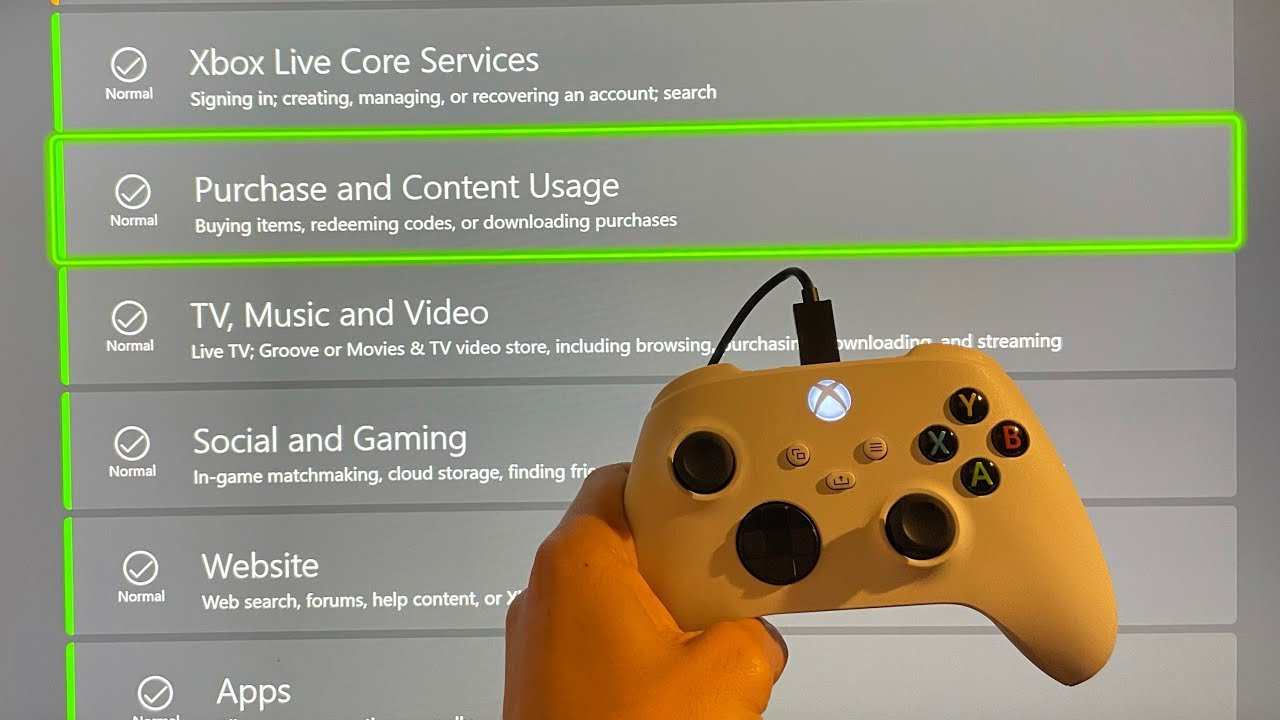
The Xbox network status indicates the current operational condition of Xbox services, informing users about any potential outages or limitations.
Is your gaming session abruptly interrupted? Maybe you’re experiencing frustrating lag? These issues frequently point towards problems with the Xbox network status. Knowing if the servers are down or if there is a service disruption can help you understand the issue.
Regularly checking the Xbox network status provides you with the latest updates. You can learn about scheduled maintenance or unexpected outages. This information helps you adjust your gaming plans accordingly.

Understanding Your Xbox Network Status
Ever wondered why your Xbox game isn’t loading or why you can’t join your friends online? It might be due to your Xbox network status. Think of the Xbox network like a busy highway. When everything is running smoothly, cars (your game data) can zoom along without any problems. But sometimes, there are accidents or roadblocks (issues with the network) that can slow things down or stop you completely. This section will help you understand what the Xbox network status is, how to check it, and what to do if you experience issues.
What is the Xbox Network?
The Xbox network is a collection of servers and services that allow Xbox consoles to connect to the internet and to each other. It’s what allows you to play online games, chat with friends, download games and updates, and access apps like Netflix or YouTube. It’s a complex system that relies on various components working together seamlessly. When all the pieces are in place, you enjoy a smooth gaming experience. But when even one of those pieces has a problem, you might experience difficulties.
Key Components of the Xbox Network
Here are some of the key parts that make up the Xbox network:
- Xbox Live Servers: These are the main computers that manage everything related to Xbox online services. They handle matchmaking, game data, and user profiles.
- Microsoft Azure: This cloud service powers much of the Xbox network infrastructure, providing the storage and processing power needed to run things smoothly.
- Content Delivery Networks (CDNs): These networks store game updates and other content closer to your location, making downloads faster and more efficient.
- Your Home Network: This includes your internet modem, router, and other devices that connect your Xbox to the internet. Issues here can also cause problems with your Xbox network connection.
Why is Checking Your Xbox Network Status Important?
Regularly checking your Xbox network status is like checking your car’s fuel gauge before a long trip. You need to know if everything is in working order to avoid problems later. Here’s why it’s so important:
- Identify Problems Quickly: If you are having trouble connecting to a game or downloading something, knowing the network status can tell you if the problem is on Xbox’s end or with your own connection.
- Save Time and Frustration: Instead of spending time troubleshooting your own equipment for hours, checking the Xbox network status first can quickly tell you if there is a service outage.
- Plan Gaming Time: If you know there is planned maintenance happening, you can avoid trying to play online during that time.
How to Check Your Xbox Network Status
Microsoft makes it relatively simple to check the Xbox network status. There are a couple of easy ways to do it:
Checking on Your Xbox Console
This method is the most straightforward because you can do it directly from your Xbox console:
- Press the Xbox Button: Press the glowing Xbox button on your controller to open the guide menu.
- Go to Profile & System: Using your controller, navigate to the “Profile & system” tab. This is usually the last option on the far right.
- Select Settings: From the “Profile & system” menu, choose “Settings.”
- Navigate to Network: Inside the Settings menu, find and select “Network.”
- Check Network Settings: Within the “Network” menu, you’ll see your current network connection and on the right hand side option to check for network status. Select network status tab.
- View Status: The network status screen will show you the current state of Xbox services. You’ll see checkmarks for working services and exclamation marks for problems.
Using the Xbox Website
You can also check the network status from any device with a web browser, such as a computer or your phone. This is very useful if you can’t access your Xbox because it’s offline.
- Visit the Xbox Status Page: Go to the official Xbox status page on Microsoft’s website. Usually, you can find this by searching for “Xbox status” on any search engine.
- View the Status: The page will show you the status of various Xbox services, including Xbox Live Core Services, social and gaming, and purchasing and content usage. Each service will have a symbol to show if it is online, experiencing issues or offline.
Using the Xbox App
The Xbox app on your phone or computer can also show you the current network status:
- Open the App: Launch the Xbox app on your mobile device or computer.
- Go to Settings: Navigate to the app settings, usually found in your profile or a menu option.
- Find Network Status: Look for a section that shows the Xbox network status. It may be labeled as “Support” or “Status.”
- Check Status: The app will show a similar view to the Xbox website with the current status of Xbox services.
Understanding the Different Xbox Network Status Messages
When checking your Xbox network status, you will often see different messages or symbols. These help you understand what’s happening. Here’s a breakdown of some common status indicators:
Green Checkmark (✓)
A green checkmark means that the particular service is working correctly and that there are no known issues. You should be able to use these services without any problems.
Exclamation Point in a Triangle (!)
This symbol indicates that there is an issue or a temporary problem with a specific service. It could mean that you’ll experience lag, difficulty connecting, or a service might be offline temporarily. Check back regularly for updates as these issues are often resolved quickly.
Red Circle with a Line Through It (🚫)
A red circle with a line through it means that the service is completely down or unavailable. This is usually due to a significant problem that is being worked on by Xbox engineers. You won’t be able to use the particular service until it is back online.
Scheduled Maintenance Notice
Sometimes, the Xbox network will undergo planned maintenance. This means some services might be offline or unavailable for a while so that Microsoft can perform updates or fixes. Usually, you will get advanced notice on the status page if there is planned maintenance coming.
Common Xbox Network Status Issues and How to Fix Them
Sometimes, you might see a problem with the Xbox network status. Here are a few common problems and the steps you can take to try to fix them:
Slow Download Speeds
Slow download speeds are frustrating, especially when waiting for a new game or update. Here’s what to check:
- Restart Your Router and Modem: This can often fix connection problems. Unplug both devices, wait a minute, plug the modem back in, wait until it fully connects then plug the router back in.
- Move Closer to Your Router: If you are using a wireless connection, being closer to your router can improve your signal strength.
- Use a Wired Connection: Connecting your Xbox directly to your router with an Ethernet cable will give you a more reliable connection and likely improve download speeds.
- Close Unnecessary Apps: Closing other apps on your Xbox or on other devices on your network can free up bandwidth for your downloads.
Trouble Joining Multiplayer Games
Unable to connect with your friends online? Here are some common causes and solutions:
- Check Your NAT Type: If your NAT type is “Strict,” this can make it hard to connect with others. Change it to “Open” or “Moderate” in your router settings (you may need to look up specific instructions for your router model.)
- Verify Your Xbox Live Subscription: You need an active Xbox Live subscription to access online multiplayer games.
- Restart Your Xbox: Sometimes, a simple restart can fix connection issues.
- Check Xbox Status: Make sure that Xbox live servers are up and running.
Audio or Chat Issues
Can’t hear your friends or they can’t hear you? Try these solutions:
- Check Your Headset: Make sure your headset is properly connected and that the microphone is not muted.
- Adjust Volume Settings: Check the volume levels for your headset and for the chat settings in the Xbox menu.
- Restart Your Xbox: Again, a simple restart can often fix audio problems.
- Update Controller Software: Make sure you have the latest update for your controller.
Can’t Access Games or Apps
If you are having trouble opening a game or app, try the following:
- Check Your Internet Connection: Verify that your Xbox is connected to the internet.
- Restart Your Xbox: This can sometimes fix temporary software issues.
- Clear Cache: Clearing the Xbox cache can remove old temporary files that may be causing issues.
- Check for Updates: Make sure both the game/app and your Xbox system software are fully updated.
Error Codes
Sometimes the Xbox will display specific error codes, which can help you narrow down the problem. Look up these error codes on the Xbox support site. The support site will provide more information about the code and possible fixes.
Advanced Troubleshooting Tips
If the above fixes aren’t working, you might need to do some more in-depth troubleshooting.
Check Your Internet Speed
Run an internet speed test on another device connected to the same network. This can tell you if the problem is your internet service provider.
Update Your Router Firmware
Old router firmware can sometimes cause connection issues. Check your router manufacturer’s website for information on how to update it. Please note that you should only update your router firmware if you are comfortable doing this.
Contact Your Internet Provider
If you have slow speeds or unstable connection, the problem might be with your internet provider. Contact them to see if there are issues on their end.
Contact Xbox Support
If nothing else is working and the Xbox status is showing issues on their side, contact Xbox support for help. They might have specific fixes for your problem, or they can inform you of ongoing outages.
Staying Informed About Xbox Network Status
The best way to avoid issues is to be aware of what’s going on with the Xbox network. Here are a few strategies:
- Check the Xbox Status Regularly: Even when things are running smoothly, it’s a good idea to check the status page once in a while.
- Follow Xbox Support on Social Media: Xbox support usually posts updates about any network issues on social media.
- Sign Up for Xbox Service Alerts: You may be able to sign up to receive email or SMS notifications about Xbox network issues.
- Use the Xbox App: The app will often show status updates and notifications when services are having issues.
Understanding Maintenance Windows
Like any technology, the Xbox network sometimes needs maintenance. These windows of downtime are necessary for fixing problems, adding new features, and generally keeping the network running. Microsoft usually announces scheduled maintenance in advance on the status page, on social media and on their online support pages. If a maintenance window is approaching, make sure to check the status to avoid interruption during your gaming session.
Optimizing Your Home Network
Your home network is an essential piece of the puzzle. Sometimes, a simple fix to your own setup can prevent issues with Xbox connectivity. Here are a few things you can do:
Keep Your Router Updated
Make sure you’re using the most updated software that your router offers. These updates may include fixes for performance and security.
Avoid Network Congestion
Too many devices using the network at the same time can cause slow speeds. Try reducing the amount of devices that are connected and using the internet, especially during online gaming sessions.
Use Quality Network Hardware
Old or low-quality routers and network equipment can cause connection problems. Consider replacing older equipment with better equipment that will help make connection faster and more stable.
Checking your Xbox network status is not just a technical task; it’s a way to ensure that you are able to enjoy your gaming experience. Knowing how to interpret the information and what to do when there’s a problem can save you time and frustration. By using the tools and information provided here, you’ll be able to enjoy smoother, more uninterrupted gaming sessions.
Xbox Servers Down? Check here..
Final Thoughts
Regularly check the official Xbox support page for updates. This will provide you with the most current information about any service issues. Understanding Xbox network status is crucial for optimal gameplay.
Knowing the current status helps you to troubleshoot connection problems. Check for any alerts before starting your gaming session to ensure a smooth experience. Downtime can affect online gaming.
Therefore, monitoring the Xbox network status remains essential. Knowing if there is scheduled maintenance can prevent frustration. Being aware helps everyone get back online faster.

