
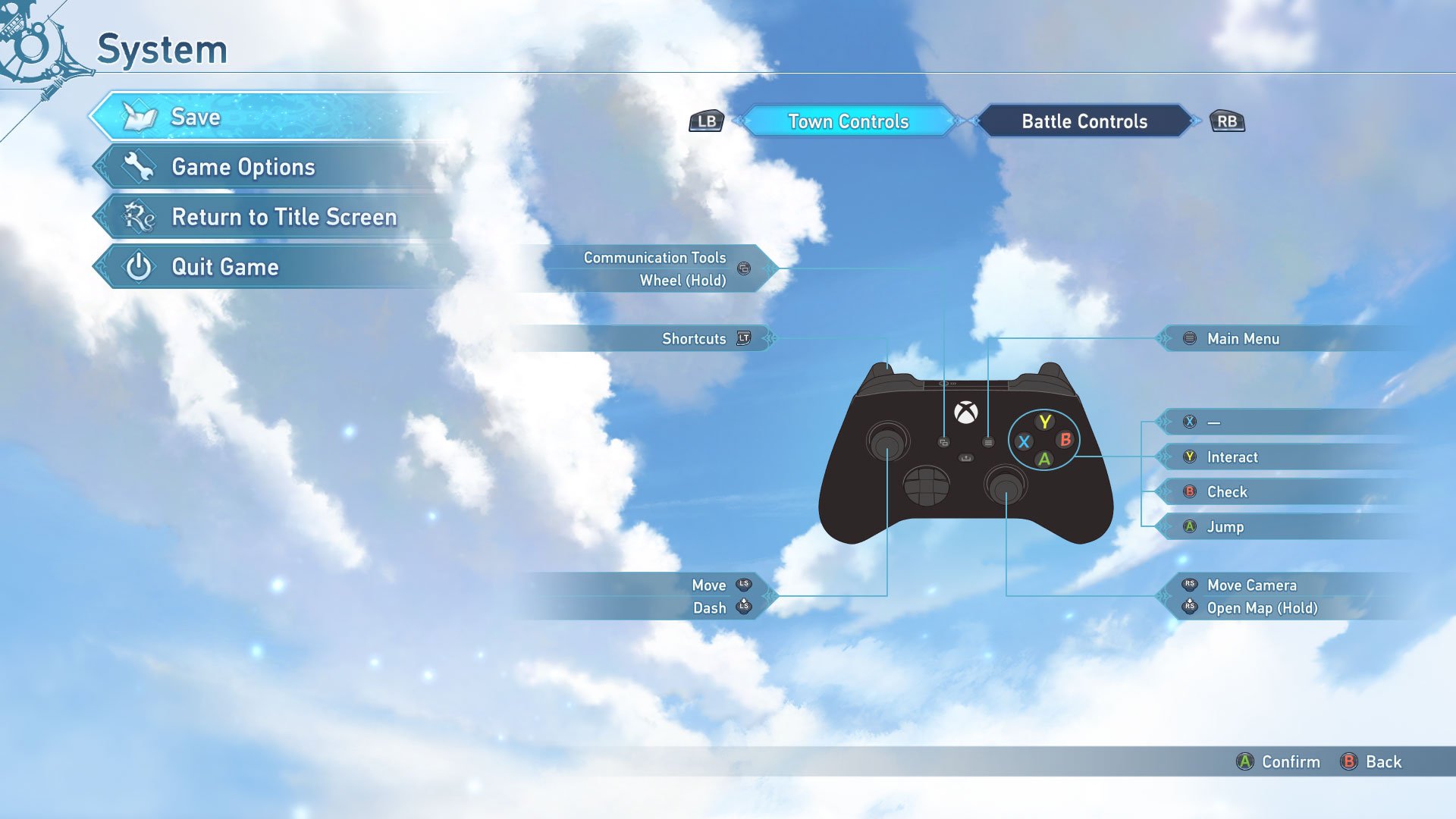
Xbox online communication tools include voice chat, text messaging, and party systems that allow players to connect and coordinate gameplay.
Ever wondered how players manage to strategize during intense online matches or simply chat with friends while exploring virtual worlds? It’s all thanks to the various Xbox online communication tools. These features are essential for a connected and collaborative gaming experience, bringing players together.
The platform offers several ways to interact, from chatting in-game to using party chats for focused teamwork. Having these tools readily available makes online gaming much more social and engaging. You can communicate during games and stay connected with your friends.

Xbox Online Communication Tools
Hey there, fellow gamers! Ready to dive into the world of online gaming on your Xbox? It’s not just about awesome games, it’s also about connecting with your friends and other players. Xbox gives you some really cool tools to chat, strategize, and have a blast online. Let’s take a closer look at all the ways you can communicate while playing your favorite Xbox games!
The Xbox Party Chat System
Think of Xbox Party Chat as your virtual hangout spot with friends. It’s a place where you can talk to your buddies whether you’re all playing the same game or doing different things. It’s like having your own little chat room just for your crew. You can easily join or start a party with your friends to chat while gaming.
How to Start a Party
Starting a party is super easy. Just follow these steps:
- Press the Xbox button on your controller.
- Go to the “Parties & chats” tab. It looks like a little group of people.
- Select “Start a party.”
- Choose the friends you want to invite from your friend list.
- And boom! You’re in a party chat. Now, talk away!
How to Join an Existing Party
Sometimes, your friends might start a party before you. Here’s how to hop in:
- Press the Xbox button.
- Go to “Parties & chats.”
- You’ll see a list of active parties. Find the one you want to join.
- Select “Join” and you are in!
Party Chat Settings
Xbox lets you change settings in your party so it’s just right for you. Here are some options:
- Mute yourself: If you need a moment of silence or don’t want to be heard, you can easily mute your microphone.
- Mute others: If someone’s being a little too loud or has background noise, you can mute their mic too.
- Adjust volume: If your friends are too loud or too quiet, you can adjust their voice volume.
- Change to Game Chat: If you need to switch to in-game chat for a particular game, you can switch from party chat easily.
In-Game Voice Chat
Many Xbox games let you talk to other players directly in the game itself. This is called “in-game voice chat.” You don’t need to be in a party to talk this way.
How In-Game Voice Chat Works
When you’re playing a game with others, your voice can usually be heard by anyone nearby in the game’s world. This helps you talk to your teammates in a game like a first person shooter, or coordinate with other racers in a racing game.
- Proximity chat: In some games, your voice will only be heard by other players who are close to your character in the game.
- Team Chat: Many games allow you to communicate only with your teammates, which helps in coordinated plays.
Benefits of In-Game Chat
In-game voice chat makes gaming more immersive and fun. Here are some advantages:
- Teamwork: You can easily work together with your team to achieve your goals.
- Coordination: You can give quick commands and updates to your fellow players.
- Social Interaction: You can interact with new people, make new friends, or have some funny moments with strangers.
Managing In-Game Voice Chat
Just like in party chat, you have some control over your in-game voice chat experience. Here are some tips:
- Mute other players: If some other players are being distracting or using inappropriate language, you can mute them to focus on your game.
- Turn off your mic: If you’re not looking to communicate, you can easily turn off your microphone.
- Adjust voice volume: You can turn up or turn down the volume of other players so it fits you better.
Text Chat on Xbox
Sometimes, voice chat isn’t the best option. Maybe it’s late at night, or you just prefer typing. Xbox has text chat tools for that too.
Using the Xbox Keyboard
You can type messages using the virtual keyboard on your Xbox. It’s pretty easy, and here’s how you do it:
- When you have a message box open, you can use the joysticks and buttons to select letters and type your message.
- If you find this slow, you can use the Xbox App on your phone or PC to type to your Xbox friends.
- For a faster typing experience you can connect a USB keyboard to your Xbox.
Where to Use Text Chat
You can use text chat in a bunch of different places:
- In Parties: Text chat in your party, when maybe not everyone wants to talk with a mic.
- In Game: Many games have a chat window to write messages.
- Xbox Messages: You can send text messages to your Xbox friends, even if you’re not in the same game.
The Benefits of Text Chat
Text chat comes in handy for many reasons:
- Privacy: If you don’t want everyone hearing you, you can just type your message.
- Quiet Environments: When you can’t talk out loud, text messages are a great alternative.
- Accessibility: Text chat is great for people who have a hard time talking on the mic.
- Record keeping: In games, you can use text chat to write important details, so you don’t forget anything.
Xbox Messages
Xbox Messages is like a texting app on your Xbox. You can send messages to your friends even if they’re not online.
How to Send Messages
Sending a message is as easy as can be:
- Go to the “Parties & chats” tab.
- Select “Messages.”
- Choose a friend from your list.
- Type your message and hit send!
Receiving and Reading Messages
When you receive a new message you will get a notification. To check them:
- Go to “Parties & chats.”
- Click on “Messages.”
- Select the message you want to read.
Managing Messages
Just like in your phone, you can manage messages on Xbox:
- Delete Messages: You can delete messages that you no longer need to keep.
- Block Users: If someone is sending you unwanted messages, you can block them so they can’t contact you again.
The Xbox Mobile App
The Xbox mobile app is a handy tool to take your Xbox communications on the go. You can manage chats, messages, and even your friend list from your phone.
Using the Xbox App for Chat
The Xbox app on your phone lets you join parties, participate in group chats, send messages, or even start your own party directly from your phone.
Why Use the App for Chat?
- On the Go: You can stay in touch with your friends even when you’re not in front of your Xbox.
- Type Faster: Use your phone’s keyboard to type much faster than using the Xbox virtual keyboard.
- Receive Notifications: Get notifications on your phone when friends invite you to parties or send you messages.
Privacy and Safety
Staying safe online is super important. Xbox provides you with some privacy and safety features that you should know about.
Privacy Settings
Xbox allows you to change your privacy settings. These settings let you control who can see your profile, who can send you messages, and who can communicate with you.
How to Change Privacy Settings
Here’s how to change your privacy settings:
- Press the Xbox button.
- Go to “Settings.”
- Select “Account” then “Privacy & online safety.”
- Here you can change all of the privacy settings.
Blocking and Reporting
If someone is making you uncomfortable you can take action:
- Block: If someone’s being rude, you can block them so they can’t send you messages or join your parties.
- Report: If someone breaks the Xbox rules, report them to Xbox for taking action.
Tips for Great Communication
To make sure everyone has a fun time, here are some tips for online communication:
- Be Friendly: Always try to be polite and nice to other players.
- No Trash Talk: Avoid using bad language or insulting other players.
- Be Patient: Not everyone is great at games, be patient and helpful.
- Listen to Others: Listen to your teammates and communicate effectively.
Troubleshooting Common Issues
Sometimes things don’t always go to plan. Here are some basic troubleshooting tips when using communication tools on Xbox:
Microphone Issues
If your microphone is not working, check these things:
- Make sure your microphone is properly connected to your controller or console.
- Ensure that your microphone is not muted in your party or in game settings.
- Try restarting your Xbox console and controller.
Chat Issues
If you can’t hear other people, try these steps:
- Make sure the other players are not muted.
- Make sure your headset or speaker volume is up.
- Make sure you are in the same chat channel as your friends.
Message Issues
If messages are not going through, check these:
- Make sure you have an active internet connection.
- If you have blocked a person, then you won’t be able to send them messages
Using the online communication tools on your Xbox can really improve your gaming experience. Whether you prefer voice chat, text messages, or just hanging out in parties, there’s a tool for every situation. Now you can connect with your friends, coordinate your gameplay, and have a great time online!
Can I Communicate with Xbox One Friends on the Xbox Series X? – Video Gamers Vault
Final Thoughts
In summary, Xbox online communication tools greatly enhance multiplayer experiences. Players can easily connect with friends through voice chat and text messaging during games. These features make coordination and social interactions simple. The tools are integral for playing collaboratively.
Using the party system, gamers can gather before starting sessions. This ensures smoother teamwork during intense moments. They can adjust audio and chat settings. Such flexibility provides personalized ways to interact.
Finally, the communication tools are a must for anyone playing online. Xbox online communication tools improve team play significantly.

