
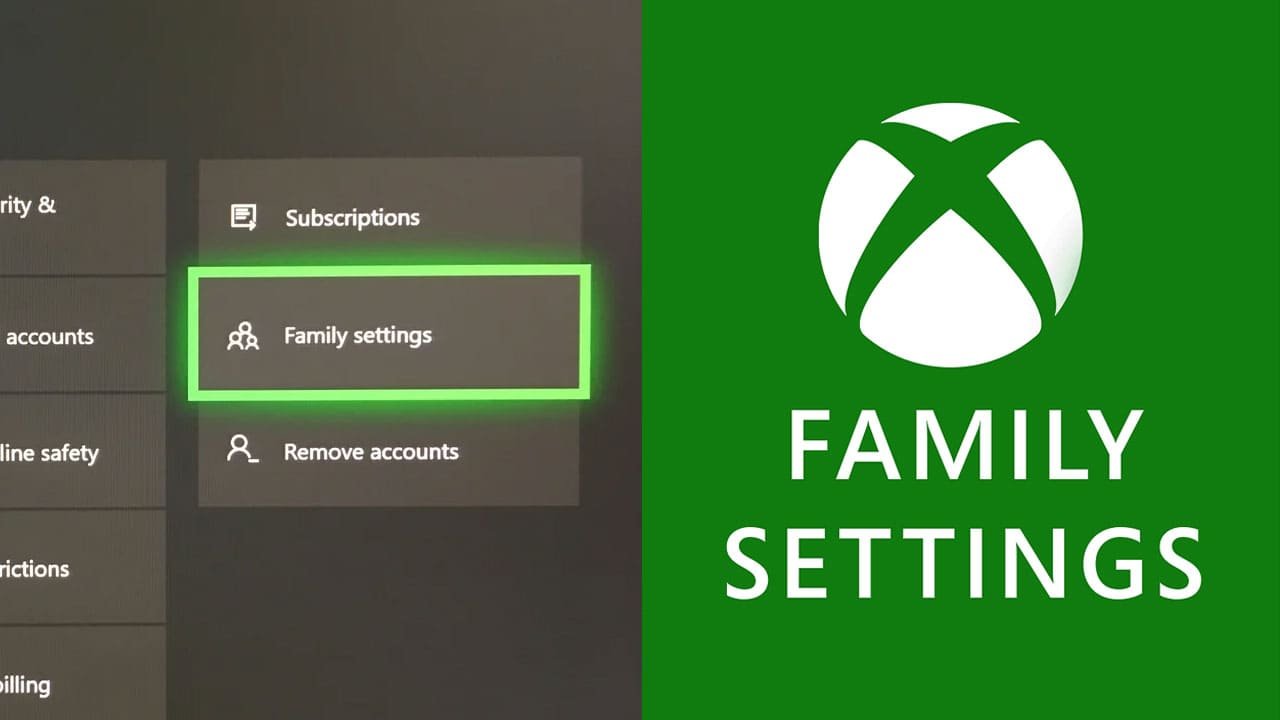
Xbox parental control settings allow parents to manage their children’s gaming experience, including screen time, content access, and communication features, ensuring a safer online environment.
Navigating the digital world with kids can feel like a constant balancing act. You want them to enjoy games, but also need to keep them safe. This is where Xbox parental control settings become a vital tool for families. It’s important to understand how these features work so you can create a healthy gaming environment for your children. These settings are surprisingly flexible, offering a range of customizable options.
You can easily manage various aspects of their playtime. This includes controlling which games they play, who they interact with online, and how long they can play each day. Taking control of these features makes gaming a more positive experience for both parent and child.

Xbox Parental Control Settings: Keeping Kids Safe While Gaming
Gaming is super fun, and Xbox offers amazing worlds to explore! But like any fun activity, it’s important to make sure kids are safe while playing. That’s where Xbox parental control settings come in. These settings are like having a secret tool to help manage what your kids can see, play, and who they can chat with. They aren’t there to stop the fun, but rather to make sure the fun is appropriate and safe. Let’s dive into what these controls are and how they work!
Understanding Xbox Family Settings
Before we get into specific settings, let’s talk about the overall system. Xbox uses something called “Microsoft Family” to manage parental controls. Think of it as your family’s central hub for Xbox safety. This system allows you to create individual accounts for each of your kids and then apply different rules and limits to each one. It makes it much easier than trying to adjust every setting individually on the Xbox console itself.
Setting Up a Microsoft Family
Getting started is easy. If you don’t already have a Microsoft account, you’ll need to create one. This will be the main account for your family group. Here’s a simple way to get started:
- Go to the Microsoft Family website or use the Microsoft Family Safety app (available on mobile).
- Sign in with your Microsoft account.
- Click on “Add a family member” and follow the instructions to create or add a child’s account.
- For each child, create a separate Microsoft account. If they already have one, you can use that.
- During setup, you’ll specify if the account is for a child or an adult. This step is very important because it determines what settings are available.
Once each child has an account linked to your family group, you’re ready to start customizing parental controls for each account.
Content Restrictions: What Your Kids Can Play
One of the most crucial aspects of parental control is managing what kind of games your kids can play. Xbox uses a rating system, much like movies, to help you decide if a game is appropriate. This system is generally consistent across different regions, making it simpler for parents to understand. Here’s how you can manage content.
Setting Age Limits for Games
Every game has a rating, which helps parents make good choices. You can set up your child’s account to only allow games that fall within a certain age range. For instance, you might not want your 8-year-old playing games rated for 17-year-olds. Here’s how to do that:
- In your Microsoft Family settings, find the child’s account you want to manage.
- Look for the “Content restrictions” section.
- Choose the appropriate age rating level. You can choose to allow games rated “Everyone,” “Teen,” or “Mature” or set specific age restriction. Xbox will automatically block games with ratings that exceed the set level.
This ensures that your kids only get to play games suitable for their age. You have flexibility to adjust this setting as your child grows older and more responsible.
Managing Game Exceptions
Sometimes, a game might have a rating that’s technically outside your settings, but you still want your kid to play it. You can use exceptions to allow specific games even if they normally would be blocked. This is handy if you’ve done your research and know a game rated T for Teen is okay for your child. Here’s how:
- Go to the same “Content restrictions” section as above.
- Instead of setting a general rating limit, you can specifically find the game you want to allow and click “Always allow”.
- This lets you pick specific games for exceptions.
This functionality allows you to tailor the gaming experience to each child’s individual needs and interests, instead of setting a blanket rule.
Filtering Mature Language
Beyond game ratings, Xbox also gives you the option to filter language on the console. It allows you to filter out mature words so your child does not see or hear these types of words in-game, this can be set in the privacy settings on your account, this setting can help make the gaming environment more friendly.
Screen Time: Managing How Much They Play
It’s important to balance gaming with other activities like school, sports, and spending time with family. Xbox provides tools to set limits on how much time your child spends gaming each day or each week.
Setting Daily Time Limits
Daily limits allow you to set how much time your child can spend playing on their Xbox each day. Once they’ve reached the limit, they won’t be able to access games until the next day. Here is how to set these limits:
- In the Microsoft Family settings, navigate to the child’s account.
- Find the “Screen Time” section.
- You can set different time limits for weekdays and weekends.
- Choose the amount of time you want to allow each day.
With this feature you can provide a balance to their daily schedule.
Setting Weekly Time Limits
You can also set weekly limits instead of daily. This can be great if you’d like to give your child a little extra time on some days, so they have some freedom over when to use their time. Here is how to set weekly time limits:
- Go to the “Screen Time” section for the specific account.
- Find the weekly options, and choose the total amount of playtime for the entire week.
- This allows them to manage their own time, but still with a total limit.
Time Limit Notifications and Extensions
Xbox provides in-game notifications to your child when they are nearing the end of their playtime. This gives them a chance to save their progress and wrap up. You, as the parent, can also grant additional time if needed. In the family settings, you can give more playtime if your child is doing well, or even remove the limit entirely for a specific day. Keep in mind that you can also use your family settings to keep track of your children’s screen time.
Communication & Multiplayer: Keeping Interactions Safe
Xbox isn’t just about single-player gaming. Many games let players communicate and interact. It is important to manage who your child can interact with to help make sure they’re safe and comfortable.
Managing Online Communication
You can adjust the settings to control who your child can chat with or add as a friend. Here’s what you can control:
- Who can communicate with your child: You can limit communication to only friends, or allow everyone (though this is generally not suggested for younger kids).
- Voice and Text Chat: You can disable chat completely, allow only voice, or only text, or both.
- In-game Chat Settings: Many games have their own in-game chat settings, which you may need to manage in the game itself.
The goal is to allow your child to connect with their friends and enjoy multiplayer without exposure to strangers.
Managing Multiplayer Gameplay
You can also adjust settings to control who your child can play games with:
- Multiplayer with friends: You can restrict multiplayer to only friends, or allow anyone.
- Cross-play with other consoles: Some games allow players on Xbox to play with players on other platforms. You can disable cross-play if desired.
These settings make sure your child is connecting with people you trust and are part of your community.
Privacy Settings: Controlling Personal Information
Privacy is important, especially online. Xbox offers privacy settings to help control what personal information is visible to other players. This helps to keep your child’s identity safe while still enjoying gaming.
Visibility of Profile and Activities
You can adjust how much information other people can see about your child. This is especially helpful in maintaining a safe and private gaming experience.
- Gamertag visibility: You can choose who can see your child’s Gamertag.
- Activity feed: You can choose who can see your child’s activity (like what games they play and what achievements they earn).
Personal Data and Sharing
In addition to the above you can also manage which information is shared with other players, for the safest gaming experience for your child. These privacy settings are important to ensure your child’s personal information is not available to strangers.
- Sharing of personal data: You can choose to not allow sharing of certain information about your child, if desired.
Spending Controls: Managing Purchases
If you allow your child to make purchases in the Xbox store, managing this is important to keep unexpected spending to a minimum. Xbox offers a variety of ways to manage spending, so you don’t get surprised with large charges.
Request to Buy Settings
This feature can let your child request purchases while still allowing you to approve them. This can help avoid surprise purchases and allow the child to request new games or downloadable content.
- When a child attempts to buy something, you will receive a notification asking for approval.
- Once you give approval, your child can make the purchase.
Disabling Purchases
If you don’t want your child making any purchases at all, you can disable the ability to purchase anything through the Microsoft store.
- You can turn off the spending function, so your child cannot buy anything at all.
- If you turn off this function, your child cannot add funds or buy anything from the store.
Managing Gift Cards
You can use gift cards to add funds to your child’s account, and you can use family settings to monitor how they spend their money, but also allows you to give them the freedom to buy the items they choose. This way you have control over what funds are available, but not directly what they buy with that money.
- You can use gift cards to give your child money for purchases, and then you can track how they are using their funds.
Tips for Success With Xbox Parental Control Settings
Using Xbox parental controls isn’t just about setting up the initial rules. It’s also about keeping an open line of communication and adjusting the settings as your child gets older. Here are some tips to help you use parental controls effectively:
- Talk to your kids: Explain why these controls are in place. Make them part of the conversation.
- Regularly review settings: As your child grows, revisit settings to see if they still fit their needs.
- Be flexible: If your child shows responsibility, consider easing some settings or restrictions.
- Use the Xbox Family Safety app: It’s a convenient way to manage all the settings without having to be on the console.
- Stay updated: Microsoft occasionally updates these features, so keep an eye out for changes.
By using these tips, you can help your child have a great time while gaming without compromising their safety. It’s about balance and working together.
Xbox parental controls aren’t about stopping the fun, they are about making sure the fun is age appropriate and safe. They let you create a gaming space that suits your family’s values. This will help your kids enjoy the many benefits that video games can bring, and give you peace of mind knowing that you are providing a safe gaming space for your family.
Xbox Series X/S How to Turn OFF Parental Controls
Final Thoughts
Xbox parental control settings offer tools to manage your child’s gaming experience. You can control screen time, purchases, and access to certain games. These features provide a safe environment for younger players.
Using the provided settings ensures kids play responsibly. Parents easily tailor the gaming to fit family rules. Remember, utilizing Xbox parental control settings creates a better gaming atmosphere for everyone.

