
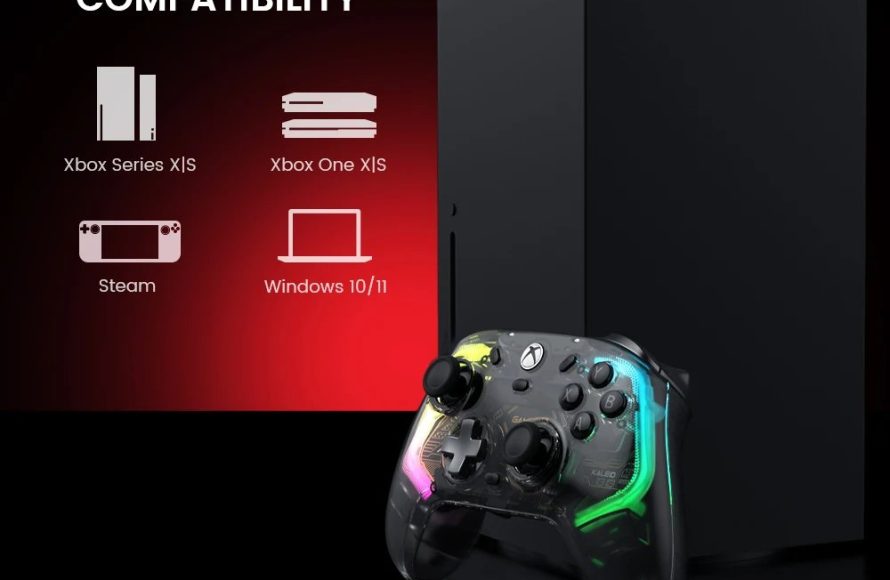
Xbox personalized gaming experience tailors game recommendations, display settings, and accessibility options to match individual player preferences, creating a unique and enjoyable environment.
Have you ever felt like your Xbox knows you better than you know yourself? It might sound a little creepy, but the truth is, Microsoft is focused on providing a truly unique experience for every gamer. The Xbox personalized gaming experience aims to make sure that the content you see and how you interact with it is specifically catered to your taste.
This means fewer wasted hours scrolling through games that don’t interest you and more time actually playing what you love. It’s about creating a customized environment, that feels like your own personal digital playground. This article will delve a bit deeper into the how and why behind this system.

Xbox Personalized Gaming Experience
Hey there, gamers! Ever wished your Xbox felt like it was made just for you? Well, it pretty much can! The Xbox ecosystem is packed with ways to personalize your gaming journey, making it more fun and comfortable. It’s not just about playing games; it’s about making your digital space your own. Let’s dive into all the cool ways you can make your Xbox experience totally you.
Your Xbox Profile: The Starting Point
Think of your Xbox profile as your digital gamer ID card. It’s what everyone sees, and it’s the first place to start personalizing your Xbox experience.
Choosing Your Gamertag
Your gamertag is your online name, and it’s how your friends find you. It’s like choosing a cool superhero name! You can change it once for free, but after that, you will need to pay. So, pick something that you really like, maybe even something that reflects your style or favorite games.
Here are some things to consider when choosing your gamertag:
- Is it easy for friends to remember?
- Does it sound cool and unique?
- Does it represent you well?
Personalizing Your Profile Picture
You can select a profile picture that shows off your personality. Xbox offers a bunch of pre-made pictures, or you can even use a custom image. Show off your style! Maybe you pick your favorite game character, or a cool design you like. It’s a fun way to let people know more about you at first glance.
Setting Your Bio
A bio is a little text blurb that shows up on your profile. You can write a few sentences about yourself, your favorite games, or even a funny quote. It’s a small way to add some personality. Make it catchy and fun!
Making Your Dashboard Your Own
The Xbox dashboard is like your home screen. It’s where you go to find games, apps, and friends. Let’s check out how you can make it feel like yours.
Customizing the Background
Do you get tired of the same old background? Good news! You can change it. Xbox lets you pick from different themes, colors, or even use screenshots from your games. Want to have a background from your favorite game? It’s all possible!
Organizing Your Home Screen
The tiles on your home screen can be moved around so that the stuff you use most often is right where you want it. Drag and drop your favorite games and apps into the best spots. You can also remove the things you don’t use much, keeping your dashboard clean and tidy.
Pinning Your Favorites
See that section called “My Pins”? This is where you can stick the things you use very often. Maybe you have a specific game you play every day, or an app you always check. Pinning things makes them easy to find without having to hunt through your library.
Game Settings: Playing Your Way
Xbox lets you fine-tune your game experience. This makes each game feel more tailored to what you want. Let’s get into how to control those settings.
Difficulty Levels
Games usually have different difficulty levels. If you find a game too hard, you can make it easier. If it’s too simple, bump up the challenge! It’s all about finding the sweet spot that matches your skill and what you’re looking for in a gaming session.
Audio and Visual Adjustments
Games often let you change the sound and look. Adjust the volume, subtitles, and brightness. This is good for your comfort and helps you pay closer attention to the details of the game. These changes can make games more enjoyable if you have hearing or vision needs.
Accessibility Options
Xbox cares about making games accessible to everyone. There are accessibility settings for people with different needs, like high contrast mode or button remapping. This makes sure everyone can have fun playing!
- Button Remapping: Change the button layout on your controller
- Narrator: Hear text on the screen read out loud
- Closed Captions: Turn on subtitles to follow along with dialogue
- High Contrast Mode: Make text and objects easier to see
Making Friends and Communities
Gaming is often more fun with others. Xbox makes it easy to find and play with friends and join different gaming groups.
Finding and Adding Friends
You can find friends on Xbox by searching for their gamertags. You can also connect with friends using other apps like Facebook. Playing with friends makes the experience social and enjoyable.
Joining Clubs and Communities
Clubs are groups that people make with shared interests. Find a club for a game you love or a type of play that fits what you enjoy. Being part of a club lets you meet new people to play with.
Communication Preferences
You get to decide how you want to communicate with others. You can adjust the audio, text, and chat preferences. You choose when and how you interact with other people online. It gives you a feeling of being in charge of your online space.
Xbox Game Pass: Tailoring Your Game Library
Xbox Game Pass is like a huge library of games that you can download and play for a monthly fee. It gives you the chance to try new types of games you might not have thought of before.
Exploring Different Genres
Game Pass has a wide range of different kinds of games. From action-packed adventures to laid-back puzzles, there is always something for everyone. You can easily find games that suit your specific tastes and interests.
Using Filters and Recommendations
Game Pass has a filter so you can see games of specific genres or styles. It also suggests games based on what you usually play. This makes it very easy to find something new that you’ll enjoy. It’s like having your own personal game guide.
Creating Your Own Playlists
You can also create your own lists of games on Game Pass. You can group games by mood, genre, or anything you like. It is a super way to make sure you keep track of the games you are interested in playing soon.
Controller Customizations: Fine-Tuning Your Control
Your controller is your way to communicate with games. Xbox offers ways to customize how your controller functions.
Button Mapping
As mentioned earlier, button remapping is a way to change what each button does. This can be useful for gamers who have disabilities, or if you just like a different control layout for your games. It’s like designing your controller for what works for you best.
Controller Sensitivity
You can change the sensitivity of your controller joysticks and triggers. This lets you make them more or less sensitive, so your movements in games feel just right. This adjustment gives you a more comfortable and responsive gameplay experience.
Using Different Controller Styles
Xbox makes different types of controllers. Some of the controllers are more customizable than others. There are controllers with different buttons and paddles. You can look into these options to find one that is comfortable to hold and makes your gaming time better.
Cloud Gaming and Personalization
With Xbox Cloud Gaming you can play games on your phone, tablet, and computer. This means you are not restricted to only playing on your console. It can make your gaming experience even more convenient and flexible.
Playing Across Devices
You can start a game on your Xbox console and continue playing on your phone or tablet. It means you can enjoy your favorite games wherever you are. This means more game time for you!
Cloud Saves
Your game saves are stored in the cloud. So you can pick up right where you left off, no matter which device you use. This makes switching between devices easy and smooth. It also means your game progress is always kept safe.
Privacy and Security Settings
Xbox also gives you control over your privacy and safety settings. This ensures your time online is safe, comfortable, and enjoyable.
Controlling Who Can See Your Profile
You get to pick who can see your gamertag, profile information, and game activity. Choose to show these to friends, everyone, or only yourself. This way, you are in control of how much information you share.
Managing Communication
You can adjust who is allowed to message you and talk to you in parties. This helps make sure your experience online is safe and comfortable. Choose when and how you would like to interact with other people online.
Controlling Game Content
You can also control what types of games you can access. This lets parents have more control over what kinds of games their kids are playing. It’s a good tool to make sure children and teenagers are only playing games suitable for their age.
In short, the Xbox ecosystem provides a multitude of ways to personalize your gaming experience. From customizing your profile and dashboard to fine-tuning your game settings and controller, there are plenty of ways to make your Xbox feel like it is truly yours. The Xbox has features and tools to help you make your game experience better, more fun, and safer for you. So go ahead, personalize your Xbox, and make it your very own!
This is a HIDDEN Feature on EVERY Xbox! 😱
Final Thoughts
In short, Xbox offers tailor-made profiles and game recommendations. Players control privacy settings and customize their interface. These features ensure a truly unique gaming journey.
Ultimately, the Xbox personalized gaming experience centers around choice. Players decide how they engage with the platform. This flexibility provides each gamer an experience that matches their preferences.

