
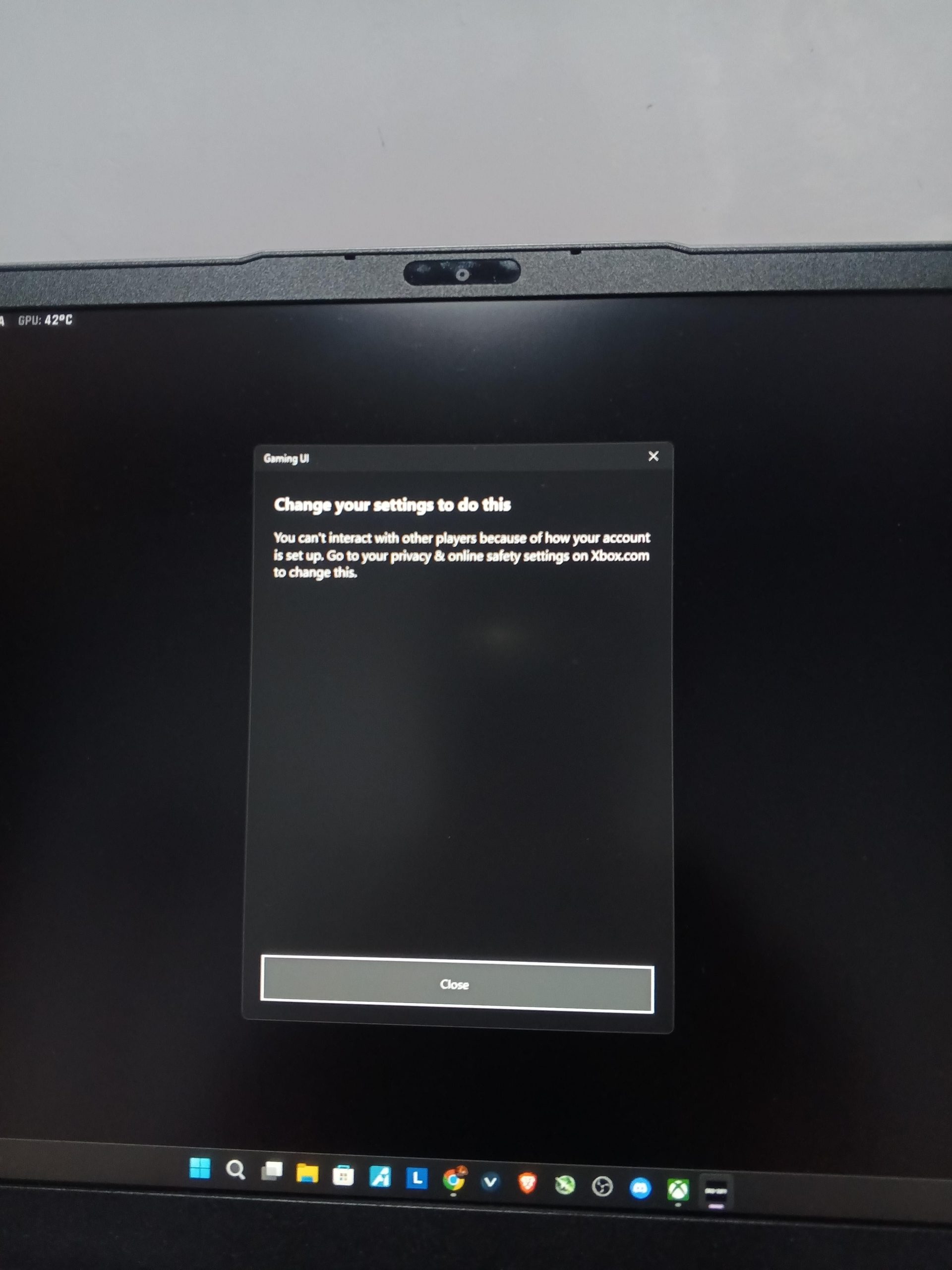
Xbox privacy in online gaming centers around controlling who can see your profile, communicate with you, and view your game activity.
Navigating the digital world of Xbox can be exciting, yet concerns about Xbox privacy in online gaming are valid. We all want to enjoy playing with friends, but also want to keep personal information secure. Understanding the settings available is key for a comfortable and safe experience online. So, let’s talk about how we can make that happen.

Xbox Privacy in Online Gaming
Playing games online with your Xbox is super fun, but it’s also important to think about keeping your information safe. Just like when you play outside, there are rules to follow online too. This part of our guide will explain how to stay safe when you’re gaming online using your Xbox. We’ll talk about the different privacy settings, what they mean, and how you can use them to control what other players can see and do. It’s all about making sure your online gaming experience is enjoyable and secure!
Understanding Xbox Privacy Settings
Xbox has lots of different settings that help you control your privacy. Think of these settings like a set of controls that you can adjust to decide who can see your profile, send you messages, or even join your games. You get to be the boss of your online world! It’s good to know about them so you can make choices that fit how you like to play.
What Are the Key Privacy Areas?
The Xbox privacy settings are divided into several key areas. Each area helps you manage a different part of your online interactions. Let’s take a look at some of the big ones:
- Profile Privacy: This setting is all about what others can see about you. It includes things like your name, gamer picture, achievements, and what games you’ve played.
- Communication Privacy: This is how you control who can talk to you through voice or text chat. It also lets you control who can send you friend requests.
- Multiplayer Privacy: This setting lets you decide who can join your games and who can invite you to play.
- Content Privacy: This is about what kind of content you can see and what others can see you sharing, like screenshots or game clips.
- Data Privacy: Here, you can manage what data Microsoft collects about how you use your Xbox.
Learning about these different sections can help you manage your online presence effectively.
Managing Your Profile Privacy
Your Xbox profile is like your online name tag. It lets other people know who you are. But sometimes, you might not want everyone to see everything. Here’s how you can control what information is shared:
Controlling Who Can See Your Profile Information
Xbox gives you several options for who can see your profile information, such as:
- Everyone: This means anyone on Xbox can see your profile. This might be good if you like meeting new people.
- Friends: Only people who you’ve added as friends can see your profile. This gives you a bit more control over who sees your information.
- Friends of Friends: This is like having friends on a school playground, people who are friends with your friends can see your profile.
- No one: This option means that only you can see your profile. It is a good choice if you want the maximum amount of privacy.
You can change these options at any time, depending on what feels right for you.
Controlling Game Activity Sharing
Another important part of your profile privacy is what game activity is visible. This includes:
- Your game list: You can decide if others can see what games you own or play.
- Your achievements: You can choose who can see the cool things you’ve accomplished in games.
- Your game clips and screenshots: You can control who sees those cool moments you’ve captured.
Think about what you want to share and make choices that keep you feeling good about your online presence.
Controlling How You Communicate With Others
Talking to other players is a big part of online gaming. But you have the right to choose who you talk to and how you communicate. Xbox provides tools to manage these things:
Managing Voice and Text Communication
These settings let you decide who can talk to you using voice or text chat. Here are some common options:
- Everyone: This means anyone online can talk to you, even if you aren’t friends with them.
- Friends: Only people on your friends list can talk to you using voice or text.
- Friends of Friends: Only friends of friends can communicate with you.
- No one: This setting mutes everyone, so you won’t hear voice chat, and no one can message you directly. This is good if you want to play without any interruptions.
Choose what’s best for you, and don’t be afraid to change it later if needed.
Controlling Friend Requests
Friend requests can be a great way to meet new people, but you might not want everyone to add you. You can use these settings to control who can send friend requests:
- Everyone: Anyone can send you a friend request.
- Friends of Friends: Only people who are friends with your friends can send you a friend request.
- No one: No one can send you a friend request. If you choose this setting, people can still follow your activity or send you messages directly.
Select the option that feels most comfortable to you.
Controlling Your Multiplayer Experience
Multiplayer games are all about playing with other people. You can control who you play with, who can invite you to games, and who can join your games:
Who Can Join Your Games?
When you start a multiplayer game, you can decide who can join:
- Everyone: Anyone can join your games, regardless if they’re your friend or not.
- Friends: Only your friends can join your games.
- Invited Only: People can only join if you invite them. This gives you the most control over who you play with.
Choose what feels right for the particular game and how you like to play.
Who Can Invite You to Games?
You can also control who can invite you to play:
- Everyone: Anyone can invite you to a game.
- Friends: Only your friends can send you invites.
- No one: No one can send you game invites.
Decide if you want to receive game invites from everyone, or if you would prefer to limit the invite options.
Understanding Content Privacy
Content privacy lets you control what kind of stuff you see and what you share with others on the Xbox network. It helps make sure the content you’re exposed to is appropriate for you.
Content Filtering Options
Xbox has some tools to filter content that might not be suitable for everyone. This can be useful if you want to ensure you’re only seeing age-appropriate content. Here are some options:
- Game ratings: You can restrict which games are visible on your profile based on their rating (like E for everyone, T for teens, or M for mature).
- User-created content: You can control if you see content created by other players (like custom skins or map designs).
- Profanity filters: You can filter out bad language in chat and user-created content.
Setting these filters helps keep your Xbox experience appropriate and fun for you.
Managing Your Own Shared Content
Think about what kind of content you create like game clips, screenshots, or custom avatar items you share with others. You have control over who can see the content you create and share:
- Who can see your captures: You can choose if anyone, only your friends, or no one sees your game clips and screenshots.
- Who can access your profile created content: You can decide if your avatar items are visible to anyone, your friends, or no one.
It’s good to think about what kind of content you share and who you want to see it.
Understanding Data Privacy
Data privacy is about what information Microsoft collects when you use your Xbox. Microsoft uses this data to make Xbox better. You have the right to control some of this data.
What Data Does Microsoft Collect?
Microsoft collects different types of data about your Xbox use, such as:
- How you use your Xbox: This includes information about the games you play, the apps you use, and how often you play.
- Technical information: This includes data about your Xbox console and its performance.
- Error and diagnostic data: This helps Microsoft find and fix problems.
Controlling Data Collection
You can manage what information Microsoft collects:
- Optional data collection: You can decide if you want to send extra data about how you use your Xbox.
- Data for personalized experiences: You can control if Microsoft uses your data to personalize ads and content on your Xbox.
- Advertising ID: You can reset your advertising ID to limit the amount of personalized ads that you see.
Review these settings to make sure you’re comfortable with the data being collected.
Tips for Staying Safe Online
Keeping yourself safe online is really important, here are some key tips:
Be Careful Who You Chat With
Not everyone online is who they seem to be. Be careful about talking to strangers online and never share personal information like your real name, address, or phone number.
Think Before You Share
Be mindful of the things you post and share online. Once something is online, it can be hard to take it back. Think about how you are acting online and how it may affect others.
Tell a Trusted Adult If You Need Help
If you ever feel uncomfortable, bullied, or threatened by someone online, tell a trusted adult, like a parent or teacher. They can help you stay safe.
Use the Xbox Reporting Tools
If you come across someone being mean or breaking the rules, you can report them to Xbox. This helps keep the Xbox community safe and fun for everyone.
Using these tips will make your online experience more enjoyable and secure.
Regularly Review Your Settings
The most important thing is to check your privacy settings regularly. As you get older, or as your preferences change, you might want to change your privacy settings.
Remember, your privacy is important, and Xbox gives you the tools to control it. By understanding these settings and taking the time to adjust them, you can have a safe and fun experience in the online gaming world. Always be responsible and enjoy your time online.
Xbox Series X/S: How to Change “You Can Join Multiplayer Games” Privacy Setting! (2025)
Final Thoughts
Ultimately, navigating Xbox privacy in online gaming requires proactive effort. Adjusting settings, managing friend lists, and being mindful of shared data are crucial. Gamers should understand what information they share and with whom.
Careful configuration allows a more secure experience. Regularly check your privacy settings, and use parental controls when needed. Stay informed about changes that Microsoft implements.
This approach allows players to enjoy online gaming responsibly. Xbox privacy in online gaming remains a top concern, so taking these steps is important for safety and peace of mind.

