
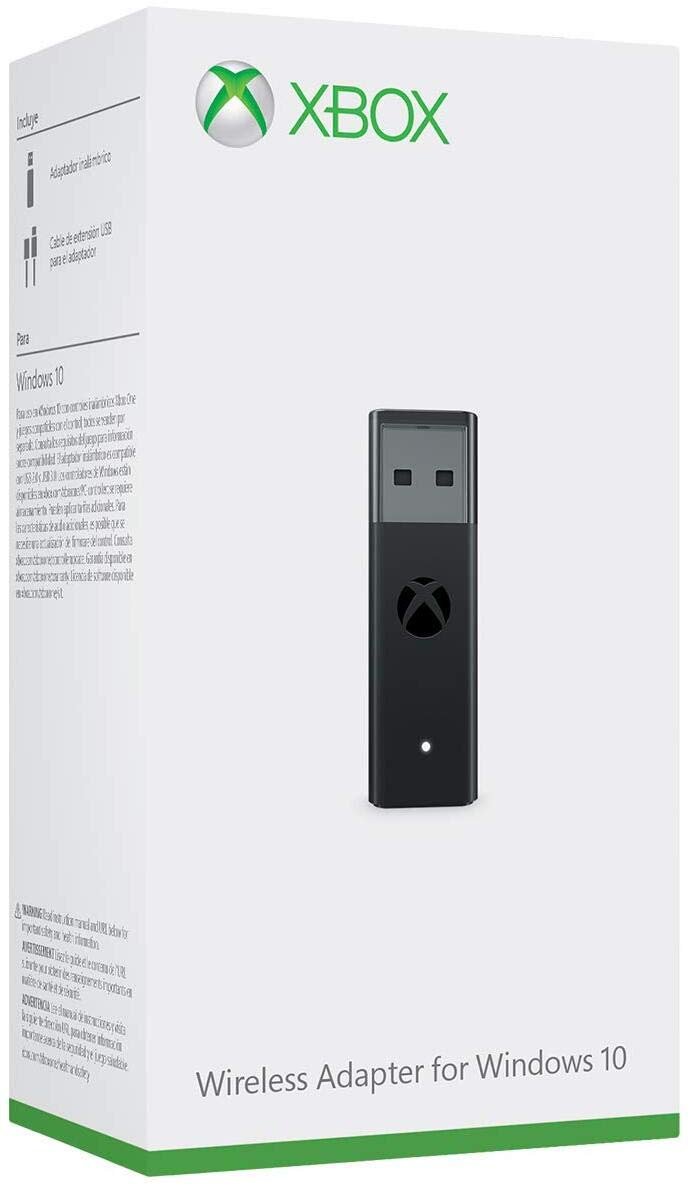
The Xbox wireless adapter enables you to connect your Xbox controllers to your Windows PC for seamless gaming.
Tired of tangled wires getting in the way of your PC gaming? Many gamers face this same frustration and want a better solution. The good news is that there is an answer with the Xbox wireless adapter. This nifty device allows your Xbox controllers to connect wirelessly to your computer. This enhances your gaming experience considerably. Finally you can play your favorite PC titles with your preferred controller, no cables needed.

Xbox Wireless Adapter: Your Key to Cord-Free Gaming
Tired of tangled wires getting in the way of your epic gaming sessions? The Xbox Wireless Adapter is here to save the day! It’s a small, but mighty device that lets you connect your Xbox controllers to your Windows PC without any pesky cables. Think of it like a magic translator, allowing your controller to speak the language of your computer. This opens up a whole new world of gaming possibilities, letting you enjoy your favorite Xbox games on your PC with the controller you love.
Why You Need an Xbox Wireless Adapter
Let’s be honest, wired controllers can be a pain. They limit your movement, create clutter, and can even be tripped over (ouch!). An Xbox Wireless Adapter solves all these problems and provides some cool advantages too. Here’s a closer look at what makes it so great:
Freedom of Movement
With the wireless adapter, you’re not tethered to your computer. You can sit back on your couch, move around your room, and get comfortable. This is especially useful when you’re playing with friends and need to arrange your gaming setup.
Less Clutter
Say goodbye to messy wires snaking across your desk or floor. The wireless adapter keeps your gaming area neat and organized. It’s a small thing, but it makes a big difference to your overall gaming experience.
Easy Setup
The adapter is super simple to set up. Just plug it into your computer’s USB port, follow a few simple steps, and you’re ready to go. You don’t need to be a tech expert to get it working, and it’s usually a very fast process.
Connect Multiple Controllers
The Xbox Wireless Adapter isn’t just for solo players; it supports up to eight controllers at once. That means you and your friends can all play together on the same PC, making it perfect for local multiplayer games. It even supports up to 4 chat headsets.
Compatibility
The adapter works with a wide range of Xbox controllers, including the Xbox Wireless Controller, Xbox Elite Wireless Controller Series 2, and most Xbox One controllers. It also works with devices like headsets that utilize the Xbox wireless protocol. So you can likely use the controller you already own.
How Does the Xbox Wireless Adapter Work?
The Xbox Wireless Adapter uses a special technology to communicate with your controllers. Think of it like a walkie-talkie, but instead of talking with words, your controller is sending signals to the adapter, telling it what buttons you’re pressing and what direction you’re moving. The adapter then sends this information to your computer, which then translates those signals into actions in your game.
The main advantage of this connection is that it operates on a specific radio frequency optimized for minimal delay. This is important for gaming because any lag, or delay between your input and your on-screen action, can affect your performance. Bluetooth is another popular wireless connection, but it can sometimes experience latency issues. The dedicated Xbox Wireless protocol, used by the adapter, was built with low latency gaming in mind.
The Signal
The adapter operates using the 2.4 GHz band. This frequency is commonly used by many wireless devices, but the Xbox wireless signal uses a specific protocol that makes it optimized for gaming. The adapter and your controller constantly send and receive small bits of information. This communication loop ensures that when you press a button, the action appears in your game with very little delay.
It’s important to note that physical objects, like walls, and other electronic devices that transmit on the same frequency can potentially interfere with the signal between the controller and the adapter. Therefore, it’s often best to keep the adapter in a clear line of sight to your controller. However, this is not always necessary and in many cases, it will work perfectly fine without a clear line of sight.
Setting Up Your Xbox Wireless Adapter
Setting up the Xbox Wireless Adapter is a breeze. Here’s a step-by-step guide:
Step 1: Plug It In
Find an open USB port on your computer and plug the adapter in. It should fit snugly and won’t require any additional drivers in most cases. Windows will generally automatically detect the adapter and install the necessary software.
Step 2: Pair Your Controller
Turn on your Xbox controller by pressing the Xbox button in the center. Then press and hold the small pairing button on the top edge of your controller and the small pairing button on the side of the adapter. When both lights begin flashing quickly, they are attempting to establish a connection. When they have connected, the flashing will stop and the light will glow steadily.
Step 3: Start Gaming
Once paired, your controller should be recognized by your computer. You can now play games that support a controller input, and can even map your controls to your preference. If you are having trouble with pairing, try again, or move your controller closer to the adapter. Ensure that your computer meets the minimum system requirements for the adapter.
Troubleshooting
Sometimes, things don’t go exactly as planned. If you have trouble connecting, try the following:
- Make sure the adapter is plugged in securely.
- Restart your computer.
- Update your Windows operating system.
- Try a different USB port.
- Check if your controller is fully charged or has batteries.
- Move your controller closer to the adapter.
The Different Types of Xbox Wireless Adapters
While most adapters do the same basic job, there are some subtle differences between them. Understanding these differences can help you choose the right adapter for your needs. Primarily, there are two common types of adapters that have appeared in official releases:
The Original Xbox Wireless Adapter (for Xbox One)
This was the first official adapter for Xbox One controllers and is identifiable by its rectangular shape with a light at the front. It was designed to be compatible with Xbox One controllers on Windows 10 PCs. It uses the Xbox Wireless protocol mentioned earlier to connect to your controllers. While still compatible, this model is gradually being replaced by the newer model.
The Xbox Wireless Adapter for Windows 10 (and later)
The more recent model of the Xbox Wireless Adapter is smaller and has a more compact design. It is generally identifiable by its more streamlined look, and it also has a small button on its side for pairing. It is designed to work with newer Xbox controllers, like the ones that shipped with the Xbox Series X and Xbox Series S consoles. However, it also retains backwards compatibility with most Xbox One controllers. Both of these adapters connect through a standard USB port.
Both models provide the same basic functionality, connecting your controllers wirelessly to your computer. But the newer models are more streamlined, designed for newer technologies, and are generally more energy efficient.
There are also third-party adapters available that may offer similar functionality. However, it’s recommended to use an official adapter whenever possible to ensure compatibility and reduce potential issues.
Benefits of Using the Xbox Wireless Adapter
Let’s dive a little deeper into the actual advantages of adding the Xbox Wireless Adapter to your gaming setup. These are benefits that enhance your experience and potentially provide practical solutions to common gaming problems.
Enhanced Immersion
When you’re playing a game that you are truly immersed in, the last thing you want is to be pulled out of the experience. With wires limiting movement, this can be an issue. By using a wireless connection, you are free to shift positions, move to a more comfortable spot, or reposition yourself during intense moments without thinking about the cord. This helps you to stay present and fully absorbed in the game.
Multiplayer Convenience
Hosting a game night with your friends is incredibly easy when using the wireless adapter. Instead of worrying about USB ports, or running cables across the floor, everyone can connect their controller wirelessly. This creates a much more streamlined experience for everyone involved, and makes set up and clean up easier.
- No tangled cables to worry about
- Easy setup and disconnection
- Allows for greater flexibility in a multiplayer environment
Portability and Travel
The Xbox Wireless Adapter is very small, which makes it very portable. Whether you are moving your computer to a different room in your house, or taking it with you to a friend’s place, you don’t need to worry about packing a lot of cables. This makes it easy to have the ultimate gaming setup no matter where you are.
Long Term Cost Savings
While it’s a small initial investment, the wireless adapter has the potential to save you money in the long run. Wired controllers tend to suffer wear and tear near the connection point, so they often need to be replaced more frequently. By using wireless controllers, you’ll be able to extend the life of your equipment and potentially replace it less often.
Who Should Buy an Xbox Wireless Adapter?
The Xbox Wireless Adapter is a fantastic purchase for a number of people, depending on their gaming preferences and needs. Let’s review some of these people.
PC Gamers Who Love Controllers
If you’re a PC gamer who prefers controllers over a mouse and keyboard, this adapter is a must-have. It lets you play your favorite PC games that are controller-compatible without having to use a wired controller, which greatly increases comfort and convenience. It also allows you to take full advantage of the Xbox controller ecosystem and play all your favorite cross-platform games seamlessly.
Multiplayer Gamers
If you frequently play local multiplayer games on your PC with friends and family, this adapter can transform your gaming experience. It allows you to connect multiple controllers, making it easier to jump into games together. It also makes setting up gaming sessions more flexible, so you can game from your couches and not worry about the cables running across the room.
People Who Enjoy a Clean Setup
Do you like to keep things tidy? If wires bother you, the Xbox Wireless Adapter is your solution. It keeps your gaming area organized and uncluttered. The adapter is also small, so it does not take up much space and is easy to store.
Gamers with Multiple Consoles and PCs
Do you switch between consoles and your PC? With the wireless adapter, you can use the same controllers seamlessly across all your devices, making it easy to start up a game anywhere. It removes the barrier of changing controllers or worrying about cables when switching between different platforms.
Things to Consider Before Buying an Xbox Wireless Adapter
While the Xbox Wireless Adapter is a great addition to your setup, it’s a good idea to think about a few things before making a purchase.
Compatibility
Check to make sure your controller is compatible with the adapter you are planning to purchase. As mentioned previously, the official adapters will generally support most modern Xbox controllers. However, it’s always a good idea to double-check. Also, ensure that your operating system is compatible as well. Modern versions of Windows will generally support these devices, but check to make sure your system is up-to-date.
Price
Official Xbox Wireless Adapters are often a little more expensive than third-party options. However, it’s important to remember that the reliability of a first party device is generally very high, so you may save money in the long run by avoiding less reliable cheaper options.
Potential Interference
As with all wireless devices, the Xbox Wireless Adapter can be affected by other wireless signals. Microwaves and Bluetooth devices operate on similar frequencies, so they have the potential to interfere with your controller connection. In most cases this won’t be a problem, but if you have issues with wireless interference, try to isolate the source.
Ultimately, an Xbox Wireless Adapter provides a very convenient and very useful way to connect your controllers to your PC. Whether you are a solo gamer or play with friends, it is a great addition to any setup, making it easier and more comfortable to play your favorite games.
In summary, the Xbox Wireless Adapter truly does present a valuable solution for gamers who want more freedom and flexibility. Its ease of setup, compatibility, and the ability to connect multiple controllers make it a perfect addition to any PC gaming setup. By getting rid of the restrictions of wired controllers, it provides you with a much more enjoyable and organized experience. If you are an Xbox controller user looking to game on a PC, the Xbox Wireless Adapter is a great purchase that will likely become an essential part of your gaming environment.
What is Xbox Wireless? You Probably Use It!
Final Thoughts
The Xbox wireless adapter provides a seamless connection for your controller to your PC. It eliminates the hassle of wired connections and increases freedom. Setup is generally quick and simple.
This adapter ensures a stable, low-latency gaming experience. Enjoy playing PC titles with your favorite Xbox controller. The Xbox wireless adapter is the easy choice for wireless play.

