
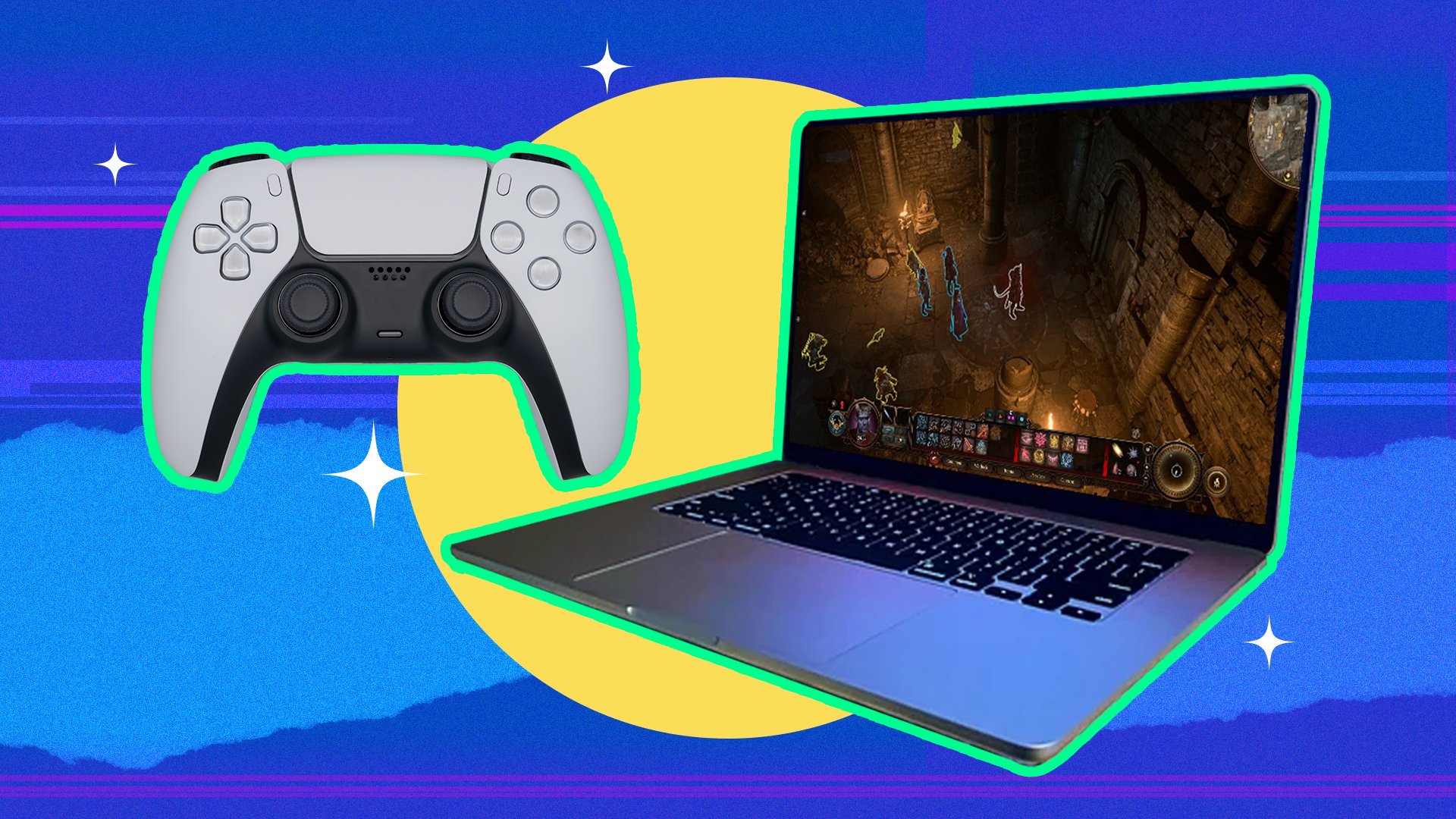
While Macs cannot natively run most PC games, solutions like Boot Camp, virtualization software, and cloud gaming services allow you to play many PC titles on a Mac.
Curious if you can dive into the world of PC gaming on your Mac? It’s a question many Mac users ponder as they see their friends enjoying various PC-only titles. The reality is slightly more complex than a simple yes or no.
While Macs and PCs use different operating systems, it does not mean gaming is completely off-limits for Apple users. Many ways exist to play PC games on a Mac.

Can a Mac Play PC Games?
That’s the big question, isn’t it? You’ve got your shiny Mac, maybe it’s a MacBook or an iMac, and you’re itching to play the latest and greatest games. But then you hear whispers that Macs aren’t really for gaming. So, can you actually dive into the world of PC games on your Apple computer? The answer isn’t a simple yes or no, it’s more of a “sometimes, with a little effort.” Let’s break it down and explore all the ways you can play PC games on your Mac.
The Basics: Why the Confusion?
The biggest hurdle to playing PC games on a Mac is that they’re built on different foundations. Think of it like this: PC games are often designed to run on Windows, while Macs use macOS. It’s like trying to fit a square peg in a round hole. The two operating systems work differently, and that difference can cause problems when you try to run a Windows-designed game on a Mac. The most significant difference is that Windows runs on the x86/x64 architecture, which is the instruction set that most games are made to run, while Mac now runs on the ARM architecture and there are differences on the APIs they use and that creates a problem. Here’s where things get a little more detailed.
Understanding Operating Systems
An operating system (OS) is like the brain of your computer. It manages everything from your files to how programs work. Windows is the most common OS for PCs, and the majority of PC games are built with it in mind. macOS, Apple’s OS, works differently. This means games designed for Windows sometimes can’t just be copied over and run on a Mac.
The Software Differences
Software compatibility can sometimes be very tricky to understand. When game developers make a game, they tailor it for specific hardware and operating systems. Many games utilize Windows-specific technologies, like DirectX, which is a graphics and multimedia API that is unavailable on macOS. Macs use Metal, which is Apple’s own graphics API. Games designed with DirectX sometimes don’t run correctly, or at all on a macOS using Metal.
Hardware Considerations
While modern Macs are quite powerful machines, not all of them come with the latest and greatest graphics cards. High performance is sometimes very necessary in gaming to have a smooth experience. Some PC games will work just fine on your Mac. Others might need a more powerful graphics processing unit (GPU) than what your Mac has. It is really essential to check the specifications of each game before trying to play it.
Ways to Play PC Games on a Mac
Don’t worry, the situation isn’t hopeless! There are several ways to play your favorite PC games on a Mac. Let’s explore your options:
1. Native Mac Games
The simplest way to play a game on a Mac is to play a game that is made to run on it. Some game developers are now making their games available for both Windows and macOS. These games are designed to work smoothly on your Mac, as they use the macOS APIs.
2. Boot Camp: Running Windows Directly
Boot Camp is a program that comes with your Mac, and it lets you install Windows on a separate part of your hard drive. This means you can actually restart your Mac and have it boot directly into Windows, it’s like having a PC inside your Mac!
How to Use Boot Camp:
- You’ll need a Windows license.
- You download the Boot Camp assistant, which is a program that helps you set up Windows on your Mac.
- You restart your Mac and choose whether to boot into macOS or Windows.
Boot Camp has a really good performance, because the game runs on your system’s hardware without extra layers. All the games work as if it was a normal PC running Windows. However, you do need to allocate storage space for Windows which is sometimes a headache, and restarting to switch between operating systems can be a pain.
3. Virtualization Software: Running Windows Inside macOS
Virtualization software, like Parallels Desktop or VMware Fusion, lets you run Windows as a program inside macOS. It’s like having a window open to Windows on your Mac. This lets you run Windows and macOS at the same time.
How Virtualization Works:
- You install the software, such as Parallels Desktop or VMware Fusion.
- You install Windows inside this “virtual machine”.
- You can now run Windows programs in a window on your Mac.
This method is really convenient for running Windows programs on the go, and you don’t have to restart to switch operating systems. But, running two operating systems at the same time can impact performance of the games, and it might not work well for graphically intensive games.
4. Cloud Gaming Services
Cloud gaming is like streaming movies or music. Instead of running games on your computer, you play the game on powerful servers in the cloud. You just need a good internet connection and a subscription to services like GeForce Now or Xbox Cloud Gaming, where your Mac acts as a screen for these cloud machines.
How Cloud Gaming Works:
- You pay a subscription to a service like GeForce Now.
- You stream the game from the internet.
- You play the game via your internet connection.
Cloud gaming is a great way to play big and very demanding PC games on any Mac. But, the game quality really depends on the quality of your internet connection. There might be some lag, and it is not the same quality as playing on a local machine.
5. Crossover/Wine: Translating Windows Instructions
Crossover and Wine are programs that work in a different way. They translate the instructions of a Windows game into instructions that macOS can understand. Instead of running Windows, it’s using a “translator” program, so that games that usually run in Windows can work on macOS.
How Crossover/Wine Works:
- You install Crossover or Wine.
- You load your Windows game into the program.
- The program translates the game’s instructions so it runs on macOS.
Crossover and Wine programs can work well for some games, and you don’t need a Windows license or a separate operating system installed. But, they don’t always work for all games. They require configuration to get games working properly, and it needs the user to have good technical skills. It might not work for graphically intensive games.
Choosing the Right Method
So, which method is best for you? Here’s a quick guide:
| Method | Pros | Cons | Best For |
|---|---|---|---|
| Native Mac Games |
|
|
Casual gamers, easy to run games |
| Boot Camp |
|
|
Hardcore gamers who want best performance |
| Virtualization Software |
|
|
Users who need Windows apps alongside macOS |
| Cloud Gaming |
|
|
Those with good internet, can use less powerful Mac |
| Crossover/Wine |
|
|
Users comfortable with troubleshooting, some games run, not all. |
Game Compatibility: Not All Games Are Created Equal
It’s important to keep in mind that not every single PC game will work flawlessly on a Mac, regardless of the method you choose. Some games might run well, some might need some workarounds, and some might not work at all.
Factors Affecting Compatibility:
- Graphics API (DirectX vs. Metal)
- Hardware Requirements of the Game
- Game-Specific Issues
Before you get your hopes up for a particular game, check the game’s forums or website to see what other people say about it. There is a huge community of gamers that is helpful and will tell you the compatibility status of the game with your specific operating system and mac configuration.
Tips for Better Gaming on Mac
Here are a few extra tips to make your gaming experience on Mac better:
- Make sure your Mac is up to date with the latest software.
- Close other programs while gaming.
- Check game requirements and lower in-game settings.
- Get a good quality external mouse, keyboard and monitor.
The ability to play PC games on a Mac has made big strides over the years. While there may not be a perfect solution for every single game, you have several options to get the games you want working on your computer. Choosing between Boot Camp, virtual machines, cloud gaming, or even compatibility layers like Crossover or Wine depends on the game you want to play, your technical skill level, and what works best for you. Do some research and try some different methods.
Gaming on a Mac, FINALLY! 🙌
Final Thoughts
Ultimately, Macs can play many PC games, but it often requires workarounds. Boot Camp allows you to install Windows for direct gaming. Cloud gaming services offer another option, letting you play games remotely.
Emulation also presents a way, though performance can vary. So, can a mac play pc games? Yes, but not always as simply as on a PC. Each method has trade-offs.

