
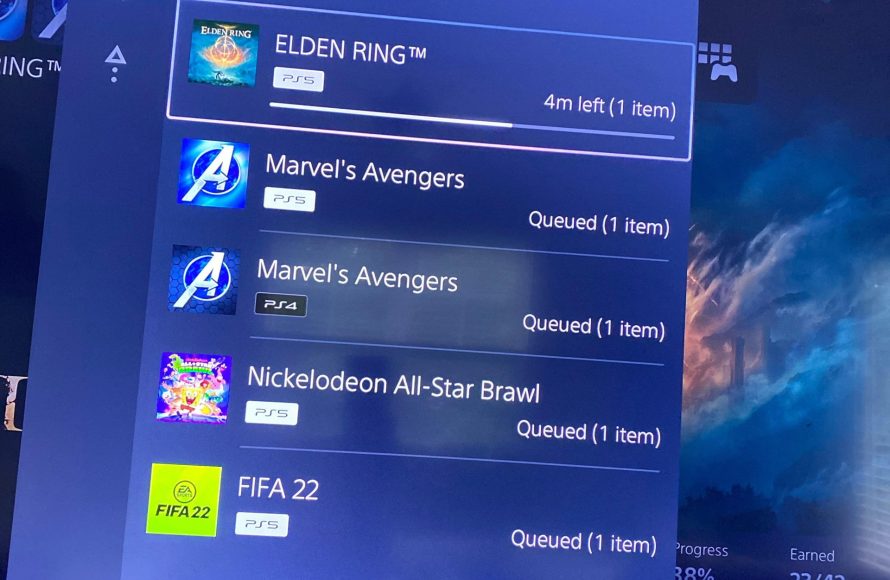
Yes, you can delete the PS4 version of games on your PS5.
So, you’ve finally snagged a PlayStation 5 and maybe you’re wondering, can i delete the ps4 version of games on ps5? It’s a common question since many games offer both PS4 and PS5 versions. You’ll likely want to free up space quickly.
Having both versions installed can definitely eat into your storage. Thankfully, managing your storage is straightforward; you have full control. It just takes a few steps through the menu and you’re all set to remove the old games.

Can I Delete the PS4 Version of Games on PS5?
So you’ve got a shiny new PlayStation 5, and it’s amazing! But maybe you’ve noticed something – some of your games have two versions: a PS5 version and a PS4 version. It’s a bit confusing, right? You might be wondering if you can just get rid of the PS4 version to save some space on your console. Well, the short answer is yes, you absolutely can! But, there are some things you should know first. Let’s dive into the details.
Why Are There PS4 Versions on My PS5?
First, let’s understand why this happens. The PS5 is backward compatible, meaning it can play almost all of your old PS4 games. This is fantastic because it lets you enjoy your whole library on the new console. When you insert a PS4 disc or download a digital game that has both versions, the PS5 sometimes installs both, especially if you haven’t specifically chosen the PS5 version. This can take up valuable storage space, which is a precious commodity these days!
Dual Versions: Disc vs. Digital
How you got the game plays a part. If you’re using a disc, and it’s a game that has an upgrade to the PS5 version, you usually have to choose which to download. Sometimes, the PS4 version gets downloaded automatically along with the PS5 one. Digital games that have a PS5 upgrade also work similarly; both versions might be available in your library. It’s like having two copies of the same book, and we all know that one book can take up a lot of space on a shelf!
How to Identify Which Version You’re Playing
Before you go deleting things, let’s make sure you know which version you’re actually playing! It’s super important to play the PS5 version if you have one because it generally looks and plays much better. The PS5 version of games has features like faster loading times, improved graphics, and haptic feedback with the DualSense controller.
- On the Home Screen: When you hover over a game icon, look for a little ‘PS4’ or ‘PS5’ label next to the title. This clearly shows you which version it is.
- In the Game Library: Go to your game library, and again look for those PS4 or PS5 labels to identify the games. You might even see two separate icons for the same game if both versions are installed.
- During Gameplay: Often, when you start a PS5 version game, it shows a PS5 logo. A PS4 game generally doesn’t show this logo.
Deleting the PS4 Version: Step-by-Step
Okay, now for the main event – deleting that extra PS4 version! Don’t worry; it’s not difficult. You just need to follow these steps. Remember, you can always re-download the PS4 version if you need it later, but it’s usually best to use that storage space for other games instead!
Deleting from the Games Menu
- Go to your Game Library: From the PS5 home screen, find the ‘Game Library’ icon (it looks like a stack of books). Click on it to enter your game library.
- Find the Game: Scroll through the library and select the game that has both a PS4 and PS5 version, that you want to delete.
- Press the Options Button: When you select the game, press the ‘Options’ button on your controller (it’s the small button with three horizontal lines). A menu will pop up.
- Select Delete: In that menu, find the option that says “Delete” and press it. A window will appear asking you to confirm that you wish to delete the selected version of the game. Make sure you are deleting the PS4 version and not the PS5 version of the game!
- Confirm Delete: Confirm that you want to delete the PS4 version. The PS5 will then delete the game, freeing up that space on your hard drive.
Deleting from the Storage Settings
If you are having trouble finding the game in your game library, you can also delete the PS4 version from your Storage settings:
- Go to Settings: From the PS5 home screen, go to “Settings,” which is the gear icon at the top-right corner of the screen.
- Choose Storage: In Settings, scroll down and find “Storage”. Click on it.
- Select Games and Apps: On the storage screen, select “Games and Apps.”
- Find the Game and Delete: A list of your installed games will appear. Select the PS4 version of the game that you want to delete. Select the “Delete” option and confirm.
Important Considerations Before Deleting
Before you start deleting, here are a few key things to keep in mind:
Save Data and Progress
- PS4 Saves Don’t Work on PS5 Versions: Usually, save data from PS4 games is separate from save data for the PS5 version. It’s important to know that if you start playing the PS5 version, you usually can’t transfer your progress from the PS4 version. Some games do allow you to move the save, but not all of them. Check the game’s manual or official website for game specific save transfer information.
- Cloud Saves: If you use PlayStation Plus, your PS4 saves might be backed up in the cloud. You can re-download them if you need to. But, again, they won’t work for the PS5 version of the game.
Accidental Deletion and Redownloading
- Re-downloading: If you accidentally delete the wrong version, don’t panic! You can always re-download any game that you own from the PlayStation Store. This process might take some time, depending on your internet speed, but the game data will be retrieved from Sony’s servers.
- Check Twice, Delete Once: Before you hit delete, double-check that you’re removing the correct version! The PS5 version of a game will always play better and take advantage of the PS5’s hardware, so it’s a good idea to delete the PS4 version first.
Game Specific Differences
It is worth noting that some games handle the dual versions differently. Some offer a direct in-game upgrade, meaning they upgrade the PS4 version, while others have two distinct versions that both need to be downloaded.
- Game Upgrades: If a game only allows for a simple upgrade, you won’t even see the PS4 version in your list.
- Dual Install Games: Most dual-release games let you install both versions, allowing you to play both as desired, even if it does take up space.
Managing Your PS5 Storage
Since storage space is important, it is good to learn to manage it properly. Deleting PS4 versions of games is a good step to take. Here are some other ways to help with game storage:
- External Hard Drives: You can use an external hard drive with your PS5 to store PS4 games. This is very useful, especially for those who have large collections of older games. The PS5 can play PS4 games directly from the external drive. However, you can’t play PS5 games from an external drive, that is why it is best to store the PS4 versions on an external hard drive.
- Prioritize your Games: Keep the games you play often on your console’s internal drive, as it allows the games to load faster. Store games that you rarely play on an external drive, or delete them, if you do not think you will need them.
- Deleting Old Game Data: Sometimes, even when you delete games, there may still be residual save data. You should always delete the save data if you no longer play the game. You can manage all saved data for your games in the “Saved Data and Game/App Settings” under “Settings.”
- PS5 Console Storage: The PS5 console has a built-in storage expansion slot, that allows you to install a compatible NVMe drive to expand the storage capacity of the console. While these drives can be expensive, they are perfect for those who have large game collections and want them on the fast internal storage of the console.
Benefits of Deleting PS4 Versions
While the main purpose of deleting the PS4 version is freeing up space, there are some other reasons why this is a good idea:
- Reduced Clutter: Having multiple versions of the same game can make your library messy. Deleting the PS4 versions reduces this clutter and makes it easier to navigate the game library.
- Prevent accidental launches: You might accidentally launch the PS4 version of a game when you wanted to play the PS5 version. By deleting the older version, you won’t make this error, and will always get the optimized experience.
- Focus on the PS5 Experience: The PS5 version of a game offers improved graphics, faster loading times, and additional features. By deleting the PS4 version, you ensure you use the best version of the game.
So, can you delete the PS4 version of games on your PS5? Absolutely! It is a straightforward process that can free up a lot of valuable storage space. Just remember to pay attention to which version you’re deleting, back up your game saves, and you’ll be all set to enjoy your games on the powerful PS5.
PS5 HOW TO DELETE PS4 VERSION!
Final Thoughts
You can absolutely delete the PS4 version of games on your PS5. This action frees up valuable storage space. Having both versions installed becomes redundant.
Keeping only the PS5 version ensures you are playing the optimized experience. Many players prefer having the best version only.
So, if you have wondered, “can i delete the ps4 version of games on ps5?”, the simple answer is yes. You have control of your storage.

