
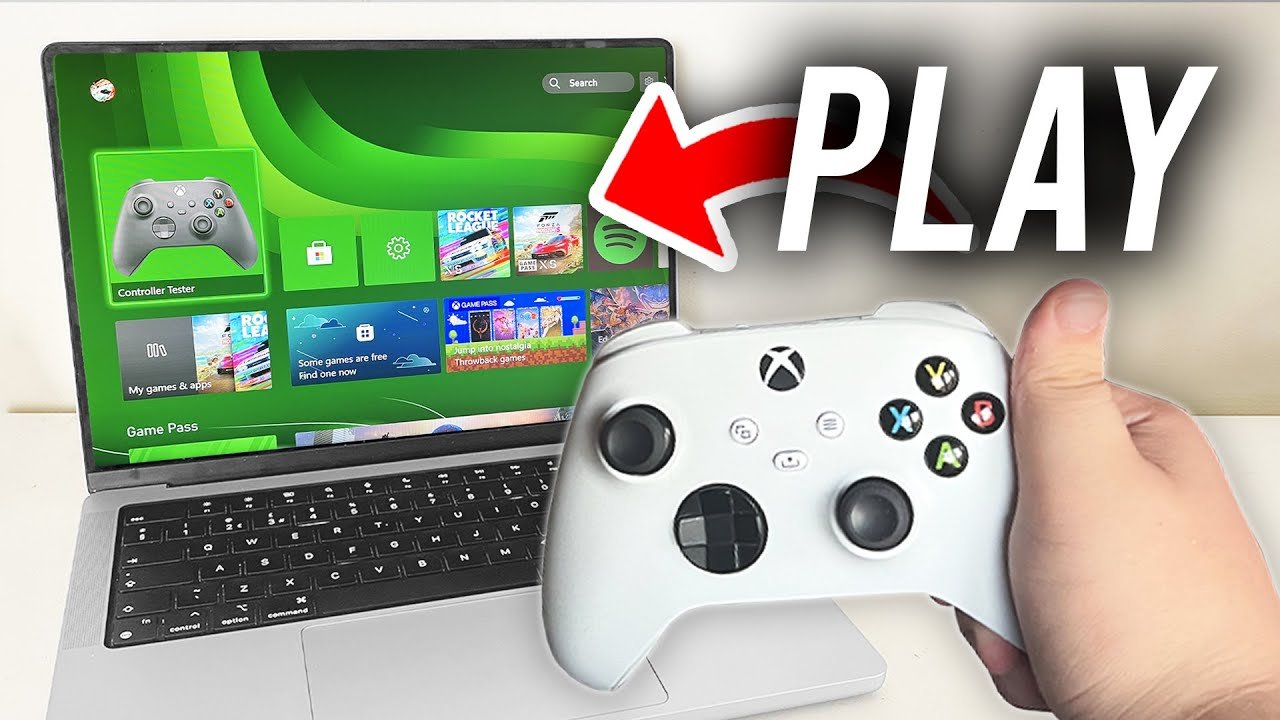
Playing Xbox One games on PC requires using the Xbox Play Anywhere program where available, or by utilizing Xbox cloud gaming services via the Xbox app on Windows.
Ever wished you could ditch the console and play your favorite Xbox One games on your computer? You’re not alone! Many gamers wonder how to play Xbox One games on PC, and thankfully it’s easier than ever.
This method gives you flexibility in how and where you enjoy your favorite titles. You can continue your gaming sessions regardless of which screen you are facing. Let’s dive into how this works!

How to Play Xbox One Games on PC
Have you ever wished you could play your favorite Xbox One games on your computer? Well, good news! It’s totally possible, and it’s not as complicated as you might think. There are a few different ways to get your Xbox games onto your PC, and we’re going to explore each one. This means you can keep playing even when someone else wants to use the TV, or you can game on the go with your laptop. It’s all about finding the method that works best for you. We’ll break everything down step-by-step, so you’ll be gaming on your PC in no time!
Understanding Your Options
Before we dive into the “how,” let’s talk about the “what.” There are mainly two paths you can take to play Xbox One games on your PC:
- Xbox Play Anywhere: This is a program where certain games let you play the same game on both your Xbox and PC, using the same purchase. You only buy the game once, and you can switch between devices.
- Xbox Console Streaming: This method uses your Xbox console to play the game and sends it to your PC through your home network. It’s like watching a live video of your Xbox gameplay on your computer screen.
Choosing the right method depends on the games you want to play and what you have available. Let’s look at both of these in detail, starting with Xbox Play Anywhere.
Xbox Play Anywhere: Sharing Games Between Xbox and PC
Xbox Play Anywhere is a really neat way to get the most out of your games. It’s simple: you buy a digital game that supports this feature, and you own it on both your Xbox console and your Windows PC. It’s like getting a two-for-one deal! You can start a game on your Xbox, save your progress, and pick up right where you left off on your PC, or the other way around. It’s great for families or for anyone who likes to switch between playing on the couch and at their desk.
How to Know if a Game is Play Anywhere
It’s easy to tell which games support Play Anywhere. Just look for the “Xbox Play Anywhere” logo on the game’s packaging or in the online store (Microsoft Store). If you see that logo, you’re good to go! When you buy the game digitally, it should automatically show up in your game library on both Xbox and PC.
Steps to Play Play Anywhere Games on PC
- Make sure you have a compatible PC: You will need a PC running Windows 10 or Windows 11.
- Sign in to your Microsoft Account: Use the same Microsoft Account on your PC as the one you use on your Xbox.
- Open the Microsoft Store: Find the Microsoft Store app on your PC (it usually looks like a shopping bag with the Windows logo) and open it.
- Find your games: In the Microsoft Store, go to “My Library.” You should see all the games you’ve bought that are part of the Play Anywhere program.
- Download the game: Select the game you want to play and hit the download button. The game will download to your PC.
- Start playing: Once the game is downloaded, you can start playing it on your PC just like any other PC game.
Benefits of Xbox Play Anywhere
- Play games on multiple devices: You can play on both your Xbox and your PC with a single purchase.
- Shared game saves: Your game progress is saved and synced, so you can pick up where you left off on any device.
- Digital convenience: You can quickly download and start playing your games, no discs needed.
Xbox Console Streaming: Playing Games from Your Xbox to Your PC
Another way to get your Xbox One games on your PC is through console streaming. This method doesn’t require the game to be Play Anywhere. Instead, your Xbox does all the heavy lifting, and your PC acts as a screen to show you the game. Think of it like having a second monitor for your Xbox, but it’s your computer!
What You Need for Console Streaming
- An Xbox One console: This needs to be on and connected to your home network.
- A PC running Windows 10 or 11: Your computer needs to be on the same network as your Xbox.
- Xbox app: You need to have the Xbox app installed on your PC. You can get this free from the Microsoft Store.
- Xbox controller: You’ll likely want to use an Xbox controller connected to your PC for the best experience.
- Good network connection: A strong and stable Wi-Fi or Ethernet connection is very important for smooth gameplay.
Setting Up Console Streaming
Once you have all the necessary hardware, here’s how to set up console streaming:
- Enable remote play on your Xbox: On your Xbox, go to Settings > Devices & connections > Remote features, and make sure “Enable remote features” is turned on.
- Sign in to the Xbox app on your PC: Use the same Microsoft Account that you use on your Xbox.
- Connect to your Xbox: Within the Xbox app, go to the “Console” icon on the left side. The app will look for your Xbox on your network. Select your Xbox to connect.
- Start streaming: Once connected, you will see an option to “Stream” your console. Click this. Now, whatever you see on your Xbox screen will show up on your PC.
- Start playing a game: You can now start any game from your Xbox and it will appear on your PC screen.
Things to Consider for a Smooth Streaming Experience
- Network Speed: A fast and stable network is critical. A wired Ethernet connection is often better than Wi-Fi. A slower network can cause lag (delays) and make the game feel jerky.
- Other Devices: If lots of other devices are using your network, this might slow down your streaming. Try to minimize network use when you stream games.
- Xbox Controller Connection: You can connect your Xbox controller to your PC with a USB cable or through Bluetooth. For the best experience, use a wired connection for minimal input delay.
Benefits of Xbox Console Streaming
- Play all your Xbox One games: You aren’t limited to just Play Anywhere titles. You can stream nearly any game you own on your Xbox.
- Use your Xbox console: You can use your Xbox as the main player and play on any of your PC, laptop or even tablet that have Xbox application installed
- Easy to set up: The Xbox app makes it relatively easy to connect your PC to your Xbox.
Optimizing Your PC for Xbox Gaming
Whether you’re playing Play Anywhere games or streaming from your Xbox, there are some things you can do to make your PC run games even better. Here are some tips:
Hardware Considerations
- Sufficient RAM: Make sure your PC has enough RAM. 8GB is good for many games, but 16GB is better for a smoother experience.
- Good Graphics Card: A dedicated graphics card will improve the look and performance of games, especially if you’re using Play Anywhere. If you are streaming then your console handles most of this, but a good graphics card will still help with the streaming video.
- Fast Processor: A decent CPU (central processing unit) is important for game performance. If the CPU is not fast enough, it can create bottleneck issues.
- Storage: If you have Play Anywhere games downloaded on your PC make sure you have plenty of storage and space to keep them, preferably on an SSD (Solid State Drive) for faster load times.
Software Tweaks
- Update Your Drivers: Keep your graphics card drivers up to date. Outdated drivers can cause performance problems.
- Close Unnecessary Programs: Before you start playing a game, close other programs that you are not using, especially those that can consume lot of memory. This will free up resources for your game.
- Adjust Graphics Settings: In the game settings, you can change the graphics quality. If you are not getting good performance, try reducing settings like resolution and detail.
- Check Internet Connection: If you are streaming, make sure you have a good stable network connection and minimum latency. Test your internet speed and also try to use wired connection (Ethernet) if possible.
Troubleshooting Common Issues
Sometimes things don’t go exactly as planned. Here are some things you can check if you run into problems:
Connection Issues
- Check your Network: Make sure that both your Xbox and PC are on the same network. If using Wi-Fi try restarting your router.
- Slow Internet Connection: if you are facing lag or disconnection issues during streaming, then test you internet speed. Sometimes an unstable internet connection is the main cause behind bad streaming.
- Firewall Settings: Make sure your firewall isn’t blocking the Xbox app. Try to temporarily disable your firewall (if you know how to) to check if that’s the cause of the problem.
Game Issues
- Game Updates: Make sure your game is fully updated on both your Xbox and PC. Sometimes the mismatch in game version causes error, especially for Play Anywhere titles.
- Restart your Xbox: Sometimes the simplest fix is to just restart your Xbox. Similarly, a PC restart can fix some issues too.
- Check for Compatibility: Make sure that your PC meets the minimum requirements for the games you are trying to play.
Xbox App Issues
- Update the Xbox App: Make sure you’re using the latest version of the Xbox app on your PC.
- Reinstall the Xbox App: If the app isn’t working correctly, try uninstalling it and then installing it again from the Microsoft Store.
- Sign Out and In Again: Try signing out of your Microsoft account on the app and then signing back in. Sometimes that fixes the issue.
The Future of Xbox on PC
The ability to play Xbox games on PC is getting better all the time. Microsoft is always working to improve the experience, making it easier and more fun to game where you want. The Xbox Play Anywhere program is expanding all the time, and the streaming technology is getting better. So, whether you prefer playing on your PC or your Xbox, the future for gaming on either platform is bright! You will see improvements in streaming technology, Play Anywhere support, and a more user-friendly experience for playing Xbox games on your PC.
Playing Xbox games on your PC gives you so many new ways to play. Whether you’re using Play Anywhere or streaming from your console, you can enjoy your favorite titles on the screen that’s best for you. Now you can game on your own time, when and where you want. So, go ahead, give it a try, and happy gaming!
How To Play Xbox Games On PC (2022)
Final Thoughts
You can play some Xbox One games on your PC using the Xbox app. Ensure both devices are on the same network and you have a compatible game. The app lets you connect to your console and mirror gameplay.
Another method involves buying Xbox Play Anywhere titles. These games allow digital ownership on both platforms. You can simply download and play them on your PC without any console. This greatly enhances accessibility.
‘How to play xbox one games on pc’ often involves these methods, and your success depends on the games and your setup. Choosing the right approach will let you enjoy your Xbox games on a different screen.

