
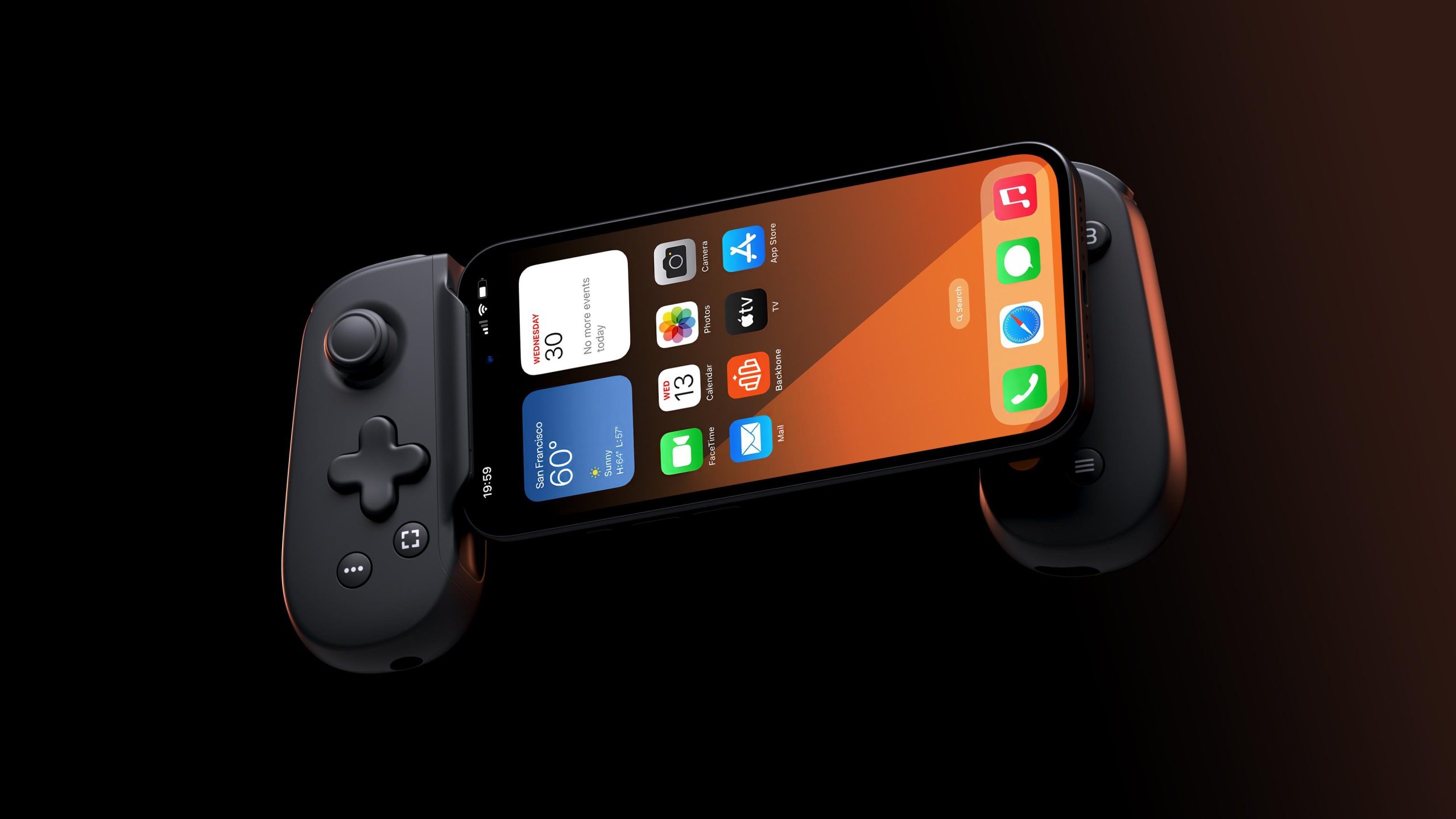
Yes, you can play Steam games on Backbone by using remote play from your PC.
Ever wondered if your favorite Steam titles could travel with you? The question, “can i play steam games on backbone,” frequently pops up among gamers who love the convenience of mobile play. It’s a natural thought, given the Backbone’s design and portability.
This article addresses that very question. We explore how to bring your PC gaming library to your mobile device through Backbone.

Can I Play Steam Games on Backbone?
Okay, let’s get right to it. You’re wondering if you can play your favorite Steam games using a Backbone controller. The short answer is: yes, you can, but it’s not as straightforward as plugging in a controller to your PC. The Backbone is a fantastic mobile gaming controller that shines when used with streaming services. It transforms your smartphone into a handheld console. Here’s how it all works when you want to enjoy Steam titles on your phone.
Understanding Backbone and Remote Play
The Backbone itself isn’t a console. It’s a controller that connects to your iPhone or Android phone. Think of it like turning your phone into a Nintendo Switch or Steam Deck for a moment. It doesn’t have any processing power to run games. Instead, it relies on other devices to do the heavy lifting. That’s where remote play comes in. Remote play allows you to play games running on a different device, like your computer, on your phone. So, to play Steam games with your Backbone, you’re not running the games on your phone directly. You are streaming them from your computer.
Steam Remote Play: The Key to Playing Steam Games on Backbone
Steam offers a feature called “Remote Play.” This is the crucial part of playing Steam games on your Backbone. Steam Remote Play allows you to stream games from your computer to your phone, tablet, or even another computer, over your local network or the internet. The game runs on your PC, and you see and control it on your mobile device using the Backbone controller.
How Steam Remote Play Works
- Game Runs on PC: The game itself is still running on your computer. All the processing and graphics rendering are being done there.
- Streaming Video: Your computer sends a video stream of the game to your phone or tablet.
- Controller Input: The controls you input on your Backbone are sent back to your computer.
- Real-Time Interaction: This all happens in real-time, so it feels like you’re playing directly on your phone.
This means your computer needs to be on and running the game you want to play. Your phone and computer must also be connected to the internet or the same local network.
Setting Up Steam Remote Play With Backbone
Let’s break down the steps for getting set up with Steam Remote Play and your Backbone:
- Install Steam on Your PC: Make sure you have the Steam client installed on the computer where your games are located. Log into your Steam account.
- Install Steam Link on Your Phone: Download and install the free Steam Link app on your smartphone. This app is the bridge between your phone and your computer.
- Connect Your Phone and Computer: Ensure that both your computer and phone are connected to the same Wi-Fi network. While it works over the internet, the experience will be much better on a local network.
- Pair the Backbone: Connect your Backbone controller to your phone. Follow the instructions that came with your Backbone if you haven’t used it before. The Backbone connects directly using your phone’s charging port, either USB-C (Android) or Lightning (iPhone).
- Open Steam Link App: Launch the Steam Link app on your phone and it should detect your computer running Steam. Select your computer.
- Pair Steam Link: The Steam Link app will give you a code. Enter this code into the pop-up on your computer screen. This connects the Steam Link app to your Steam account.
- Start Gaming: After you’ve successfully paired your devices, you can start a game from your Steam library in the Steam Link app and play using the Backbone controller.
Once everything is set up, starting a game is as simple as choosing it from your Steam Library in the Steam Link app. The game will launch on your computer, and you’ll see it and play it on your phone using the Backbone controller.
Optimizing your Experience for Playing Steam Games on Backbone
For a fantastic gaming experience, here are some tips to get the most out of Steam Remote Play with your Backbone:
Network Considerations
Your network plays a big role in how well Steam Remote Play works. Here are some essential things to keep in mind:
- Strong Wi-Fi: A strong and stable Wi-Fi connection is crucial for a smooth gaming experience. The closer you are to your Wi-Fi router, the better. Avoid using public Wi-Fi, as it can be unreliable.
- Local Network: While you can play over the internet, playing on your local network is almost always better. It will result in lower latency and more stable performance.
- Wired Connection: If you can, connect your computer to your router via Ethernet. A wired connection provides better stability and reduced latency compared to Wi-Fi.
Computer Requirements
Your computer also needs to be up to the task:
- Sufficient Power: Make sure your computer is powerful enough to run the game you want to play smoothly. If your computer struggles to run the game directly, it will likely struggle to stream it smoothly.
- Updated Software: Keep your operating system and graphics drivers up to date. Outdated software can cause performance problems.
Steam Settings
There are some Steam settings you can adjust to optimize your streaming experience:
- Streaming Quality: In the Steam settings, you can adjust the streaming quality. If you are having issues with lagging or stuttering, lower the quality to see if that helps.
- Hardware Encoding: Make sure hardware encoding is turned on, as this will greatly improve the game streaming performance.
The Benefits of Playing Steam Games With Backbone
Playing Steam games with the Backbone opens up a world of gaming possibilities. Here are some key benefits:
- Play Anywhere: Play games that you couldn’t play before on a regular phone.
- Console Experience: With the Backbone, you’re getting a console-like experience on a device that you already own.
- Cost-Effective: This way, you can play AAA PC games without purchasing a separate device like a Steam Deck or a gaming laptop.
- Huge Library: Enjoy your entire Steam library of games, right in your hands.
Possible Limitations and Challenges
While playing Steam games on Backbone is fantastic, there are some potential issues:
- Latency: Depending on your network, you might experience some input lag (delay between your action and what you see on the screen). This is called latency.
- Visual Quality: You may notice some visual quality loss if your network is weak, but on good networks, it is very minimal.
- Battery Drain: Streaming games can consume a significant amount of battery power on both your phone and your computer.
- PC Dependency: Your computer has to be running, which means there is another device drawing power, along with your phone.
Alternative Options For Gaming
If Steam Remote Play is not giving the best results, here are some other options to consider:
Cloud Gaming Services
Cloud gaming services like NVIDIA GeForce Now, Xbox Cloud Gaming, and Amazon Luna allow you to play games hosted on powerful servers without the need to use your own computer. You can play using Backbone controller.
Native Mobile Games
There are many native games available on your phone that will work very well with the Backbone controller, for example, many phone-optimized games.
Is It Worth It To Play Steam Games on Backbone?
For most gamers, the ability to play their Steam library on the go is worth it. It will require a bit of setup, and a good network connection, but it provides a very fun gaming experience. However, if your goal is to play very high-speed action games, the latency can be frustrating and other gaming options may be better for you.
In summary, yes, you can play Steam games on your Backbone by using Steam Remote Play. It offers a fantastic experience, especially for titles that aren’t too demanding on reaction time. You will need a good network, and be aware of some battery drainage, but if you have these sorted, then you’re ready to enjoy your Steam library in the palm of your hand!
Ultimately, the combination of Steam Remote Play and the Backbone controller opens up a whole new dimension to mobile gaming, bridging the gap between console-quality experiences and the convenience of your smartphone. By understanding the mechanics of streaming, optimizing your setup, and being aware of the limitations, you can enjoy your favorite Steam games wherever you go. The Backbone offers a practical way to enjoy PC gaming on your mobile device without the need for another gaming device, making it an excellent value for the money.
Playing Xbox, PS & Steam on Your Phone?! | BackBone One | Tech Dat Tuesday #8
Final Thoughts
Yes, you can play Steam games on Backbone using remote play. This requires a compatible device and good internet connection. Ensure both your gaming PC and the device with the Backbone are on the same network.
You can use apps like Steam Link to connect and play games from your library. This setup allows gameplay from anywhere. Remember to verify specific requirements for your titles.
Therefore, the simple answer to ‘can i play steam games on backbone’ is often yes, through remote play capabilities. Setting it up is quite easy as well. Enjoy your games on the go using the controller and required software.

