
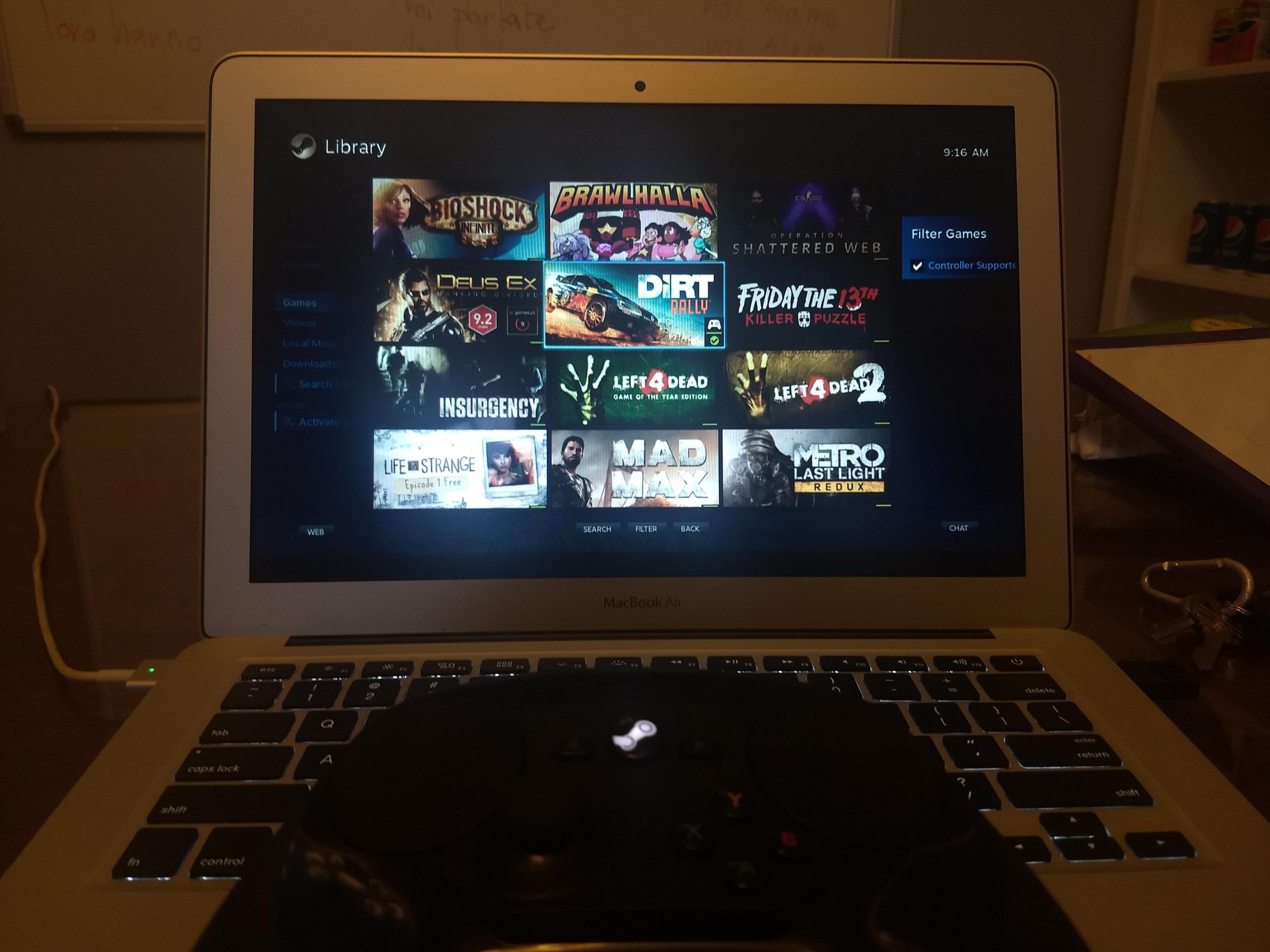
Yes, you can play some Steam games on a MacBook Air, but compatibility and performance vary depending on the specific game and your MacBook Air model.
So, you’re wondering, can i play steam games on macbook air? It’s a very common question with a somewhat complex answer. Not all games are created equal and not all MacBooks are either.
Some titles will run smoothly, while others might struggle. This all depends on the game’s requirements, and the specific hardware of your MacBook Air. It’s best to check the system requirements for each game before purchasing.

Can I Play Steam Games on My MacBook Air?
So, you’ve got a shiny new MacBook Air, and you’re wondering if it can handle your favorite Steam games? That’s a totally valid question! The short answer is: yes, sometimes. But it’s not as simple as just downloading any game and pressing play. Let’s dig deeper into what kind of gaming experience you can expect on a MacBook Air, and what factors come into play.
Understanding the MacBook Air’s Gaming Limitations
The MacBook Air is designed for portability, everyday tasks, and light to medium workloads. It’s not built to be a high-performance gaming machine. This is mainly because it uses integrated graphics, meaning the graphics processing is handled by the same chip that runs the computer. This is different from dedicated graphics cards found in gaming laptops, which have their own powerful processors just for graphics.
Integrated Graphics vs. Dedicated Graphics
Think of it like this: imagine a school bus (your computer) that carries both students (the usual work) and a small sports team (the graphics for the game). An integrated graphics chip is like the bus having to fit the sports team in with everyone else; it gets crowded and can slow things down. A dedicated graphics card is like having a separate, speedy van just for the sports team, so they don’t interfere with the other students on the bus and can go much faster.
- Integrated Graphics: Shares memory with the CPU, less powerful for graphically intensive tasks.
- Dedicated Graphics: Has its own memory and processor, much better for gaming.
MacBook Air’s Cooling System
Another factor is the MacBook Air’s cooling system. It doesn’t have fans, which makes it super quiet and sleek, but it also means that the computer can get hot if you push it too hard. When the system overheats, it will begin to slow down performance to protect itself. This is called thermal throttling, and it can make your game very slow and choppy. So, playing demanding games can lead to a noticeable drop in performance.
What Kind of Games Will Run Well?
Okay, so maybe you shouldn’t expect to play the latest and greatest AAA titles at the highest settings on your MacBook Air, but that doesn’t mean you can’t enjoy gaming! There are many games that run perfectly well.
Less Demanding Games
Games that aren’t too graphically intensive tend to run smoothly. Think of games that focus more on strategy, puzzle-solving, or 2D graphics.
- Indie Games: Many indie games that have pixel art or simpler graphics work great.
- Strategy Games: Turn-based strategy games often aren’t as demanding on the graphics.
- Puzzle Games: These usually don’t require a powerful graphics card.
- Older Titles: Games released several years ago often have less demanding system requirements.
Examples of these types of games are: Stardew Valley, Minecraft, Among Us, Terraria, Cuphead, and older titles like Portal and Half-Life.
Testing the Waters with Game Demos
Before purchasing a game you’re unsure about, look for game demos on Steam. Demos let you try a small part of the game and see how it runs on your MacBook Air before spending any money. This is a smart way to avoid disappointment and ensure that your chosen game is playable.
Optimizing Your Gaming Experience
Even if you’re playing less demanding games, there are still things you can do to improve your gaming experience on your MacBook Air. Following these steps can help to maintain good performance and reduce overheating
Adjusting In-Game Graphics Settings
Start by lowering the graphics settings in the game. The first thing to try is setting the resolution to a lower value than your MacBook Air’s display, such as 1280×720 instead of 1920×1080. You can also lower other settings like texture quality, shadow quality, and anti-aliasing. These adjustments will greatly reduce the graphics load.
- Lower Resolution: Set the game resolution to a lower value.
- Reduce Texture Quality: Choose lower texture quality settings.
- Turn Off Advanced Effects: Disable things like anti-aliasing, bloom, and motion blur.
Closing Unnecessary Applications
Make sure to close any programs you’re not actively using while you’re gaming. Many programs run in the background and use system resources. This might not seem like much, but combined with the game’s resource usage, these other programs can slow things down. Closing these programs will free up precious processing power and memory, allowing your game to run more smoothly.
- Quit Background Apps: Close any unnecessary applications.
- Stop Downloads: Pause downloads that might be running in the background.
- Close Browser Tabs: Close unnecessary tabs in your web browser.
Keeping Your MacBook Air Cool
Since the MacBook Air doesn’t have fans, it’s important to help it stay cool. Avoid playing on soft surfaces like a bed or blanket, as these can block the vents and trap heat. Place your MacBook Air on a hard, flat surface like a desk or table. Using a laptop stand or cooling pad could also further help with airflow and cooling. If you start to feel the machine getting too hot, take a break and let it cool down.
- Use a Hard Surface: Place your MacBook Air on a desk or table.
- Consider a Laptop Stand or Cooling Pad: They can help with airflow.
- Take Breaks: Let your MacBook Air cool down if it gets too hot.
Using Steam’s Built-in Tools
Steam offers tools like the in-game FPS counter, which can help you see how well your game is running. By watching the Frames Per Second (FPS), you’ll see how smooth the game is. Low FPS can indicate that the game is running slow. You can adjust the graphics settings to find a balance between quality and performance.
- Enable the FPS Counter: Monitor your game’s performance.
- Adjust Graphics Settings: Fine-tune the game settings for better performance.
The Role of the M1 and M2 Chips
The newer MacBook Air models with Apple’s own M1 and M2 chips have changed the game. These chips offer much better performance and improved integrated graphics compared to older Intel-based models. This means that some games that were previously unplayable may now run just fine, and games that were running slow may run better.
Increased Performance
The M1 and M2 chips provide increased processing power and memory bandwidth. This improves overall performance for many games. The architecture of these chips allows games to run more efficiently, resulting in higher frame rates and smoother gameplay.
Compatibility
While M1 and M2 chips have improved things significantly, compatibility can still vary. Not all games have been optimized to work natively on these chips. Some games might need to run through Apple’s Rosetta translation software, which can sometimes slightly lower performance. This is continually being improved upon by developers.
Testing the Waters with Newer Models
Even with the improved capabilities of the M1 and M2 chips, you still have to approach gaming with caution. Some demanding games may be too much. If possible, try out game demos to confirm performance or see what others are saying about game performance on M1/M2 MacBook Air models through online forums, reviews, and discussions.
Using Cloud Gaming Services
If you really want to play graphically demanding games that your MacBook Air can’t handle, cloud gaming services are your friend. These services stream games to your computer over the internet, so the heavy lifting is done on a powerful server somewhere else. This means your MacBook Air doesn’t need to have the horsepower to run them directly.
How Cloud Gaming Works
Cloud gaming works by streaming the game to your computer over the internet. The game runs on a server, and you’re sending your inputs while the server sends back the visual information. Therefore, you do need a stable internet connection to do this without experiencing lag. Think of it like streaming a video on youtube, only more interactive.
Popular Cloud Gaming Options
Here are some popular options for cloud gaming services:
- NVIDIA GeForce NOW: Lets you stream many games from your Steam library.
- Xbox Cloud Gaming: Offers a selection of Xbox games playable on your MacBook Air.
- Google Stadia: Google’s own cloud gaming service.
- Amazon Luna: Offers a growing library of games to stream.
Considerations for Cloud Gaming
Before diving into cloud gaming, there are a few things to consider.
- Internet Speed: A fast and stable internet connection is crucial for cloud gaming.
- Subscription Fees: Most cloud gaming services require a monthly subscription.
- Game Availability: Not all games are available on all cloud gaming services.
While cloud gaming provides a convenient way to play more demanding games, there are still limitations like the internet connection required and the need for subscription fees. But it allows you to play titles your Macbook Air would otherwise not be able to run.
Game Compatibility Check
Before buying any Steam game, it’s always a good idea to check the game’s system requirements and see if it is compatible with MacOS and the specifications of your Macbook Air. Pay close attention to the minimum system requirements and the recommended specifications. These guidelines can help you see whether your Macbook Air will struggle or play smoothly.
Where to find this information
You can usually find this information on the games Steam page, usually located a little down the page and under the system requirements section. There you’ll find the OS, Processor, Memory, Graphics, Storage and other necessary information.
Understanding the system requirements
When you find this information, see if your Macbook Air’s information matches the minimums and recommended settings. If your computer barely matches the minimum requirements, it will most likely play, but not very well. If your computer far exceeds the minimum requirements, then it should play fine. The recommended settings will be what the game developer suggests for the best experience playing the game. However, these settings may be geared towards a desktop gaming computer, which is much more powerful than a laptop.
The information provided will help you make an informed decision on whether to buy the game or look at an alternative title or service.
In conclusion, while the MacBook Air is not a gaming powerhouse, it can still provide a enjoyable gaming experience with the right adjustments. By understanding its limitations, optimizing settings, and exploring cloud gaming options, you can make the most of your gaming time on your MacBook Air.
This (Free) App Lets You Play Windows Steam Games on MacOS
Final Thoughts
So, can I play Steam games on Macbook Air? Yes, you can, but it depends on the specific game. Many less demanding titles run well, whereas graphically intensive games will struggle. Performance varies greatly, so check game requirements before purchasing.
For smoother gameplay, consider lowering graphics settings. Some games may require Boot Camp to run Windows, which can provide a better experience for certain titles. Ultimately, ‘can i play steam games on macbook air’ is answered by evaluating individual games and your expectations.

