
Yes, you can run a game if your computer meets the minimum and recommended system requirements for that particular game.
Ever wondered, “can i run a game?” It’s a common question gamers ask before investing in a new title. Knowing if your PC can handle a game prevents frustrating experiences.
We all have that moment of excitement when a new game we want comes out, and a bit of worry about if our current machine is able to play it. We will guide you through the key factors.

Can I Run a Game? Understanding Your PC’s Gaming Potential
So, you’ve got your eye on that cool new game. Maybe it’s got dragons, or spaceships, or maybe it’s just a really fun puzzle. But before you click that “buy” button, a big question pops up: “Can my computer even play it?” That’s a totally normal thing to wonder! We’re going to break down everything you need to know about finding out if your PC has the power to handle the games you want to play.
What Makes a Computer “Good” for Gaming?
Think of your computer like a race car. Some cars are built for speed, others for comfort, and some are just really good at hauling cargo. When it comes to gaming, there are specific parts of your computer that decide how well a game will run. These are the most important ones:
The Central Processing Unit (CPU) – The Brain
The CPU is like the brain of your computer. It does all the thinking and calculations for the game. The faster and more powerful your CPU is, the better the game will likely run. Things like how many characters are on the screen at once, or how complicated the game’s physics are, all depend on the CPU.
- Clock Speed: This is how fast the CPU works, measured in GHz (gigahertz). A higher number usually means it’s faster.
- Number of Cores: Think of these like having multiple brains working together. More cores can handle more tasks at the same time.
The Graphics Processing Unit (GPU) – The Artist
The GPU is like your computer’s artist. It’s responsible for drawing everything you see on the screen, from the characters to the backgrounds to the special effects. A better GPU means smoother graphics, more detail, and fewer hiccups in the game. This is the part that makes all those pretty graphics possible. It handles things like textures, lighting, and shadows.
- VRAM: This is video memory and is vital to the performance of your GPU. More VRAM means the GPU can handle higher resolutions and more complex graphics
- GPU Model: The model number (like NVIDIA GeForce RTX 4060 or AMD Radeon RX 7800 XT) is really important for figuring out how good it is. The higher the number or newer the model the better the performance generally will be.
Random Access Memory (RAM) – The Short-Term Memory
RAM is like your computer’s short-term memory. It lets your computer quickly access things the game needs right now, like information about where the characters are or the sound effects playing. Think of it as the desk space your computer needs to do its work. If you do not have enough, the game will slow down. You don’t need an extremely high amount, but you should have enough.
- Amount: Measured in gigabytes (GB), more RAM means you can run more things without your computer slowing down.
- Speed: While not as critical as other parts, faster RAM can help a little.
Storage (Hard Drive or SSD) – The Library
This is where your game is stored. It’s like your computer’s library. You can use both regular hard drive or solid state drive for gaming. The type of storage can affect loading times for the game, and how quickly assets such as textures can load in the game. SSDs (Solid State Drives) are much faster than regular hard drives (HDDs) when it comes to reading data, so your games will load quicker.
- Type: SSDs are recommended for faster loading times.
- Space: Make sure you have enough space to install the game.
Operating System (OS) – The Manager
The operating system is the overall software that your computer uses. It’s like the manager that makes sure all the other parts are working together. Windows is the most popular operating system for PC gaming. You must have a compatible operating system to run the game. Some older games may not work with newer versions of windows, so that’s important to keep in mind.
How Do I Find Out What Parts My Computer Has?
Okay, now that you know what parts matter, how do you find out what your computer has? Here’s how:
Using the System Information Tool (Windows)
This is the easiest way to find most of the info. You can find it by doing these simple steps:
- Click on the Windows “Start” button.
- Type “System Information” and press Enter.
- A window will pop up with all sorts of details about your computer.
Look for these things:
- Operating System Name: Find your version of Windows (or MacOS if you use an Apple Computer).
- Processor: That’s your CPU. Note the name and speed.
- Installed Physical Memory (RAM): That’s how much RAM you have.
- BaseBoard Product: This one gives you your computer motherboard model, which can be needed to find details on what type of GPU you can install.
Checking Your Graphics Card (Windows)
The System Information tool doesn’t always give you full details on your graphics card. Here’s how to get that info:
- Right-click on the Windows “Start” button.
- Click on “Device Manager”.
- Click on “Display Adapters”.
- Your graphics card name will be there.
- Right click the display adapter, then properties.
- Select the “driver” tab to get the specific driver versions.
Knowing your exact GPU model is key to figuring out its gaming performance.
Using a Third Party Program
There are also third-party programs that can check your hardware, these can give an more in-depth detail on the hardware on your machine. One example is CPU-Z and GPU-Z. CPU-Z will detail your CPU, motherboard, and Ram specifications, and GPU-Z will detail your GPU specifications.
What Are “Minimum” and “Recommended” Specs?
Game developers give a list of system requirements for their games. You’ll usually see two sets of specs:
- Minimum Specs: These are the very lowest computer parts the game needs to run. If your computer barely meets the minimum, the game will likely not play as smoothly.
- Recommended Specs: These are the computer parts the game developer thinks you need for the best experience with the game. If your PC meets or exceeds the recommended specs, the game will likely look and run well.
It is ideal that your computer matches or exceeds the recommended system requirements. Meeting the minimum system requirements will usually mean a lower frame rate, and potentially a reduced game quality.
How to Check Game Requirements
Here’s how you can typically find game requirements:
On Game Store Pages
Usually, when you look at a game on the Steam, Epic Games Store, or another similar game store, the system requirements will be listed on the game page. Scroll down the page to locate them. There you will find both the minimum and recommended system requirements.
On Game Packaging
If you’re buying a physical copy of a game, the system requirements are often printed on the box.
On the Game’s Official Website
If you want to be really sure, you can always go to the game’s official website. They will have up-to-date system requirements listed.
Use “Can You Run It” Websites
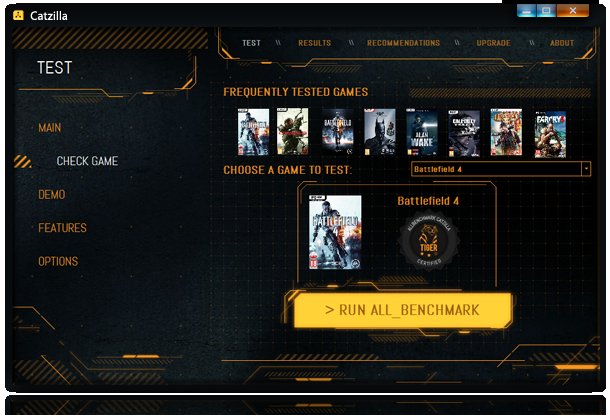
There are websites specifically designed to check if your computer can run certain games. They often scan your system and compare it to the game’s requirements. Here are a couple of these sites you can use:
These sites are very convenient, they usually tell you what hardware is good, and what hardware is failing on the minimum and recommended specifications. However, they’re not 100% reliable, and sometimes they can give bad info.
What if My Computer Doesn’t Meet the Requirements?
If your computer doesn’t quite match the game requirements, don’t give up completely. You have options:
Lowering Graphics Settings
Many games allow you to lower the graphics settings. This can make the game run more smoothly, even if it doesn’t look as pretty. Try setting the quality to medium, or low, or by reducing the resolution to something such as 1280×720. This will help the game run better on older hardware. Lowering or turning off advanced features such as ambient occlusion, shadows, or reflections can help as well.
Upgrading Your Parts
If you’re comfortable with it, you can upgrade some of your computer parts. Adding more RAM or a better graphics card can make a big difference. However, this can be complicated, and is not possible on laptops for example, and sometimes certain hardware is compatible only with particular other hardware. You can not install a modern NVIDIA 40 series video card on a motherboard from 2010 for example.
Cloud Gaming
Cloud gaming allows you to stream games from powerful remote servers. You’re basically playing the game on someone else’s computer. You just control the game via a video stream. Examples of services that offer this are Xbox Cloud Gaming, and Nvidia Geforce Now. These can be a good option for playing demanding games on older hardware, as the hardware running the games is not yours, this also works even on non-pc devices such as smart phones and tablets, or older laptops.
Waiting for Game Updates
Sometimes game developers will release patches or updates that can improve the game’s performance, so if it’s running badly, you can wait to see if the updates help the performance. Sometimes, also, there is bad optimization on games, and when a new game comes out, the performance can be terrible even on powerful machines. This may not be your fault, but the developer, and you might just have to wait for a patch.
Understanding Resolution and Frame Rate
Two more important terms to know are resolution and frame rate.
Resolution
Resolution means how many pixels your screen is displaying. A higher resolution looks clearer and more detailed, but requires more processing power. Typical resolutions you might see are:
- 1280 x 720 (HD)
- 1920 x 1080 (Full HD)
- 2560 x 1440 (QHD or 1440p)
- 3840 x 2160 (4K)
Frame Rate
Frame rate is how many times your screen updates per second, measured in frames per second (FPS). The higher the FPS, the smoother the game will look. A frame rate of 30FPS is playable but not ideal, and 60FPS is the ideal target to aim for. Any higher than that is better, with 120FPS or higher being optimal for gaming.
Keep Your Drivers Updated
Your graphics card driver is a software program that your graphics card uses to communicate with your operating system. It’s important to keep these updated, as driver updates can improve performance, reduce stuttering or crashing issues, and give you access to the newest features. You can usually find the latest drivers on the website of the manufacturer (e.g. NVIDIA or AMD). Some driver programs will tell you there are new updates, or you can use the device manager.
Overclocking
Overclocking is pushing your computer parts to run faster than they are rated. This can improve performance, but it also generates more heat and can damage your parts if done incorrectly. It’s not recommend to do it unless you know what you are doing. There are guides online that can help with this, if you are comfortable, but it’s best to leave alone if you’re unsure.
Other Considerations
Keep in mind that other things might affect performance, such as:
- Background Programs: Having too many programs open at once can use up resources. Close programs you are not using before playing a game.
- Operating System Updates: Keep your system updated for best performance.
- Viruses: Having viruses can significantly slow down your PC.
- Game Settings: The game settings themselves can also affect performance. The more options you turn on or crank up, the more system resources it takes.
By understanding the different parts of your PC and how they affect the gaming experience, you can make better choices about what games to play, or whether you want to upgrade your system. Knowing what hardware your machine has is the first important step, before you decide to buy any games. Checking game requirements and comparing them to your hardware before you buy a game will help ensure you’re going to have a great time! And remember, if the game is not playing very well, then trying different settings can help. Also keep in mind that newer games tend to be more demanding than older ones, so if you have an older computer you might have to only play games from a while back, or consider upgrading.
Check which games are compatible with your pc Can my PC run it What games can I play on my computer
Final Thoughts
So, you’ve checked the game’s system requirements. You compared them with your computer’s specifications. You might have even tweaked some settings. The ultimate question is simple.
Considering all factors, if your PC meets or exceeds the minimum listed, then you likely can play the game. However, higher settings will demand more performance.
Ultimately, the core inquiry remains: can i run a game? You must verify compatibility based on your specific hardware to get optimal experience.

