
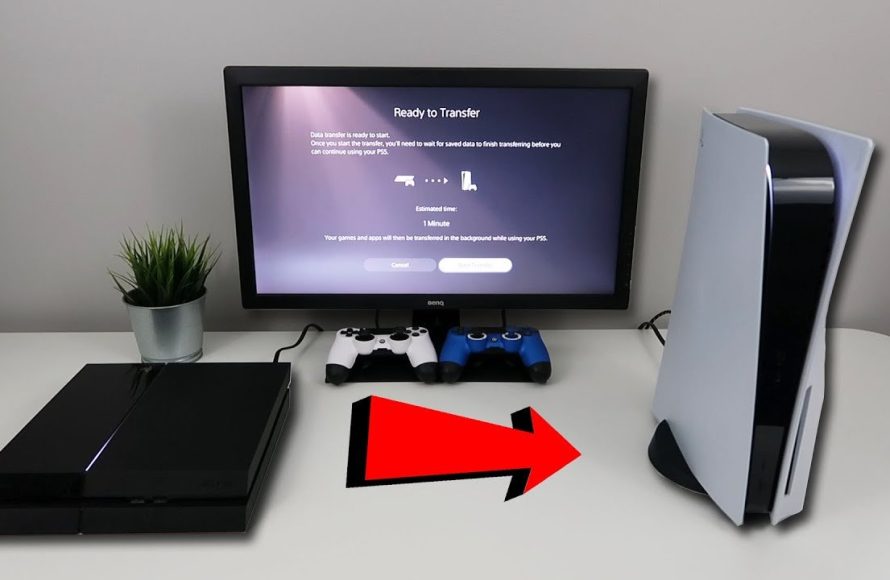
Yes, you can transfer your PS4 games to PS5.
So, you’ve finally snagged a PlayStation 5 and you’re wondering, can i transfer my ps4 games to ps5? Many players find themselves in this exact position. The good news is, transitioning your game library to the new console is fairly straightforward.
You can move your beloved games over. This lets you keep playing right where you left off. It’s a great way to enjoy your collection on the new hardware.

Can I Transfer My PS4 Games to PS5?
So, you’ve got your shiny new PlayStation 5, and you’re probably wondering if all those awesome PlayStation 4 games you own can come along for the ride. The short answer? Yes! You absolutely can transfer your PS4 games to your PS5. But, like many things, it’s not quite as simple as just plugging everything in and hoping for the best. Let’s dive into the different ways you can move your games and what to expect during the process.
Understanding Backward Compatibility on PS5
The PlayStation 5 has a feature called “backward compatibility,” which is a fancy way of saying it can play games from older PlayStation consoles. This is fantastic news because it means most of your PS4 games will work on your PS5. Sony worked hard to make sure that a vast majority of PS4 titles will play perfectly on the new console. However, a very, very small number of titles might not work, but those are exceptions rather than the rule. Think of it like this – your new PS5 is like a super-powered version of your PS4 that can still play most of your old favorite games.
Methods to Move Your PS4 Games to PS5
Now, let’s talk about how you actually get those games from your PS4 to your PS5. There are primarily three main ways to do this:
- Using External Storage
- Downloading from the PlayStation Network
- Using a Network Transfer
Using External Storage
This method is often the easiest and fastest, especially if you have a lot of games to move. You will need an external hard drive or SSD that is compatible with your PS4 and PS5. Here’s how it works:
- Format Your External Drive: First, you need to make sure your external storage device is formatted correctly for your PS4. Plug it into your PS4 and go to “Settings,” then “Devices,” then “USB Storage Devices.” Choose the drive and format it as “extended storage.” This will erase everything currently on the drive, so back up any important files.
- Move Your Games: In the “Storage” section of your PS4’s settings, you can choose to move your games from the PS4’s internal storage to the external drive. This process can take a while depending on how many games you have and the speed of your drive.
- Plug into your PS5: Once the transfer is complete, safely disconnect the external drive from your PS4 and plug it into your PS5.
- Play on PS5: Your PS5 will recognize the external drive. You can directly play PS4 games from it. You don’t need to move them to the PS5’s internal storage. This also saves precious space on your PS5 for the next-generation games.
Key benefits of external storage:
- Fastest for large libraries
- Keeps your PS5’s internal storage free for PS5 games.
- Simple to manage games.
Things to keep in mind:
- You will need an external USB drive.
- Formatting the drive will delete all data on it, always back up first.
Downloading from the PlayStation Network
If you have a fast and reliable internet connection, this is a good option. You will be re-downloading your games from your PlayStation account. Here’s how it works:
- Make sure you’re logged in: Ensure you’re logged into the same PlayStation account on your PS5 that you used on your PS4.
- Go to your game library: Go to your game library on your PS5. You’ll see a list of all the games you own.
- Download your games: Find the PS4 games you want to play. Click the download button. Your games will begin to download. The download time depends on your internet speed and game size.
Key benefits of downloading from PSN:
- No need for extra storage devices.
- Convenient for single downloads.
- You can always access games linked to your account.
Things to keep in mind:
- Requires a stable internet connection.
- Can be slower than other methods, especially for lots of games.
Using a Network Transfer
If both your PS4 and PS5 are connected to the same network, you can transfer your games over your local network. This can be faster than downloading if you have good Wi-Fi or ethernet. Here’s how to do it:
- Both consoles on: Make sure both your PS4 and PS5 are turned on and connected to the same local network.
- On your PS5 go to Data Transfer: On your PS5, navigate to “Settings,” then “System,” then “Data Transfer.”
- Select Your PS4: Your PS5 will search for a PS4 console on the same network. Choose it when found.
- Choose What To Transfer: Select “Games” from the list of items to transfer. You can also transfer save data, and other important things if needed.
- Start the transfer: Follow the on-screen prompts to begin the data transfer. This process can take time, depending on the number of games and the speed of your network.
Key benefits of network transfer:
- Faster than downloading for large libraries if you have good network.
- No need for extra USB storage devices.
- Can transfer game saves along with the games.
Things to keep in mind:
- Requires both PS4 and PS5 on the same network.
- Can be slower than external drive if your network is slow.
- If your network is unstable, the transfer can be interrupted.
Important Considerations When Transferring Games
Before you begin moving your games, there are a few things to keep in mind that will make your life easier. Think of these as helpful tips that will make sure you have a smooth and trouble free transfer.
Game Saves and Trophies
Your game progress isn’t just in the games themselves, it’s also stored in your save data. Thankfully, your game saves can be transferred along with your games. You can move these by any of the above methods or also use PlayStation Plus cloud storage for them.
PlayStation Plus Cloud Storage
If you have a PlayStation Plus membership, your save files are probably backed up in the cloud already. If you move to the PS5 and login with the same account, your cloud saves are automatically downloaded to your PS5, when you start playing your game. To manually move the save data, use the instructions below.
Transferring Game Saves Using USB Storage
- Plug in your USB: Insert a USB storage device into your PS4.
- Go to Settings and application: On your PS4 go to “Settings”, “Application Saved Data Management”, select “Saved Data in System Storage”.
- Copy to USB: Choose the game save data you want to transfer and select “Copy to USB Storage Device.”
- Connect to PS5: Safely eject the USB drive from your PS4 and plug it into your PS5.
- Copy to Console: Navigate to “Settings,” “Saved Data and Game/App Settings,” select “Saved Data (PS4),” then choose “USB Drive” and copy the saved data to the console.
Trophies
Your trophies are linked to your PlayStation account, so they’ll be waiting for you when you sign into your PS5. As long as you use the same account, all your trophies are safe and sound.
Game Updates
Games might need updates when you install them on your PS5. This is totally normal, especially if you haven’t played the game in a while. Your PS5 will usually start downloading any necessary updates automatically. So make sure you have a good internet connection to avoid the updates taking too long.
PS4 Games and PS5 Enhancements
Some PS4 games get a boost when played on PS5. This is known as “Game Boost”. Games can look better, run smoother, and have faster loading times. This can make some of your favorite PS4 games feel like new experiences.
PS4 Disc Based Games
If you have PS4 games on disc, you can also play them on your PS5, as long as you have the version with a disc drive. Simply insert the disc into the PS5 and start playing. The game will install from the disc and, if needed, download any updates.
Digital Games
All your digital games are tied to your account. You can download them on any PlayStation that you log into, whether it is your PS4, PS5 or anywhere else. You can re-download any games that are present in your library to your PS5 via the PlayStation Network.
Can PS5 Games Work on a PS4?
Just to clarify one important point – PS5 games will not work on a PS4. That’s because PS5 games are designed for more advanced technology of the PS5. So, it’s a one-way street, you can go from PS4 to PS5, but not the other way around.
Troubleshooting Common Issues
Sometimes, things don’t go as smoothly as planned. Here are some common issues you might run into and how to fix them:
Game Won’t Transfer
If your game doesn’t seem to be transferring, make sure both consoles are connected to the same network or that your external drive is properly connected. If you are using the network transfer, make sure both the consoles are connected to the same Wi-Fi or Ethernet. Try restarting the transfer process. Also, make sure your PS5’s system software is updated.
Game Won’t Play
If your game downloads or transfers but it won’t start, it may need an update. Check for any available updates. Also ensure you’re using the same PlayStation account. If it is a disk based game, then try to re-insert it. If it still doesn’t work, try restarting your PS5.
Slow Download or Transfer Speeds
Slow speeds can be caused by network issues. Try using an ethernet cable instead of Wi-Fi. If you’re using external storage, make sure it’s USB 3.0 or higher for faster speeds. Closing other applications on your console, during download and data transfer, also can help speed things up.
External Storage Not Recognized
If your PS5 isn’t recognizing your external drive, make sure it’s properly connected, and it has been formatted correctly on your PS4 as extended storage. Try a different USB port on your PS5. If it still does not work, try a different external drive to rule out hardware issues.
Moving your PS4 games to your PS5 is generally an easy process, but it may take a little time and careful planning, especially if you have many games. This allows you to keep enjoying your favorite games from the old console and also experience how they get an improvement from the next generation hardware.
How to TRANSFER DATA FROM PS4 TO PS5 (EASY METHOD)
Final Thoughts
Yes, you can transfer your PS4 games to PS5. You have a few methods to move your games. These include using a Wi-Fi connection, an external storage device, or downloading games again.
The process is fairly simple, and most PS4 titles are playable on PS5. Ultimately, the answer to ‘can i transfer my ps4 games to ps5’ is a definite yes. Most gamers appreciate this feature.

