
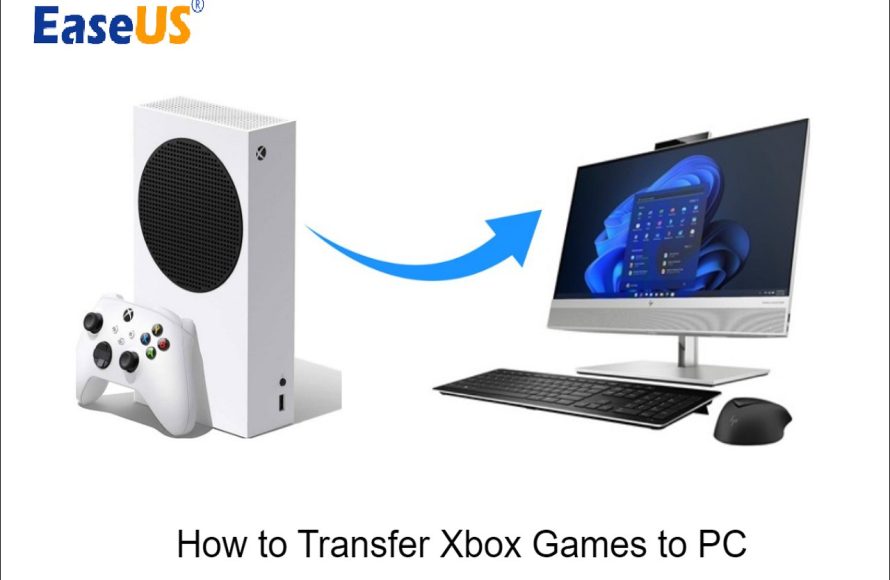
No, you generally cannot directly transfer Xbox games to PC.
Ever wondered if you could move your Xbox game library over to your PC? It’s a common question gamers have. Many people ask, ‘can i transfer xbox games to pc’, hoping to avoid repurchasing titles they already own. Unfortunately, this direct transfer isn’t usually possible.
The platforms use different systems for game licensing and installation. This means games you bought on Xbox typically won’t work on your PC without a separate purchase. Though some games do support Xbox Play Anywhere, which offers a way to access it.

Can I Transfer Xbox Games to PC?
Let’s dive right into the question that’s probably burning in your mind: Can you actually move your Xbox games over to your PC? The short answer, is it’s not a simple copy-and-paste process like moving a document. The real answer has a bit more detail to it, and it all revolves around the digital world of game ownership and where you bought your games. Let’s explore what it means to transfer games from Xbox to PC. This is super important for lots of gamers, because you want to play your favorite titles on the device you prefer. So, while “transferring” isn’t always direct, there are definitely ways to enjoy your Xbox games on your computer.
Understanding Xbox Play Anywhere
The biggest thing that makes playing Xbox games on PC possible is a program called “Xbox Play Anywhere.” Think of it like a special bridge that connects your Xbox and your PC. Not every game is part of this program, but many are. When a game is Xbox Play Anywhere compatible, it means that when you buy a digital copy of the game, you usually get both the Xbox version and the PC version included! It’s like buying a two-for-one deal. So, you can play on your Xbox, then switch to your PC, and all your progress, like your saved games and accomplishments, are saved too! This makes switching between devices super easy and convenient.
How Xbox Play Anywhere Works:
Here’s a breakdown of how Xbox Play Anywhere really works:
- Digital Purchases are Key: This only works for games that you bought digitally through the Microsoft Store on your Xbox or PC. Physical game discs do not qualify for Xbox Play Anywhere.
- One Purchase, Two Platforms: When you buy an Xbox Play Anywhere game digitally, you usually get access to download and play it on both your Xbox and a PC running Windows 10 or later.
- Linked Microsoft Account: Your Xbox and PC need to be logged into the same Microsoft account. This is what connects everything together.
- Progress is Shared: Your saved games, progress, and achievements are stored on the cloud, which means you can pick up exactly where you left off, no matter which device you’re using.
How to Check if a Game is Xbox Play Anywhere:
Before buying a game, it’s important to make sure that it is part of the Xbox Play Anywhere program. Here’s how you can check:
- Microsoft Store: When browsing games on the Microsoft Store (either on your Xbox or PC), look for the “Xbox Play Anywhere” logo, which usually looks like a small Xbox icon next to a PC icon.
- Game Packaging (Digital): If you’re buying from a third-party website, check the product description for mentions of “Xbox Play Anywhere.”
- Game’s Official Website: You can also check the game’s official website or a dedicated game wiki for the most accurate information.
Physical Game Discs and PC Play
Okay, so now let’s talk about physical game discs. Unfortunately, those game discs you have from your Xbox, won’t work on your PC in the same way. The disc is only meant for the Xbox console. It’s like having a key that only fits one door. You can’t use that key to open a different door (the PC). The information on the game disc is made specifically to work on the Xbox hardware, not your PC’s hardware and operating system. It’s a different system with different requirements.
Why Physical Discs Don’t Work:
- Different Formats: Xbox game discs use a special format designed for Xbox consoles. PCs use a different format.
- Licensing and Digital Rights Management: Physical discs have different licensing rules than digital copies. The disc itself serves as a key for the game.
- Hardware Differences: PCs and Xbox consoles have different internal hardware and components. The game code needs to be compatible with that specific setup.
This doesn’t mean that if you have a physical game for Xbox and want to play it on PC, that you are completely out of options. It just means you cannot use that physical copy. You will have to go the digital route, usually by buying a digital copy of the game for your PC.
Microsoft Store and the PC Ecosystem
When thinking about playing Xbox games on PC, it’s important to think about the Microsoft Store. It’s the main place where you get Xbox Play Anywhere games, and it works closely with the Windows operating system. If you want a game that you can use on both your Xbox and your PC, it will almost certainly involve buying the digital version from Microsoft’s store.
How the Microsoft Store Connects Xbox and PC Gaming:
The Microsoft Store is essential to the Xbox Play Anywhere experience. Here is why:
- Cross-Platform Game Availability: The Microsoft Store is where you find a lot of the Xbox Play Anywhere titles.
- Digital Purchases: Any digital game you buy from the Microsoft Store can be played both on your Xbox and PC, if it has the Xbox Play Anywhere badge.
- Centralized Game Library: It helps you keep track of all your digital games, and access them on both platforms from one place.
The Role of Xbox Game Pass
Here’s another useful tip for playing Xbox games on PC. You may have heard of “Xbox Game Pass”. It’s a subscription service that gives you access to a big library of games for a monthly fee. If a game is on Xbox Game Pass, and is also a Play Anywhere game, then you can play it on both your Xbox and PC as long as your subscription is active.
How Xbox Game Pass Works for PC Gaming:
Here’s how Game Pass opens up PC gaming:
- Access to a large library: Game Pass has many games available in its library. You can download and play these games on PC or Xbox, as long as they have the Xbox Play Anywhere badge.
- Cost-Effective: It is a budget-friendly way to try lots of games. It is way cheaper than buying a big collection of digital games one-by-one.
- Games Rotate: Keep in mind that games can leave the Game Pass library over time. Always look for games that have the Play Anywhere tag so you can play them on both your Xbox and PC.
Cloud Gaming and Xbox on Your PC
Now, let’s talk about the cloud! You might have heard that you can play games without needing to have a powerful console or PC, and that’s because of cloud gaming. Microsoft offers a service called “Xbox Cloud Gaming” (often included with Game Pass Ultimate) that lets you stream games to your PC (and other devices) over the internet. This means the game runs on Microsoft’s servers, and you play it through a video stream. It is kind of like watching a movie, but you are controlling what happens.
How Cloud Gaming Changes Things:
- No Powerful PC Needed: You don’t need a super powerful PC to play high-end games. The work is done on the cloud.
- Play Games Anywhere: As long as you have good internet, you can stream and play your favorite games on any compatible device, including your PC.
- Instant Access: No large downloads are needed. You just click play, and the game starts.
Specific Scenarios and How To Proceed
Let’s cover a few specific situations so you’re well informed:
Scenario 1: I bought a physical Xbox game disc; can I play it on PC?
No, you cannot play a physical Xbox game disc directly on your PC. You would need to purchase the digital version of the game if it is an Xbox Play Anywhere title or subscribe to Game Pass to see if the game is included in their library.
Scenario 2: I bought a digital Xbox game. Can I play it on PC?
It depends. If the game is part of the Xbox Play Anywhere program, then yes, you can play it on your PC (assuming that you are logged into the same Microsoft account on both your Xbox and PC). If it’s not part of Play Anywhere, then it is likely going to be an Xbox-only game. So, always check for the Play Anywhere badge before you purchase.
Scenario 3: I have Xbox Game Pass. Can I play Game Pass games on PC?
Yes, many of the games that are included in Xbox Game Pass are available on both PC and Xbox as long as they have the Xbox Play Anywhere badge. Make sure you have the Game Pass subscription for the PC and you’re logged into the same Microsoft account on both your PC and Xbox. Some Game Pass games may only be for Xbox, so check before you play.
Scenario 4: My PC game saves not syncing with Xbox
When your saves are not syncing it can be frustrating! Check to ensure that you are using the same Microsoft account on both your Xbox and your PC. Make sure you are connected to the internet, so all of the data can be saved to the cloud. Also, check that the game is Play Anywhere compatible, not all games sync saves. If you have tried all of those things, and it still does not work, try closing out of the game completely on both platforms, and then restarting to give the sync another attempt.
Final Thoughts on Transferring Xbox Games to PC
So, can you transfer your Xbox games to PC? In short, it is not a direct transfer like copying a file. However, Microsoft’s programs like Xbox Play Anywhere, Game Pass, and Cloud Gaming make it very possible to enjoy many of your favorite Xbox titles on your PC. By understanding these systems, you can get the most out of your games. It is all about making sure that you are buying games that are compatible with Xbox Play Anywhere, or making sure you are using a service that allows you to play on both platforms. Enjoy your gaming journey!
How To Gameshare from Xbox to PC (Very Easy!)
Final Thoughts
In short, while you can’t directly transfer Xbox games to PC, certain titles through Xbox Play Anywhere allow you to play them on both platforms after a digital purchase. The key is owning a digital copy of an eligible game.
You must buy the game again if it is not part of Play Anywhere. The ‘can i transfer xbox games to pc’ question has a straightforward answer: direct transfer is impossible, but there are linked solutions for specific games.

