
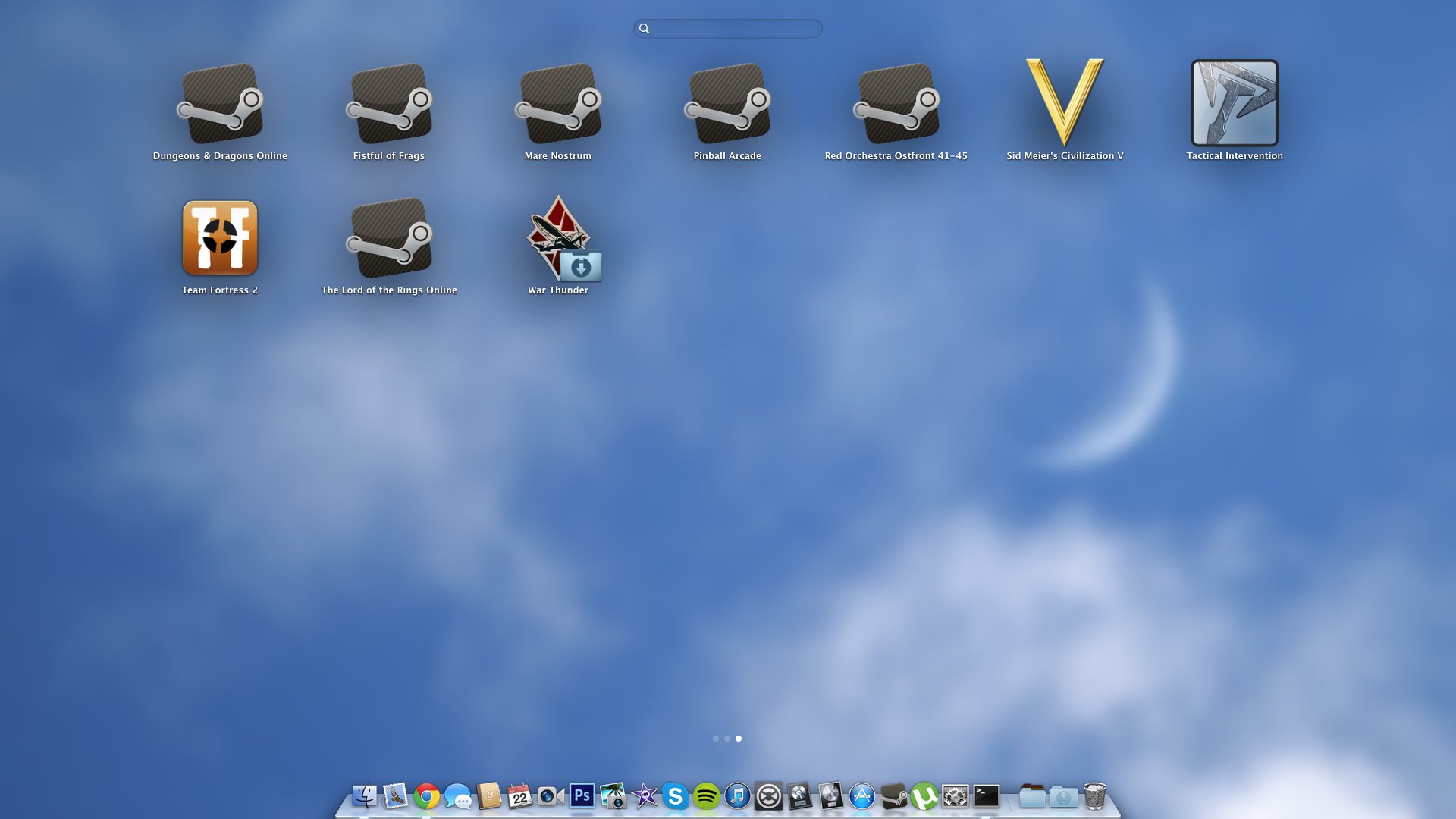
To remove Steam games from your Macbook Launchpad, simply locate the game icon, click and hold until it jiggles, then click the “x” to delete it.
The Launchpad on your Macbook, while great for quick access, can sometimes become cluttered. Steam games especially tend to fill it up quickly after you install and play many titles. You might find yourself asking how to remove Steam games from Macbook Launchpad efficiently, to keep things tidy. This is actually a straightforward process that takes just seconds.

How to Remove Steam Games from MacBook Launchpad
Okay, so you’ve been playing some awesome games on your MacBook using Steam, and now your Launchpad is looking a little cluttered. It’s totally normal! Lots of folks find that after installing games, their Launchpad gets filled up with icons they don’t always use. It can make finding the apps you do need a bit of a challenge. The good news? Removing those game icons from Launchpad is actually pretty easy, and you have a few ways to do it. Let’s dive into how you can tidy up your Launchpad and keep it nice and organized.
Understanding Launchpad and Steam Games
Before we jump into removing game icons, let’s quickly understand what Launchpad is and how Steam games get there. Launchpad is like a special folder on your MacBook that shows you all the apps you have installed. It looks and feels kind of like an iPad or iPhone home screen. When you install a game through Steam, it often automatically adds an icon to Launchpad, allowing you to quickly start the game. Sometimes, though, you might want to remove these icons without deleting the game itself. Knowing that these are just shortcuts, not the actual game files, will make the removal process less scary.
Why Remove Steam Game Icons from Launchpad?
You might be wondering, why even bother removing these icons? Here are a few good reasons:
- Clutter Control: Having too many icons in Launchpad can make it hard to find the apps you need quickly. Removing game icons can make your Launchpad much cleaner and easier to navigate.
- Personalized Experience: You might prefer launching your games directly from Steam, or maybe you use a dedicated folder for games. Removing the icons from Launchpad allows you to customize your Mac experience.
- Avoiding Accidental Clicks: Sometimes, it’s easy to accidentally click on a game icon in Launchpad when you’re trying to open a different app. Removing the game icon can prevent these unintentional game launches.
In short, removing these icons is about taking control of your Launchpad and making it work better for you.
Method 1: The Simple Drag-and-Drop Method
This is probably the easiest way to remove Steam game icons from your Launchpad. It’s similar to how you delete apps from your iPhone.
Steps for Using Drag-and-Drop
- Open Launchpad: Click on the Launchpad icon in your Dock (it looks like a rocket ship). Or you can open it using the trackpad gesture (pinch with three or four fingers and thumb).
- Find the Game Icon: Locate the icon for the Steam game you want to remove from Launchpad.
- Enter Jiggle Mode: Click and hold the game icon with your mouse or trackpad until the icons start to wiggle. They’ll shake like they’re dancing. This means you’re in editing mode.
- Click the “X”: Look for a small “X” icon that appears in the upper-left corner of the game icon. Click on this “X.”
- Confirm Deletion: A small pop-up window will ask you to confirm that you want to remove the item from Launchpad. Click “Delete”.
That’s it! The game icon will disappear from your Launchpad. Remember, this method does not uninstall the game from your computer; it just removes the shortcut from Launchpad.
This method is fast and straightforward, making it a great option for most users. It works for all Steam games and other app icons that might clutter your Launchpad.
Method 2: Using Finder to Remove Icons
Sometimes, you might want a bit more control over the icons. You can use Finder, your Mac’s file management system, to help remove those icons.
Steps for Using Finder to Remove Game Icons
- Open Finder: Click on the Finder icon in your Dock (it looks like a smiling blue face).
- Go to the Applications Folder: In the Finder sidebar, click on “Applications”. You can also find it by clicking on the “Go” menu in the menu bar at the top of your screen, then selecting “Applications”.
- Locate the Game’s Application File: Scroll through the Applications folder until you find the application file for the Steam game you want to remove. They’re usually grouped alphabetically, so this should be easy.
- Move the application file to the Trash: Right-click (or Control-click) the application file of your Steam game. In the menu that pops up, select “Move to Trash”.
- Empty the Trash: To permanently remove the shortcut from the Launchpad, empty the Trash. You can do this by right-clicking (or control-clicking) on the Trash icon in the dock and selecting “Empty Trash”.
This method also does not uninstall the actual game; it just removes the Launchpad icon shortcut. The application file, is what you see in the applications folder in the Finder, and is also used as a shortcut. By sending that application file to the Trash and Emptying it, the shortcut for that application is removed. It’s important to know where the game file is located before emptying the Trash if you want to keep it.
Using Finder is great if you prefer a more hands-on way of managing your files. This method also removes the shortcut and makes it more clean by moving the shortcut in trash.
Method 3: Using Terminal (Advanced Users)
For those who are comfortable with a more technical approach, the Terminal offers another way to remove game icons from the Launchpad. Terminal is like a command-line interface where you can type text commands to control your Mac. This method might sound intimidating, but it’s a valuable skill to know if you want more control over your computer’s settings.
Steps for Using Terminal
- Open Terminal: Go to Applications, then Utilities, and find “Terminal” or simply search for Terminal using Spotlight Search (Command + Space).
- Enter the Command: In the Terminal window, type (or copy and paste) the following command and press Enter:
defaults write com.apple.dock persistent-apps -array-add '{"tile-type"="file-tile"; "tile-data"={"file-data"={"_CFURLString"="/Applications/YourGameName.app/"; "_CFURLStringType"=0;}};}'Important! Before you run this command, you need to replace “/Applications/YourGameName.app/” with the actual path to the game’s application file that you want to remove from the Launchpad. You can find this in Finder in the Applications folder. Right click or Ctrl+ click on the game app, then “Option” key, “Copy “Your Game App Name” as Pathname”, then paste it in between the quotes.
- Restart Dock: After running the command, you need to restart the Dock for the changes to take effect. Type this command and press Enter:
killall Dock
This might seem complex, but what you’re doing is telling your Mac to remove the shortcut of the specific app from the Launchpad using a command. Terminal, is like giving direct instruction to your computer through text and the command, “defaults write” is used for making changes to the system. “killall Dock” command restarts the dock so that the changes that you made takes effect. Remember to be very careful when using Terminal, because a wrong command can affect your computer and its settings.
Using Terminal is great for those who like to get their hands dirty and who want a more in-depth understanding of how their Mac works. This method may be more advanced but it provides another way of achieving the same goal.
Important Considerations
Before you start removing icons, here are a few important things to remember:
- Removing Icons vs. Uninstalling: Remember, removing a game icon from Launchpad does not delete the actual game from your computer. It just removes the shortcut icon from Launchpad. This is a crucial distinction to keep in mind. The game will still be there in your Steam library and in your applications folder.
- Steam Library: To completely uninstall a game, you need to do that through the Steam application itself, not through the methods described here.
- Reappearing Icons: Sometimes, if you update a game or change Steam settings, the icons might reappear in Launchpad. If that happens, you can simply remove them again using any of the methods described.
Keeping these points in mind will make sure you’re managing your Launchpad the way you want.
Keeping Your Launchpad Tidy
Once you’ve removed the Steam game icons from your Launchpad, you might want to think about how to keep it organized in the long term. Here are some helpful suggestions:
Tips for Long-Term Launchpad Organization
- Create Folders: You can create folders within Launchpad to group your apps together. For example, you can make a “Games” folder to keep all your game icons separate from other apps, or a folder for your work related applications. Just drag one app icon on top of another app icon to create a folder. You can then give the folder a name you like, like “Utilities”, “Work”, “Games”, “Art” etc..
- Regular Cleanups: Make it a habit to regularly go through your Launchpad and remove icons for apps you no longer use. It’s like cleaning your room, except its cleaning your Launchpad.
- Use Spotlight Search: Remember that you can always use Spotlight Search (Command + Space) to quickly find and open any app on your Mac, whether the icon is in Launchpad or not. This is a fast alternative if you don’t like to scroll or if there are too many icons on the Launchpad.
These tips will help you maintain a clean, organized Launchpad and make your overall experience much smoother. Organization is not just about removing items from your launchpad, but also about arranging them in a way that makes it easier to navigate and find what you are looking for.
Removing Steam game icons from your MacBook Launchpad doesn’t need to be a challenge. Whether you choose the drag-and-drop method, use Finder, or venture into Terminal, you can now manage your Launchpad more efficiently. You’ve learned about the options available to you, their steps and differences between the methods. Now you can make sure it’s clear, organized, and customized to how you use your computer.
How to remove uninstalled Steam games from Launchpad on Mac
Final Thoughts
To remove Steam games from your Macbook Launchpad, simply locate the game icon. Then, click and hold the icon until it jiggles. Click the ‘x’ that appears to remove it.
This action does not uninstall the game; it only removes its shortcut from Launchpad. You can still access your game through your Steam library.
In essence, this is how to remove steam games from macbook launchpad. This process keeps your Launchpad organized without affecting your game installation.

