
Yes, you can turn your Xbox off while downloading a game; it will continue the download in the background while in standby mode.
Ever wondered if your Xbox has to stay on like a vigilant sentinel when you are downloading a massive new game? It’s a common question, especially when you’re eager to start playing. Lots of gamers ask: can i turn my xbox off while downloading a game?
The good news is that you don’t need to keep your console powered on fully during a download. Your Xbox actually downloads games while it is in a low-power standby mode. This way, it uses less energy but still gets your downloads done for you.

Can I Turn My Xbox Off While Downloading a Game?
So, you’ve decided to download the latest epic adventure or that fun party game on your Xbox. The download bar is creeping along, and you’re wondering, “Can I just turn this thing off and go do something else?” It’s a common question, and thankfully, the answer is mostly yes, but with a few important details to keep in mind. Let’s dive into how your Xbox handles downloads and what you need to know.
Understanding Xbox Download States
Before we get into the nitty-gritty of turning off your Xbox, let’s understand the different modes your console uses when downloading. There are two main states that matter when thinking about downloads:
Instant-On Mode (or Standby)
This is the state where your Xbox appears to be off, but it’s actually in a low-power mode, ready to spring back to life quickly. The power light on your console will be a solid white in this mode. When your Xbox is in Instant-On mode, it’s still actively downloading, even while it looks like it’s asleep! This is the best mode for continuing your game downloads while using minimal energy. It’s designed to let things download in the background without using much power. You also get quick access to your games and apps when you turn it back on, which is a great perk. Think of it like your Xbox is just taking a light nap, keeping busy behind the scenes, and that nap is letting your downloads keep going!
Energy-Saving Mode (or Shutdown)
This is the state where your Xbox is completely powered down. The power light on your console will be off. When your Xbox is in Energy-Saving mode, it’s not actively downloading. In this mode, it cuts power completely, hence the name ‘energy saving.’ It helps save energy, which is good for the environment and your electricity bill. Think of it as giving your console a rest. However, when you put your Xbox in this mode, downloads are paused. It’s completely stopped downloading the games or updates. You’ll have to start downloading again once you power your Xbox back on.
How to Check Your Power Mode
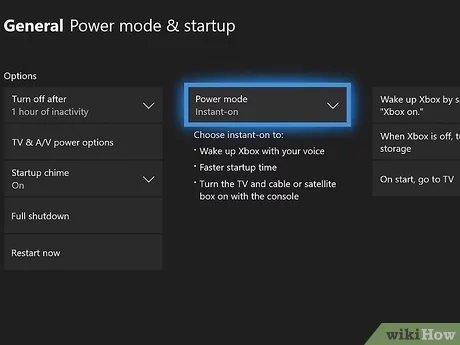
Knowing which power mode your console is using is important for making sure your downloads continue. Here is how you check it:
- Press the Xbox button on your controller.
- Go to Profile & system > Settings > General > Power mode.
- You’ll see the power mode currently selected. If it says “Instant-On,” you’re all set for background downloads. If it says “Energy-saving,” you will need to either switch it to instant-on, or leave your xbox turned on in order for the game to download.
What Happens When You Switch Off Your Xbox in Different Modes?
Okay, so now we know the different modes, let’s dig into what each mode means for your game downloads.
Turning Off While in Instant-On Mode
As previously explained, If your Xbox is set to Instant-On, when you “turn it off,” it actually goes into a standby state. The download will keep running smoothly. It’s designed to work even when it looks like your console is off. This means you can safely go do something else while your games download. When you turn it back on, it will be ready with the new games installed and ready to play. Instant-On is ideal if you download frequently or want fast game access. You don’t have to wait for the game to start downloading again. It just picks up where it left off. You don’t need to worry if you accidentally press the power button and it turns off as this mode is designed for situations like this. Your download is safe and secure, so you can relax, and let your Xbox handle the rest.
Turning Off While in Energy-Saving Mode
If your Xbox is in Energy-Saving mode and you “turn it off,” the console will shut down completely and your download will be paused. The Xbox is no longer active, and the download progress will halt. When you turn the Xbox back on, it will need to reconnect to the Xbox network and resume the download from the point where it stopped. This can be a bit annoying if you’re eager to play your game. If you choose the Energy-Saving mode, be prepared to wait longer to finish your download. This is the better option if you really want to save electricity and are not in a hurry to download games.
Impact of Internet Connection on Download Speeds
No matter which power mode you choose, your internet connection will affect download speeds. Let’s look at a few things that can affect your download performance and how to address them.
Wired vs. Wireless
A wired connection (using an Ethernet cable) will almost always provide a faster and more reliable connection than a wireless one. This is because wired connections have less interference. If your downloads are slow and you’re using Wi-Fi, consider connecting your Xbox to your router with an Ethernet cable. It can make a big difference in download times. For instance, let’s imagine that you have a 1GB game to download. With a wired connection, it might take a few minutes or less to fully download the game, but if you use a wireless connection, it might take a few hours to download. The time will vary based on your internet speed, so you have to take this into account. Therefore, we advise using an ethernet cable if you want fast and reliable downloads.
Network Congestion
If other devices on your home network are using a lot of bandwidth (like streaming movies or downloading large files on different devices), this can slow down your Xbox downloads. Try limiting bandwidth usage on other devices, especially during large downloads. If you are downloading a very big game, you should consider asking your family member or roommates to avoid using other bandwidth-intensive applications. This helps to ensure that your Xbox gets the most speed and downloads your game in the best time possible.
Xbox Network Status
Sometimes, the Xbox network itself might have issues that can slow down download speeds. You can check the Xbox network status page to see if there are any reported problems. Checking the network status page is an easy and convenient way to be certain that the problem is not on your side. If it is a global Xbox network issue, you will have to wait for Microsoft to fix it on their end.
Router Issues
Your router may sometimes have a problem that can cause slow or intermittent downloads on your Xbox. Restart your router, and check your router’s instructions to see how to ensure your router is updated to the latest firmware. If your router is very old, you may want to consider getting a new one, to get the best out of your internet connection, especially if you have a high-speed internet plan.
Tips for Faster Downloads
If your downloads are taking too long, here are some tips that might help speed things up:
- Pause and Resume: Sometimes, pausing and then resuming the download can help. It might seem strange, but sometimes, it can make the download pick up speed. Try it out and see if it makes a difference.
- Background Downloads: Don’t play online games while downloading, as it takes up bandwidth and can slow down your download. If you have a big download and don’t plan on playing any games, just let the Xbox do its thing without you playing a game.
- Close Unnecessary Apps: Close any apps that are running in the background, as they may use up some internet bandwidth.
- Check Download Queue: Sometimes, other games or apps might be in your download queue and slow things down. Make sure to see your downloads and make sure you’re only downloading the one game you want right now. If there are any unwanted downloads, you can pause or cancel them.
- Change Your DNS Settings: Changing your DNS server sometimes helps to speed up downloads on your console. It’s not a magic trick, but it sometimes helps improve download speeds. Check online for information about specific public DNS servers that can help your speed. There are lots of tutorials on the internet to help guide you.
How Long Does a Download Take?
The length of time a download takes varies greatly, depending on a few factors. These include:
- Game Size: The larger the game, the longer it will take to download. A small indie game will download much faster than a massive triple-A blockbuster. You’ll find the game sizes when you browse the store on your Xbox.
- Internet Speed: The speed of your internet connection is a major factor. If you have a fast internet connection, your downloads will be much quicker. If you have a slow internet connection, you will need to wait much longer for the games to fully download.
- Network Activity: As mentioned earlier, network activity at your home, as well as the Xbox network’s status can impact your download times.
- Xbox Server Load: Sometimes, when a popular new game releases, the Xbox servers may be under a lot of load and downloads can slow down for everyone. This is usually a temporary issue.
It’s difficult to give an exact time, but it’s useful to know these things that can influence how quickly the download finishes. It can be frustrating to wait, but understanding the different aspects can make the wait easier.
Downloading Games While You Sleep
Downloading games while you sleep is completely fine when using Instant-On mode. It is, in fact, the most convenient way to download large games. When you wake up, your games will be ready to play. It is the perfect way to maximize your day. You can start a download before bedtime, and when you wake up, you can jump straight into playing your new game. Just make sure your console is in Instant-On mode, and the downloads will continue while you’re resting.
Important Note about Power Outages
It is important to note, that if you have a power outage while your Xbox is downloading a game, the download will stop, whether you are in instant-on or energy-saving mode. You will need to start your Xbox and start the download again. If your area has frequent power outages, you should keep this in mind. However, even if you have a power outage, no progress will be lost, and it will pick up where it left off when you start the download again.
Summary of the Key Points
To recap, here are the most important things to remember about downloading games on your Xbox:
- Instant-On mode: Allows your Xbox to download games in the background, even when it appears to be off.
- Energy-Saving mode: Pauses downloads when your Xbox is completely shut off.
- Wired Connection: Usually provides faster and more reliable downloads than Wi-Fi.
- Network Congestion: Can significantly impact download speeds.
- Download Time: Can vary greatly depending on various factors.
Hopefully, this has cleared up the confusion about turning off your Xbox during downloads. By knowing the difference between the modes and how they impact downloads, you’ll have a much smoother and easier experience. Now, go enjoy your new games!
Download Games While Xbox Turned Off? Do THIS! How To Download & Install Games When Xbox Is Off!
Final Thoughts
Yes, you can turn your Xbox off while downloading a game. The console’s ‘Instant-On’ power mode allows background downloads. Your game will continue downloading even when the system appears off.
However, be sure you are using ‘Instant-On’. ‘Energy-saving’ mode stops downloads when powered off. This simple setting helps the process.
So, the answer to “can i turn my xbox off while downloading a game” is, yes, if you’re using the correct setting.

