
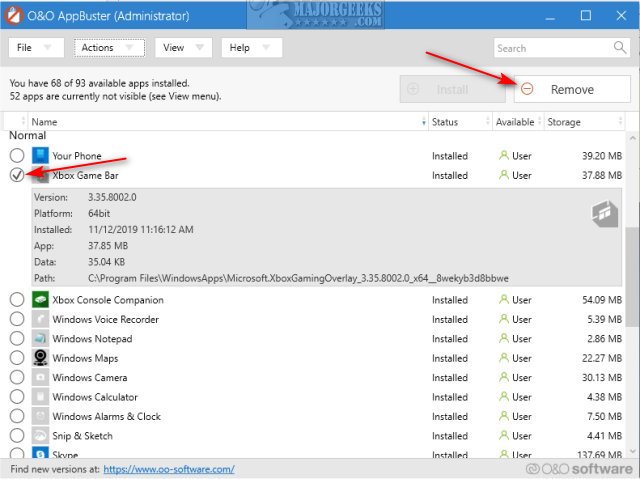
To remove the Xbox Game Bar, navigate to Settings, then Gaming, and toggle the “Xbox Game Bar” option off.
Have you ever found that the Xbox Game Bar pops up unexpectedly, interrupting your workflow or gaming session? It can be quite annoying, especially if you don’t use its features. If you’re wondering how to remove Xbox Game Bar, you’re not alone. Many users prefer a cleaner, less intrusive experience, and disabling it is straightforward. This guide will quickly show you how to get it done.

How to Remove Xbox Game Bar: A Complete Guide
The Xbox Game Bar is a helpful tool for gamers on Windows 10 and 11, letting you record gameplay, chat with friends, and manage settings without leaving your game. However, not everyone finds it useful. Sometimes, it can even get in the way, causing performance issues or popping up when you don’t want it to. If you’re looking to get rid of the Xbox Game Bar, you’ve come to the right place. This guide will walk you through all the ways you can remove or disable it. We will go through different methods, explaining each step clearly, so even if you’re not a computer expert, you’ll find it easy to follow along.
Why Remove the Xbox Game Bar?
Before we jump into how to remove the Xbox Game Bar, it’s good to understand why you might want to do so. There are several reasons why people choose to disable it:
Performance Issues: Some users find that the Game Bar can slow down their games, causing lag or lower frame rates, especially on less powerful computers. Disabling it can free up resources.
Unwanted Pop-Ups: The Game Bar can sometimes appear unexpectedly, interrupting your workflow or gameplay, which can be annoying.
Conflicting Overlays: If you use other overlay programs, like Discord or OBS, the Xbox Game Bar might interfere, causing glitches or making it hard to use the other overlays.
Not Needed: If you’re not a gamer or don’t use the features of the Game Bar, it’s simply not needed and you might want to remove it to keep things simple.
Understanding Game Bar Features
It’s important to know exactly what you are removing. The Xbox Game Bar provides several tools:
Game Capture: Record videos and take screenshots of your games.
Performance Monitoring: See how your system is running with graphs for CPU, GPU, and RAM usage.
Xbox Social: Connect with your Xbox friends, chat, and send invites.
Audio Controls: Manage the volume of different apps and your microphone.
Spotify Integration: Control your music within the game bar.
Knowing these features helps you make a decision about if you want to remove the Game Bar or simply disable some parts.
Methods to Remove or Disable Xbox Game Bar
There are several methods to get rid of or disable the Xbox Game Bar, each with varying degrees of removal. You can choose the method that best fits your needs.
Disabling Game Bar Through Settings
The easiest way to stop the Game Bar from working is by turning it off in Windows Settings. This is reversible, so you can bring it back anytime you want.
1. Open Settings: Click on the Windows Start button and then click the “Settings” icon (it looks like a gear).
2. Go to Gaming: In the Settings window, click on “Gaming.”
3. Select Xbox Game Bar: On the left side of the Gaming page, click on “Xbox Game Bar.”
4. Turn it Off: You will see a toggle switch labeled “Enable Xbox Game Bar.” Switch this toggle to the “Off” position. It will now be gray and appear on the left side.
5. Close Settings: The changes are saved automatically. You’ve now disabled the Game Bar.
This method keeps the Game Bar application on your computer, but it won’t activate and you won’t be seeing pop ups.
Disabling Game Bar Services
If you want to take it a step further and prevent the Xbox Game Bar from running in the background, you can disable its related services.
1. Open Services: Press the Windows key, type services.msc, and press Enter.
2. Find Xbox Services: In the Services window, look for services with “Xbox” in their name. These usually include:
Xbox Accessory Management Service
Xbox Live Auth Manager
Xbox Live Game Save
Xbox Live Networking Service
3. Disable Services:
Double-click on each Xbox service one at a time.
In the service properties window, find the “Startup type” dropdown.
Select “Disabled” from the dropdown.
Click “Apply” and then “OK.”
4. Restart your computer: For these changes to take effect, you should restart your computer.
This method stops the Game Bar from running in the background. Some features and app integrations may not work after this step, but it is also reversible.
Uninstalling the Xbox Game Bar Application
For a complete removal, you can uninstall the Xbox Game Bar application altogether. This method is more permanent, but you can always reinstall it later from the Microsoft Store if you decide you want it back.
Uninstalling via Settings
1. Open Settings: Click the Windows Start button and then click the “Settings” icon (it looks like a gear).
2. Go to Apps: In the Settings window, click on “Apps.”
3. Select Apps & Features: On the left side of the Apps page, click on “Apps & features.”
4. Find Xbox Game Bar: In the list of installed apps, scroll down or use the search bar to find “Xbox Game Bar.”
5. Uninstall: Click on “Xbox Game Bar” and then click the “Uninstall” button. Confirm that you want to uninstall the application when prompted.
Uninstalling via PowerShell
Using PowerShell provides another way to remove the Xbox Game Bar. It might seem a little more advanced but it is very effective.
1. Open PowerShell as Administrator: Press the Windows key, type PowerShell, and then right-click on “Windows PowerShell” and choose “Run as administrator.”
2. Enter Command: Paste or type the following command into the PowerShell window and press Enter:
Get-AppxPackage Microsoft.XboxGamingOverlay | Remove-AppxPackage
This command tells Windows to remove the Xbox Game Bar application package.
3. Wait: Wait for the process to complete. You won’t see any progress bar, but once the command prompt returns, the application is gone.
4. Close PowerShell: You can now close the PowerShell window.
This method completely removes the application from your computer.
Using Third-Party Tools to Disable Xbox Game Bar
Some third-party tools can help you manage Windows apps and services. These tools can disable or even remove the Xbox Game Bar more easily. But, be careful when using third-party tools, and make sure they are safe and reliable before using them.
O&O ShutUp10
O&O ShutUp10 is a popular tool that allows you to control many privacy and settings options in Windows. Here’s how to use it to disable the Xbox Game Bar:
1. Download O&O ShutUp10: Go to the official O&O website and download O&O ShutUp10.
2. Run the Application: Install the program by following the provided steps.
3. Navigate to “Xbox” Settings: Find the section related to “Xbox.” This may be under the “Gaming” or “System” category.
4. Disable Game Bar: Find the option to disable the Xbox Game Bar and click the slider to change it.
5. Apply Changes: Click on “Apply” or “Save” to apply your changes.
6. Restart Your Computer: You might need to restart your computer for the changes to fully take effect.
Other Third-Party Tools
There are other tools that work similarly to O&O ShutUp10. Some other options include:
Winaero Tweaker: This tool offers a wide range of customization options, including disabling Windows features.
Ultimate Windows Tweaker: Another free option packed with Windows customization options.
Chris Titus Tech Windows Utility: Provides a script that can automate the process of disabling many Windows features, including Xbox services.
Make sure to research the tool that you are going to use and use one from a trusted source.
Re-enabling the Xbox Game Bar
If you change your mind and want to use the Xbox Game Bar again, here is how to re-enable it:
Re-enabling Via Settings
1. Open Settings: Click on the Windows Start button and then click on the “Settings” icon (it looks like a gear).
2. Go to Gaming: In the Settings window, click on “Gaming.”
3. Select Xbox Game Bar: On the left side of the Gaming page, click on “Xbox Game Bar.”
4. Turn it On: You will see a toggle switch labeled “Enable Xbox Game Bar.” Switch this toggle to the “On” position. The toggle will now be blue and appear on the right side.
Reinstalling Via Microsoft Store
If you uninstalled the Xbox Game Bar, you will have to reinstall the application.
1. Open Microsoft Store: Click on the Windows Start button, type Microsoft Store, and press Enter.
2. Search for Xbox Game Bar: Use the search bar at the top of the Store and type in “Xbox Game Bar.”
3. Install: Click on the “Xbox Game Bar” app from the search results, and click the “Install” button.
4. Wait: Wait for the installation to complete. Once it is finished, you will be able to use the Game Bar as before.
Troubleshooting Common Issues
Sometimes, removing or disabling the Game Bar can lead to unexpected problems. Here are some common issues and their solutions:
Game Bar still appears after disabling it: Make sure you’ve disabled it in Windows settings and also disabled the Xbox Services. Check that the service are disabled under “services.msc.”
Game recordings not working after re-enabling: This can happen if some game files are corrupted. Try re-installing them again or verify your game files integrity.
Problems with other overlays: Even if the game bar is disabled it might still interfere with the other overlays. Try disabling all the overlays then re-enabling only the ones that you need. Also make sure that all the software and drivers are up to date.
Missing Game bar features: If you find that the some of the features are missing from your game bar, then make sure that the game bar application is updated to the latest version. Check for updates in Microsoft Store.
By knowing how to properly disable or remove the Xbox Game Bar, you can enjoy a smoother gaming or PC experience without the unwanted pop ups. Remember you can always revert the changes if you want the Game Bar back. By following these steps you can easily remove the Xbox Game Bar.
By using these methods, you can make sure the Xbox Game Bar does not interfere with your activities on your PC. Whether you need to free up resources, avoid pop-ups, or want to use other overlays without issues, knowing how to remove or disable this feature can improve your experience. Remember to choose the method that best suits your needs. If you just want to temporarily stop the Game Bar, turning it off in settings will be sufficient. For a more permanent removal, uninstalling it will be the right choice.
How to Remove the XBox Game Bar on Windows 11
Final Thoughts
To summarize, you can easily disable the Xbox Game Bar through the Windows Settings app. Navigate to the “Gaming” section and then find the “Xbox Game Bar” tab. You’ll find a simple toggle to turn it off.
Additionally, you can remove it completely through the “Apps & features” section of Settings. Search for “Xbox Game Bar” and then click the “Uninstall” button to remove it from your system. This method completes how to remove xbox game bar.

