
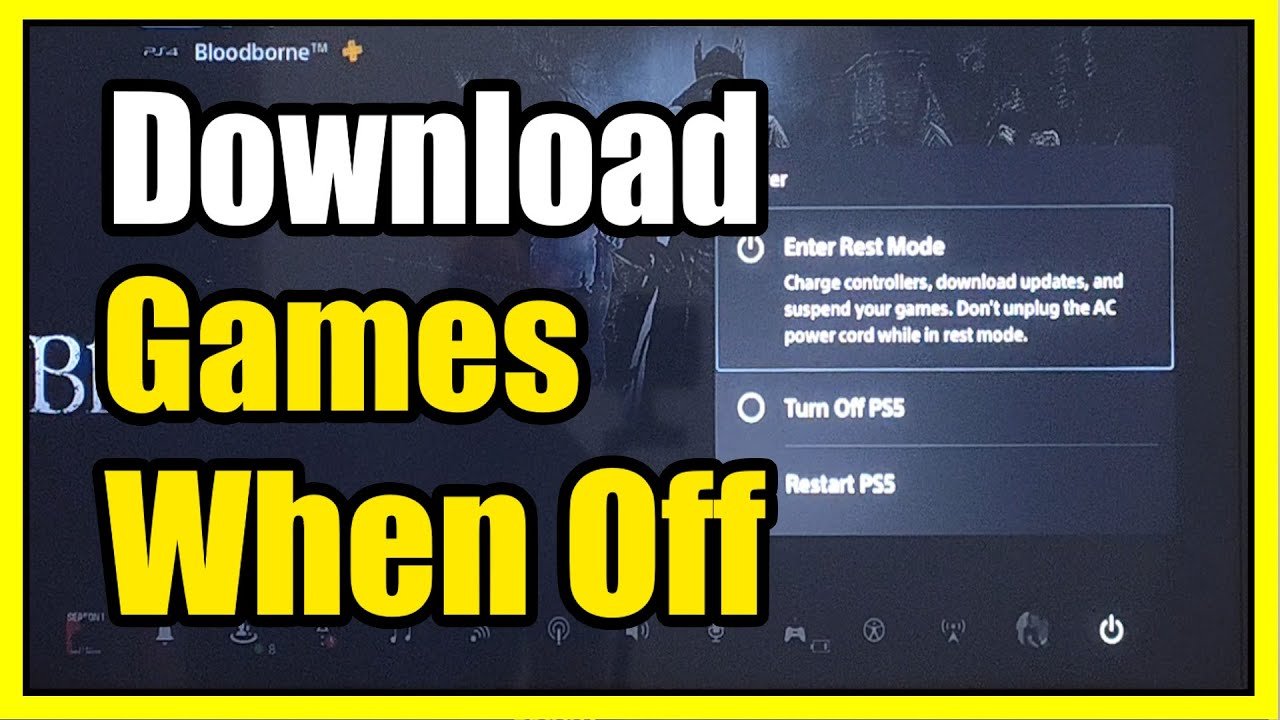
Yes, you can turn off your PS5 while downloading games, but it must be in rest mode for the downloads to continue.
It’s a common question for PS5 owners: can i turn off ps5 while downloading games? Nobody wants to leave their console running all day and night, especially if downloads are taking a while. Thankfully, the PS5’s rest mode is designed for exactly this purpose. You can safely power down your console into a low-power state, and your game downloads will continue uninterrupted.
This rest mode is different from completely shutting down the console. You won’t use much energy and you’ll be able to get back to gaming quicker. It’s the ideal solution for downloading big games overnight.

Can I Turn Off PS5 While Downloading Games?
Okay, let’s talk about something super important for all you PlayStation 5 gamers: downloading games. It takes time, right? Sometimes it feels like it’s taking forever! So, the big question is, can you just turn off your PS5 while it’s downloading something? You might be thinking, “I’m tired, I want to go to sleep,” or “I need to go out, but I don’t want to leave my PlayStation on all day.” It’s a valid worry! Let’s explore all about this and learn how to manage your game downloads effectively.
Understanding Rest Mode on PS5
First, let’s talk about “Rest Mode.” This isn’t the same as turning your PS5 completely off. Think of it like your PlayStation going to sleep. It’s still on, but it’s using much less power. When your PS5 is in Rest Mode, it can still do a few things, like download games, update itself, and even charge your controllers. This makes Rest Mode very helpful, and it’s actually the best way to handle downloads if you want to save some energy and still have your games ready when you want to play.
Why Rest Mode is Ideal for Downloading
Here’s why Rest Mode works so well for downloads:
- Keeps the Connection Active: Your PS5 stays connected to the internet, so it can continue downloading your game. If you turn it off completely, it will lose that connection.
- Uses Less Power: It uses a lot less electricity than when it’s fully on, so you’re not wasting energy.
- Quiet Operation: The fans are usually much quieter in Rest Mode, which can be great if you are trying to sleep.
- Faster Downloads: Sometimes, downloads can be quicker in rest mode, especially if your console is not doing other things.
Turning Off Your PS5 Completely During Downloads
Now, what happens if you decide to turn your PS5 off completely while a game is downloading? Well, the download will stop. Imagine it like pressing the pause button on your download. When you turn the console back on, the download will need to resume. This isn’t the end of the world, but it might take longer to finish. Here’s a breakdown of what you can expect:
What Happens When You Power Off During a Download
- Download Pauses: As soon as you power off your PS5, the download will stop entirely. It won’t keep going.
- Resuming the Download: When you turn the console back on, you’ll need to go to your downloads screen to resume the game download. It will pick up where it left off, but it will take time.
- Potential for Corruption (Rare): In very rare cases, if the console loses power suddenly during a download, it might cause a small issue. This is quite unusual. But using Rest Mode is more secure.
Managing Downloads Effectively
To make sure your downloads are smooth and quick, here are some tips and tricks that could be valuable:
Checking Download Progress
Always keep an eye on the progress of your downloads. You can do this by checking the download queue. Here’s how:
- Go to the main menu on your PS5.
- Scroll to the ‘Downloads/Uploads’ section on the left side. (It looks like an arrow pointing down)
- There, you can see how far your download has progressed and how much time it has left.
Prioritizing Downloads
If you’re downloading multiple games or updates at once, you can set which one should download first. Here is how to manage this:
- In your download queue, click on the game you want to download first.
- Select “Prioritize download.” This will move that specific game to the front of the queue.
Tips for Faster Downloads
Here are some ways you can try to get faster download speeds:
- Use Ethernet Cable: If possible, connect your PS5 to your internet router with an ethernet cable instead of using WiFi. This connection is generally more stable and often faster.
- Don’t Use PS5 While Downloading: Avoid playing games or streaming video while downloading. This will free up bandwidth for faster downloads.
- Close Unnecessary Applications: Close other apps running in the background.
- Restart Your Router: Sometimes, a simple restart of your internet router can help improve download speeds.
Power Saving and Rest Mode Settings
Let’s dig a little deeper into the Rest Mode settings, which you can modify to match your needs. You can find these settings in the PS5 menu:
How to Adjust Rest Mode Settings
- Go to Settings.
- Select “System.”
- Choose “Power Saving.”
- There you can find options for settings related to “Rest Mode”, like:
- Time until PS5 enters Rest Mode: Configure how long your PS5 will wait before going into rest mode when not in use.
- Features Available in Rest Mode: Choose which functions you want to work when your PS5 is in rest mode, like keeping your console connected to the internet.
Customizing your Rest Mode experience
Here’s why customizing these settings is essential:
- Efficiency: You can optimize your console to use just the right amount of power when in rest mode.
- Automatic Updates: Set your console to download system updates and game updates automatically, so they’re ready when you are.
- Controller Charging: Have your controllers ready to go by allowing them to charge when the console is in rest mode.
Alternative Ways to Download Games
The PlayStation app is actually a pretty neat tool when it comes to downloading games. Here’s how you can use it:
Using the PlayStation Mobile App
- Purchase Games Remotely: You can buy games from the PlayStation Store using the app.
- Start Downloads Remotely: Once you buy a game, you can start downloading it to your console, even if you’re not at home. If your console is in rest mode and connected to internet, the game will automatically start downloading.
- Check Download Status: Use the app to monitor download progress.
This is particularly helpful if you are headed home from work or school and want to have your game ready when you get there. Make sure you link the app to your PlayStation account and set up remote play for it to work correctly.
Downloading with PlayStation Plus
PlayStation Plus subscribers get access to a great benefit: downloading games remotely that are part of their subscription! Simply go to PlayStation Plus on the app, select your game and begin the download to your console.
PlayStation Direct Downloads
PlayStation Direct sometimes offers digital downloads of games purchased directly through their website. These usually begin downloading to your console once you complete the purchase. Again, your console needs to be in rest mode to receive these downloads.
Troubleshooting Download Issues
Sometimes things can go wrong. If your downloads are taking a very long time or not working correctly, here’s what you can try:
Restarting your Console
Sometimes, a simple restart can solve a lot of problems:
- Press the PlayStation button on your controller to open the Quick Menu.
- Select “Power.”
- Choose “Restart PS5.”
Checking Your Internet Connection
Bad internet can definitely cause download issues:
- Run a speed test on your internet to check it is performing well.
- Make sure your PS5 is connected to your network.
- If using WiFi, try moving closer to the router.
- Restart your router, if needed.
Pausing and Resuming Downloads
Sometimes stopping the download and starting it again can solve the issue:
- In the Downloads/Uploads, select the download.
- Select “Pause” and then “Resume.”
Checking for System Updates
Make sure your console is running the latest software. Outdated software can cause issues:
- Go to Settings.
- Select “System.”
- Choose “System Software.”
- Select “System Update.”
- Install any updates if you see one.
Contacting PlayStation Support
If nothing else is working, contact PlayStation support. They can help with more technical issues. You can find their contact information on the official PlayStation website.
Understanding Download Sizes
Game sizes can vary quite a bit, and that affects download times. Understanding this helps you manage expectations.
How Game Size Affects Download Time
- Large Games: Big games with lots of details and complex graphics (like open-world games) will take much longer to download. These games can often be 50GB to 100GB or even more!
- Small Games: Small indie titles and older titles are much quicker to download because they usually have file sizes ranging from a few hundred megabytes to a few gigabytes.
Always check the game size before starting a download, and plan your download times accordingly.
Storage on your PS5
Remember that your PS5’s storage space is finite. If you’re constantly downloading new games, you will eventually run out of space. You may need to start deleting older games to free up space for new ones. You can also expand the storage space with external drives which is extremely helpful if you download and play many games.
So, there you have it! You’ve learned that while you can’t completely turn off your PS5 while downloading games, Rest Mode is your best friend for getting those downloads finished quickly and efficiently. Remember to check your download progress, prioritize your downloads, and use all the tips we discussed to ensure a smooth gaming experience. Keep these tips in your pocket, and you will have a great time with your PlayStation 5!
How to Download Games in Rest Mode on PS5!
Final Thoughts
You can put your PS5 in rest mode to download games. This uses less power compared to the console being fully on. You can easily pick up your download again whenever you turn on the console.
So, to answer ‘can i turn off ps5 while downloading games’, the simple answer is no if you mean fully powering it down. Rest mode is the optimal setting. It lets the download continue while using less energy.

