
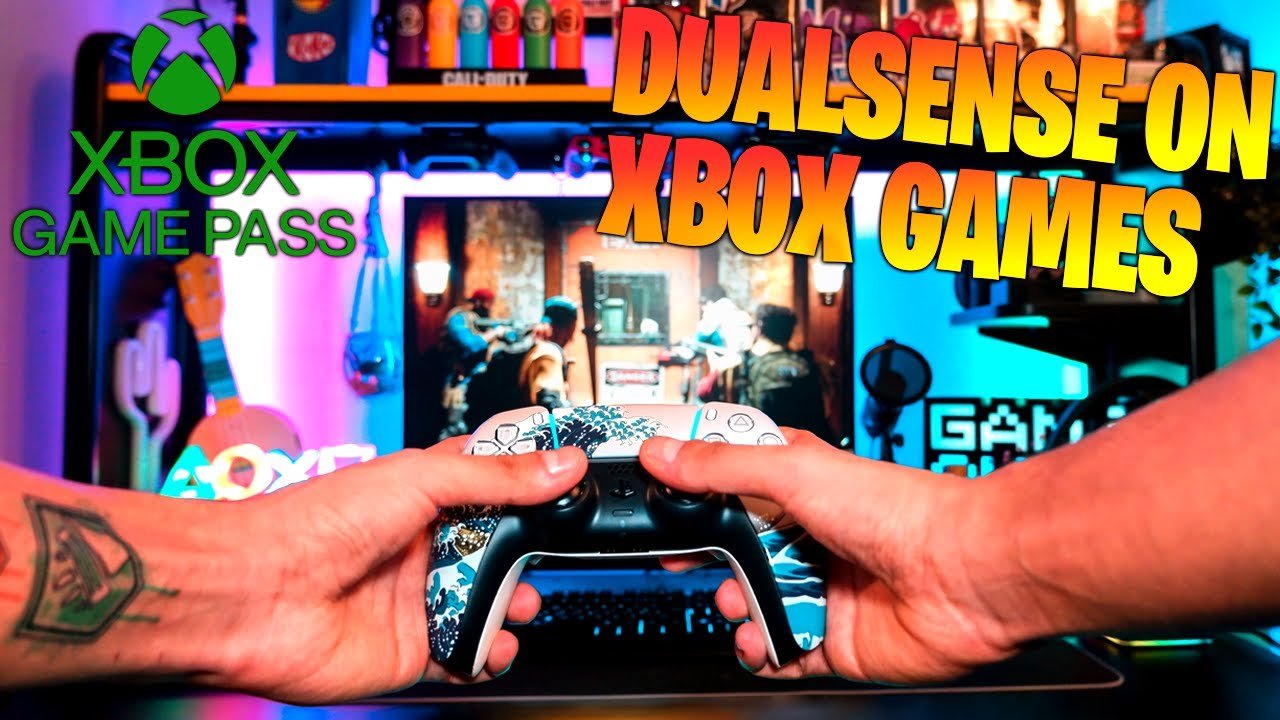
Yes, you can use a PS5 controller on Xbox Game Pass PC.
Ever wondered if your favorite DualSense controller could work with Xbox games on your PC? The question “can i use ps5 controller on xbox game pass pc” pops up a lot, and it’s understandable. Many players have both consoles and want to use their preferred controllers regardless of where they play games.
You might be surprised how easily you can connect your PS5 controller to your computer for use with the Xbox app. It’s a simple process, usually involving connecting via Bluetooth or USB. This opens up lots of options for how you enjoy games through your Game Pass subscription.

Can I Use PS5 Controller on Xbox Game Pass PC?
Let’s dive into the exciting world of gaming controllers! You’ve got your shiny PlayStation 5 controller, and you’re eager to play games on your PC using Xbox Game Pass. The big question is: can these two gaming worlds play nicely together? The short answer is, yes, you absolutely can! But, like most tech adventures, there are a few things you need to know to get it all working smoothly. Don’t worry; we’ll walk through all of it step-by-step.
Understanding the Basics: Controller Compatibility
First, it’s helpful to know that most games on PC don’t care too much about the brand of controller you use. Many games support what’s called “XInput,” which is a standard way that PC games talk to controllers. Xbox controllers use XInput natively. But, the PS5 DualSense controller uses its own protocol, so it needs a little extra help to work like an Xbox controller on your PC games.
Why it’s Not Always Plug-and-Play
Think of it like this: Imagine you are trying to talk to a friend who speaks a different language. You can’t just start talking; you need a translator, right? The PS5 controller also needs a translator to speak the language of PC games that expect Xbox controllers. This is where software and settings come in.
How to Connect Your PS5 Controller to Your PC
You have two main ways to connect your PS5 controller to your PC: through a USB cable or wirelessly with Bluetooth. Let’s break down both methods:
Using a USB Cable
This method is generally the easiest and most reliable. Here’s how you do it:
- Grab a USB-C cable (the one that came with your PS5 controller).
- Plug the USB-C end into the controller.
- Plug the other end (usually a USB-A) into your PC.
- Your PC should automatically detect the controller. You might see a notification.
That’s it! Your computer should now recognize your PS5 controller. However, recognizing it is just the first step. We need to make sure the games recognize it as an Xbox controller.
Connecting Wirelessly via Bluetooth
If you want to play without wires, Bluetooth is your friend. Here’s how to connect:
- On your PC, go to Settings (you can find it by clicking the Windows start button and selecting the gear icon).
- Click on “Devices” then “Bluetooth & other devices.”
- Make sure Bluetooth is switched “On”.
- On your PS5 controller, hold down the PlayStation button (the one with the PS logo) and the Share button (the small button to the left of the touchpad) at the same time until the light bar around the touchpad starts flashing. This puts the controller into pairing mode.
- Back on your PC, click “Add Bluetooth or other device.”
- Select “Bluetooth.”
- Your PS5 controller should show up as “Wireless Controller” or something similar, click on it to connect.
Your PS5 controller is now wirelessly connected to your PC via Bluetooth! Pretty neat, right? But remember, just like with the USB method, you might still need a little extra help to play your Xbox Game Pass games smoothly.
Making Your PS5 Controller Work With Xbox Game Pass PC Games
Now that your controller is connected, let’s talk about the crucial part: getting it to work correctly with your Xbox Game Pass games. As we mentioned, these games expect to see an Xbox controller. We will need to use software to trick your PC and games into thinking your PS5 controller is an Xbox controller.
The Magic of DS4Windows
DS4Windows is a free and popular program for this job. It translates the inputs from your PS5 controller into the XInput format that Xbox games understand. It’s like giving your controller a translator!
Downloading and Installing DS4Windows
Here’s how to get DS4Windows set up:
- Search for “DS4Windows download” on the internet (you can use Google, Bing, or DuckDuckGo).
- Find the official GitHub page or a reputable site.
- Download the latest version.
- Open the downloaded file (it will probably be a zip file).
- Extract all of the files to a new folder on your computer, in a place where you can easily find them later on.
- Run “DS4Windows.exe.”
- If you get a prompt, click on ‘Run Anyway’.
- When you first run the program, it will ask you to download some drivers and create some profiles. Let DS4Windows perform all the tasks it needs to be fully setup.
Setting Up Your Controller in DS4Windows
After the installation, it’s time to set up the controller within the application. Here are the steps:
- If your controller is connected it should automatically show up in the DS4Windows application as an active device.
- Once a controller is detected, DS4Windows will show it under the controllers section.
- If you’re using Bluetooth, make sure that your controller is properly paired through your computer’s settings first before running DS4Windows
- You can customize various options in the profile, such as changing the color of the controller’s light, button mapping or even trigger sensitivity, but for the most part, you can simply just start playing without doing anything.
DS4Windows should now be doing all the translating magic for you. With this set up, almost all of your games will be tricked into thinking you are using an Xbox controller.
Alternative: Steam Input
If you use Steam to play some of your PC games, you can use a feature called “Steam Input” to get your PS5 controller working with games on Xbox Game Pass. Steam can act as a translator as well, though you will have to have Steam running in the background to make this option work.
Enabling Steam Input
- Open the Steam application.
- Go to “Steam” and then to “Settings.”
- Click on “Controller.”
- Click on “General Controller Settings.”
- Check the box for “PlayStation Configuration Support.”
- Now when you start a game through the Steam launcher, your controller is configured to work and can be configured further in the settings of individual games in your Steam library.
Steam Input is another excellent way to play games with your PS5 controller on a PC. However, this option only works with games that have been added to your Steam library as non-Steam games, meaning you will have to add the shortcuts to your Xbox Game Pass games directly into Steam.
Troubleshooting Common Issues
Even with the best software, sometimes things don’t work perfectly. Here are some common issues and what to do about them:
Controller Not Recognized
- Make sure your controller is connected properly either via USB or Bluetooth. If you are using Bluetooth ensure that Bluetooth is enabled on your PC.
- Try a different USB port if using a wired connection.
- Restart your PC and the game.
- Make sure that DS4Windows is running if you are using this application.
Controller Buttons Mapped Incorrectly
Sometimes, the button mapping might be off. Buttons in a game might not do what you think they should. When this happens try the following steps.
- Check the controller settings within the game if this option exists.
- Use DS4Windows to customize button mapping if you have installed this software.
Random Disconnections
Wireless controllers can sometimes disconnect unexpectedly. Here are some solutions:
- Make sure that the controller’s battery is sufficiently charged.
- Move closer to your PC to make sure the signal has good strength.
- Turn off other Bluetooth devices near your PC. These other devices may cause interference.
- Restart your controller and try to reconnect.
Gamepad Tester Websites
If you’re having trouble or want to check that your controller is being read correctly by your computer, there are multiple websites that help you with this. These are some common examples:
- Gamepad Tester: This simple website shows you the buttons pressed on a graphical image of a generic controller. You can find it easily using any search engine.
- HTML5 Gamepad Tester: Another popular online tool that lets you check if your computer is detecting inputs from your gamepad.
Use these to make sure all your buttons are working properly and that the analog sticks are responding accurately. If your controller doesn’t work in one of these websites it’s likely your computer isn’t even seeing the controller, meaning you’ll have to troubleshoot the connection first.
Enjoying Your Games
With these steps, you can use your PS5 controller on your PC to play many games, including those you find on Xbox Game Pass. It might seem like a few steps, but once set up, you can enjoy all kinds of games with the controller that you’re most comfortable using. Now, it’s time to pick a game and start playing.
Whether you choose to connect with a wire or go wireless through Bluetooth, your PS5 DualSense controller will work well with Xbox Game Pass games with the help of DS4Windows or Steam Input. So don’t worry about needing to go out and purchase a new controller, your existing PS5 controller will do just fine. Happy Gaming!
How To Use PS4/PS5 Controller On Xbox Game Pass PC (2024)
Final Thoughts
Yes, you can use a PS5 controller on Xbox Game Pass PC. Connecting via Bluetooth or USB works. Game compatibility varies, but generally it functions well.
Many players find this setup convenient. It allows enjoying games with their preferred controller. Sometimes you may need third-party software.
Ultimately, the answer is yes, you can use ps5 controller on xbox game pass pc. Enjoy your gaming experience.

