
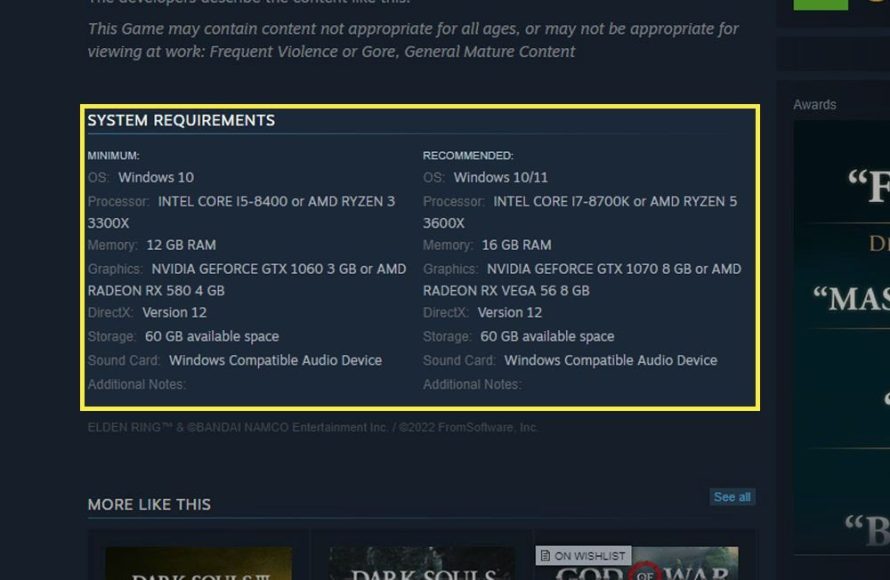
To determine if your PC can handle this game, you need to compare your system’s specifications against the game’s minimum and recommended requirements.
Ever wondered if your computer is up to the task before buying that new game everyone’s talking about? We’ve all been there, excited about a game only to wonder: can my pc handle this game? It’s a crucial question.
Checking if your PC can handle a specific game helps avoid frustrating performance issues. This saves you from stuttering gameplay or worse, a game that simply won’t launch.
Understanding system requirements is key. Knowing this will ensure smoother game play and maximum enjoyment.

Can My PC Handle This Game?
So, you’ve got your eye on that shiny new game, the one all your friends are talking about. It looks amazing, full of action and adventure. But before you click that “buy” button, a big question pops into your head: “Can my computer even run this thing?” It’s a question every gamer asks, and it’s a very important one! Buying a game that your PC can’t handle can lead to frustration, wasted money, and a lot of disappointment. Let’s explore how to figure out if your computer is up for the challenge.
Understanding Game Requirements
Every game comes with a set of listed requirements, usually on the game’s store page or packaging. These requirements tell you the minimum and recommended specifications that your computer needs to run the game smoothly. Think of it like a recipe for baking a cake. You need the right ingredients (computer parts) in the right amounts to make a delicious cake (a great gaming experience). Let’s dive into what these requirements mean.
Minimum Requirements
Minimum requirements are the bare minimum your computer needs to even start the game. Meeting these requirements may mean you can play the game, but likely at the lowest settings, with lower resolution, and may not be very smooth. You might see choppy frame rates, lag, and a less-than-ideal visual experience. It’s like riding a bike with flat tires – you can move, but it’s not going to be comfortable or fast. If your computer only meets the minimum specs, it will probably be a better gaming experience on other PCs with better hardware.
Minimum specs are like a checklist. They include things like:
- Operating System (OS): This is the software that runs your computer, like Windows 10, Windows 11, or sometimes macOS.
- Processor (CPU): This is the “brain” of your computer, responsible for doing all the calculations and running the game’s logic.
- Memory (RAM): This is your computer’s short-term memory, which is used to store information that your computer needs right now.
- Graphics Card (GPU): This part of your computer is in charge of rendering the images you see on the screen. It is incredibly important for games.
- Storage Space: This is how much space the game takes up on your computer’s hard drive or solid state drive (SSD).
Recommended Requirements
Recommended requirements are what the game developers suggest for the best gaming experience. Meeting or exceeding these requirements should provide high-quality graphics, smooth gameplay, and generally fewer problems. It is the equivalent of riding a high-performance bike with good tires – fast, smooth, and fun! When you meet these specs you will get to enjoy the game as it was meant to be played. When deciding “Can my PC handle this game?” the recommended specs is what you should be aiming for.
Recommended specs are also a checklist, but for better performance. They often suggest:
- A more powerful Processor (CPU) than the minimum.
- More Memory (RAM), allowing for better multitasking and performance.
- A higher-end Graphics Card (GPU) that can handle higher resolutions and visual effects.
- Faster storage, often an SSD (Solid State Drive), for quicker game loading times.
Checking Your PC’s Specifications
Now that we understand the game requirements, let’s find out what parts your PC has. Knowing your PC’s components is the first big step in answering the big question, “Can my PC handle this game?” Don’t worry, it’s not as complicated as it sounds. Here’s a simple guide to finding out:
Finding Your Operating System (OS)
Your operating system is like the foundation of your computer. Here’s how to check what you have:
- Windows: Press the Windows key, type “About your PC”, and select the top result. The “Windows Specifications” section will show your Edition.
- macOS: Click the Apple logo in the top-left corner of your screen, then select “About This Mac.” You will see your macOS version here.
Finding Your Processor (CPU)
The processor is your computer’s brain, making sure all instructions are carried out. Here’s where to find its specs:
- Windows: In the “About your PC” screen (mentioned earlier), look for the “Processor” section. This will tell you what CPU you have.
- macOS: In “About This Mac,” you’ll see your processor information next to the “Processor” entry.
Finding Your Memory (RAM)
Your RAM helps your computer keep the apps that you use active so you can switch between them quickly. Here’s how to find out how much you have:
- Windows: Again, in the “About your PC” screen, you will find “Installed RAM”.
- macOS: In “About This Mac” you can find your total RAM in the “Memory” section.
Finding Your Graphics Card (GPU)
The GPU is very important for gaming, as it renders all of the visuals you see on your monitor. Here’s where to find its information:
- Windows:
- Press the Windows key, type “Device Manager”, and hit enter.
- Click on “Display adapters”.
- Your graphics card will be listed here.
- macOS:
- In “About This Mac”, click “System Report.”
- Select “Graphics/Displays” on the left.
- The information about your graphics card is on the right.
Finding Your Storage Space
This shows how much room you have on your hard drive for the game and more. Here is where to check for this:
- Windows: Open “File Explorer,” click “This PC,” and look at the storage drive(s).
- macOS: Open a new “Finder” window. In the left sidebar, select “Macintosh HD” or any other storage device. You will see the available space.
Comparing Your Specs to Game Requirements
Now that you know both what the game needs and what your computer has, it’s time to compare them! This is where you can finally start to answer the question “Can my PC handle this game?”. Look at the minimum and recommended specs of the game, and then compare those to the details of your computer.
The Processor (CPU) Match-Up
Look at the CPU model name and the clock speed (usually expressed in GHz). Does your CPU meet or exceed the minimum? Does it meet the recommended specs? If your processor falls a bit below the minimum requirements, you might still get a basic experience, but if your processor is much weaker than what’s required, the game may not even start.
For example, if the game suggests an Intel i5-8400 and your computer has an Intel i5-7600 you might be able to play, but if you have an i3 processor, you might not have a good gaming experience.
The Memory (RAM) Check
RAM is typically measured in Gigabytes (GB). Check if the total RAM your computer has matches or is above the minimum or recommended RAM for the game. Not having enough RAM will result in loading screens taking longer and the game feeling sluggish, and the same thing will happen if you have lots of background programs running.
For example, if the game needs 8 GB of RAM, it would be best to have that or even more. If you only have 4GB, your game might struggle to run smoothly.
The Graphics Card (GPU) Battle
The graphics card is key to getting good visuals in games. You will need to look at the graphics card model number and the amount of video RAM (VRAM), also in Gigabytes. A more powerful graphics card allows you to play at higher resolution and with more visual effects. If your GPU is below the minimum, the game may not be playable. It is common for games to offer in-game settings for visual details, which may allow you to play if your card is a little underpowered, by sacrificing visual quality.
For example, a game might want an NVIDIA GTX 1060 as a minimum. If you have a GTX 960, you will likely have issues with running the game. If you have an RTX 3060, you will likely have a good gaming experience.
The Storage Space Review
Make sure that you have enough storage space available for the game to be installed and for it to operate correctly. Games can take up lots of storage, especially nowadays. A game may need more space than what it uses when installed, as extra space is needed for files like saves, user settings, and temporary files used during gameplay.
If a game needs 50 GB, make sure you have more than 50 GB of space free, to prevent issues that may arise from having a full drive.
What to Do if Your PC Doesn’t Meet the Requirements
So, you’ve compared the lists and found that your computer doesn’t quite meet the game’s requirements. Don’t panic! There are still some things you can do.
Adjusting Game Settings
Many games allow you to change graphic settings to improve performance. Here’s a list of common options:
- Resolution: Lowering the resolution can make the game run smoother, but it can also make it look less clear.
- Texture Quality: Textures are like the wallpaper for objects in the game. Setting these to “low” can help a lower powered graphics card.
- Shadow Quality: Shadows can be demanding, so reducing or disabling them can improve performance.
- Effects Quality: Explosions, water, and lighting can be very demanding. Reducing the quality of these effects can improve performance on lower end PCs.
Experimenting with these settings can let you find a balance between visual quality and performance so you can enjoy the game, even on less powerful hardware.
Upgrading Your PC
If you are serious about gaming and want to play the newest games at the highest settings, upgrading your computer components may be a good idea. Here are some upgrades to consider:
- Graphics Card (GPU): This is usually the best upgrade to see a significant improvement in gaming performance.
- Memory (RAM): Adding more RAM can improve the performance of your computer overall and may solve issues with games stuttering.
- Processor (CPU): Upgrading to a new processor can improve performance, especially when combined with other upgrades.
- Solid State Drive (SSD): Switching from a hard drive to a Solid State Drive can significantly speed up loading times and improve the overall responsiveness of your computer.
Before you upgrade, you should ensure that the upgrade is compatible with the other components in your system. You should also check for compatibility with your motherboard. Research is key here!
Cloud Gaming Services
Cloud gaming services allow you to play games on their powerful servers. This can be useful if your computer is very old and you do not want to upgrade it. This also removes the need for you to install a game onto your own machine, which can save space.
Services like GeForce Now, Xbox Game Pass, and PlayStation Plus allow you to play games that would be impossible on your PC. These will require a good internet connection in order to be playable. They may also require a monthly subscription.
Other Factors that Affect Performance
When you ask “Can my PC handle this game?” there is more to consider than just raw specs. Here are some extra points to keep in mind:
Background Programs
Having many programs running in the background can slow down your computer. You should close any unnecessary applications before starting a game to ensure it gets all the computing power it needs. These programs may also take up valuable RAM which can negatively impact your gaming experience.
Driver Updates
Make sure that your graphics card drivers are up to date. Outdated drivers can cause problems with the game running well and can cause visual glitches. You can download the newest drivers directly from your GPU maker’s website (Nvidia or AMD).
Computer Temperature
If your computer gets too hot, it may throttle its performance, resulting in slow frame rates. It’s important to make sure your fans are working and that you have adequate cooling.
Checking your PC’s specifications, comparing them to game requirements, and adjusting your settings are all good ideas when determining if you can play a particular game. It might sound complicated, but with a little bit of effort you can save yourself a lot of frustration and money. By carefully reviewing requirements and keeping your computer well maintained, you can enjoy gaming even with older or lower-end PCs.
Testing how much lag my new Pc can handle #shorts#roblox
Final Thoughts
So, assessing your PC’s specifications against the game’s requirements is crucial. Consider your CPU, GPU, and RAM. These are the main areas that can affect performance.
A mismatch between specs and requirements will result in a poor experience. Pay attention to the game’s minimum and recommended settings. It will give you an idea of the required processing power.
Ultimately, the question is: ‘can my pc handle this game’? Checking the specs gives you the answer. If your pc meets or exceeds the requirements, you should have an enjoyable gaming experience.

