
Yes, Parallels can run some Steam games, but performance can vary depending on the game and your Mac’s specifications.
Ever wondered if you could play your favorite Steam games on your Mac without booting into Windows? Many people ask, can parallels run steam games? It’s a popular question for Mac users wanting to access a broader gaming library.
Running Windows via Parallels opens up the possibility of gaming. However, it’s important to understand this solution doesn’t guarantee perfect performance. The gaming experience depends heavily on your hardware.

Can Parallels Run Steam Games? A Deep Dive
So, you’ve got a Mac and you’re itching to play some of those awesome PC games you’ve heard so much about. You’ve probably stumbled upon Parallels Desktop, and now you’re wondering: can it actually handle the demands of Steam games? The short answer is: yes, with some caveats. Let’s break down what that really means.
Understanding Parallels Desktop
Parallels Desktop is a special piece of software that lets you run Windows (and other operating systems) on your Mac computer. It’s like having a Windows computer inside your Mac, but you don’t need to buy another computer. Instead of switching between two physical machines, you run both at the same time using Parallels. It creates a “virtual machine,” which acts like a separate computer. This means you can install Windows software, including Steam and your favorite games, on that virtual machine.
How Parallels Works
Think of Parallels as a translator between your Mac hardware and the Windows operating system. When you click on a Windows program, Parallels intercepts the request and figures out how to make it work on your Mac’s hardware. It shares resources like your processor (CPU), memory (RAM), and graphics card with both your macOS and the virtual Windows machine. That’s why having good specs on your Mac is essential for a smoother gaming experience.
Steam and its Requirements
Steam, as most of you probably know, is a popular online platform for buying, downloading, and playing games. Steam has a wide range of games, from simple puzzle games to demanding first-person shooters. Each game has its own specific requirements, often referred to as “minimum” and “recommended” specs. These specs usually talk about the type of CPU, RAM, graphics card, and operating system needed to run the game properly.
Minimum vs. Recommended Specs
It is important to understand the difference. Minimum specs mean the game will probably work, but perhaps not very well. You might see low frame rates (choppy animations), lag, and low graphics quality. Recommended specs mean the game will probably run smoothly with better graphics quality. For a good gaming experience in Parallels, aiming to meet or exceed the recommended specs is a smart idea.
The Challenge of Running Games in a Virtual Machine
Running games in a virtual machine like Parallels has its own challenges compared to playing on a native Windows PC. This is because the virtual machine adds a layer of software between the game and the physical hardware. This extra step can sometimes reduce performance. This performance drop is why it is so important to make sure the computer you use has good enough power.
Why Performance Can Suffer
Here’s a more detailed look at why running games in Parallels can sometimes lead to performance issues:
- Resource Sharing: Parallels needs to share your computer’s resources between macOS and the Windows virtual machine. This means that the game doesn’t have direct and full access to all the processing power.
- Emulation Overhead: There’s an overhead associated with translating instructions from the virtual Windows machine to the actual Mac hardware. This process uses computer resources.
- Graphics Driver Compatibility: Graphics drivers play a vital role in gaming performance. Sometimes, virtualized graphics drivers may not be as efficient as the native ones on Windows.
- Storage Access: Accessing files in a virtual machine can sometimes be slower than in a native environment. This can affect game loading times.
Hardware Considerations
The performance you experience when running Steam games in Parallels will largely depend on your Mac’s hardware. Here’s a detailed look at the most important hardware components:
Processor (CPU)
The CPU is the brain of your computer. A fast, modern CPU with multiple cores is important for running both Parallels and demanding games. Look for processors with “higher clock speeds” and more “cores,” usually described as quad-core or octa-core. A powerful CPU is essential for smooth gameplay in Parallels.
Memory (RAM)
RAM is where your computer stores information it needs right away. When gaming with Parallels, both the macOS and the Windows virtual machine need RAM to work efficiently. It’s best to have at least 16 GB of RAM, and 32 GB is recommended for demanding games. Games need a lot of memory, and without it, you might see the game lagging.
Graphics Card (GPU)
The graphics card is responsible for rendering the visuals in your games. For a good gaming experience, you need a dedicated graphics card (GPU) instead of the integrated graphics that come with some Macs. Many newer Mac models come with GPUs like the AMD Radeon Pro series or similar. Parallels can use these GPUs, but sometimes it does not use it as efficiently as a dedicated Windows computer. If your Mac relies on its CPU’s integrated graphics, it will have difficulty running games.
Storage
The type of storage you use also affects game loading times. Solid state drives (SSDs) are much faster than traditional hard disk drives (HDDs), so an SSD is important for quickly loading games and other data. Parallels also works faster if the storage is faster.
Parallels Settings for Gaming
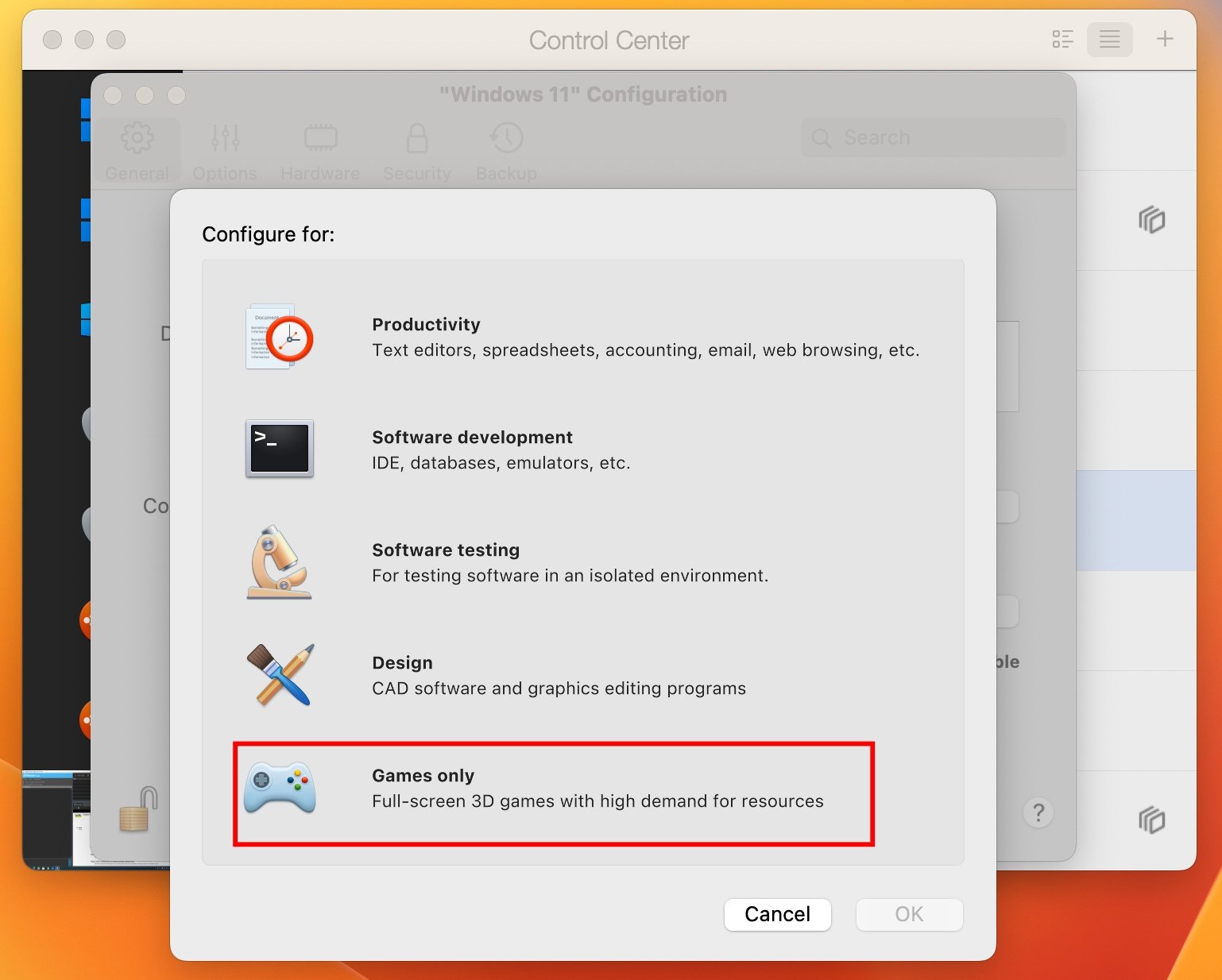
Parallels has several settings that you can adjust to improve gaming performance. Here are some important ones to consider:
CPU Allocation
You can control how many CPU cores are given to the virtual machine. Giving more cores to the virtual machine can improve performance, but leaving enough for macOS is still important so your whole computer doesn’t slow down. A good rule is to allocate at least half of your CPU cores for the virtual machine. You also need to look at your processor and figure out what is optimal for both systems working at the same time.
RAM Allocation
Just like CPU cores, you can also control how much RAM is allocated to the virtual machine. Again, the more you allocate, the better the game might run. But you still need to make sure there is enough RAM for your Mac operating system too. Make sure that the games have enough RAM, or the game will lag and it will slow down your system.
Graphics Settings
Parallels allows you to choose the amount of graphics memory to allocate to the virtual machine. Giving a higher value for graphics memory can help in certain games. If you have a dedicated graphics card (GPU) that Parallels can use, ensure that it is properly selected. Sometimes you have to switch the setting or choose it.
Advanced Settings
Parallels has other advanced settings, for example, enabling “vertical synchronization” (V-Sync), which can make gameplay look smoother by syncing the game’s frames with the refresh rate of your monitor. If you are experiencing choppy game play, enabling vertical sync can improve your game play experience.
Game-Specific Considerations
Not all games are created equal. Some are more demanding than others. Here’s how to think about running different types of games in Parallels:
Less Demanding Games
Casual games, indie games, and older games are likely to run well in Parallels, even on less powerful Macs. These games typically do not need as much from the processor, memory, or graphics. Games that do not have a lot of visual effects or are very old will work great.
Moderately Demanding Games
Many modern games that are not the most demanding will run on Parallels with adjustments. You might need to lower the graphic settings of the game to get a good frame rate. You might also need to tweak the Parallels settings, as described above, to get the game to perform smoothly. Finding the right setting is important.
Demanding Games
The newest games and games with advanced graphics may be hard to run in Parallels even with a very strong Mac. These games often require a very powerful GPU and CPU. You will probably have to lower the graphics setting a lot. You might find these games too slow or choppy to enjoy, especially on Macs without dedicated graphics. Some of these games just might not be playable on Parallels. If you like a certain game, make sure you look at the minimum and recommended specs.
Troubleshooting Tips
Even with the right settings and hardware, you might encounter issues. Here are some common problems and how to fix them:
Low Frame Rates
- Lower the graphics settings in the game.
- Allocate more CPU cores and RAM to the virtual machine.
- Ensure that Parallels is using your dedicated GPU, if applicable.
- Close other applications on your Mac.
Crashing Games
- Update Parallels to the latest version.
- Update your Windows graphics drivers inside the virtual machine.
- Make sure the game meets the minimum requirements.
- Try running the game in a lower resolution.
Input Lag
- Check if your mouse or keyboard drivers are updated.
- Ensure that Parallels is using the correct keyboard and mouse settings.
- Disable any unnecessary background processes in the virtual machine.
Alternatives to Parallels for Gaming
If you find that Parallels is not giving you the performance you want, consider these other options:
Boot Camp
Apple’s Boot Camp allows you to install Windows directly on your Mac’s hard drive, meaning you can boot your computer into either macOS or Windows. This provides native performance, which is usually a better gaming experience. You will need to restart your computer to switch between macOS and Windows.
Cloud Gaming Services
Cloud gaming services, such as GeForce Now or Xbox Cloud Gaming, let you stream games to your Mac. This means you do not need a powerful computer, because the game is running on a remote server. You need a good internet connection for this method to work well.
The Future of Gaming on Macs
The gaming landscape on Macs is always changing. With Apple’s own silicon chips and better tools for virtualization, the possibility of running Windows games is always improving. Apple is making a push into gaming, and we will have to see what happens.
Summary
Running Steam games on Parallels is possible, but it requires a strong Mac and adjusting the settings both in Parallels and in the game. It is not quite the same as playing on a dedicated Windows machine, but it allows you to play Windows games on your Mac. Understanding your Mac’s hardware, what the game needs, and making adjustments will greatly improve your gaming experience. Other alternatives are available to play games, so do not feel forced to play games with Parallels, if it is not working. If you want to play graphically intense games, consider using Boot Camp, or cloud based gaming services.
Windows Gaming Guide For M1 Pro and Max – Apple Silicon Macs [Parallels, CrossOver, Cloud]
Final Thoughts
In summary, Parallels can run many Steam games, although performance varies. Factors like the game’s requirements and your Mac’s specifications influence playability. Some games will work smoothly, while others may suffer from graphical issues or low frame rates.
Therefore, testing is crucial; you must verify game compatibility before making purchases. Consider that not all games are going to function perfectly when asking, ‘can parallels run steam games’.

