
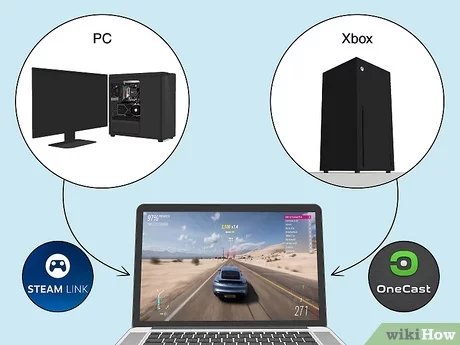
While some PC games can run on Mac using methods like emulation or virtualization, many are not directly compatible.
Thinking about diving into the gaming world on your Mac? The question of whether you can pc games run on mac pops up frequently, and it’s valid. Many popular games are designed primarily for Windows. This presents a challenge for Mac users eager to experience them.
The good news is there are ways to play some PC games on a Mac, although it requires some workarounds. These solutions range from software that mimics a Windows environment to specific game ports.

Can PC Games Run on Mac?
It’s a question many gamers ask: can you play all those awesome PC games on a Mac computer? The short answer is, well, it’s complicated! While Macs are great for many things, they aren’t always the best choice for gaming. This is mostly because PCs and Macs use different “languages” or systems that allow games to work. Let’s dig into why this is and what you can do about it.
The Big Difference: Operating Systems
The main reason why most PC games don’t just work on Macs is because of the operating system (OS). Think of an OS like the rules a computer uses to do everything. PCs usually use Windows, while Macs use macOS. These two systems are very different, and games are usually made to work for just one of them. If a game is made for Windows, it’s usually called a PC game. So, when people ask if PC games work on Mac, they’re really asking if a game made for Windows can play on a Mac.
Understanding Compatibility
Compatibility is the key word here. A game’s “compatibility” refers to if it can work correctly on a particular system. If a game isn’t designed for macOS, it likely won’t run without some extra help, if at all. Here’s a simple table to help illustrate:
| Operating System | Typical Games | Compatibility |
|---|---|---|
| Windows | PC Games | Directly compatible with Windows-based PCs |
| macOS | Mac Games (and some PC games) | Requires additional methods to play most PC games |
Methods to Play PC Games on Mac
Even though Macs aren’t naturally set up for most PC games, don’t give up hope. There are ways to play some of them. These methods can be a little tricky, but with a bit of patience, you can get many of your favorite games running. Let’s look at some of the common approaches.
Using Boot Camp
One way to play PC games on a Mac is by using Boot Camp. Boot Camp is a program from Apple that allows you to install Windows directly onto your Mac. When you turn on your Mac, you can choose if you want to start it up using macOS or Windows. If you pick Windows, your Mac will work almost like a PC, and you’ll be able to play PC games made for Windows. Here’s what you need to consider:
- Installation: Setting up Boot Camp means you need to install a copy of Windows on your computer. You’ll need to buy a Windows license.
- Dual Booting: When your computer starts, you’ll be able to choose between macOS and Windows. You cannot run both at the same time.
- Performance: Because you’re running Windows directly on your Mac, games tend to work well, often with good performance (it depends on your Mac’s specifications).
- Disk Space: You need to have enough space on your computer to install both operating systems and the games themselves.
Boot Camp is probably the best option for good performance, but it is also the most involved to set up.
Virtualization Software
Another option is using something called “virtualization” software. Programs like Parallels Desktop or VMware Fusion create a fake Windows computer inside your Mac. This lets you run Windows and macOS side-by-side, instead of choosing one at startup. Here’s the breakdown:
- Running Both OSes: You can have Windows running in a window on your macOS desktop.
- Easier Switching: It’s much easier to switch between Windows and macOS compared to Boot Camp.
- Performance: Games usually don’t run as well as they do with Boot Camp because your computer is splitting its power between macOS and the virtual Windows machine.
- Resource Intensive: Virtualization software can use a lot of your computer’s power and memory.
Virtualization can be handy, but it’s not the top choice for playing fast-paced and intense PC games.
Using Compatibility Layers (Like Wine)
A compatibility layer is software that tries to translate the “language” of Windows into something that macOS understands. Wine is one of the more known, and free, options. It doesn’t install Windows. Instead, it allows Windows applications, including games, to run directly on macOS. It is like a translator between Windows and macOS. Here are the things to think about:
- No Windows Installation: Wine does not install Windows; it just tries to “translate” how the game works.
- Variable Game Support: Not all Windows games will work well, or at all with Wine. Some might run perfectly, while others might be broken. It depends on the game.
- Can Be Tricky: Setting up Wine and getting games to run correctly can be complicated. It’s often more for those comfortable with computers.
- Free to Use: One advantage of Wine is that it is usually free.
Wine is a free option, but it can require some technical know-how to get working.
Cloud Gaming Services
A different method is to use a cloud gaming service. These services run the game on powerful servers and stream the gameplay to your Mac, this method is like watching a video game that you can play. Here are the points to consider:
- Remote Gameplay: You are not running the game on your Mac but on a remote computer.
- Internet Required: You need a fast and stable internet connection, because you are streaming a video game.
- No Direct Compatibility: Your Mac doesn’t need to worry about game compatibility because it is being played somewhere else.
- Monthly Fees: Cloud gaming services often require a monthly or subscription fee.
Cloud gaming is a good option if you don’t want to install anything. However, you are at the mercy of your internet connection.
The Apple Silicon M-Series Chip Consideration
Mac computers that have the newer Apple Silicon processors (M1, M2, M3, etc) have introduced some unique challenges and benefits when it comes to running PC games. These chips are different from the Intel processors used in older Macs. Here’s what you need to know:
Rosetta 2
Apple included a tool called Rosetta 2 that helps software made for older Intel Macs run on the new Apple silicon Macs. This helps many older Mac games work. But, this doesn’t help much with Windows PC games. Rosetta 2 doesn’t help translate Windows game code.
Game Compatibility on Apple Silicon
While Apple Silicon chips are very powerful and offer good performance, they’ve caused a shift in game compatibility. Many games might not work as smoothly on these newer Macs compared to older Macs using Boot Camp. While some games are available directly for macOS and run great on Apple Silicon, you often need to rely on the other methods described, like cloud gaming or virtualization, to get PC games to work.
Native macOS Games
It is worth noting that many games are made specifically for macOS. These games run perfectly on Macs and are usually found in the Mac App Store or other gaming stores. Some are even available from the same developers that make PC games, but sometimes, PC games are made and updated for Windows far before they are ever ready for MacOS. It is also true that the library of games for MacOS is much smaller. If you are playing MacOS native games, then these are the best way to experience games on MacOS because they are meant to be played on the MacOS operating system.
Tips for Gaming on Mac
If you’re set on gaming on your Mac, here are some things to keep in mind:
- Check System Requirements: Always make sure your Mac meets the minimum system requirements of the game, even if you are using Boot Camp or other programs.
- Keep Software Updated: Ensure macOS, Windows, your drivers, and any other tools you use for gaming are always updated.
- Research Games: Before buying a game, look online to see if other Mac users have had luck getting it to work.
- Consider Peripherals: A good mouse, keyboard, and headset can make a big difference.
- Be Patient: Sometimes getting a PC game to run on a Mac takes time and effort, especially using Wine.
The Future of Mac Gaming
The good news is, Apple is putting more attention into gaming on macOS. With the recent releases of the M-series chips and some large developers bringing their games to MacOS, it is looking up for mac users. The idea of gaming on macs is not as hard as it used to be. We might see more games made to work on macOS in the future, which will make gaming easier for Mac users.
To sum up, while directly playing PC games on a Mac can be complicated, there are solutions to try. Whether you use Boot Camp for direct Windows compatibility, virtualization for convenience, a compatibility layer, or cloud gaming for flexibility, you can find a way to enjoy many PC games on your Mac. The most important thing is to weigh your options, do a little research, and be ready to experiment. Hopefully the future brings more gaming options for Mac users.
Gaming on a Mac, FINALLY! 🙌
Final Thoughts
The ability of Macs to play PC games is complex. Many older PC games will not directly run on macOS. However, solutions like Boot Camp or virtual machines allow you to play some Windows-based games.
Cloud gaming offers another option. These services allow you to play games that don’t run natively on a Mac. So, can pc games run on mac? It’s not straightforward, but options exist.

