
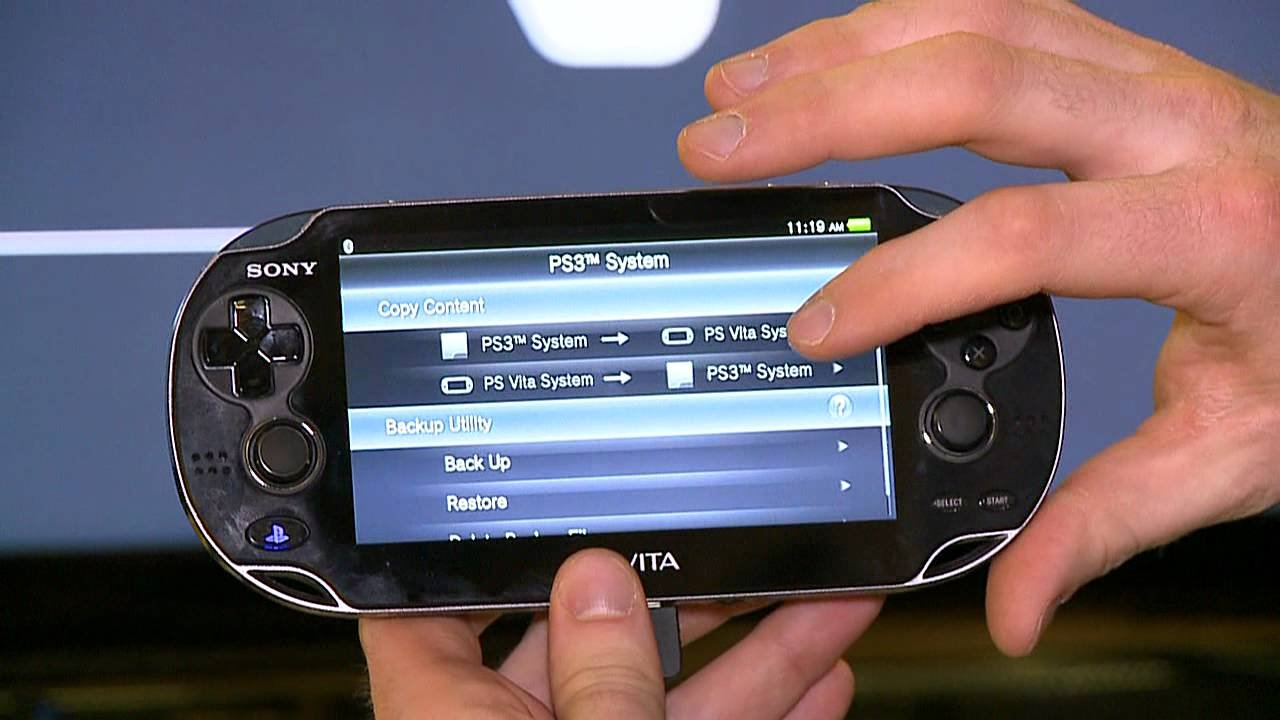
Yes, the PS Vita can run PSP games.
Have you ever wondered if you could play your classic PSP favorites on the sleek PS Vita? It’s a common question among handheld gaming enthusiasts. Many people are curious if their older digital library can make the jump to this newer device.
The good news is that most PSP games are indeed compatible. You can enjoy many titles through the PlayStation Store, keeping those retro gaming memories alive. So, yes, can ps vita run psp games – absolutely!

Can PS Vita Run PSP Games? A Deep Dive
So, you’ve got a PlayStation Vita and you’re wondering if it can play those classic PSP games you loved. The short answer is a big, resounding YES! But it’s not quite as simple as popping in a UMD disc. Let’s explore how the PS Vita plays PSP games, the different ways you can play them, and what you need to know to get started. We’ll cover everything from the digital downloads to the specific capabilities and limitations. Let’s jump right in!
How the PS Vita Plays PSP Games: Digital Downloads Are Key
The PS Vita doesn’t have a UMD drive, which was the format used for PSP games. Instead, the PS Vita plays PSP games through digital downloads from the PlayStation Store. This means you can’t just take your old PSP game discs and use them on the Vita. It’s more convenient in a way, as you don’t have to worry about physical cartridges, but you do have to repurchase games you might already own on disc if you want to play them on your Vita.
The PlayStation Store: Your Gateway to PSP Games on Vita
The PlayStation Store on the PS Vita has a dedicated section for PSP games. This is where you’ll find the classic titles available for download. It’s like having a virtual library of PSP goodness right there on your Vita. Games are usually priced somewhere between their original release price and budget friendly pricing, making it a good deal for those who wants to re experience the psp classics.
- Easy Access: The store is easily accessible directly from your Vita’s main menu.
- Search Function: You can search for specific games, browse categories, or check out new releases.
- Purchase and Download: Once you’ve found a game you like, buying and downloading it is pretty straightforward.
Understanding Compatibility: What Games Work and How
The great news is that the vast majority of popular PSP games are available on the PlayStation Store for the PS Vita. But there are a few things to keep in mind.
PSP Game Availability
While a vast library of titles are available for the PS Vita, not every single PSP game made it to the digital store. Some of the more obscure games, or those with licensing issues, might not be there. Generally, the most popular and critically acclaimed games are readily available.
Here’s a simple guideline:
- Most big-name titles are available: Think games like Final Fantasy VII: Crisis Core, God of War: Chains of Olympus, Persona 3 Portable, and Metal Gear Solid: Peace Walker.
- Some smaller titles may not be: A handful of less popular titles might not be available.
- Always check the store: The PlayStation Store is always updated with new additions, so it’s a good idea to keep an eye out.
Emulation and Performance
The PS Vita doesn’t run PSP games natively in the sense that it’s not a PSP hardware. Instead, it uses built-in emulation. This process allows the Vita to effectively “pretend” to be a PSP, letting it play the games. The important thing is that this emulation is well optimized, ensuring most games play smoothly and look good. In most cases, performance matches the original PSP experience with little to no noticeable difference.
Control Mapping
One of the biggest advantages is how the PS Vita handles PSP games control. While PSP had a limited buttons compared to modern standards, PS vita has two analog sticks, and developers used them creatively for controls to make the controls natural. Here’s what to expect:
- Analog Sticks: The dual analog sticks on the PS Vita give you more control options for games that originally used a D-Pad. You can now control the camera for games like GTA and others easily.
- Touchscreen functionality: Some games used touch screen support to enable some functionalities. And that is still available for PS Vita.
- Customizable controls: You can generally customize the controls in the game options to map the action as you prefer, giving you more flexibility.
PS Vita vs. PSP: Enhanced Features for PSP Games
Beyond just playing the games, the PS Vita adds a few enhancements to the PSP experience.
Improved Visuals on Vita
The PS Vita has a higher resolution screen than the PSP, resulting in sharper and clearer visuals. While PSP games weren’t designed for such a display, the Vita does a good job of scaling them up, making them look better than they did on the original hardware.
- Sharper Image: The higher resolution screen adds a layer of sharpness to the games.
- Less Pixelation: You’ll notice less of the pixelated look that was sometimes present on the original PSP.
- Better Color Reproduction: The Vita’s screen has excellent color reproduction, making games look vibrant and colorful.
Other Enhanced Features
Here are a few other features that add to the PSP gaming experience on the Vita:
- Remote Play: Some PSP games support Remote Play to play on your PS4.
- Trophies: Certain PSP titles will feature a set of trophy for PS Vita.
- Ad-Hoc Multiplayer: The PS Vita supports local ad-hoc multiplayer as on the PSP. This is very usefull for playing together with your friends locally.
Getting Started: Setting Up Your Vita for PSP Gaming
If you’re ready to jump into playing PSP games on your PS Vita, here’s how to get going:
Connecting to the PlayStation Network
First, you need to connect your PS Vita to the PlayStation Network, if you haven’t already. This will enable you to access the PlayStation Store.
- Turn on your Vita: Switch on your PS Vita and make sure it’s connected to Wi-Fi.
- Go to Settings: Navigate to the Settings application on your home screen.
- Network Settings: Go to “Network” and then “Wi-Fi Settings”.
- Connect to Wi-Fi: Select your Wi-Fi network and connect.
- Sign in or create an account: Head to the PlayStation Network section to either sign in to your existing account or create a new one.
Navigating the PlayStation Store
Now that your system is connected, you can access the PlayStation Store.
- Open the PlayStation Store app: You’ll find this on your Vita’s main screen.
- Navigate to the PSP section: Look for the PSP section. It’s often labeled as “PSP Games” or “Classic Games”.
- Browse or search for games: You can browse through different categories, use the search bar to find a particular game.
Purchasing and Downloading Games
Once you have selected the games, you want to play, buy them using the PSN wallet.
- Select the Game: Choose the PSP game that you want to buy.
- Add to Cart: Add the game to your shopping cart.
- Proceed to Checkout: Follow the instructions to checkout.
- Start Download: After your purchase, the download will begin automatically. You can monitor its progress on your Vita’s notification panel.
Tips for Playing PSP Games on Vita
Before you start enjoying your games, here are a few quick tips:
- Memory Card: Make sure you have enough space on your Vita memory card, as game download size can vary, so it is good to have enough space available.
- Charging: Keep your Vita charged. PSP games can use the battery fast, so it’s good to have a charger nearby.
- Headphones: For the best gaming experience, use headphones. They can increase immersion and make games sound way better.
Addressing Common Questions and Concerns
Let’s tackle a few common questions that people often have regarding playing PSP games on the PS Vita.
Are all PSP games available on the PlayStation Store?
As mentioned earlier, not all of them. While the most popular games are usually available, some of the lesser known ones might not be present. Always check the store to see what’s available.
Do I need to buy my PSP games again if I already own them on UMD?
Yes, unfortunately, the PS Vita does not use UMDs. You will need to buy the digital versions through the PlayStation Store to play them on your Vita.
Can I transfer games from my PSP to my Vita?
Generally, you cannot directly transfer games from your PSP to your Vita, unless you already have them in the digital form on your PSN account. You will need to buy and download them through the PlayStation Store.
Do PSP games look the same on the PS Vita screen?
No, they often look better, because the PS Vita has a better screen. The resolution of games are upscaled and this make them look much better compared to original PSP. The colors are more vibrant, and details are more sharp.
Does the PS Vita battery drain faster when playing PSP games?
Yes, it’s possible that the battery may drain a little quicker when you play PSP games, as the Vita’s processor is doing more work when using emulation. But, you can improve battery life by reducing screen brightness or closing any other applications running in the background.
In conclusion, the PS Vita provides a fantastic way to enjoy classic PSP games. Although it requires purchasing games digitally via the PlayStation Store, the enhanced visual clarity, improved controls, and overall convenience make it worthwhile. With the wide library of PSP games, you’ll find many classics to play on the go. So, get out there, explore the PlayStation Store, and enjoy these classics on your PS Vita!
Play PSP & PS1 Games On Your Vita With Adrenaline
Final Thoughts
Yes, the PS Vita can play PSP games. Sony designed it with backward compatibility in mind. You can enjoy many PSP titles via digital downloads from the PlayStation Store.
The Vita’s screen and controls enhance the experience. Furthermore, some games even offer improved visuals. Therefore, ‘can ps vita run psp games’ is answered affirmatively.

