
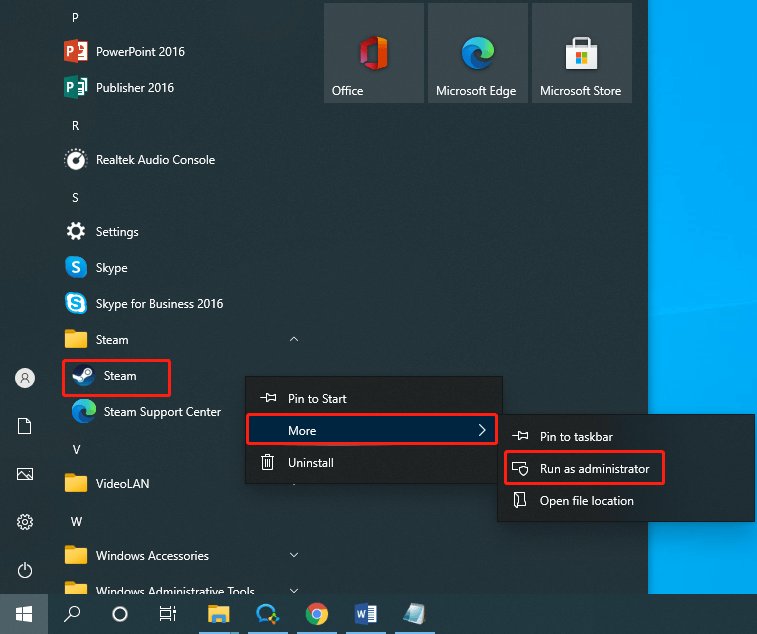
To run a Steam game as administrator, right-click the game’s executable file (usually in the game’s install folder) and select “Run as administrator”.
Have you ever encountered a game that just doesn’t seem to work correctly? Sometimes, this is because the game needs more permissions. Learning how to run a steam game as administrator can solve many issues.
It’s a straightforward process, but knowing the steps can make all the difference for a smoother gaming experience. By granting administrative privileges, you are essentially allowing the game full access to your system.

How to Run a Steam Game as Administrator
Sometimes, a game you bought on Steam might not work exactly right. It might crash, or not save your progress, or not even start at all! This can be really frustrating, especially when you just want to play. One of the things you can try to fix these problems is to run your game as an administrator. What does that mean, and how do you do it? Let’s explore it together.
Why Run a Steam Game as Administrator?
Think of your computer like a house. There are different rooms, and some rooms need special keys to get in. Regular programs, like games, are like guests in the house. They can usually do what they need to, but sometimes, they need to access parts of the house that are usually locked, like changing some computer settings. Running a program as an administrator is like giving that program the master key to the house. It lets the game have more control over the computer. Why would this be helpful? Here are a few reasons:
Fixing Permissions Issues: Sometimes, the game needs to write files to certain places on your computer, like the folder where it saves your game progress. If it doesn’t have permission, it can’t do that. Running as an administrator gives it the permission it needs.
Dealing with Compatibility Problems: Older games, especially, can sometimes have trouble working with newer computer systems. Running them as administrator can help them to work better with the operating system.
Avoiding Conflicts with Security Programs: Your antivirus program or Windows Defender is there to protect your computer. Sometimes, they can think a game is trying to do something bad when it isn’t, and they can block it. Running a game as administrator can help these programs to trust the game.
Enabling Mod Functionality: Some games rely on user-created modifications (mods) that require elevated privileges to function correctly. Running the game as administrator often ensures these mods can operate without any restrictions, letting you fully customize your gaming experience.
Essentially, running a Steam game as administrator can solve several problems by giving it more authority over your computer, which allows it to operate as intended.
Different Ways to Run a Steam Game as Administrator
There are several ways you can make a Steam game run as administrator. You don’t have to use just one method. If one doesn’t work, try another. Let’s break down these methods:
Running a Game as Administrator Temporarily
This is a good way to test if running as administrator fixes your game problem without permanently changing anything.
- First, find the game in your Steam library.
- Right-click on the game’s name.
- Hover over “Manage.”
- Choose “Browse local files.” This opens a folder showing where the game is saved on your computer.
- Find the main file of the game. It’s usually named after the game itself, and the file type is an .exe. For example, if you’re playing ‘Awesome Game,’ you’ll be looking for a file named ‘AwesomeGame.exe’.
- Right-click on the game’s .exe file.
- Select “Run as administrator.”
- Windows might ask you if you are sure about running this game as administrator. Click “Yes.”
The game will now start running with administrator privileges. Remember, this way only applies for that single time. The next time you run it through Steam normally, it won’t run as administrator automatically.
Setting a Game to Always Run as Administrator
If running a game as administrator fixed the problem and you want it to run like that all the time, here’s how to set it up permanently:
- Repeat steps 1 to 4 from the previous method. Again, you need to navigate to the game’s folder on your computer.
- Find the game’s .exe file, like ‘AwesomeGame.exe’.
- Right-click the game’s .exe file.
- Select “Properties”.
- Click on the “Compatibility” tab.
- Check the box next to “Run this program as an administrator.”
- Click “Apply” then “OK”.
Now, every time you open this game, it will automatically run as administrator. Be aware of the security implications of always running a program as an administrator. It is best to run as admin only when you need to.
Running Steam Itself as Administrator
Sometimes, the problem is not with the individual game but with the Steam application. You can also run Steam itself as an administrator:
- Close Steam completely. This means making sure the Steam icon isn’t still visible in your system tray at the bottom right of your screen.
- Right-click on the Steam shortcut on your desktop or the Start menu.
- Select “Run as administrator.”
- Click “Yes” when Windows asks you if you are sure.
Running Steam as administrator might help fix issues related to the game library or updating games. If you set Steam to always run as administrator using method explained above, every game you run through it will have also some of the access.
Understanding Compatibility Mode Settings
While looking at the game’s properties under the “Compatibility” tab, you might have noticed some other options. One is called “Compatibility mode”. This setting is about telling your computer to act like an older version of Windows. Sometimes a game that was made for older computers needs a little help to run correctly on a newer Windows system.
- Repeat steps 1 to 4 of method 2.
- Right click on the game’s .exe file and select “Properties”
- Click on the “Compatibility” tab.
- Check the “Run this program in compatibility mode for:” box.
- Choose an older version of Windows from the dropdown menu. Try different versions if the first one doesn’t work.
- Click “Apply” then “OK”.
Choosing the right compatibility mode can be a bit of trial and error. The goal is to see if the game works better with a different emulation of old windows.
Common Problems and Troubleshooting
Even when running a game as administrator, you might still have some issues. Here are some common problems and what you can do about them:
The game still crashes: If the game still crashes, you should try updating the drivers for your graphics card. You can also check on the Steam discussion forums for that specific game; other players might have had similar problems, and there might be a solution. Sometimes, outdated drivers or system conflicts with graphics-related applications may be the cause of such issues.
The game won’t save: When your game is not saving your progress, it might mean the game needs even more permissions or a fresh install. Try to run it as administrator again, or check the game’s folder and see if it’s read-only. Right click on the game folder, click on “Properties”, and uncheck read-only box.
The game doesn’t start at all: If the game doesn’t start, check that your computer meets the minimum system requirements. Also, make sure your antivirus or Windows firewall are not blocking the game, and that all game files are installed properly. Try verifying game file integrity through Steam and also try uninstalling and reinstalling it again. Also, see that no other software is interfering with game launch.
Security warnings appear: If Windows keeps showing security warnings when you run the game, you can add an exception for that game in your antivirus and firewall settings. This allows the game to run smoothly without constant interruptions. You can do this by going into your security software and marking the game’s executable (.exe) file as a trusted program.
Problems with Modifications: When mods aren’t working as intended, ensure they are compatible with your current game version and that any additional requirements for the mods, like special software or other mods, are met. Always check for compatibility notes from the mod authors, and follow those instructions closely. Make sure that you are running the mod launcher as administrator too.
Steam Overlay Issues: Sometimes when running a game as administrator the Steam overlay, which is used for chat and other functions, might not work properly. If this happens, try restarting Steam as an administrator as this can help restore the functionality.
Always try a simple restart of the game or Steam before trying more complex solutions. Checking your computer’s specs, making sure your drivers are up-to-date, and making sure there are no other background applications interfering, is always a good idea. Sometimes a simple computer restart may solve several problems.
When to Avoid Running as Administrator
While running a game as administrator can solve problems, it’s also a good idea to not use this method if it isn’t really necessary.
Increased Security Risk: Granting administrative privileges to an application increases the potential security risk. While this may be okay for your trustworthy steam game, it’s best to avoid this with unknown apps from untrusted sources, as they can harm your computer.
Unnecessary Permissions: Most of the time, games don’t need administrator permissions to work properly. Only use this method if you are having clear and specific problems.
Potential for Conflicts: Running too many applications with administrator privileges can sometimes lead to conflicts. It’s good to run only the necessary applications with administrator privileges.
In short, running games as administrator is like using a special tool, use it only when needed.
Running a Steam game as administrator can help solve many problems, such as compatibility, permissions, and security conflicts. Remember to try the temporary method first to see if it helps. If it does, you can then set it up to always run as administrator, if necessary. Understanding compatibility settings, and basic troubleshooting, will further help you in playing your games smoothly. Use these methods when you need them, and don’t forget to update your computer and drivers regularly!
How To Run Steam Games As Administrator
Final Thoughts
To run a steam game as administrator, locate its executable. Right-click and select “Run as administrator.” This action grants the game necessary permissions.
Alternatively, modify the game’s shortcut properties. Access the compatibility tab and check “Run this program as an administrator.” Apply changes. This ensures the game always runs with administrative rights.
Properly using these methods makes a huge difference. This is important when you need to bypass limitations. Now you know how to run a steam game as administrator, so game on without hurdles.

