
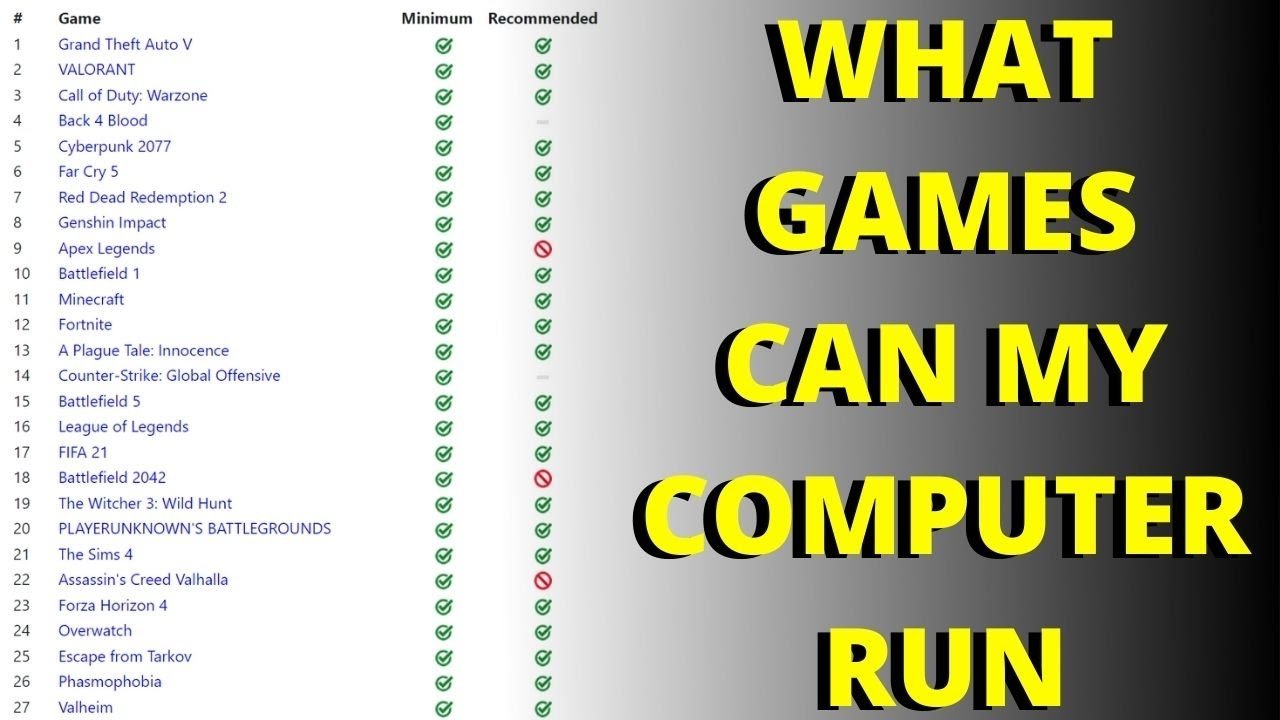
It depends on your PC’s specifications; compare them to the game’s minimum and recommended system requirements to see if this game can run on your pc.
Ever wondered if that new, exciting game will actually work on your computer? It’s a common question, right? We’ve all been there, anticipating a game’s release, only to pause and think, “can this game run on my pc?”
Figuring that out doesn’t have to be a mystery though. We can guide you on how to check if your computer meets the necessary hardware demands. This will help you avoid the disappointment of purchasing a game that won’t function properly.

Can This Game Run On My PC?
So, you’ve got your eyes on a brand-new game, maybe one with super cool graphics and exciting gameplay. But before you click that “buy” button, a big question pops up: “Can my computer even handle it?” It’s a worry we all have! Nobody wants to spend money on a game only to see it lag and stutter or not work at all. Let’s break down what goes into making sure a game runs smoothly on your PC and what you need to look out for.
Understanding Minimum and Recommended Specs
Game developers always list two sets of requirements: minimum and recommended. Think of them like this:
- Minimum Specs: These are the absolute lowest computer parts you need to run the game. It might be playable, but don’t expect it to look super amazing. You might have to turn down graphics settings.
- Recommended Specs: These are the specs you should have to play the game smoothly with better graphics. It’s the sweet spot for a good gaming experience.
It’s like baking a cake. Minimum specs are the bare minimum ingredients you need. Recommended specs are the ideal ingredients for a delicious cake.
What Are These Specs Anyway?
These “specs” are the details about your computer’s different parts. The most important ones are:
- Operating System (OS): This is the software that runs your computer, like Windows 10 or macOS. Games are usually made to work with specific OS versions.
- Processor (CPU): This is the brain of your computer. It does all the calculations. Games need powerful processors to handle complex tasks. We will look at brands like Intel and AMD, and core counts like quad-core or octa-core.
- Memory (RAM): This is like your computer’s short-term memory. Games need enough RAM to load quickly and run smoothly. We express this in Gigabytes (GB).
- Graphics Card (GPU): This handles all the visuals you see on screen. It’s essential for playing games with good graphics. We will look at brands like NVIDIA and AMD, and models like RTX series or RX series.
- Storage: This is where you keep your game files. You need enough space on your hard drive or solid-state drive (SSD). We express this in Gigabytes (GB).
- DirectX version: Many games need a specific version of DirectX, which is a collection of technologies that helps graphics and audio work correctly.
How to Check Your PC’s Specs
Figuring out your computer’s specs isn’t as hard as it sounds. Here’s how to do it on Windows:
- Using System Information:
- Type “System Information” in the Windows search bar.
- Open the System Information app.
- You’ll find your OS, processor, and RAM listed there.
- Look for “BaseBoard Product” which tells you your motherboard information.
- Using Device Manager:
- Type “Device Manager” in the Windows search bar.
- Open the Device Manager app.
- Click the arrow next to “Display adapters” to find your graphics card.
If you have a Mac, you can find your specs by clicking the Apple logo in the top-left corner, then “About This Mac.”
Comparing Your Specs to Game Requirements
Now that you know how to find your specs and understand the game’s requirements, it’s time to compare them.
The Processor (CPU) Deep Dive
The CPU is a very important part. When a game lists, for example, “Intel Core i5-8400” as a minimum requirement, it means the game needs at least the power of that processor to run. You can compare your CPU model to the listed one. A higher number or a newer generation is typically better. For example, an Intel Core i7-10700 is generally more powerful than an Intel Core i5-8400, and an Intel Core i5-12600k is typically better than an Intel Core i5-10700. Keep an eye on the CPU generation; a newer generation typically comes with performance improvements. Similarly, in the AMD arena, a Ryzen 5 3600 is less powerful than a Ryzen 7 5800X. Also, the number of cores matters. More cores can help the game in handling multiple tasks. Look for quad-core, hexa-core, or octa-core CPUs depending on the game’s requirement. If your processor is older, check online for benchmark tests which show how well processors compare.
Memory (RAM) – How Much Is Enough?
RAM is your computer’s fast memory. When a game lists 8 GB of RAM as a minimum, it means you need that much to load all the game’s stuff properly. If you have less RAM, the game might run slowly. Having more RAM than the required amount won’t usually make a big difference, but it could be useful if you have other programs running in the background. 16 GB of RAM is good for most modern games. Always try to have at least the minimum, preferably the recommended. Keep in mind, using a 64-bit OS is generally required to make use of 8+ GB of ram.
Graphics Card (GPU) – The Visual Powerhouse
The GPU, or graphics card, is what makes the game look pretty. It’s vital for good gaming, and the models of GPUs matter as much as brands. If a game says it needs an “NVIDIA GeForce GTX 1060,” you need at least that graphics card to play the game well. A newer card like an RTX 3060 or RTX 4070 is better. Also consider the VRAM or Video Memory, of your GPU. This can be 4 GB, 6 GB, or 8 GB. More VRAM is good for higher resolutions and better textures in-game. If you have an older card, see what benchmark tests say about the card and if it can compare to what’s listed in the minimum specs. Some games can run at low graphics settings on lower spec GPUs. An AMD RX series card can also be equivalent or better than specific NVIDIA cards. It’s always a good idea to research the performance of various GPUs before choosing a gaming platform. Don’t forget to keep your GPU drivers updated, as this can help with game performance.
Storage Space – Where Will You Put the Game?
Games take up a lot of space these days. When a game says it needs 50 GB of storage, you need at least that amount free on your hard drive. An SSD (Solid State Drive) is generally faster than a traditional HDD (Hard Disk Drive), so games will load faster from an SSD. If you don’t have enough space, you might need to delete some old games or files.
Operating System and DirectX – Making Sure Everything Works Together
Most modern games require a 64-bit version of Windows 10 or Windows 11. Make sure that your OS meets the minimum requirement stated in the system requirements. Older OS versions may cause issues, so make sure you are up to date with windows. Games also need the correct version of DirectX, which is a collection of tools that helps games run. Most recent games use DirectX 12.
What if My Specs Don’t Match?
If your PC specs don’t quite match the game’s minimum requirements, don’t despair. Here’s what you can do:
- Adjust Graphics Settings: Many games let you change settings. You can lower the graphics quality, turn off special effects, and reduce the resolution. This can help the game run smoother even on a weaker PC.
- Check Online for Performance Guides: Lots of gamers share tips online on how to improve performance for specific games on lower-end PCs. A quick search can often reveal tweaks and settings adjustments you might have missed.
- Upgrade Your PC Parts: If you’re serious about gaming and can afford it, consider upgrading your CPU, GPU, or RAM. Check online guides to see which upgrades will give you the most performance benefit.
Checking User Benchmarks and Can You Run It Sites
Sometimes, looking at a list of specs isn’t enough. That’s where user benchmarks come in. These are tests done by real people on their own computers which show actual gameplay performance. For example, a website might show a chart of how well different CPUs or GPUs perform with a particular game. Also, there are websites that help you compare your computer specs to game requirements, these are known as “Can You Run It?” websites. They compare the game specs to your PC and provide a performance estimation.
Understanding Frame Rates (FPS)
FPS, or frames per second, is how many images your computer displays each second. A higher FPS means the game looks smoother and is more responsive. A low FPS will make the game look choppy. Generally, you want an average FPS of 30 or more to have a good gaming experience. Some gamers prefer 60 FPS or higher for even smoother gameplay. When comparing your specs, keep an eye on what FPS is expected, based on what other players are seeing on similar systems.
Beyond Specs: Other Factors to Consider
PC specs aren’t the only thing that affects game performance. Other things play a part too:
- Background Apps: Running lots of programs at the same time as your game can slow it down. Make sure to close unnecessary programs before playing.
- Driver Updates: Keeping your graphics card drivers updated is super important. New drivers often improve game performance.
- Overheating: If your computer gets too hot, it can slow down. Make sure your PC has good airflow and is not clogged with dust.
- Internet Connection: For online multiplayer games, a stable and fast internet connection is needed. This helps with smooth gameplay, avoiding delays and lag.
Optimizing Your PC for Gaming
Here are some quick tips to optimize your PC for gaming:
- Close unnecessary programs in the background.
- Keep your Windows and graphics drivers updated.
- Run a disk cleanup regularly to free up space.
- Make sure your PC has proper cooling.
What If Your PC Can’t Run the Game?
If you find that your computer simply cannot run the game and you can’t upgrade yet, there are other options:
- Cloud Gaming: Cloud gaming services let you play games on powerful servers and stream the video to your PC. This way, you don’t need a high-end PC to play the latest games. There are different services like GeForce Now and Xbox Cloud Gaming.
- Console Gaming: Consider getting a gaming console like a PlayStation or Xbox. Consoles are built for gaming, so you don’t need to worry too much about the system requirements.
- Wait for Updates: Sometimes, game developers release patches that improve performance. You can wait for an update and see if that helps your PC to run the game.
Understanding if a game can run on your PC is all about comparing your computer’s abilities with the game’s requirements. It might seem like a lot at first, but with a bit of knowledge, you can avoid buying a game your computer can’t handle. By checking the minimum and recommended specs, your PC hardware, and understanding performance factors, you can game with confidence. If your PC is not up to par, know that there are still some options like cloud gaming.
Check which games are compatible with your pc Can my PC run it What games can I play on my computer
Final Thoughts
So, considering the system requirements discussed, you must carefully compare them with your PC’s specs. Check your CPU, GPU, and RAM. This process is crucial for determining if the game will run smoothly.
If your computer meets or exceeds the minimum specifications, it should run. However, for optimal performance you want to meet the recommended ones. Ultimately, can this game run on my pc depends on that comparison, ensuring a enjoyable gaming experience.

