
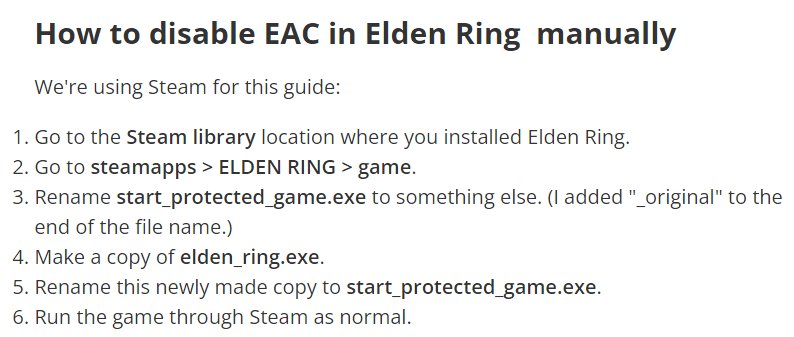
No, you cannot rename the game executable (exe) file directly through Steam.
Ever wondered, can u rename the game exe on steam? It’s a common question for PC gamers who like to tinker with their setups. Steam doesn’t offer a direct option for this kind of file manipulation.
Changing the game’s executable file name is outside of Steam’s intended functionality. The platform manages games based on specific identifiers. Directly modifying these files can cause issues with updates and game launches.

Can You Rename the Game EXE on Steam?
Let’s talk about something many gamers wonder: Can you change the name of a game’s executable file (.exe) on Steam? It’s a valid question, especially if you’re trying to organize things or maybe even troubleshoot a problem. The short answer is, you technically can, but it’s usually not a good idea, and here’s why. We will dive deep into how Steam works with game files, potential issues when renaming them, what you might be thinking about trying, and some better options.
Understanding Steam and Game Executables
Think of Steam like a giant library for video games. When you buy or download a game, Steam keeps track of where all the game’s files are stored on your computer. One of the most important files is the game’s executable file, which usually ends with “.exe”. This file is like the key that starts the game. It contains the instructions that tell your computer how to run the game. Steam uses the information about this specific file, including its name and location, to launch the game properly. Changing the executable name directly messes with this system.
How Steam Identifies Games
Steam doesn’t just look at the name of the executable file to know which game you’re playing. It uses a more complex system which includes:
- App ID: Each game on Steam has a unique ID number. This ID is how Steam keeps track of the game, its updates, and other related information.
- Manifest Files: Steam uses manifest files (.acf) to store information about installed games. These files contain details about the game’s files, including the location and name of the executable.
- Registry Entries: In some cases, Steam also uses Windows registry entries to keep track of installed games. These entries can include the executable’s path.
When you click “Play” on a game in Steam, it uses these systems to find the correct executable and launch it. If you rename the executable file, Steam might not recognize the file and may not launch the game.
Why People Consider Renaming Game Executables
There can be a variety of reasons why someone might want to rename a game’s .exe file. Here are some of the most common:
- Organization: Sometimes, game executables have very similar names, or use abbreviations that are hard to remember. People might want to change them to something clearer.
- Troubleshooting: In some specific cases, users might think that renaming an executable might help solve a game problem. This is a rare instance, and renaming is unlikely to fix a broken game.
- Modding or Customization: Some gamers who engage in more advanced modification of games might want to rename the .exe to keep track of different custom versions.
The Risks of Renaming Game Executables
Changing the name of a game’s .exe file without a real understanding can lead to various problems. Let’s look into some potential issues:
- Game Launch Failure: The most common problem is that Steam will not be able to start the game. It looks for the .exe file by its original name. Renaming it breaks that link, and Steam won’t know where to start the game. You’ll likely get an error message saying it can’t find the game’s files.
- Broken Updates: Steam games frequently get updates. These updates often rely on the .exe file having a specific name. When you change the file name, future updates may not be able to install or work correctly. This could mean that your game is broken and you have to redownload it.
- Corrupted Game Files: If the game has any kind of anti-tampering protection, renaming the executable could cause problems or errors with the game files and may even cause game instability.
- Steam Validation Errors: Steam has a built-in feature to verify game files. If you rename the .exe file, this verification process might fail. This means Steam will have to redownload the game files, taking up a lot of time and bandwidth.
In short, renaming the game’s .exe file creates more problems than it solves.
What Happens if You Rename the EXE?
Let’s say you do rename the .exe file of a game on Steam. What exactly will happen? Well, the most likely outcome is that when you try to launch the game from Steam, it will either:
- Give you an error message, stating that the game executable is missing or that it can’t find the file path.
- Do nothing at all, leaving you with a non-responsive game launch.
- Attempt to redownload the game and fix the issue by itself.
Steam will notice that the executable file is not in the expected location or doesn’t have the expected name, due to the file name not matching up with the records Steam has. Steam’s verification system will usually attempt to correct it, usually by redownloading. This results in more time spent downloading and potentially more frustration.
Example of the Problem
Imagine your game’s executable is named awesomegame.exe. Steam knows to look for this file to start the game. Now, let’s say you rename it to myawesomegame.exe. When you hit the play button on Steam, it looks for awesomegame.exe, but it won’t find it. Steam will either throw an error, start the redownload process or, in rare cases, just do nothing.
Better Alternatives Than Renaming the EXE
Okay, so renaming the .exe is not a good plan. But what if you still want to organize your games or accomplish something similar? Here are some safe and better alternatives:
Using Steam’s Library Features
Steam already provides several options to manage your games:
- Categories: You can create custom categories to group your games based on genre, preference, or any way you want. For example, you can create categories like “Action Games,” “Puzzle Games,” or “Games to Play with Friends.”
- Collections: Use collections to organize your games into different groups. This helps when you have lots of games and you want to browse for specific ones easily.
- Search: Steam has a search feature that allows you to quickly find specific games by name, which is often faster than browsing through a long list.
- Favorite Games: You can mark your favorite games and they will be easily accessible and placed at the top of your library.
These features let you find your games easily without the need to mess with the game’s core files.
Using Launch Options
Steam has a feature called ‘Launch Options,’ that can help with some game launch problems or customization. These options are entered in Steam, not by directly modifying the .exe itself.
To access Launch Options:
- Right-click on the game in your Steam library.
- Select ‘Properties’.
- In the ‘General’ tab, find the ‘Launch Options’ text box.
Here, you can enter some specific codes or parameters that can modify how the game launches, such as setting the window size, skipping intro videos, or more advanced changes. Using launch options is a far safer way to modify the game experience without touching the main game files. These launch options are linked to the game in Steam, not to the executable, so they can work even if a game’s file path has changed (not from direct renaming of files, but things like Steam moving a folder).
Using Third-Party Launchers
If you are looking for more control over your library and launching experience, there are several third-party launchers which you can use.
- Playnite: This is a free, open-source launcher that lets you manage games from various sources, including Steam, GOG, and more. It offers great customizability.
- Lutris: Lutris is specifically designed for Linux and is a game launcher, installer, and manager that also supports many platforms.
These launchers provide alternative ways to access your games, offer ways to customize launch parameters and help to organize your library. They don’t directly affect the game’s .exe file, so there is no harm to game files. They manage games as a collection, not by manipulating the game file names or paths directly.
Modding Safely
If you are modding your game, there are a lot of tools available for many games that handle the modification process automatically and make sure that all the proper files and paths are set up without you having to change the game’s executable file.
Usually, there are specific folders in the game directory to put your mod files, and in the game settings, mod options can also be used. Always look at the mod instructions carefully. Renaming the game executable is never recommended by the modding community, and it’s usually not needed.
Seek Help if Needed
If you’re facing issues with a game, it’s better to try some of these troubleshooting steps:
- Verify game files: Steam has the ability to verify if the game files are in their original and correct state. This will identify and replace any broken or missing files.
- Reinstall the game: If verifying files doesn’t work, then completely reinstalling the game will help to ensure that all of the necessary files are replaced.
- Check online forums and communities: There are dedicated communities and forums for each game. You might find that other players have faced similar issues, and you can learn from their experiences or find a solution to your particular problem.
- Contact Steam Support: If you are still having issues, then Steam Support is your last option, and they might provide help to resolve the problem.
Directly renaming game .exe files is never the recommended solution to game issues. Always try the other, safer methods before trying to change any file names.
In summary, while it’s possible to rename a game’s .exe file on Steam, it’s not a good idea. Doing so will often prevent the game from launching, break updates, and could cause issues with the game. Thankfully, Steam provides multiple built-in features to organize games, and there are third-party applications that enhance organization without messing with game files. Stick to the safe methods, and enjoy your gaming experience without any unnecessary hiccups!
Change the name of any steam games .exe with this command
Final Thoughts
Renaming a game’s executable file directly within Steam is not supported. Steam relies on the original file name for launching. Attempting to change the .exe often leads to errors.
Users often want to modify for different reasons, but Steam’s system is strict. So, can u rename the game exe on steam? The answer is typically no. It’s best to avoid these kinds of file edits within the Steam environment.

