
Yes, you can add Minecraft mods to an existing game, but it usually requires using a mod loader like Forge or Fabric.
Ever wondered if you could spice up your current Minecraft world with some cool mods? It’s a question many players ponder, especially when they’ve spent countless hours building a perfect base. Thinking about this, you probably asked, “can you add minecraft mod to existing game?”
The good news is that, yes, you absolutely can! It’s not like you are stuck with the initial setup forever.
However, it’s crucial to understand the process and potential impact on your saved game.

Can You Add Minecraft Mods to an Existing Game?
So, you’ve built an awesome Minecraft world, maybe you have a cozy little house, a sprawling farm, or even a giant castle. You’re having a blast, but then you see other players using cool tools, building crazy machines, or even flying around on dragons! You realize that they are using something called “mods” and you think, “Can I do that to my existing game?”. Well, the good news is, yes, you absolutely can! Let’s dive into how this works and explore the exciting world of Minecraft mods.
Understanding Minecraft Mods
Before we get into the how-to, let’s understand what mods actually are. Think of them as extra add-ons for your game. Minecraft, in its original form, provides a base set of blocks, items, and rules. Mods, created by talented fans, add new items, blocks, creatures, game mechanics, and more. They can completely change how you play the game, allowing for more creative building, more challenging survival, or even whole new ways to explore.
Basically, mods are like little software programs that work with your Minecraft game, extending its functionality. Some mods are small and simple, while others are huge and complex, totally reworking the game. It’s like giving your Minecraft a super-powered upgrade!
The Importance of Backups
Before you even think about installing a mod to your existing game, it’s super important to back up your world! Think of it like making a copy of your homework before you start making changes. This way, if something goes wrong with the mod, or you don’t like how it changes your world, you can easily go back to your original game. Here’s why backups are so crucial:
- Preventing Data Loss: Mods, especially complex ones, sometimes have bugs or conflicts with other mods. These issues can corrupt your save file, meaning you could lose your world.
- Experimenting Safely: Backups let you try out different mods without fear of permanently changing your main world. You can test mods on the copied world and see if you enjoy them before making them part of your main game.
- Reverting Changes: If you install a mod and decide you don’t like it, a backup lets you easily get back to how things were. You won’t have to worry about struggling with unwanted changes.
How to Back Up Your Minecraft World
Backing up your world is quite simple. Here’s how you can do it:
- Locate Your Save Folder:
- Windows: Open File Explorer, type %appdata%\.minecraft\saves into the address bar and press Enter.
- macOS: Open Finder, press Command+Shift+G, type ~/Library/Application Support/minecraft/saves and click Go.
- Linux: The location is typically ~/.minecraft/saves.
- Find Your World: Look for the folder that’s named after the world you want to backup. If you named your world “MyAwesomeWorld”, the folder will probably be called “MyAwesomeWorld”.
- Copy the Folder: Copy the entire world folder and paste it to a safe location, like your desktop or a separate folder specifically for backups.
- Rename the Backup (Optional): You might want to rename the backup folder to something like “MyAwesomeWorld_Backup_Date”. This helps you remember when you made the backup.
Now you have a safe copy of your world! You can make as many backups as you want, especially before trying out different mod combinations.
Methods of Adding Mods to an Existing Game
There are a couple of common methods for adding mods to your Minecraft game, and they depend on what version of Minecraft you are playing.
Using Minecraft Forge (for Java Edition)
For players using the Java Edition of Minecraft, the most popular way to install mods is by using a tool called Minecraft Forge. Forge is a mod loader, and it acts as a bridge between your Minecraft game and the mods you want to use. Here’s how it works:
1. Installing Minecraft Forge
First, you need to download and install the correct version of Forge for your Minecraft version. Let’s say you’re running Minecraft 1.19.2. You would search online for “Minecraft Forge 1.19.2 download”. Look for the official Forge website to be sure you’re downloading a safe copy. Here’s the general process:
- Download Forge: Go to the official Minecraft Forge website and download the installer for your Minecraft version.
- Run the Installer: Run the downloaded installer file. Usually, you just need to click “Install Client” and press “OK”. The installer will create a new Minecraft profile with Forge set up.
2. Locating Your Mods Folder
After installing Forge, you’ll need to place your mods in the correct folder. This folder is usually in the same directory as your saves folder. Here’s how to find it:
- Locate the ‘.minecraft’ Folder:
- Windows: Type %appdata%\.minecraft into the File Explorer address bar.
- macOS: Open Finder, press Command+Shift+G, and type ~/Library/Application Support/minecraft.
- Linux: The location is usually ~/.minecraft.
- Find the ‘mods’ Folder: Inside the .minecraft folder, you’ll see a folder called “mods”. If this folder does not exist, create it. This is where all of your mod files will go.
3. Downloading and Installing Mods
Now you can download your mods from various websites, like CurseForge or Planet Minecraft. Make sure you only download mods from trusted sources. Once you have downloaded your desired mods, you have to:
- Place the Mod Files: Move or copy the downloaded mod files into the “mods” folder that you found before. These files typically have a .jar extension.
- Start Minecraft with Forge: In the Minecraft launcher, select the Forge profile you created earlier (it might be called “forge” or something similar) and press “Play”.
If all goes well, Minecraft should start with the mods loaded. You will see a mods button on the main menu which you can use to explore the installed mods.
Using Mod Loaders on Bedrock Edition (Windows 10/11, Consoles, Mobile)
Adding mods to the Bedrock Edition is a little different from Java. Unlike Java Edition, Bedrock doesn’t have a single universally used mod loader like Forge. Instead, there are add-ons that use scripting and other tools. These add-ons are sometimes called “behavior packs” or “resource packs”. These can change textures, models, and how the game works.
1. Understanding Add-ons
In Bedrock Edition, you don’t install traditional “mods” like you do in Java. You install “add-ons”. Add-ons consist of a resource pack which changes how the game looks and a behavior pack which affects how the game functions. These add-ons can add new items, blocks, mobs, and more.
2. Finding Bedrock Add-ons
You can find a lot of good places where you can get add-ons. These are typically .mcpack files or .mcaddon files. You’ll need to get them from sites and communities that offer safe add-ons. Some popular places include:
- MCPEDL: A large community with many add-ons available.
- Official Minecraft Marketplace: You can also find officially created and verified add-ons on the Minecraft Marketplace, however, many of these cost money.
- YouTube & Other Communities: Many Minecraft players share their custom add-ons through YouTube channels or other online communities.
3. Installing Add-ons
Once you download a suitable add-on, installing it to your existing world is easy:
- Double-Click the File: Usually, just double-clicking the .mcpack or .mcaddon file will start the import process into Minecraft Bedrock Edition.
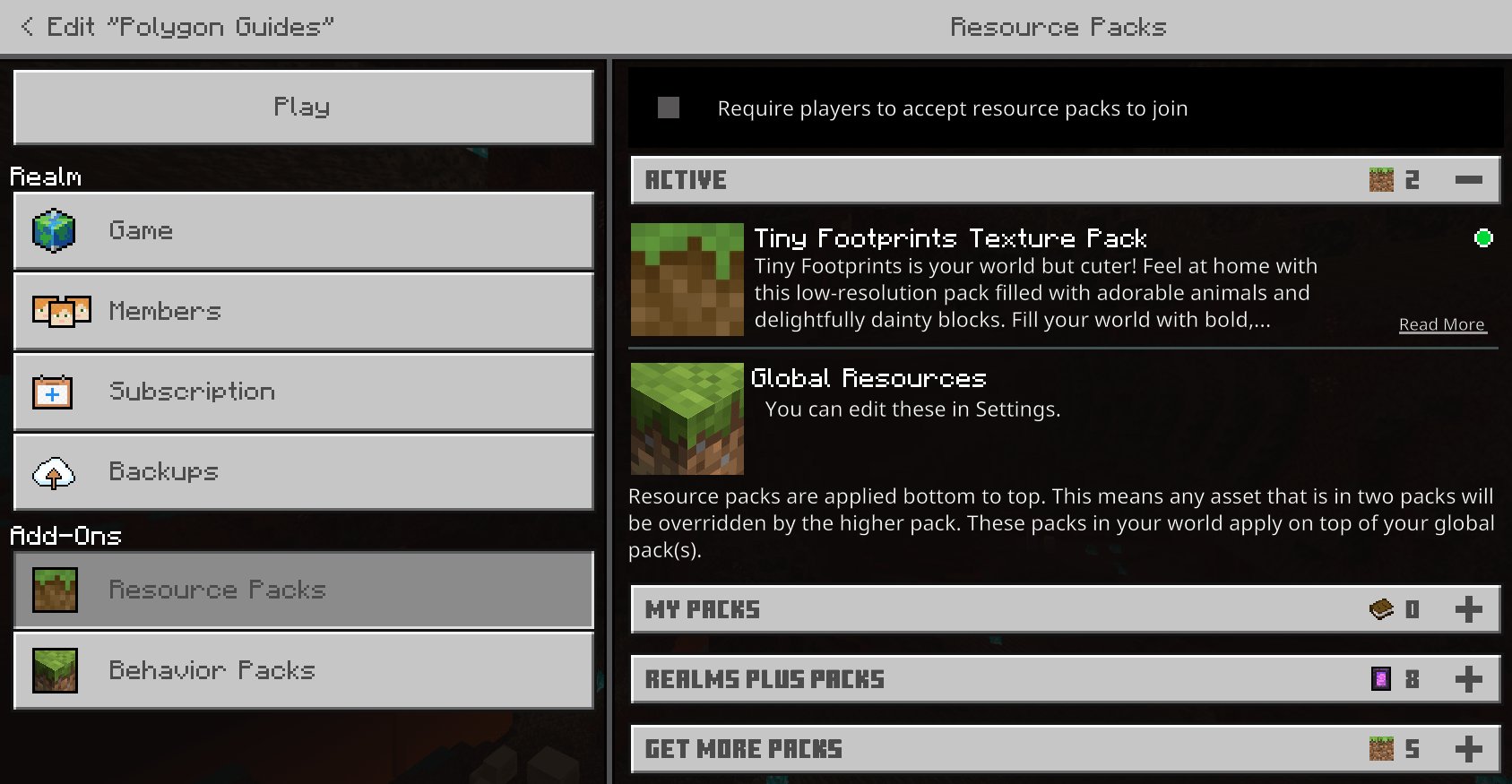
- Create a New World or Edit Existing World: The add-on should be available for when you make a new world, or when you edit an existing world. You’ll be able to activate the add-ons under the behavior packs and resource packs sections.
Important Considerations for Bedrock Mods
Bedrock add-ons have some limitations when you compare them to Java mods. They might not be as extensive, and you might not be able to drastically alter the gameplay like you can with Forge mods. However, Bedrock add-ons can still add a lot of fun features to your game.
Potential Issues and How to Solve Them
Sometimes, installing mods doesn’t go as smoothly as we hope. Here are a few common problems and how to troubleshoot them:
Mod Conflicts
Sometimes, two or more mods might try to change the same parts of the game, resulting in conflicts and issues. The game could crash, or some mods might not work properly. Here is how to fix the problems
- Disable Mods One by One: To find the conflicting mods, disable mods one at a time, and restart the game. When you found the two mods that crash the game together, you know which mods cause a problem together.
- Check Mod Documentation: Some mods might have documentation on their official websites which state what other mods they are compatible with, or not compatible with.
- Look for Compatibility Patches: Sometimes, fans create “patches” to make specific mods compatible. Search online to see if there are patches.
Crashes
If your game crashes after adding a mod, check these things:
- Check Minecraft Version Compatibility: Make sure the mod is made for the version of Minecraft you’re playing. An older mod might not work with the newest version and vice versa.
- Check Forge Version Compatibility: Same as above, make sure your version of Forge matches your version of Minecraft.
- Check the Game Log: The game log might provide information about what caused the crash. These logs are usually in the .minecraft folder.
Performance Issues
Some mods can be heavy on your computer and might cause lag or performance drops. If this happens:
- Remove Resource-Heavy Mods: Try to remove the more complex mods, and see if performance improves.
- Change Game Settings: In Minecraft settings, you can try lowering the graphics settings.
- Upgrade Your Computer: Sometimes, your computer hardware might not be able to handle too many mods, you may have to upgrade to run them properly.
General Tips
- Always Read the Mod’s Description: Before downloading a mod, it’s a good idea to read the mod creator’s description. It might contain useful details, such as compatibility information, or mod features.
- Start Small: It’s easier to troubleshoot issues if you install only a couple of mods to start with, and then slowly add more after making sure they work fine.
- Get Mods from Trusted Sources: Only download mods from popular and trusted websites, so that you won’t get viruses on your computer.
Remember, modding is all about trying new things and having fun. If you experience issues, don’t get discouraged. Try the above tips, or look to online communities for help.
Adding mods to your existing Minecraft game can make it even more interesting, adding so much more fun. It allows you to change the gameplay drastically, add custom tools and blocks, and it allows for even more creative ways to play the game. If you make sure you make a backup of your game, and you do your research to make sure the mods are safe, you will be able to have a great time playing Minecraft with the mods you have installed.
Types of Minecraft Mods
Final Thoughts
Yes, you can add Minecraft mods to an existing game. This process generally involves using a mod loader like Forge or Fabric. Remember to back up your world before making changes.
You install the loader, then place the mod files into the correct mods folder. Many mods add new gameplay, items, or features. So, the answer to ‘can you add minecraft mod to existing game’ is a definitive yes, with the right tools and steps.

