
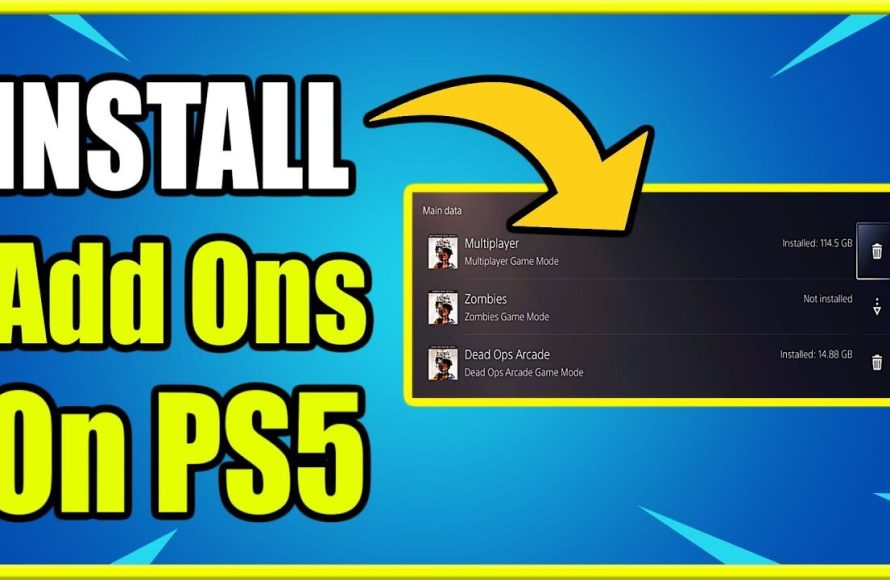
Yes, you can game share DLC on PS5, but only if the content is for a game shared from the primary console.
Ever wondered if your friend’s awesome downloadable content works on your PlayStation 5? Many of us have experienced that. The question ‘can you game share dlc on ps5’ is a common one among gamers. It’s understandable, considering the cost of some add-ons!
This topic often comes up when trying to enjoy new content with friends or family on separate accounts. We are here to clear up any confusion. Keep reading to learn how this all functions on your PS5.

Can You Game Share DLC on PS5? A Deep Dive
So, you’ve got your shiny new PlayStation 5, and maybe a friend or family member has one too. You’re both eager to dive into the latest games, and you’ve even invested in some cool downloadable content (DLC). The question is, can you share that awesome DLC with others through game sharing? It’s a question on a lot of gamers’ minds, and the answer, like many things in the digital world, isn’t always a simple yes or no. Let’s break down exactly how game sharing works with DLC on the PS5, the rules you need to know, and how you can make the most of it.
Understanding PS5 Game Sharing
Before we get into the nitty-gritty of DLC, it’s important to understand the basics of game sharing on the PlayStation 5. The PS5 allows you to share digital games with one other person. This is done through the “Console Sharing and Offline Play” feature. This feature essentially sets your console as the “primary” PS5 for your account. Anyone using your primary console can play games you’ve purchased from your library even when you aren’t logged in. This means your friend or family member, who may have their own account on your primary PS5, can enjoy your digital games. This also extends to your PlayStation Plus benefits, if you are a subscriber.
How to Activate Console Sharing and Offline Play
Activating this feature is pretty straightforward. Here’s a step-by-step guide:
- Turn on your PlayStation 5 and log in with your PlayStation Network account.
- Go to “Settings” from the main menu. You’ll find it by clicking the gear icon in the top-right corner of your screen.
- Scroll down to “Users and Accounts,” and select it.
- Pick “Other”.
- You should find “Console Sharing and Offline Play”. Select it.
- If it’s not already enabled, turn it on by selecting “Enable”.
Now that your console is set as the primary console for your account, anyone using it will have access to your library of digital games.
The Key Difference: Game Sharing vs. Account Sharing
It’s crucial to understand the difference between game sharing and account sharing. Game sharing, when used appropriately, involves using Sony’s built-in “Console Sharing and Offline Play” feature to share your game library with one other console. This is designed for use by families and close friends who are using the same console at home. Account sharing, on the other hand, involves sharing your actual login credentials (username and password) with someone else to let them access your account from their own console. Account sharing is generally against PlayStation’s terms of service and can put your account at risk.
To clarify, Console Sharing is the official, safe, and supported method. It’s important that we respect and follow the guidelines put in place by Sony to avoid any trouble with our accounts.
How DLC Sharing Works on PS5
Now, let’s get to the heart of the matter: can you share DLC? The good news is, generally, the answer is yes, but with caveats. When you purchase DLC for a game, it’s typically linked to your PlayStation account. Just like your digital games, your DLC will become available to anyone using your primary PS5. This means if your friend or family member is playing a game on your primary console and you own the DLC, they will also be able to access that content.
What Happens When Sharing with Another Console
Here’s where it gets a bit trickier. If you are sharing games by using the Console Sharing feature to let your friend have access to your games on their own console, here’s what you need to know about DLC:
- DLC Access is Linked to the Primary Account: If you buy the DLC on your account, and then they play it on your primary console, yes they can play it. However, if they are playing the game on their console and it’s not your primary console, then they will not have access to the DLC.
- DLC Requires the Base Game: Remember, DLC needs the base game to work. If you share a game with someone who has no base game, the DLC alone won’t be playable. They must either own a digital or physical copy of the game themselves, or use your digital copy via the console sharing feature.
- Account Ownership Matters: The PlayStation Network account that purchased the DLC must be the same account that owns the game in the other console. If you bought the game on one account and the DLC on another, it may create sharing issues.
- Physical Games and DLC Sharing: If you own a physical copy of a game but purchase digital DLC, you’ll encounter specific constraints. The DLC will generally be shareable on your primary console, but anyone who is playing using the physical disk of the game on a separate console will not have access to the DLC. Only those with the digital base game linked to the account with the DLC will be able to use that content.
Examples of How DLC Sharing Works
Let’s look at some concrete examples to make sure this is clear:
Scenario 1: Sharing on Primary Console
- You own a PS5, and you purchase “Game A” and “Game A DLC”.
- You activate “Console Sharing and Offline Play”.
- Your sibling logs into their PlayStation account on your PS5.
- Your sibling can play “Game A” and access “Game A DLC”.
Scenario 2: Sharing with Another Console
- You own a PS5, and you purchase “Game B” and “Game B DLC”.
- You activate “Console Sharing and Offline Play”.
- Your friend owns a PS5 and plays “Game B” using your digital copy from your account using the Console Sharing feature
- Your friend cannot access “Game B DLC” on their console, because your console is set as your “primary” console, even if they can play the base game.
Scenario 3: Physical Copy and Digital DLC
- You own a physical copy of “Game C” and purchase “Game C DLC” on your account.
- You are playing the game on the primary console and have access to the DLC.
- Your friend plays “Game C” using the physical game disk on their console, but they cannot access “Game C DLC” since the DLC is not linked to the physical copy of the game.
Things That Can Affect DLC Sharing
Several factors can influence whether or not you can share DLC smoothly:
- PlayStation Network Outages: Occasional server issues on the PlayStation Network can prevent the shared DLC from being accessible. If the servers are down, both you and the other user may not be able to access the content, including DLC.
- Game-Specific Restrictions: Some games may have their own set of rules or restrictions regarding DLC sharing. Always check the specific game’s terms of use and community discussions to see if there are unique sharing caveats.
- Software Updates: Both the game and the PS5 system software need to be up-to-date for proper DLC sharing. Ensure that there are no pending updates on either of them, otherwise this could cause issues with sharing.
- Multiple Primary Consoles: It is not possible to have more than one primary console linked to your PlayStation Account. So, while you can log into your account on any console, the Console Sharing and Offline Play feature will only apply to the console you have set as primary.
Tips for Successful DLC Sharing
To make sure that your DLC sharing goes as smooth as possible, consider the following helpful tips:
- Communicate Clearly: Make sure that you and the person you’re sharing with have an understanding on how you’ll share games and DLC.
- Set Up Primary Console Correctly: Double check that the primary console is set up for the account that purchased the content.
- Check System Updates: Frequently check for updates to both your console and the game in question. Always install any pending updates before launching a game.
- Test with a Trial: If possible, consider trying out the game or a smaller DLC pack to make sure the sharing is set up correctly before purchasing a larger expansion.
- Avoid Account Sharing: Never share your account login information to avoid any issues with your account and ensure that you comply with the PlayStation Network terms of service. Instead, use the built-in Console Sharing features.
- Use Correct Accounts: Always double check the account that purchased the base game is the same account that purchased the DLC. If not you will have problems.
Troubleshooting DLC Sharing Issues
Sometimes, things don’t go according to plan. If you encounter issues with DLC sharing, here are some common troubleshooting steps:
- Restart Your PS5: It might seem simple, but a restart can often fix temporary glitches.
- Check Your Internet Connection: Make sure you have a stable internet connection. A poor connection can interrupt DLC verification.
- Reactivate Console Sharing: Try turning off “Console Sharing and Offline Play”, restart the console, and then turn it back on.
- Restore Licenses: You can restore licenses from your PS5 settings. Go to “Account Management” and then choose “Restore Licenses”.
- Contact PlayStation Support: If none of the other steps work, it’s a good idea to reach out to PlayStation Support for more personalized assistance. They can help troubleshoot your account and any specific issues you might be having.
Other Things to keep in mind
While DLC sharing can be handy, it’s also worth considering the following:
- Season Passes: Season passes often include multiple DLC packs or in-game items. The same rules that apply to single DLC purchases usually apply to season passes. Anyone using your primary console should be able to access the content.
- In-Game Currencies and Items: In-game currency purchased with real money (such as V-Bucks, Apex Coins, or CoD Points), and some in-game items, are usually linked to the account and are not shared between different consoles. These may be available only to the user who bought the currency.
- Exclusive Content: Some special edition games or pre-order bonuses may include exclusive content. There are no guarantees that this content will be shared between different consoles.
By understanding these intricacies of game sharing and DLC on the PS5, you can make more informed decisions and ensure a smoother, more enjoyable gaming experience for yourself and those you’re sharing with. Remember to always follow PlayStation’s guidelines, and you will be able to enjoy your favorite games and their additional content without issues.
How to GameShare on PS5 – OverSimplified (2024)
Final Thoughts
So, can you game share dlc on ps5? Yes, it is possible. If the primary account that owns the game has set the console as its primary, any other user on that console can access the downloadable content.
This means you can enjoy game add-ons with friends and family without needing to purchase them multiple times. Just make sure your primary account settings are correct for successful game sharing of dlc. This feature provides value.

