
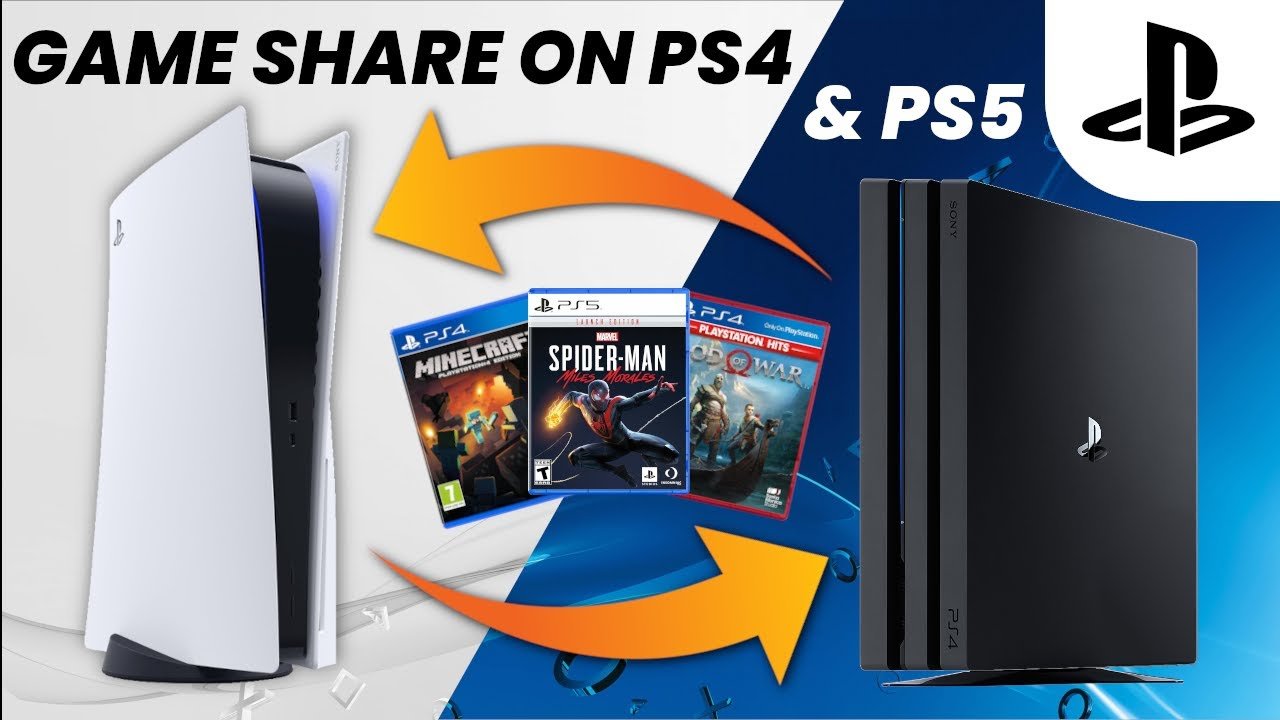
Yes, you can game share MW3 on PS5, but it requires both accounts to be on the same console and properly set up.
So, you’re itching to jump into Modern Warfare 3 with a friend, but you’re wondering, can you game share MW3 on PS5? It’s a common question, and thankfully, the answer is mostly yes! Setting up game sharing on your PlayStation 5 allows others on your console to enjoy your digital library.
This feature is great for families or roommates. Just be mindful of the limitations and ensure both accounts are correctly configured. This approach lets you share the experience and the thrills of MW3.

Can You Game Share MW3 on PS5? A Deep Dive
So, you’re itching to play Modern Warfare 3 (MW3) on your PlayStation 5, but maybe your best bud also wants in on the action? You’re wondering if you can share the game, right? Well, you’ve come to the right place. Let’s break down everything you need to know about game sharing MW3 on your PS5, step by step.
Understanding Game Sharing on PS5
Before we jump into the specifics of MW3, it’s important to understand how game sharing on the PlayStation 5 actually works. Think of it like lending a physical game disc to a friend, but digitally. PlayStation allows you to share your downloaded games with another player on a different console, but there are some rules and limitations you need to know about.
The Basics of Console Sharing and Offline Play
The key to game sharing on PS5 is a feature called “Console Sharing and Offline Play.” This setting essentially designates one PS5 as your “primary” console. When you activate console sharing, anyone who uses your primary PS5 can access and play the digital games you’ve purchased, even if you’re not logged in. This feature works even when the console is offline, hence the name.
- Primary Console: This is the PS5 where you usually play and where your purchased games are available to anyone using that console.
- Offline Play: This is essential. It means your shared games can be played even when the primary console has no internet access.
How to Share MW3 on PS5: A Step-by-Step Guide
Now, let’s get to the good part – actually sharing MW3! Here’s how to set things up:
Step 1: Setting Up Console Sharing
First, you need to decide whose PlayStation 5 will be the primary console. The owner of the MW3 digital copy needs to make their console the primary. This is the PS5 that your friend or family member will play on.
- Go to Settings on the PS5 (the gear icon at the top right of the screen).
- Scroll down and select Users and Accounts.
- Select Other.
- Choose Console Sharing and Offline Play.
- If it’s not already enabled, click the Enable button.
Step 2: Logging In on the Secondary Console
Now, whoever is going to play on your shared game, they need to do a few things on their console:
- On the PS5 where you wish to play your shared games, create a new user or log in using your PSN account, the one which owns the MW3 game.
- Go to Settings, then Users and Accounts, and select the same option, i.e. Other.
- Again select Console Sharing and Offline Play.
- Make sure that the setting is disabled on this secondary console. If it’s enabled, you need to disable the setting on this secondary console. You can play the game on this secondary console by using primary user account.
- Log out from the primary user account and then Log in with the player account that you want to use to play the game.
Step 3: Downloading and Playing MW3
On the secondary console, where you want to play the game with your own account, MW3 should be available for download and play from the primary user account’s game library if you have already downloaded it from the primary user account. Make sure that the person who’s going to play from secondary user account has an active PSN subscription to play the online modes of the game. This is very important.
Limitations of Game Sharing MW3
While game sharing is a fantastic feature, there are some things to keep in mind. It’s not unlimited, and there are restrictions that are in place to prevent widespread sharing. These are some common limitations when using “Console Sharing and Offline Play:”
- Only One Primary Console: You can only have one primary PS5 at a time. If you want to change your primary console, you need to deactivate the current one and activate a different one. You can deactivate the console from your console’s user account settings.
- Account Requirement: The PSN account that owns the game must be logged in on the primary console. That’s how the system know that you bought the game, for the secondary users to access the shared games.
- Simultaneous Play: You cannot play the same game at the same time from two different user accounts on the two consoles, or on the same primary console using two different user accounts, even if you are game sharing. When it comes to playing online, both users can’t be logged in using the same user account. If one of the player logs in using their own user account, the game needs to be available on their account, otherwise they won’t be able to play the game.
- Internet Access: While offline play is possible, you need an initial internet connection to set up the sharing and to download games.
- PS Plus for Online Multiplayer: If you’re planning to play the online multiplayer modes of MW3, each player will need their own active PlayStation Plus subscription. Sharing the game doesn’t mean sharing PS Plus access.
These are important limitations to keep in mind when you want to share MW3, or any game with your friends or family. You need to be very careful about setting up your consoles for game sharing, as it may cause some confusion when you try to play the game.
Troubleshooting Common Game Sharing Problems
Sometimes, things don’t go as smoothly as planned. Here are some common issues you might face and ways to fix them:
Problem: “Locked” Games
If the shared games appear with a lock symbol, it usually means that the primary account isn’t properly logged in or activated on the primary console. Here’s what to do:
- Make sure that the PSN account which owns the game is logged in on the primary PS5.
- Check “Console Sharing and Offline Play” settings are configured correctly on both the primary and secondary consoles.
- Restart both consoles.
Problem: Error Message
If you’re seeing an error message, it can be due to various issues, like PSN server problems or some other issues on your PS5. Take these steps:
- Check the PlayStation Network (PSN) status page to see if there are any server issues.
- Ensure both consoles have a stable internet connection.
- Try logging out and logging back into your PSN account on both consoles.
Problem: Can’t Access Downloaded Content
If you’re having trouble accessing downloaded content (like DLC or add-ons), you might need to check the following:
- Make sure the account that owns the DLC is also the primary account on the primary console.
- Try restoring the licenses in the PS5 settings (Settings > Users and Accounts > Other > Restore Licenses).
- Delete and re-download the content on the secondary console.
The Legal Side of Game Sharing
While Sony provides game sharing as a feature, it’s important to use it correctly and within the boundaries of their terms of service. Think of it like this: You’re allowed to share with people you live with or your family and close friends. You shouldn’t be sharing with strangers or using it as a way to distribute games for profit. It’s basically like lending your physical game to family or friends; you want to make sure everyone is having fun, and you’re not breaking any rules while doing so.
- Terms of Service: Always make sure you’re following Sony’s PlayStation Network Terms of Service when using features like console sharing.
- Sharing Limits: The system is not designed to allow games to be shared across a wide group of people. Keep it within your household or among close friends.
Is it Worth Game Sharing?
Game sharing can be a great feature when used the right way. Sharing MW3 or any game on your PS5 offers a way to make your gaming budget stretch a little further. Here are some things to think about:
- Cost Savings: If you have a friend or family member who also wants to play MW3, sharing it can help you both save some money.
- Playing Together: Game sharing can make it easier for you to play with your family and friends.
- Convenience: It means you don’t need multiple copies of the game, and it is all digital, so no physical discs.
However, you have to make sure, that both of the players have active PSN subscription in order to play online multiplayer modes. So you should not make your decision to buy or not buy, on the basis of game sharing only.
Game sharing on PS5 is a great way to let others try games and play with your friends and family, but it’s really important that you understand the rules. Make sure you are using the feature according to Sony’s guidelines. By being aware of how game sharing works and some of its limitations, you can share your game titles successfully on PS5 with your friends and family, and avoid problems.
So go ahead, set up your console sharing, grab your controllers and jump into the action with MW3 with your friends and family! Remember to share responsibly and have fun!
MW3 PS4/PS5: How to Gameshare Full Tutorial! How to Play Multiplayer, Campaign, & Zombies Free!
Final Thoughts
Yes, you can game share MW3 on PS5 using the console’s share play feature. This lets someone on another PlayStation play the game from your account. Remember, this requires both consoles to be online with PlayStation Plus.
However, some game content might not be available for the person using game share. This depends on the game itself and the types of licenses involved. So, ‘can you game share mw3 on ps5’ is possible, but with limitations.

