
Yes, you can game share on PS5 with two people, but only one at a time can play the shared games.
Ever pondered the possibility of sharing your digital PS5 game library with a couple of friends? The idea of letting someone experience your games without buying them individually seems enticing, right? Well, the question, “can you game share on PS5 with 2 people” is something many gamers wonder about.
It’s a common query because saving money and enjoying games together is something everyone appreciates. You can certainly share your digital games but there are some limitations. Setting up console sharing is simple though, enabling a friend to access your library.

Can You Game Share on PS5 With 2 People?
Let’s dive into the world of PlayStation 5 game sharing! It’s a super cool way to let your friends and family play the games you own without them needing to buy their own copies. But can you share your games with two people on your PS5? The answer is a bit more involved than a simple yes or no, so let’s explore how game sharing works on the PS5 and what the limits are.
Understanding PS5 Game Sharing: The Basics
Game sharing on the PlayStation 5 is really about the “Console Sharing and Offline Play” feature. It’s designed to allow you to play your digital games on more than just your main console. You can think of it like this: you have a library of digital games, and you want to let your family members access them on their consoles too. Here’s how it generally works:
- Primary Console: You designate one PS5 as your “primary console”. This is the PS5 where all your purchases are automatically accessible.
- Account Linking: You log into your PlayStation Network account on your friend’s or family member’s PS5.
- Enabling Console Sharing: On that second PS5, you activate “Console Sharing and Offline Play.” This step essentially allows the PS5 to recognize your account’s library.
- Access to Games: After that, users on the second PS5 can play your digital games using their own profiles.
It’s important to remember that while your games are shared, only one person can play your game at one time. You can’t both play the same game simultaneously from your shared library; you’d need separate copies.
Key Terms To Know
- Primary PS5: Your main console is where you usually play. Your games are readily available without any extra steps.
- Secondary PS5: This is any other PS5 where you enable “Console Sharing and Offline Play.” On this console, you share your game library with those who use the PS5.
The Limitation: One Sharing Partner
Here’s the catch, and the core of the question: The ‘Console Sharing and Offline Play’ feature on a PS5 only allows you to designate one primary console at a time. What this means is that you can share your games to one other PS5, not two. Let’s say you have a family member in another room and a friend in a different state; you can share your library with one of them, but not both simultaneously.
So, can you game share with 2 people? Not in the direct way you might think. The limitation is on a per-account basis.
Imagine having only one key to your entire game library; that’s how the primary console setting works. You can give that key to one other console, but not to multiple devices simultaneously.
How This Impacts Your Sharing Strategy
Understanding this one-primary console limit is very important because it guides how you’ll share your games. You need to think about who will have access to your library. Here’s how to manage this in a practical way:
Scenario 1: Family Sharing in the Same House
If you have a sibling or other family member in your home who has their own PS5, you can designate their PS5 as your primary console. When you are playing on your usual PS5, you will play your purchased games through your own PlayStation Network account. When the family member plays on their console, they’ll be able to play all the games that are connected to your account without needing to purchase them.
Scenario 2: Sharing with a Friend
The process is the same when you want to share games with a friend who has a PS5, but you might need to change the primary console setting when you want to share with someone else. Your friend would log into your PlayStation Network account and activate the console sharing feature on their console. However, remember, you have to deactivate it on the previous console first.
Important Note on Switching Primary Consoles
You can switch which console is your primary console, but keep in mind that you can’t switch back and forth every day. You will need access to the console you want to make primary to do it. If your friend is in another state, you’ll need to find a time when they can switch this for you remotely through screen-share.
Practical Implications of Limited Game Sharing
The limitation on sharing with only one other console at a time isn’t just a technicality; it influences how you and your friends or family can play. Let’s think about some situations:
Simultaneous Play Limitations
Remember, even if you’re sharing your game, you can’t both play the same game at the same time on separate consoles using the same account. The primary purpose of game share is so your friends can play your library of games; not so you can play them simultaneously. It’s designed for sharing, not creating additional licenses for simultaneous usage.
When a Family Member or Friend is Gaming Elsewhere
Let’s say your cousin is visiting, and you want to game share with them on their own PS5. At the same time, you usually game share with your brother who lives in a different city. You would have to deactivate console sharing on your brother’s PS5 to activate it for your cousin’s. When your cousin leaves, you’d have to do this process again to restore it for your brother.
Managing Multiple Accounts
Some families try to bypass this by having more than one account with purchased games. While this is a solution, it also means managing multiple accounts, switching between them, and purchasing multiple copies of the same games.
Alternatives to Traditional Game Sharing
While the one-primary-console limitation can be restrictive, there are some alternative ways to enjoy games with more than one friend, though they don’t use the same game-sharing system:
PlayStation Plus Extra/Premium
PlayStation Plus’s higher tiers (Extra and Premium) provide access to a large library of games. Multiple players can play games in this library on their own consoles and accounts.
Multiplayer Games
Many games offer multiplayer modes. While you each need your own copy of the game, you can play with your friends online at the same time.
Step-by-Step Guide to Activate Console Sharing
Here’s a detailed guide on how to enable “Console Sharing and Offline Play” on a secondary PS5:
- Log in with your Account: On the secondary PS5, use your PlayStation Network account email and password to log in.
- Go to Settings: Head to the PS5 home screen and select “Settings.”
- Navigate to Users and Accounts: Find the “Users and Accounts” option in the settings menu.
- Select Other: Go to “Other” in this menu.
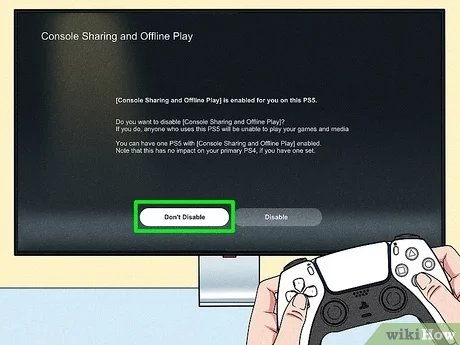
- Choose Console Sharing and Offline Play: Find the “Console Sharing and Offline Play” setting and choose “Enable”.
- Log Out: You’re done with the second PS5 for this process. Log out of your account from the secondary PS5, and your friend can log into their account.
That’s it! Now your friend can play your digital games on their own user profile while still playing their own games. Your profile will still be able to use all of your purchased games on your primary PS5.
Deactivating Console Sharing
To deactivate “Console Sharing and Offline Play” on a PS5, you must be physically on that system. It can’t be done remotely. Here are the steps:
- Log in With Your Account: On the system that has “Console Sharing and Offline Play” enabled, log into the PSN account that enabled the feature.
- Go to Settings: Navigate to “Settings” from the home screen.
- Navigate to Users and Accounts: Go to “Users and Accounts.”
- Select Other: Choose “Other.”
- Choose Console Sharing and Offline Play: Select “Console Sharing and Offline Play”.
- Select Disable: Then choose “Disable” to turn it off.
Troubleshooting Common Game Sharing Issues
Sometimes, game sharing might not work exactly as expected. Here are a few common issues and their solutions:
Games Are Locked
If your games show a lock icon, it usually indicates that the console is not set as primary for your account, or there is a network connectivity issue. Check that “Console Sharing and Offline Play” is enabled on the right console, and that all systems have an internet connection.
Account Issues
If you are having trouble enabling the console sharing feature, you may need to check that your account is in good standing with Sony and that there are no other account or system issues.
Network Problems
If your PS5s are not properly connected to the internet, game sharing may not work correctly. Make sure both systems are connected to the internet, and you have a reliable connection.
Version and System Updates
Make sure your PS5 consoles are updated with the latest system software. Sometimes, older software can cause compatibility issues with game sharing.
Tips for Smooth Game Sharing
To make your game-sharing experience as smooth as possible, consider these tips:
- Communicate: Talk to the people you share with about who’s playing what, when.
- Be Patient: Switching primary consoles can take a few minutes, so plan ahead if you’re switching consoles often.
- Verify Your Settings: Double-check that “Console Sharing and Offline Play” is activated on the correct PS5.
The Future of PS5 Game Sharing
As technology advances, we might see changes to how game sharing works on the PS5. Sony often updates the PlayStation Network, so it’s good to stay updated on the latest features and changes. However, for now, the one-primary-console rule remains the main way to share games.
So, while you can’t directly game share with two different people on two separate PS5 consoles simultaneously using the traditional “Console Sharing and Offline Play” feature, understanding its limitations and using the suggested workarounds can still provide a great experience for you and your friends or family members.
How to GameShare on PS5 – OverSimplified (2024)
Final Thoughts
You can indeed game share on PS5, but only with one other person at a time. This feature allows you to share your digital games and benefits with a friend, creating a secondary console that can access your library. This limitation means ‘can you game share on ps5 with 2 people’ is not possible with Sony’s current system.
Game sharing operates using the console’s primary account setting. Therefore, two consoles are the maximum allowed that will share games. You must carefully choose who will be the account holder you share the games with.

