
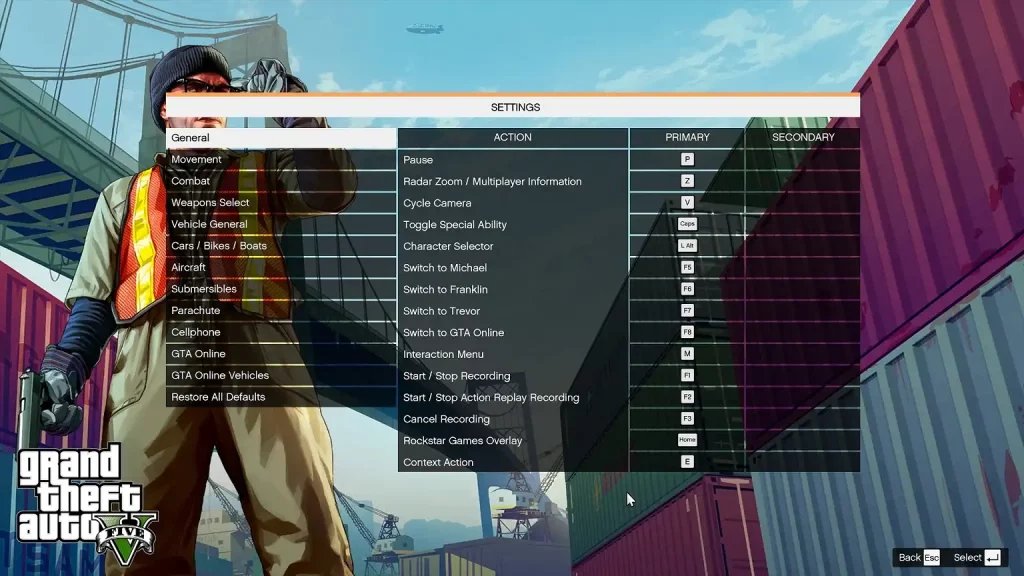
Here are the essential GTA 5 Online all shortcut keys: These include movement (WASD, Shift for sprint, Space for jump), vehicle controls, weapon selection, interaction, and menu navigation, along with specific hotkeys for activities like using the phone or the map.
Navigating Los Santos and Blaine County in GTA 5 Online can feel overwhelming without knowing the correct commands. You’re not alone if you feel like you’re missing something in the sprawling digital world. Memorizing the essential gta 5 online all shortcut keys can significantly improve your gameplay.
Knowing these keys allows you to react faster and perform actions quickly, whether you’re engaging in a high-speed chase or executing a complex mission. This guide helps you find what you need and improve your game.

GTA 5 Online All Shortcut Keys
Okay, gamers! Let’s talk about something that can seriously boost your game in Los Santos: shortcut keys! If you’re playing GTA 5 Online, you know there’s a whole lot going on. You’re dodging cops, driving super fast cars, maybe even pulling off a heist or two. But did you know there are quick and easy ways to do lots of things without clicking through menus all the time? That’s where shortcut keys come in. They’re like secret buttons that let you do things way faster. This guide will show you all the important shortcuts that will help you become a true pro in GTA 5 Online.
Movement and Camera Control Shortcuts
First things first, let’s look at how to move around and control your view. These are the basics, and getting them down will make everything else easier. You wouldn’t try to race a super car without knowing how to steer, right? Same thing here!
Basic Movement Keys:
- W, A, S, D: These are your classic movement keys. W is for moving forward, S is for moving back, A makes you go left, and D makes you go right. Pretty simple!
- Spacebar: Use the spacebar to jump. This can help you get over small fences or obstacles.
- Left Shift: Hold this down to sprint. You’ll run faster, which is great for getting away from trouble or catching up to a friend.
- Left Control: This key is for crouching. You become less visible while crouching, and can also sneak up on your buddies, or opponents in a game.
Camera Control Keys
- Mouse Movement: Simply move your mouse to change where you are looking. This works in most situations.
- V: This key changes your camera view. You can switch from first person (seeing through your character’s eyes) to third person (seeing your character from behind), or other special camera angles when in a vehicle.
- C: This is for peeking. It lets you look around without moving your character. This is great to see what’s behind corners or checking where the cops are.
- Mouse Wheel: Use this to zoom your view in or out.
Weapon and Combat Shortcuts
Now, let’s get into the exciting stuff: how to handle your weapons and fight effectively. In GTA 5 Online, knowing your weapon shortcuts can be the difference between winning a gunfight and getting knocked out. You need to know these so that you can become the best!
Weapon Selection Keys
- Number Keys 1-9: These keys allow you to quickly switch between weapon types. For example, key 1 might be for pistols, 2 for shotguns, and so on. You will be able to quickly change the weapon you are holding depending on what key you press.
- Mouse Wheel (Up/Down): You can also scroll up or down with your mouse wheel to select different weapons. This can be useful, but the number keys are faster in a pinch.
- Tab Key: Press the Tab key to open the full weapon wheel where you see all weapons, this allows you to use the mouse to choose your desired weapon from all available.
- G: Throw a grenade when you need a little explosion.
Combat Keys
- Left Mouse Button: This is how you shoot your weapon. Just aim and click to fire.
- Right Mouse Button: Use the right mouse button to aim down the sights of your gun. This lets you be more precise when shooting.
- R: This is for reloading your weapon. You don’t want to be caught with an empty clip.
- Q/E: Use these keys to take cover behind walls or objects, making it harder for others to hit you.
- Spacebar: While in cover, you can use the spacebar to do a quick roll.
- F: This key is for melee attacks. If you get close to someone you can punch them, kick them, or hit them with the butt of your gun.
Vehicle Shortcuts
Vehicles are super important in GTA 5 Online. Whether you’re racing, escaping, or just cruising, knowing these shortcut keys will help you handle your rides like a pro.
Basic Vehicle Control Keys
- W, A, S, D: Just like on foot, these keys control your vehicle. W is for accelerating, S is for braking or reversing, A turns left, and D turns right.
- Spacebar: Use the spacebar to use your handbrake, which will make your vehicle make a sharp turn.
- Left Shift: Holding Left Shift while driving will cause your vehicle to accelerate even faster.
- Left Control: Press the left Control to engage in vehicle stealth, if available.
- E/Q: To change vehicle radio stations, use E to go to the next one, and Q to return to the previous station.
Advanced Vehicle Keys
- F: This is for entering or exiting a vehicle. Just walk up to a car and press F to get in, and press F to get out.
- H: Press this to toggle your vehicle’s headlights on or off.
- X: For most vehicles, you can press X to get boost while driving.
- G: Some vehicles will have special abilities that use the G button, such as an ability to make a vehicle jump.
- R: For specific vehicles, pressing the “R” key will activate its special ability.
Interaction and Menu Shortcuts
There are lots of things you need to be able to interact with and you will also need to open menus very often. These are the main shortcuts you will need in order to do these things.
Interaction Keys
- E: This is your main interaction key. Use it to talk to people, pick up items, and use objects in the game.
- Tab: Hold the Tab key to access the weapon wheel.
- M: Press M to open the Interaction Menu. This menu has a lot of options for things you can do, like calling your mechanic, changing your clothing, or setting a waypoint.
- F1: Opens the in-game phone. You can use your phone to call contacts, join jobs, or even browse the internet.
- T: Opens the in-game chat, where you can communicate with other players in your lobby.
Menu Navigation Keys
- Escape (Esc): This key opens the main game menu, where you can change settings, save your game, and quit.
- Up/Down/Left/Right Arrow Keys: Use these to move around inside menus.
- Enter: Press Enter to select an option in a menu.
- Backspace: Use Backspace to go back one step in a menu, or to go back one page while browsing the internet on your phone.
Useful Miscellaneous Shortcuts
These are a few more shortcut keys that don’t fit into other categories, but are still very useful to know.
- Alt: Tapping the alt key will allow you to free look around you without turning your character, this is useful when you need to keep running, but check something behind you.
- P: Opens the player list, so you can see all players who are in your server.
- B: Gives you a small gesture, such as a wave, a thumbs up, or others. You can select which gesture to use in the interaction menu.
- ~ (Tilde Key): This opens the console window where you can input commands. This is usually used for more advanced features.
Customizing Your Shortcut Keys
While the default keys are usually good, you can change them if they do not feel right to you. The game allows you to change pretty much every key that you use, which will make you much more comfortable while playing. Here is how to customize your shortcut keys:
- Go to the Settings Menu: Press “Escape” (Esc) to bring up the main game menu.
- Select “Settings”: Use the arrow keys or your mouse to select “Settings” from the menu options.
- Choose “Key Bindings”: Go down the options and select “Key Bindings.”
- Change Your Keys: You’ll see a list of actions and the key that is assigned to each. Select the action you want to change and then press the key you want to use instead.
- Save Your Changes: After changing your keys, make sure to save the new settings.
Customizing your keys is a great way to make the game fit your style. Experiment with different keys to find the ones you like the most.
Learning these shortcut keys might seem like a lot at first, but with some practice, they will become second nature. You’ll move around, fight, and drive much more easily, and you will have much more fun. So, jump into GTA 5 Online, and try out these shortcuts. They’re going to make you a much better player, so get to learning.
So that wraps up the article. We hope this guide helps you become a better player. Have fun in Los Santos, and remember to use your shortcut keys. They are your secret weapon to becoming the top player. Happy gaming!
101 Tips Every GTA Online Player Should Know
Final Thoughts
Remember these crucial shortcut keys for GTA 5 Online; they make gameplay much faster. Knowing these inputs improves how you navigate the game and interact with its world.
Utilize quick menus, weapon selection, and communication options to gain an advantage. Practice will make these shortcuts second nature.
Learning ‘gta 5 online all shortcut keys’ will significantly improve your experience. They allow for quick actions and a more fluid style of play.

