
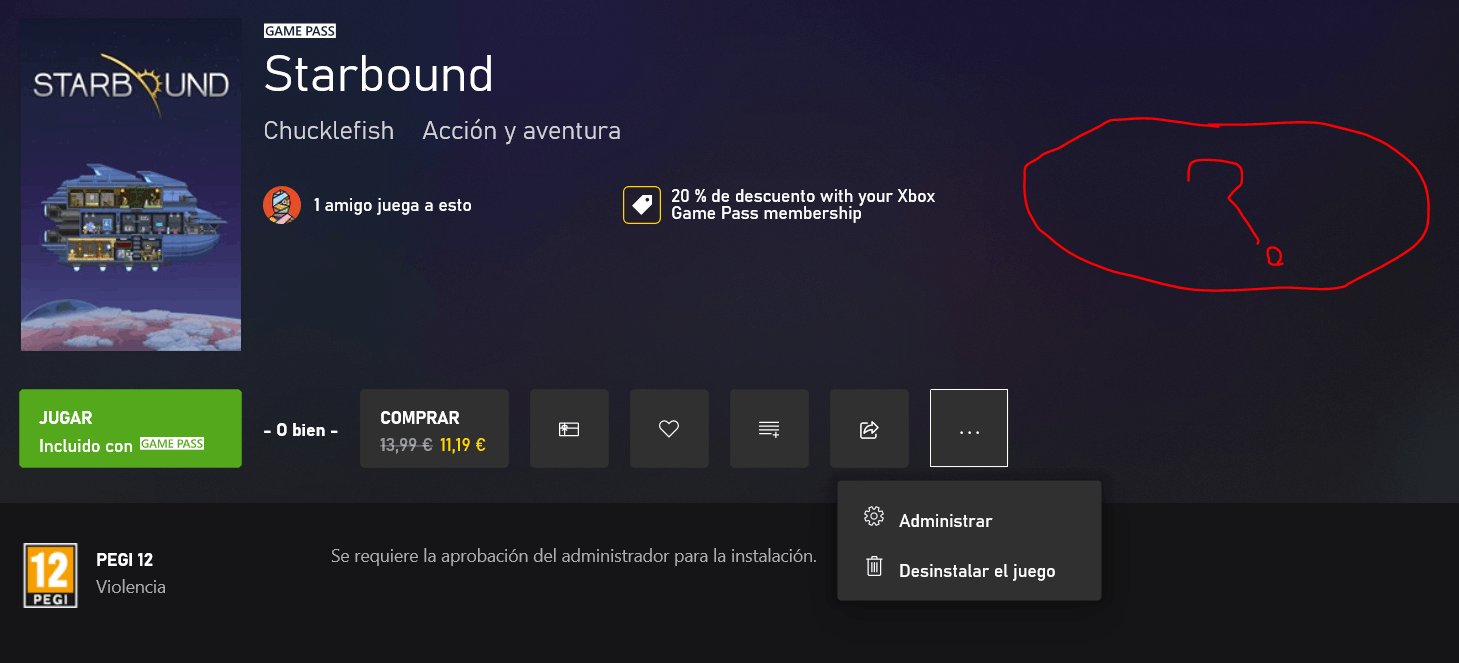
Yes, you can mod Fallout 4 on Game Pass PC, though it requires a specific workaround due to how the game files are managed.
So, you’re diving into the wasteland on PC Game Pass and wondering, can you mod fallout 4 on game pass pc? It’s a fair question, many players want to enhance their experience with mods. The usual methods don’t work seamlessly with the Game Pass version because of how Microsoft stores game files.
This means some extra steps are needed. But don’t worry, modding your Fallout 4 experience is definitely achievable.

Can You Mod Fallout 4 on Game Pass PC? A Deep Dive
So, you’ve jumped into the wasteland with Fallout 4 on your PC through Xbox Game Pass, and now you’re itching to spice things up with mods, right? That’s awesome! Modding can totally change how you play a game, making it feel fresh and new. But the big question is, does it work with the Game Pass version? The answer isn’t a simple yes or no, and that’s what we’re going to explore in detail.
Understanding Game Pass and Modding
First, let’s talk a little bit about how Game Pass PC works. Game Pass gives you access to a bunch of games for a monthly fee. It’s like Netflix, but for games! These games are installed on your computer, but they might be stored in a slightly different way than if you bought the game through Steam or another store. This difference is important when we talk about modding, because mods usually need to access the game’s files.
The Challenge of Game Pass File Access
One of the biggest hurdles to modding Game Pass games is that Microsoft tends to lock down the game files. They do this to help prevent cheating and to keep the games secure. This also makes it tough to find and change the game files needed for modding. It is not impossible, but it definitely makes things a bit more complicated than modding a version of the game that you bought outright.
Official Mod Support vs. Community Modding
There are generally two ways to mod a game: through official support or through the community. Let’s look at each.
Official Mod Support
Some games, especially those made by Bethesda (the company behind Fallout), come with official ways to add mods. For Fallout 4, this is through what’s often called “Bethesda.net” integration. However, the official Bethesda.net mod browser within Fallout 4, might be locked for Game Pass. While Bethesda has integrated mod browsing in the game for all players, accessing and implementing these mods for the Game Pass version can sometimes be challenging because of the way Microsoft stores Game Pass games files.
Community Modding
This is where things get interesting! Community modding means that other players have created ways to add modifications to the game by themselves. Tools like Nexus Mods have a huge collection of mods created by talented fans, and there are ways to use these mods even on a game pass version. These mods can add new weapons, quests, characters, change the graphics, and way more.
The main way community mods are made and used is by manipulating files in the game’s installation directory. The challenge, once more, comes back to Game Pass’s file restrictions. However, it’s not an impossible task, just a bit more involved than with a purchased copy of the game.
How to Mod Fallout 4 on Game Pass PC: A Step-by-Step Guide
Alright, so you’re determined to mod your Game Pass Fallout 4. Great! Let’s break down how you can get those awesome community mods working:
Step 1: Setting the Stage – Game Location and Permissions
The very first thing you’ll need to do is find where your Game Pass version of Fallout 4 is installed. Microsoft likes to hide these files deep, so you may need to do some searching. Also you may need to gain the permissions to access the game file directory, here’s how:
- Open File Explorer.
- Go to the drive where you installed your game, usually “C:\Program Files” or “D:\Xbox Games”.
- Find the “Fallout 4” folder.
- Right-click on the folder and select “Properties.”
- Go to the “Security” tab, and click “Advanced.”
- Click “Change” next to the owner field, type your Windows username, click “Check Names” and then click “OK.”
- Check “Replace owner on subcontainers and objects.”
- Click “Apply” and then “OK.”
- Go back to the “Security” tab, and click “Edit…”
- Select your Windows username.
- Under the “Allow” column, check all the “Full Control” box and click “OK”.
This will give you the permissions to access game files. Without this, you might find it harder to install mods. Remember, it’s crucial to modify game files with caution.
Step 2: Choosing a Mod Manager
Manually installing mods is possible, but it’s much easier with a mod manager. A mod manager is a program that helps you install, uninstall, and organize your mods. Here are two popular options:
- Vortex: This is a popular and powerful mod manager from Nexus Mods. It’s user-friendly and can manage mods for many different games. It’s generally recommended for beginners and is easy to learn.
- Mod Organizer 2 (MO2): MO2 is a more advanced mod manager that’s very good at keeping your game files clean. It separates mod files from the actual game files, which is great for testing different mod setups. MO2 is more complex, but offers more features and flexibility, making it the preferred choice for experienced modders.
Both are completely free, but might ask you for a premium subscription on nexusmods, you don’t need that to download mods and install via the managers. Download and install your mod manager, choose the version best for you. Once installed, you can connect your mod manager to nexusmods, so that it will manage your mod downloads for you.
Step 3: Downloading Mods
Now for the fun part – getting mods! Head over to Nexus Mods (nexusmods.com). There you’ll find thousands of mods for Fallout 4. You’ll need to create a free account to download, and then browse the site to find the mods you want. Here are some examples of categories for mods:
- Gameplay mods: These mods alter how the game plays, like making it more challenging or adding new features.
- Visual mods: These change the graphics of the game, making it look better.
- New weapons and armor: Add new gear to the game.
- New quests and areas: Add entirely new stories and places to explore.
- Character customization: Let you change how your character looks.
- Bug fixes: Fix common issues with the game.
When choosing mods, make sure to read the descriptions carefully. Look at the reviews and ratings. You also need to ensure that the mod is compatible with your version of the game, and also see whether a mod requires additional mod to work correctly. Pay attention to the “requirements” and “installation” sections for each mod. Now download the mod to your computer. If you have linked the mod manager to nexusmods, you will simply click on download via mod manager, otherwise, simply download the mod archive/file.
Step 4: Installing the Mods
With your mod manager running, most of the mod install process will be managed by the manager itself. If you downloaded the mod archive/file, then click on install mod from a file. Your mod manager will unpack and install the mod files to their appropriate location. After the installation, make sure to enable the mod on the mod manager. Sometimes you might need to organize the load order of the mod, which basically specifies which mods loads before the other. It’s very important, and generally your mod manager will help you to do that. If you have a very long load order, you can sort your mods via LOOT (Load Order Optimisation Tool). You can find a download link of LOOT from Nexusmods, LOOT will help you organize your load order, and you can save your mod order from loot and then can import it to your mod manager.
Step 5: Testing and Troubleshooting
It’s time to launch Fallout 4, from the mod manager. If everything goes well, you should see your mods working in the game. If not, here’s what you can try:
- Check load order: Make sure your mods are loading in the correct order. Sometimes, conflicting mods can cause crashes. Usually the mod manager will provide an alert if you have conflicting mods.
- Disable and test: If you’re having problems, try disabling some mods. Enable one mod at a time to see if that mod is causing issues.
- Read mod pages: Most mod pages on Nexus have comments or troubleshooting sections. It’s helpful to check what others had to say, they may have encountered similar issues.
- Update your game and mods: Always make sure your game and your mods are up-to-date, an older mod might not work on the latest version of game.
Modding can take some time and sometimes will require trial and error, so be patient and learn as you go!
Specific Modding Challenges on Game Pass
While modding is possible, there are some specific issues that can come up when using the Game Pass version of Fallout 4.
File Permissions Issues
As we discussed earlier, Microsoft locks down access to game files on Game Pass. This is why Step 1, which was focused on folder permissions, was so important. Sometimes even after doing this, the system might try to lock down the files again. If that happens, re-apply the permissions.
Update Problems
Game Pass games update automatically and often, which is usually a good thing. However, a game update may break some of your mods, as it may make older mod incompatible with the current game version. When that happens, check for mod updates, or try removing those mods. So always keep your mods updated, or check if the mods have compatibility patch for your current game version.
Cloud Saves and Mods
Game Pass uses cloud saves, which can be handy for playing on different computers. But it might cause conflicts with mods that alter save files. Backing up your save files is always a good idea. You should back up the save file, before you start to use mods. If anything breaks, you can copy back your save files, or even better start a fresh play through.
Essential Tips for Modding Fallout 4
Here’s a quick rundown of essential tips for having a good modding experience:
- Read mod pages carefully. Always understand what a mod does before you install it.
- Start small. Don’t install too many mods at once. Add them gradually and test after each addition.
- Back up your saves. As mentioned before, this is important in case something goes wrong.
- Use a mod manager. It’s so much easier than manually managing your files.
- Be patient. Troubleshooting is a part of modding. Don’t get discouraged when you encounter some problems.
Modding adds so much more to games like Fallout 4. While it may have a few extra steps with Game Pass, it is still very much possible to make a more personal, tailored gaming experience. Remember to mod responsibly and use a good mod manager! You can have a great time exploring the wasteland with all of the crazy additions that mods allow.
How To Mod Fallout 4 from PC GamePass in Five Minutes or Less
Final Thoughts
Yes, you can mod Fallout 4 on Game Pass PC. However, modding might involve some extra steps compared to a Steam version. Accessing the game’s files is often required.
You can modify the game with various community-created content. Mod support greatly enhances your experience in Fallout 4. Keep in mind some mods may not function perfectly.
Ultimately, “can you mod fallout 4 on game pass pc” depends on your patience, and understanding where to place the required files. Modding is possible if you follow the steps needed to enable them.

