
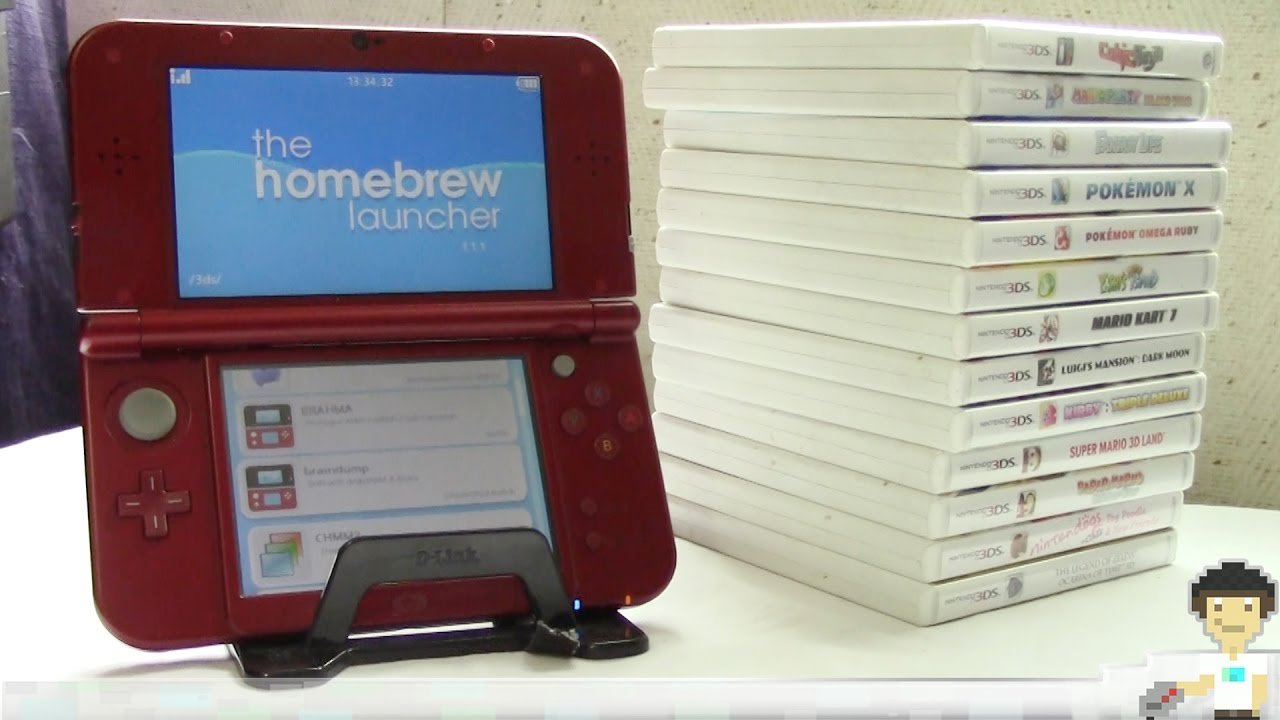
To dump 3DS games for Citra, you need a homebrewed 3DS with custom firmware, and then use a tool like GodMode9 or other software to extract the game files directly from your cartridge.
Want to play your favorite 3DS games on your PC? This means you have to learn how to dump 3ds games for citra. The process involves extracting game data from a physical 3DS cartridge.
You’ll need a modified 3DS to begin the process. Make sure you have the right custom firmware installed before you proceed. Then you can begin the process of game extraction.

How to Dump 3DS Games for Citra
Diving into the world of 3DS emulation with Citra is an awesome way to revisit your favorite games, but it requires a little prep work. You can’t just download a game and play it; you need to create a digital copy of your physical game, also known as “dumping” it. This guide will walk you through exactly how to do that. Think of it like making a backup copy of your game, but for your computer. This way, you can play your games on Citra without needing the physical cartridge. Ready to get started? Let’s go!
What You’ll Need
Before you begin, make sure you have everything necessary for the process. Think of it as gathering your tools before you start building something. Here’s what you will need:
- A Nintendo 3DS, 3DS XL, or 2DS handheld console. This is where the magic begins, as this console is the one that holds your game.
- A physical copy of the 3DS game you want to play on Citra. Without a real game, there’s nothing to copy!
- An SD card for your 3DS. This will hold the digital game data we’re going to create. Make sure it has enough free space for your game.
- A computer with an SD card reader or a USB adapter for reading your SD card. This is how your computer will get the game data from the SD card.
- A reliable internet connection for downloading tools and transferring files.
- Software, such as GodMode9 for 3DS, which will assist in the dumping process. We will explain how to get this software later.
Having all of these items ready will make the whole process much easier and faster. It’s like having all the ingredients prepared before you start cooking – makes everything much smoother.
Preparing Your 3DS
Now that you have everything you need, let’s get your 3DS ready for action. This involves setting up custom firmware (CFW). CFW is like giving your 3DS super powers that allow you to do things it normally can’t, like running the software we need to dump games. Don’t worry, it sounds more complicated than it is!
Installing Custom Firmware
Installing CFW is the most significant part of the preparation. This can seem a little intimidating at first, but if you follow the steps carefully, you’ll be fine. The most common method involves using a guide called “3ds.hacks.guide.” Here’s a general overview of the steps:
- Check your 3DS firmware version: Turn on your 3DS and go to “System Settings.” The version is displayed on the bottom screen. This is very important, as different versions of firmware require a different approach.
- Visit the 3ds.hacks.guide website: This website provides the most accurate and updated methods to install CFW.
- Follow the guide carefully: The guide will walk you through the specific steps based on your 3DS model and firmware. It will involve downloading some software and moving files to your SD card.
- Install Boot9Strap: This is the main component of the CFW. The guide will tell you exactly how to do this.
- Install Luma3DS: This is what actually makes your CFW work. The guide will show you how to get this too.
The 3ds.hacks.guide is excellent and will guide you every step of the way. Make sure you read each step carefully and don’t skip anything! Following these instructions is very important to make sure that everything works as it’s supposed to. Once your 3DS has custom firmware installed, you’re all set to move to the next step.
Downloading and Setting Up GodMode9
Once your 3DS is running with CFW, it’s time to download and set up GodMode9. GodMode9 is a powerful tool that lets you do lots of things with your 3DS, including dumping your games. Think of it as your key to unlocking the game data.
Getting GodMode9
Here’s how to get GodMode9 on your 3DS:
- Download GodMode9: You can find the latest version of GodMode9 on its official Github repository. Make sure you download the correct .zip file for your 3DS.
- Extract the files: Once downloaded, extract all the files from the .zip file. This will probably create a folder with files inside it.
- Copy to your SD card: Copy the “gm9” folder to the root of your 3DS SD card, which is the main directory. Then, copy the “boot.firm” file (if it exists in the extracted folder) to the root of your 3DS SD card. This is usually the same place where you have the “Nintendo 3DS” folder.
- Insert the SD card back in your 3DS: Make sure the SD card is properly inserted back into the 3DS device.
Now, when you turn on your 3DS while holding down the ‘Start’ button, GodMode9 should launch. This can be a little tricky at first, but with a little practice, you will get it. This shows that you have installed it correctly.
Dumping Your Game with GodMode9
Finally, it’s time to dump your game! This is the part where you actually copy the game data from your game cartridge onto your SD card. Here are the steps on how to do it using GodMode9:
- Launch GodMode9: Turn on your 3DS while holding the ‘Start’ button to start GodMode9.
- Insert Your Game Cartridge: Carefully put the 3DS game you want to dump into the game slot of your console.
- Navigate to the Game Cartridge: In GodMode9, use the D-pad and the ‘A’ button to select ‘[A:] SYSNAND SD’ if you’re using a New 3DS model, or ‘[0:] SDCARD (FAT32)’ if you are using a regular 3DS, then navigate to ‘cci/’ then ‘[1:] GAME_CARD (TWLN)’ .
- Select ‘Dump to .CIA’: Inside the Game Cartridge menu, you should see a file that ends with “.trim.3ds”. Select this file, and you’ll see a menu. Choose the “CIA image options” and then “Build CIA from file”. This is the command that creates a copy of your game as a file that Citra can understand.
- Wait for the dumping process to finish: This can take a while. Be patient and let it do its work. The progress will be displayed on the screen.
- Exit GodMode9: Once the dump is finished, press the ‘Start’ button, choose ‘Poweroff System’, and shut down your 3DS.
- Remove your SD card: Take your SD card out of your 3DS.
Now you’ve got a digital copy of your game on your SD card! It’s important to note that while GodMode9 is used in this example, there are other ways that you can dump your games. However, GodMode9 is a very useful method that makes it easy to get the game data needed for Citra.
Transferring the Game File to Your Computer
With your game dumped onto the SD card, you’re now in the final stretch! The next step is to move that file from your SD card to your computer. This is a simple process, but you will need to make sure to do it correctly to play the game.
Using an SD Card Reader
Here’s how to move your dumped game file:
- Connect your SD card reader: Plug your SD card reader into your computer.
- Access your SD card: Your computer should now recognize your SD card as a removable drive. Open it to access the files.
- Locate your dumped game: The game file should be inside the “gm9/out” folder on your SD card. It will have a “.cia” extension, so look for that kind of file extension.
- Copy the file to your computer: Copy the .cia file from the SD card to a folder on your computer where you want to store it.
- Safely remove your SD card reader: Once the copy is done, safely eject the SD card reader from your computer. This is important, because it can prevent data loss.
Now you have successfully moved the game data from the SD card to your computer. You are now ready to play the game in Citra.
Setting Up Citra and Loading Your Game
With your game on your computer, you’re now ready to play it on Citra. If you haven’t already done so, you will need to download and install Citra. Go to the official Citra website to get the latest version. Once you have done so, you can move onto the next steps.
Loading Your Game
Here’s how to set up Citra and load your game:
- Launch Citra: Open the Citra emulator on your computer.
- Configure Citra Settings: If it is your first time launching Citra, you may need to configure some settings such as the input method (keyboard or controller) and your graphics settings. Generally, Citra will detect and configure most of these by itself.
- Install your game: In Citra, go to “File,” and then select “Install CIA”. Then navigate to the folder where you saved your dumped game file and select the “.cia” file. Citra will install the game.
- Play your game: Once the game is installed, you can click on its icon in Citra to launch it. Enjoy playing your 3DS game on your computer!
It’s amazing how much work is required to emulate a game, but it also shows how far technology has progressed.
Troubleshooting Common Issues
Sometimes, things don’t go as planned, and you might run into problems. Don’t worry, there are common solutions to these issues! Here are some of the problems that you might run into:
Problem: Game Won’t Start in Citra
Solution:
Make sure you have the latest version of Citra. Old versions might not work correctly.
Check if your computer meets the minimum requirements for Citra.
Try reinstalling the game from the .cia file.
Ensure that the .cia file is complete and not corrupted. Try dumping it again if needed.
Make sure you have correctly installed Citra itself.
Problem: GodMode9 Won’t Launch
Solution:
Make sure you are holding down ‘Start’ while you turn on your 3DS.
Double-check that you have copied the “gm9” folder and “boot.firm” file to the correct directory on your SD card.
Ensure your 3DS has custom firmware installed correctly. Go back to the 3ds.hacks.guide to review the steps if needed.
Make sure your SD card is formatted as FAT32.
Problem: Error Messages During the Dumping Process
Solution:
Double-check that your game cartridge is inserted correctly.
Try cleaning the game card contacts to make sure it is readable.
Make sure that the SD card has enough space to hold the dumped game.
Problem: Game Runs Poorly or Slow
Solution:
Adjust the graphics settings in Citra to be lower.
Make sure that the correct video driver is selected in Citra. This could help improve performance.
If you have a powerful computer, make sure that Citra is using your discrete graphics card (if applicable).
Ensure no other programs are taking up too much processing power.
If you keep encountering problems, there are several great forums and community websites where you can ask for help. Be sure to include the exact issue and error code if you see one. The community is very helpful, and many others have probably encountered similar problems in the past.
Dumping your own 3DS games for use on Citra may seem complex initially, but with a little patience and careful following of instructions, you’ll be able to enjoy your games on your computer. Remember, it is very important to own the original games that you plan to play on Citra. Have fun diving back into your favorite 3DS titles!
How to Easily Backup 3DS Games To Use With Citra 3DS Emulator
Final Thoughts
You must use ‘must’ in the conclusion.
Dumping your 3DS games for Citra requires specific tools and a modified 3DS console. You’ll typically use a program like GodMode9 to extract the game files. Ensure you have enough storage space on your SD card or computer.
The process can vary depending on your setup. Always follow the instructions precisely to avoid errors or corruption. Remember that you must own the physical game copy to dump it legally.
Ultimately, learning how to dump 3ds games for citra involves careful execution of the necessary steps. This process allows you to play your games on your PC via Citra. It is essential to back up your game data.

