
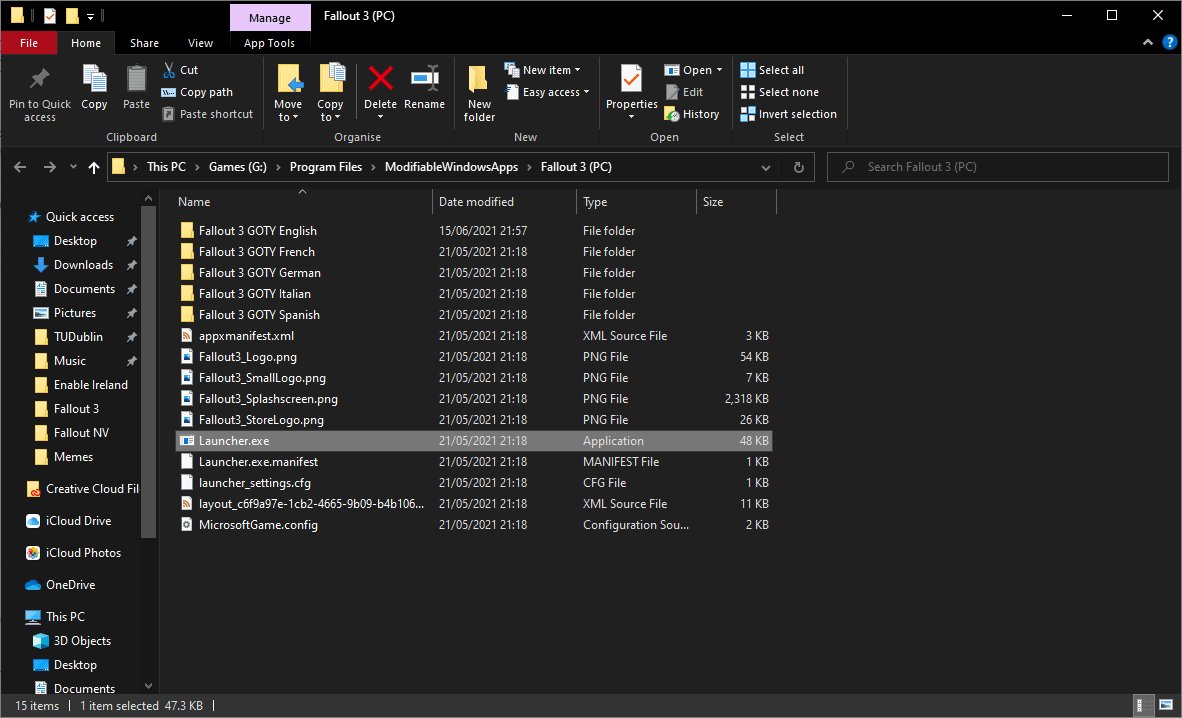
Yes, you can mod Fallout New Vegas on PC Game Pass, but it requires a slightly different process than the Steam version due to file access restrictions.
So, you’re itching to dive back into the Mojave Wasteland with a few enhancements, huh? A common question pops up, especially with the growing popularity of PC Game Pass: can you mod Fallout New Vegas on PC Game Pass? Well, the short answer is yes, but it’s not as straightforward as using the Steam Workshop.
You’ll have to manually install mods from sites like Nexus Mods and make sure to use a mod manager. This extra effort, however, allows for the same level of customisation as on other platforms. This is a hurdle some players often face, however.

Can You Mod Fallout New Vegas on PC Game Pass?
So, you’re itching to dive into the Mojave Wasteland, but you want to make it your Mojave Wasteland, huh? You’ve got Fallout: New Vegas on PC Game Pass, and you’re wondering if you can add all those cool mods you’ve been seeing online. The short answer is a resounding YES, you absolutely can mod Fallout: New Vegas when you have it through PC Game Pass. However, there are some things to know to get everything set up correctly. It’s not quite as straightforward as modding a Steam version of the game, but it’s totally achievable with a bit of guidance. Let’s break down how it all works.
Understanding PC Game Pass and File Access
The first hurdle is understanding how PC Game Pass handles game files. Unlike Steam, which gives you pretty direct access to the game’s folder, PC Game Pass games are often locked away in a special folder. This is to help with security and make sure the game files aren’t accidentally messed up. This can create a challenge for modding, because mods often need to be put directly into the game’s main folder. It’s like trying to add a new Lego piece to a toy that’s sealed in a box. You need to find a way to open the box first! But don’t worry; we have ways to work around it.
Locating Your Fallout: New Vegas Game Files
Finding where PC Game Pass puts your game files can be tricky. The location changes based on your settings, but it typically hides in a folder that’s not obvious. Here’s how you can find it:
- Open the Xbox app on your PC.
- Click on your profile picture at the top and select “Settings.”
- Go to the “General” tab.
- Look for the section called “Game install options”. This will tell you the default location where PC game pass games are installed.
- The default install path is often something like: C:\XboxGames. But it can vary, and you can change this path as needed.
- Once you know the general folder path, you have to navigate deeper within that folder to find the specific folder for Fallout: New Vegas. Typically the folder should be named as the game’s name.
Once you know the path, you can use the file explorer to locate it. Remember that sometimes access to these folders might be restricted, so you might need to give administrator permissions to access the folder if required.
Permissions Issues and How to Handle Them
Sometimes, when you try to access the folder, Windows may block you and say you don’t have the correct permissions. This is because PC Game Pass tries to protect the game files. Here is how to fix this:
- Right-click on the main game folder (the one with Fallout: New Vegas inside).
- Choose “Properties.”
- Go to the “Security” tab.
- Click “Advanced.”
- At the top, you might see a warning about the owner of the file. You need to take ownership. Click “Change” next to the owner name.
- Type your user name into the box, and click “Check Names.” This might auto-complete the name. If that’s the case, click OK.
- Click “OK” on all windows and close the properties windows.
- Now, you should have full control of the folders.
With that done, you will be able to copy, add, and move files in that folder. Be cautious when making changes to files; it’s always a great idea to backup the entire folder to a safe location before making any changes to the main folder, just in case something goes wrong.
Essential Tools for Modding Fallout: New Vegas
To get your modding journey started, there are a couple of essential tools you’ll need. These tools help you organize your mods and install them properly. They make the entire process much easier, without them, modding Fallout New Vegas is a tedious process and can lead to the game becoming unplayable.
Nexus Mod Manager or Vortex
Nexus Mod Manager (now called Vortex) is a program that helps you download, install, and manage all of your mods. It is the most popular mod manager tool for Fallout: New Vegas and other Bethesda games. Think of it like a special toolbox for your game, it keeps things organized and ensures each mod is placed in the right spot. Here’s why you should use a mod manager:
- Easy Installation: Instead of manually copying files, the mod manager takes care of it for you, moving the files to the game’s folder in correct place.
- Conflict Resolution: It can help you identify if two mods are trying to change the same thing, preventing glitches or problems in the game.
- Organization: You can turn mods on and off with just a click. No need to delete files to uninstall the mod, which is messy.
- Load Order: It makes managing the mod load order a breeze. Load order determines which mod loads first. If mods are loaded in wrong order, the game may not load properly.
To get started with Vortex, simply go to the Nexus Mods website and download the tool. Follow the installation guide, and then point it towards your Fallout: New Vegas game folder that we found earlier. The Vortex tool will use that to get all mod-related tasks done.
Fallout Script Extender (NVSE)
The Fallout Script Extender (NVSE) is another critical tool for modding Fallout: New Vegas. A lot of mods need it to work properly. It allows modders to create more complex changes to the game that are impossible to make without it. It expands the scripting capabilities of the game. Think of it as an upgrade to the game’s engine that some mods need to work. Here is how to install it:
- Head to the official NVSE website, and download the latest version.
- Once downloaded, open the zip file.
- Copy all the files in this zip folder to your Fallout: New Vegas game folder you found in earlier section. (where the main executable file is located). Make sure you place it in correct location, or NVSE won’t load.
- That’s it. NVSE is installed.
Now, you have both essential tools, and you can begin adding your favorite mods. Always ensure you launch the game using the NVSE launcher, that way all the mods that require NVSE will work correctly. The file will be named nvse_loader.
Finding the Best Mods for Fallout New Vegas
Now that you have the tools, it’s time for the fun part – finding the right mods for your game. The Nexus Mods website is a treasure trove of mods created by talented fans. Here are some categories of mods that people often search for:
Gameplay Overhaul Mods
These types of mods completely alter the way the game plays. They may change combat mechanics, make the game harder, or overhaul the entire leveling system. Some popular examples include:
- Project Nevada: A classic overhaul mod that changes combat, adds new equipment, and enhances the user interface. It is a massive mod that offers a lot of changes.
- JSawyer Ultimate: Created by the lead designer of the game, it rebalances the game and makes it more challenging and realistic.
- Tale of Two Wastelands: Combines Fallout 3 and New Vegas into one giant game. If you wanted to play Fallout 3 using the New Vegas game engine, this is the mod you should check out.
These kinds of mods greatly improve replayability, and help the game feel fresh, even if you have played it many times.
Graphics Enhancement Mods
If you want to improve the looks of the game, then graphics mods are the perfect choice. There are many options to select from, and it all depends on personal preference. Here are a few popular choices:
- NMC’s Texture Pack: This mod completely changes the textures in the game, making them more detailed and sharp.
- Nevada Skies: Adds new weather patterns, better lighting and shadows to the game. Making the game environment much more immersive.
- ENB Series: While technically not a mod, ENB makes changes to game graphics by adding post-processing effects. It requires a little bit of configuration to set up, but the visual effects are worth the hassle.
Keep in mind that these graphic enhancements can take a toll on your PC. Always check the minimum and recommended settings before installing graphic mods. Lower settings would cause less impact to the game performance.
Content Expansion Mods
These mods add new quests, locations, weapons, and characters to the game. They are great if you’re looking for new stuff to do in the Mojave Wasteland. Examples include:
- New California: This massive mod adds a completely new story, new characters, and a new map to explore.
- The Someguy Series: A series of mods that add new quests, and side-stories to the game. All side-quests are unique, well-written and entertaining.
- Project Brazil: Another large mod that adds a new storyline and location, set before the events of Fallout: New Vegas.
Content expansion mods can help enhance the gameplay experience, and some of these are highly popular among the Fallout modding community.
Bug Fix and Utility Mods
No game is perfect, and some mods aim to fix bugs and improve the overall game experience. Here are a few to consider:
- YUP (Yukichigai Unofficial Patch): A comprehensive patch that fixes hundreds of bugs, glitches, and other issues in the game. This mod is a must-have.
- JIP LN NVSE Plugin: A plugin that adds various features to the game and improves stability. Many other mods require this plugin to function properly.
- 4GB Patcher: Allows the game to use more system memory, which can greatly improve game performance, especially with lots of mods installed.
Bug fix and utility mods should be installed first before adding any large mods to ensure that the game runs as smoothly as possible. They can also prevent game crashes.
Setting Up Your Mod Load Order
The order in which mods load is important. Some mods might need to load before others to work correctly. Usually, a mod’s description on the website will tell you about the required load order, and the mod manager will help you manage this. There are general guidelines to follow that can help you set up the load order.
General Guidelines for Mod Load Order
- Master Files: These usually include the game’s main files and official DLCs. Always ensure they are loaded before any other mod.
- Bug Fixes and Patches: Load these after the main files, they should always be loaded early to fix any potential issues.
- Core Gameplay Changes: Mods that alter core gameplay mechanics, like Project Nevada, should be loaded before other mods that are less impactful.
- Content Additions: Mods that add new items, quests, or locations, should typically be loaded after gameplay changes.
- Graphics and Texture Mods: These often go near the end of the load order.
- Patches: Mods that are designed to patch other mods should be loaded after the main mod they patch.
Using LOOT to Optimize Load Order
LOOT (Load Order Optimization Tool) is a handy program that helps you automatically arrange your mod load order. It uses a database of known mod conflicts and dependencies to create an optimal load order. Here’s how to use it:
- Download LOOT from its official site and install the program.
- Open the program and select Fallout New Vegas.
- Click “Sort” to automatically organize your mods based on the database.
- Apply and close the tool.
LOOT is a great tool but it’s not perfect. Sometimes you still have to manually adjust the load order for mods to work correctly, especially if LOOT doesn’t know what to do with the mod. Always refer to the description of each mod, and check to make sure all mods are loading in correct order.
Troubleshooting Common Modding Issues
Sometimes, even with the best setup, you might encounter problems. Here are a few common issues and how to fix them:
Game Crashes
Game crashes are usually caused by conflicting mods or a bad mod load order. Try these steps to troubleshoot:
- Disable all mods and start the game to see if the crash still happens. If the game works, then a mod is causing the issue. Enable mods one by one to find out which mod is causing the problem.
- Use LOOT to check your load order, and make sure everything is loading correctly.
- Check if all your mods are compatible with each other. The description section of mods on Nexus Mods often has a compatibility section.
- Make sure that your PC is powerful enough to run all mods. If your PC specs are not that great, use low-resolution textures for graphics mods.
Missing Textures or Assets
If textures or objects appear as purple, then most likely the required texture files are not in the correct directory. Make sure that your mod manager installed the files in the right folder.
- Double check the mod’s page to make sure that the mod requires some other mods. Some texture mods may require that you download other textures first.
- Try reinstalling the mod to make sure that the files are copied to correct folder.
Mods Not Working
If the mod is not working as expected then first check if NVSE is installed correctly. Remember that some mods need NVSE to function, and if it’s not installed in correct folder, the mod will not work.
- Make sure that the game is launched using the nvse_loader.exe. Launching through the main game exe or through the xbox app will not work.
- Always read the instructions on mod’s page on Nexus Mods. Sometimes a mod requires specific steps to be taken to make it work correctly.
- Check the load order and make sure that all mods are loaded in correct order.
Always try different solutions if one solution does not work, sometimes the problem can be caused by a single file being out of place. By taking troubleshooting one by one, you should be able to figure out the problem.
Modding Fallout New Vegas on PC Game Pass might seem daunting at first, but with the right tools and a bit of patience, it’s totally doable. Don’t be afraid to experiment with different mods and find what works best for you. The Mojave Wasteland is waiting to be explored, and now you can make it your own unique experience.
How To Mod Fallout New Vegas from Gamepass in Five Minutes or Less
Final Thoughts
Yes, you can mod Fallout New Vegas on PC Game Pass. The process requires careful file management due to the specific way Game Pass titles are handled. You will need to locate the game’s installation folder and use a mod manager.
Most popular mod managers work effectively with this version. Remember that you must follow the mod installation instructions closely to avoid conflicts. can you mod fallout new vegas on pc game pass successfully with this method.

