
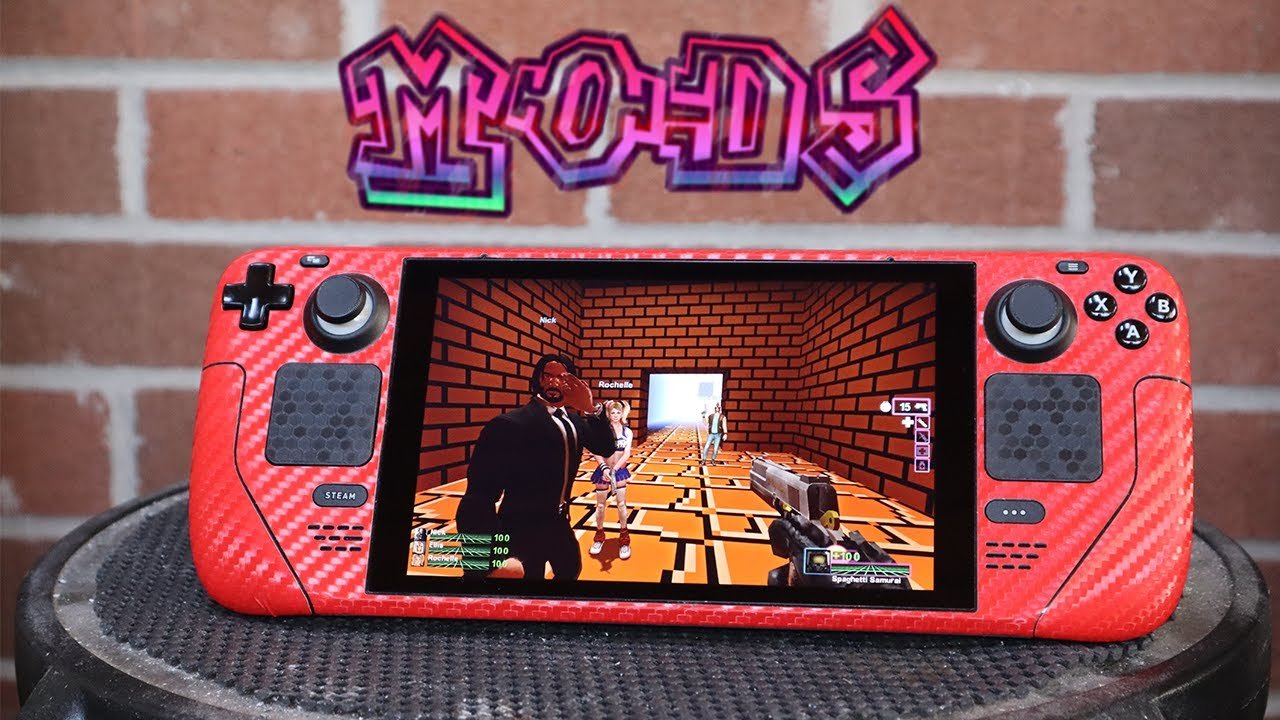
Yes, you can mod games on Steam Deck, and it’s generally similar to modding on a regular Linux PC, though some compatibility considerations may apply.
The Steam Deck, a handheld powerhouse, sparks curiosity among gamers. A frequent question is, “can you mod games on steam deck?” The answer isn’t always a simple yes or no, as the process involves navigating the Deck’s Linux-based system.
Modding often requires familiarity with file systems and sometimes commands. Steam Deck gives you flexibility similar to PC gaming but with a portable format. You can indeed bring your favorite mods on the go.

Can You Mod Games on Steam Deck?
The Steam Deck is like a magical video game box that you can take anywhere! It lets you play all sorts of games, just like your computer. But what if you want to change your games a little bit? What if you want to add new characters, levels, or make your game look totally different? Well, that’s where modding comes in. And yes, you absolutely can mod games on your Steam Deck! Let’s take a fun dive into how you can do that, what kind of mods you can use, and some things you should think about before you start.
Understanding Game Mods
First, let’s talk about what mods are. A game mod is a change someone makes to a video game. It’s like adding extra Lego bricks to a building you’ve already made. These “bricks” can be anything, really. They can change how a character looks, give you new weapons, create entirely new levels, or even fix bugs that the game creators didn’t catch. Think of it as giving your game a special makeover to make it even more fun!
Mods are made by other gamers who are often passionate about certain games. They share their creations for everyone to use, usually for free. It’s a great way to keep playing a game you love and try out new things without waiting for the game company to make big changes.
How Modding Works on the Steam Deck
The Steam Deck is like a mini computer running a special version of Linux called SteamOS. Because it’s based on Linux, this opens up lots of possibilities for modding, just like you can do on a regular computer. There are two main ways to add mods to your Steam Deck:
- Using the Steam Workshop: Many games on Steam have something called the Steam Workshop. This is like a giant library where game makers and other players can upload mods for their games. If your game uses the Steam Workshop, adding mods is super easy. You just browse the Workshop in the Steam Deck’s desktop mode, find the mods you like, and click “subscribe.” The mods will then automatically download and install, ready for you to use next time you play the game.
- Manual Installation: Some games don’t use the Steam Workshop, or you might find mods on websites outside of Steam. In these cases, you’ll need to download and install the mods yourself. This sounds a little tricky, but it’s not too bad once you get the hang of it. You basically copy the mod files into the right folders on your Steam Deck.
Navigating the Desktop Mode
To get started with manual mods, you’ll need to enter the Steam Deck’s desktop mode. Think of this as the “grown up” computer version of your Steam Deck. To do this, you press the Steam button, go to “Power,” and then choose “Switch to Desktop.” Don’t worry; you can go back to game mode anytime you like using the return to gaming mode icon on the desktop. In desktop mode you can open browsers, download files, and move files around just like a regular computer.
Using a File Manager
One important tool you’ll use in desktop mode is a file manager. This is like a window into all the files on your Steam Deck. Think of it like your home’s filing cabinet for all the data on your Steam Deck. You can use it to find the game files and place your mod files in the correct place.
The Steam Deck has a file manager called Dolphin which is very similar to windows explorer or finder on mac, it’s easy to navigate and use.
Step-by-Step Guide for Manual Modding
Okay, let’s walk through the steps for installing a mod manually. It’s like following a recipe, but for games!
- Find Your Mod: Search for mods on the internet for your chosen game. Often mod websites are set up similar to forums so you can filter based on game. Make sure to choose the mod that works with the specific game you have. Sometimes mods are version specific, or may be out of date.
- Download the Mod Files: Click the download button for the mod. Be sure to download the mod from a trusted source. Don’t download things from websites you don’t know!
- Go to Desktop Mode: Switch to your Steam Deck’s desktop mode, as we discussed.
- Open the File Manager: Use the Dolphin file explorer on your steam deck to find the download location of the mod files. Typically these are located in the Downloads folder.
- Find the Game Folder: This step can be a little bit tricky, as game files are not all in the same location. Typically, games you install through steam are located in this folder:
/home/deck/.local/share/Steam/steamapps/common/.If you can’t find the location of your game folder, you can locate this using steam itself. Open steam in desktop mode, find your game, right click, select manage, then browse local files. This will open the file explorer window directly in the folder of the selected game.
- Copy the Mod Files: Unpack the mod files if necessary, then copy all the mod files to the appropriate folder in your game’s directory. The mod download instructions will typically specify where the mod files need to go. Sometimes the files just need to go into the base folder of the game. Other times they need to go into specific folder within the game’s directory.
- Launch the Game: Once you’ve placed all the mod files in the proper location, go back to the gaming mode, and run the game! The mods should now be active. If the mod requires additional steps they should be in the documentation of the mod.
Important Things to Remember
Before you start modding your Steam Deck, here are some crucial things to keep in mind:
- Backup Your Saves: Before installing any mods, back up your game saves! This means that if something goes wrong with a mod, or the mod makes a part of the game unplayable, then you will still have a copy of your game that is working. This way you won’t lose all your progress in the game.
- Read Mod Instructions Carefully: Every mod is different, and the mod’s creator will usually give instructions on how to install and use the mod. Read the instructions carefully and make sure you understand them before you begin.
- Compatibility: Make sure the mods you are installing are compatible with your game. Sometimes different versions of the same game will have different mod sets.
- Use Trusted Sources: Only download mods from reliable websites and communities. Downloading mods from random places can be dangerous and might damage your games or Steam Deck. Nexus Mods is an example of a great, very well known mod source.
- Performance Impact: Some mods, especially big ones that change a lot of things, may make your game run slower. The steam deck is a very capable device, but it is not a supercomputer! Keep that in mind while modding.
- Modifying online games: Most developers of online games frown upon modification of their game client. This could lead to a ban of your account. In general it is not a good idea to modify online game clients.
Examples of Popular Mods
Let’s look at some fun mod examples to get your imagination going.
Graphical Mods
These change how your game looks, making it sharper, brighter, or completely different. For example, you might find a mod that makes your favorite game look more modern with much better textures and lighting, or even one that turns it into an old-school 8-bit style game.
Gameplay Mods
These types of mods change how you actually play the game, maybe adding new ways of traveling, or adding new challenges, or fixing bugs.
Content Mods
Content mods can add new items, characters, levels, or even entire stories to the game. These are often the most exciting ones, because they feel like getting a whole new game inside the game you already love!
The Fun of Modding
Modding opens up a whole new world of game play. Modding can extend the life of a game for potentially hundreds if not thousands of extra hours of game play. It can also just allow you to make your favorite games your own and play them exactly how you want. Plus, it’s also a great way to learn some basic computer skills as you start moving and copying files. Just remember to be careful and follow the instructions, and you’ll be on your way to having a totally unique Steam Deck gaming experience!
Modding is a very fun and rewarding experience, and the Steam Deck provides a great way to do this portably!
Modding Games on the Steam Deck
Final Thoughts
Yes, you can mod games on Steam Deck. The handheld’s Linux-based system allows for file manipulation. You can use desktop mode to install and manage modifications.
Many games with PC mod support will work on the Steam Deck. However, mod compatibility varies from game to game. Some may need extra configuration steps.
So, the answer to ‘can you mod games on steam deck’ is a definite yes, with some caveats. Always check mod instructions and community feedback before proceeding with any game modifications.

