
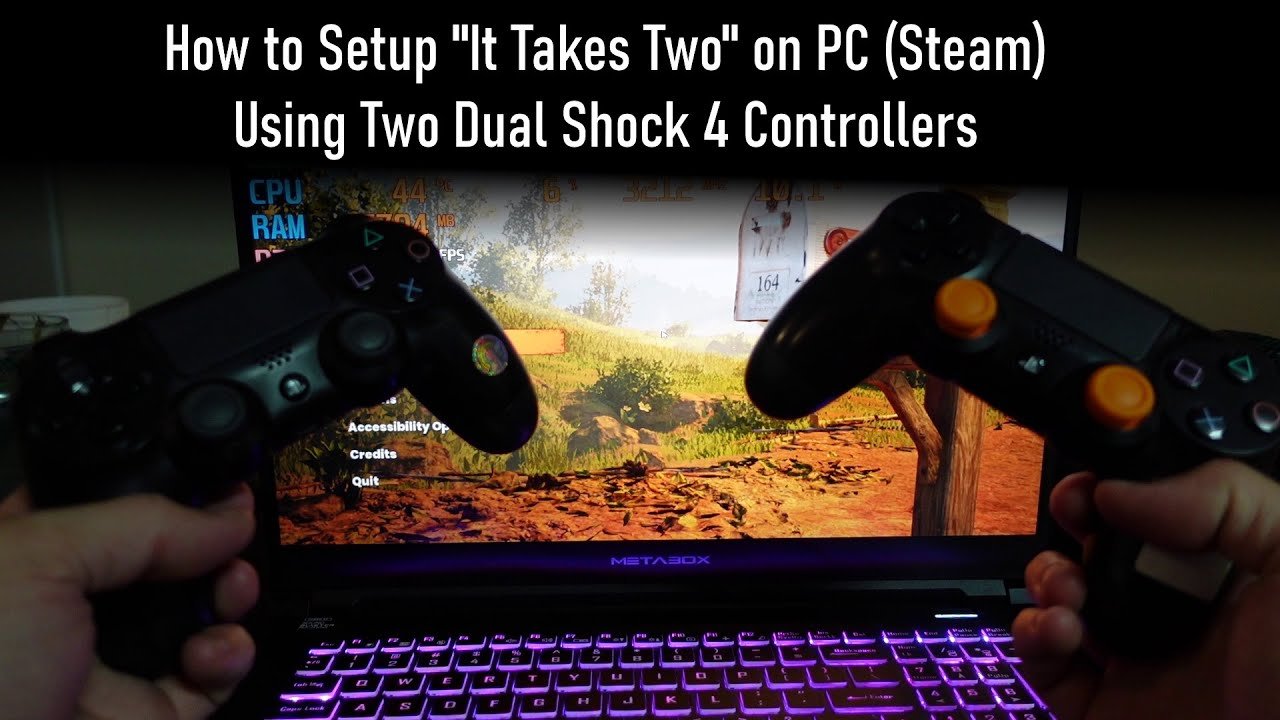
Yes, many PC games support local co-op play using two controllers.
Want to share the gaming fun with a friend right beside you? The question of “can you play co-op games with 2 controllers on pc” pops up quite often. It’s a great way to enjoy games, avoiding the hassle of online connections.
You’re not alone, plenty of gamers are eager to engage in some good old couch co-op. PC gaming offers many opportunities for that, so grabbing another controller might be your next best move.

Can You Play Co-op Games With 2 Controllers On PC?
Yes, absolutely! Playing co-op games with two controllers on a PC is totally possible and a lot of fun. It’s a great way to enjoy games with friends or family sitting right next to you. Imagine battling monsters, solving puzzles, or racing cars together, all on one screen. No need for multiple computers or complicated setups. This section will tell you how to make it happen and what you need to know to get started.
Understanding Local Co-op on PC
Local co-op, sometimes called couch co-op, is when you and another player play together on the same PC, using the same screen. Instead of each person needing their own computer, you share one and team up or compete side-by-side. This is different from online co-op where players connect to a game over the internet. Local co-op is all about being in the same room, sharing the fun and maybe some snacks!
Why Local Co-op is Awesome
There are many reasons why local co-op games are awesome:
- Social Interaction: It’s a great way to hang out with friends and family. You get to laugh, cheer, and work together in person.
- No Internet Needed: You don’t need a strong internet connection. Just fire up the game and play.
- Simpler Setup: It’s usually easier to get a local co-op game going than to set up an online multiplayer session.
- Share the Fun: Experiencing the highs and lows of a game together is much more exciting than playing alone.
What You Need to Play Local Co-op with Two Controllers
Before jumping into the fun, you’ll need a few things to ensure you can play co-op with two controllers on your PC. Let’s break down what you’ll need:
The Right Game
Not every game supports local co-op. You need a game that is specifically designed for two or more players on the same screen. Look for games that mention “local co-op,” “couch co-op,” or “split-screen” in their descriptions. Stores like Steam, GOG, and the Epic Games Store often have a co-op tag or filter to help you find these games. Some of the common keywords that you should check before buying games are as below:
- Local Co-op
- Couch Co-op
- Split-screen
- Shared screen Multiplayer
- Same screen Multiplayer
Two Controllers
Obviously, you’ll need two controllers. Most modern PC games support a range of controllers, including Xbox controllers (which are very popular), PlayStation controllers, and some third-party options. Make sure your controllers are compatible with your PC and the game. Here are some things to keep in mind:
- Wired or Wireless: Both wired and wireless controllers work well. Wireless controllers need to be paired via Bluetooth or use a USB receiver.
- Controller Compatibility: Check that the game you want to play supports the kind of controller you have. Xbox controllers are generally very compatible.
- Driver Installation: Your PC may need specific drivers for some controllers to work properly. You can find these drivers on the controller manufacturer’s website.
A PC that can run game
Your PC also needs to be powerful enough to run the game, especially when running it with two players at once. Check the game’s system requirements to make sure your PC meets the minimum or recommended specifications for playing smoothly, as running multiple players in game can increase the stress on PC, so it’s good to ensure that you have good enough PC so you don’t have any trouble playing local co-op games. Here are some minimum requirements for any PC games:
- Processor: Make sure you have a decent processor with good enough speed and threads.
- Graphics Card: A dedicated graphic card is necessary for running games smoothly.
- RAM: The more RAM you have, the better, especially if you play multiple games or do multiple things on your PC at once.
- Storage Space: Make sure you have enough storage space on your hard drive to accommodate all games, as games can get very large in size.
Setting Up Your Controllers
Okay, you have your games, your controllers, and your PC. Now, let’s get those controllers working:
Connecting Wired Controllers
Connecting a wired controller is as simple as plugging it into a USB port on your PC. Once you plug it in, your PC will usually install the necessary drivers automatically. You may need to restart your PC for your PC to recognize the controller. Here’s how to do it:
- Plug the USB cable from the controller into a USB port on your computer.
- Wait a few seconds for Windows to install the necessary drivers.
- Test the controller in the game to make sure it’s working correctly.
Connecting Wireless Controllers
Wireless controllers can be connected via Bluetooth or through a USB receiver. Here is how you can connect using these methods:
Connecting via Bluetooth
- Turn on your controller and put it into pairing mode. This is usually done by pressing a button on the controller (check your controller’s manual).
- On your PC, go to Settings > Devices > Bluetooth & other devices.
- Click “Add Bluetooth or other device.”
- Select “Bluetooth” and choose your controller from the list.
- Follow the on-screen instructions to pair the controller.
Connecting via USB Receiver
- Plug the USB receiver into a USB port on your computer.
- Turn on your controller, and it should automatically connect to the receiver.
- If it doesn’t connect automatically, check your controller’s manual for specific pairing instructions.
Troubleshooting Controller Issues
Sometimes, things don’t go smoothly. If your controllers aren’t working correctly, here are a few troubleshooting tips:
- Check Connection: Make sure all cables are securely plugged in or that your Bluetooth connection is stable.
- Restart: Sometimes restarting your PC can fix connection problems with controllers.
- Update Drivers: Make sure you have the latest drivers for your controllers. Check the controller manufacturer’s website for the most recent drivers.
- Try Different Ports: If you are using wired controller, use a different USB port on your computer.
- Check Game Settings: Some games have settings where you can select which controllers are enabled.
- Test on other games: Test the controllers on other games to identify is the issue is with controllers or with that particular game.
Finding the Right Local Co-op Games
Now, for the fun part: finding great games to play! Here are a few things to consider when choosing a local co-op game:
Game Genre
Games come in all different genres like action, adventure, platformer, sports, strategy, puzzle and so on. Think about what kinds of games you and your friends enjoy playing together. Here are a few popular genres for local co-op:
- Action Games: These games are full of fast-paced combat, exciting boss battles, and thrilling moments.
- Platformers: Jump, run, and explore together in these games.
- Puzzle Games: Solve challenging puzzles and work together to succeed.
- Sports Games: Get competitive in games like soccer, basketball, or racing games.
- Adventure Games: Embark on great adventures, explore vast worlds, and enjoy good stories together.
Split-Screen vs. Shared Screen
Some games use a split-screen, where each player has their own view of the game. Other games use a shared screen, where all players share the same view. Shared screen games are generally easier to manage in local co-op, but both formats have their pros and cons. Split-screen ensures both players can see their location separately, whereas shared screen keeps everyone together on the same screen, but can sometimes make players run off the screen, which can be frustrating for some users.
Player Count
Make sure the game you choose supports the number of players you want to play with. Some games only support two players, while others can support three, four, or even more.
Game Difficulty
Choose a game with a difficulty that is suitable for all players. If some players are new to gaming, pick a game that is easy to learn and play. On the other hand, if all players are experienced, pick a game that is hard enough to provide a good challenge.
Where to Find Local Co-op Games
Here are some good places to find local co-op games:
- Steam: Steam has a big collection of local co-op games. You can filter games by the ‘local co-op’ tag.
- GOG: GOG is another great place to look for good PC games. You can filter games based on ‘local multiplayer’ tag.
- Epic Games Store: Epic also provides many amazing local co-op games. Look for the ‘co-op’ tag.
- Online Game Reviews: Look for websites and video reviews from trusted sources to see if the game is worth playing.
Popular Local Co-op Game Titles
Here are some popular co-op games that many people enjoy playing with two controllers on PC:
Action Co-op games
- Cuphead: A challenging run-and-gun game with a cool 1930’s cartoon style.
- Streets of Rage 4: A modern take on the classic beat ’em up series.
- Borderlands Series: Action-packed looter shooters with plenty of co-op fun.
Platformer Co-op games
- Rayman Legends: A fantastic platformer with gorgeous visuals and tons of levels to play.
- Unravel Two: A beautiful puzzle platformer where you play as two yarn creatures.
- Trine Series: A magical series with puzzle-platforming and exciting environments.
Puzzle Co-op games
- Overcooked 2: A chaotic and hilarious cooking game where you and your partner must work together in the kitchen.
- Keep Talking and Nobody Explodes: One player tries to defuse a bomb while other player tries to give instructions using a manual.
Sports Co-op games
- Rocket League: A car soccer game that is fun to play with friends.
- NBA 2K Series: If you like basketball, you will definitely enjoy playing NBA 2K series with your friends.
Adventure Co-op games
- It Takes Two: An award-winning game designed specifically for co-op.
- Divinity: Original Sin 2: A deep role-playing game with turn-based combat and an engaging story.
Tips for the Best Local Co-op Experience
To make your local co-op sessions even better, here are a few tips to keep in mind:
- Communication is Key: Talk to each other during the game. Communicate your plans and ideas.
- Take Breaks: Long game sessions can be tiring. Make sure to take breaks to relax.
- Snacks and Drinks: Keep some snacks and drinks on hand to keep everyone happy and energized.
- Be Patient: Not every game is easy. Be patient with each other, especially if one player is new to gaming.
- Choose Games Everyone Enjoys: Try to choose a game that you and your friends/family will both enjoy.
- Have Fun: Don’t forget that the most important thing is to have fun playing together!
Playing co-op games on your PC with two controllers is a great way to bring people together. It’s simple to set up, provides hours of entertainment, and is a fantastic shared experience. With a wide variety of games available, there’s something for everyone to enjoy. Grab your friends, connect those controllers, and have a wonderful gaming session!
Top 5 Best Co-Op Games for 2 Players
Final Thoughts
Yes, you can absolutely play co-op games with 2 controllers on PC. Many games support local multiplayer, allowing you and a friend to play together on the same screen. This provides a fantastic way to enjoy gaming.
The ability to use two controllers enhances the experience of playing together. Confirm game support through settings or online reviews before playing. So, the short answer is yes, you can play co-op games with 2 controllers on pc.

