
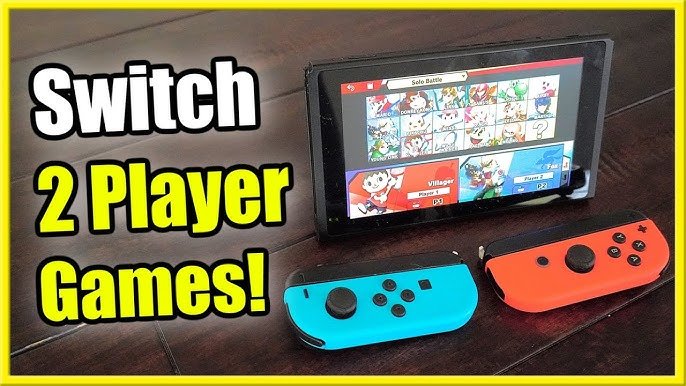
Yes, you can play co-op games with 2 joycons on PC, though it often requires specific software or configurations to map the controls correctly.
Ever wondered if those spare Joy-Cons from your Nintendo Switch could get some PC playtime? The question, “can you play co-op games with 2 joycons on pc”, pops up often for gamers seeking budget-friendly local multiplayer options.
Many enjoy the easy portability of Joy-Cons. But getting them to work on PC can be a bit more complicated than plugging in a typical controller. Different games and platforms have varying levels of support for non-standard gamepads.

Can You Play Co-op Games With 2 Joy-Cons on PC?
So, you’ve got your Nintendo Switch Joy-Cons and a PC, and you’re itching to play some awesome co-op games with a friend? Great idea! The good news is, yes, you absolutely can play co-op games on your PC using two Joy-Cons! It’s not always as simple as plug-and-play, but with a little know-how, you can get your controllers working together for some fantastic shared screen fun. Let’s dig into how it all works.
Understanding Joy-Con Compatibility with PC
First things first, it’s important to understand that Joy-Cons are primarily designed for the Nintendo Switch. This means they aren’t automatically recognized by your PC as standard game controllers, like an Xbox or PlayStation controller would be. They use Bluetooth to communicate, which is good news because most modern PCs have Bluetooth built-in. However, you will need a little help to get them working correctly. Here’s a breakdown:
Bluetooth Connection is Key
Since Joy-Cons use Bluetooth, you need to ensure your PC has Bluetooth capability. If not, you can use a Bluetooth adapter which is very affordable to buy online or in your local shop. It will connect to your PC and make the bluetooth function available. Once your Bluetooth is set up, your PC should be able to detect the Joy-Cons.
Joy-Cons as Individual Controllers
When connecting Joy-Cons to your PC, they are usually recognized as individual controllers, not as a single, combined controller like when attached to the Switch console. This is crucial for understanding how they work with co-op games on PC. Each Joy-Con becomes its own separate input source. For games that need two controllers, this is exactly what you want.
The Need for Software Assistance
To make games understand Joy-Cons properly, you might need to use some third-party software or Steam Input. These programs can make your PC think the Joy-Cons are regular gamepad controllers, like Xbox or Playstation controllers. This step is vital for many games to function with Joy-Cons. we will talk about these methods later.
Methods for Connecting Joy-Cons to PC for Co-op
Now, let’s explore the different ways to connect your Joy-Cons to your PC and get them working for cooperative play:
Connecting via Bluetooth Directly
The most basic method is to connect each Joy-Con directly to your PC via Bluetooth. Here’s how you can do it:
- Make sure your PC’s Bluetooth is turned on.
- Put your Joy-Con into pairing mode by pressing the small sync button near the top of the controller. The indicator light should begin to flash.
- Go to your PC’s Bluetooth settings, and click on “Add Bluetooth or other device.”
- Select “Bluetooth,” and your PC should detect the Joy-Con.
- Select the Joy-Con and follow any prompts to pair it.
- Repeat this process for your second Joy-Con.
Once connected, your Joy-Cons should appear in your PC’s device list. However, games still may not recognize them properly, so this is where other programs can help.
Steam Input: A Simple Solution
If you are using Steam to play your co-op games, Steam Input can greatly simplify the process. Steam Input is a built-in feature that can map controller inputs so that it supports almost any controller. Here’s how to get it working:
- Make sure you have added the game to your Steam Library (even if it’s not a Steam game you can add it as a non-steam game).
- Go to the Steam settings. You’ll find this in the top left menu.
- Go to the “Controller” section.
- Click on “General Controller Settings.”
- Check the box that says “Nintendo Switch Configuration Support.”
- From here, Steam will try to detect your Joy-Cons connected via Bluetooth.
- You can then further customize each controllers button layouts to your liking or leave the default setting
Steam input is usually a simple and easy option for most cases and most of the time it will work without any hassle. But sometimes if it doesn’t work you may need other software, which we will discuss next.
Using Third-Party Software: DS4Windows
DS4Windows, though originally designed for PlayStation controllers, can also work with Joy-Cons. This program makes your computer see them as Xbox controllers, which most games support very well. It might seem complicated, but it’s not that bad and very helpful. Here’s how to set up DS4Windows:
- Download DS4Windows from its official website.
- Extract the zip file contents to a folder you will remember.
- Run the DS4Windows.exe file.
- Follow the on-screen steps to install the necessary drivers.
- Connect your Joy-Cons via Bluetooth as outlined earlier.
- DS4Windows should now see your Joy-Cons.
- You might need to select a profile or make a new profile if DS4Windows doesn’t recognize them initially.
After you install DS4Windows, your PC should recognize the Joy-Cons as Xbox controllers. This will work for most games, including non-Steam games.
Using Third-Party Software: BetterJoy
Another software option that is also very useful is BetterJoy, which is specifically designed to support Joy-Cons. Here’s how you can use BetterJoy:
- Download BetterJoy from its official GitHub repository.
- Install the required drivers (like ViGEmBus).
- Connect your Joy-Cons via Bluetooth.
- Run BetterJoy. It should detect your connected controllers.
- BetterJoy has some advanced settings, but you can usually leave the default settings.
BetterJoy is generally a very good program and is also well maintained. You should consider this also an option if other methods don’t work properly.
Troubleshooting Common Issues
Setting up Joy-Cons on your PC can sometimes have some hurdles. Here are a few of the problems you may encounter and how to fix them:
Controller Not Being Detected
If your PC isn’t detecting your Joy-Cons, try the following:
- Ensure your Bluetooth is turned on and working properly.
- Make sure your Joy-Cons are in pairing mode.
- Try restarting your PC and the controllers.
- Check for any updated drivers for your Bluetooth adapter.
Game Not Recognizing Controllers
If the game doesn’t recognize the controllers even after connecting them, try these solutions:
- Restart the game and PC.
- Make sure you have installed the correct drivers through steam input, DS4Windows, or BetterJoy
- Check that the game supports gamepad controllers ( some old games might not support it).
- Try using a different controller configuration program (from those listed above).
Inconsistent Input
Sometimes, inputs from Joy-Cons may be inconsistent or laggy. To solve this:
- Make sure the Bluetooth is not interfered by other devices.
- Bring your Joy-Cons closer to your PC if they’re too far away.
- Try using a wired connection with third party cables if your Joy-Cons support it.
- Close unnecessary background applications that could use system resources.
Benefits and Limitations
Using Joy-Cons for PC gaming has both advantages and disadvantages.
Benefits
- Cost-Effective: You already have them, so you don’t need to buy new controllers.
- Compact and Portable: They are small and easy to carry around.
- Versatile: They can be used as individual controllers for co-op.
- Wireless Freedom: No need for wires, except for wired connectivity through third party cables if you need it.
Limitations
- Not Designed for PC: They are not made for PC gaming, so setup might be complex.
- Battery Life: Joy-Cons have short battery life.
- Size and Ergonomics: Smaller size can be less comfortable for some.
- Input Issues: Sometimes there can be problems with input being inconsistent.
Games that Work Well with Joy-Cons on PC
Many co-op games work well with Joy-Cons on PC, especially those designed for local multiplayer. Some examples are:
Platformers
Games like Cuphead, Rayman Legends, and Trine series work great with Joy-Cons. The simple button layouts are easy to manage.
Fighting Games
Games such as Mortal Kombat 11 and Street Fighter V can be played with Joy-Cons. Although some people may find that the smaller controllers are not ideal for fighting games.
Indie Co-op Games
Many indie games like Overcooked, Moving Out, and Lovers in a Dangerous Spacetime are perfect for playing with a pair of Joy-Cons. These games often benefit from simple controls.
Racing Games
Games like Rocket League and some arcade racing games can be played with Joy-Cons.
Tips for a Better Experience
Here are some things you can do to make playing co-op with Joy-Cons on your PC even better:
- Keep Controllers Charged: Since Joy-Cons have small batteries, make sure they are fully charged before you begin playing.
- Use a Charging Grip: Consider using a charging grip, this will ensure that you can charge the joycons while playing via a third party cable.
- Experiment With Different Programs: If one program doesn’t work, try another.
- Check Community Forums: if you’re facing issues, look at online community forums for solutions.
- Take Breaks: Smaller controllers can be less comfortable, so take breaks to avoid hand cramps.
Playing cooperative games on your PC with two Joy-Cons is certainly achievable, although it does require some setup and maybe a little troubleshooting, but it is definitely worth it. By using the methods and programs described above you can get your Joy-Cons working smoothly for fun co-op sessions with your friends. Enjoy your gaming!
this breaks your joy cons! 💀
Final Thoughts
So, can you play co-op games with 2 joycons on pc? Yes, you absolutely can. Many PC games support multiple controllers, including using Joy-Cons as separate inputs.
Setting this up might involve using software like Steam or dedicated Joy-Con drivers to correctly map buttons. This way, you can play local co-op games with friends using your spare Joy-Cons.
The process of getting it working can vary slightly depending on the game and driver software you choose, but it is definitely feasible. Enjoy your games.

