
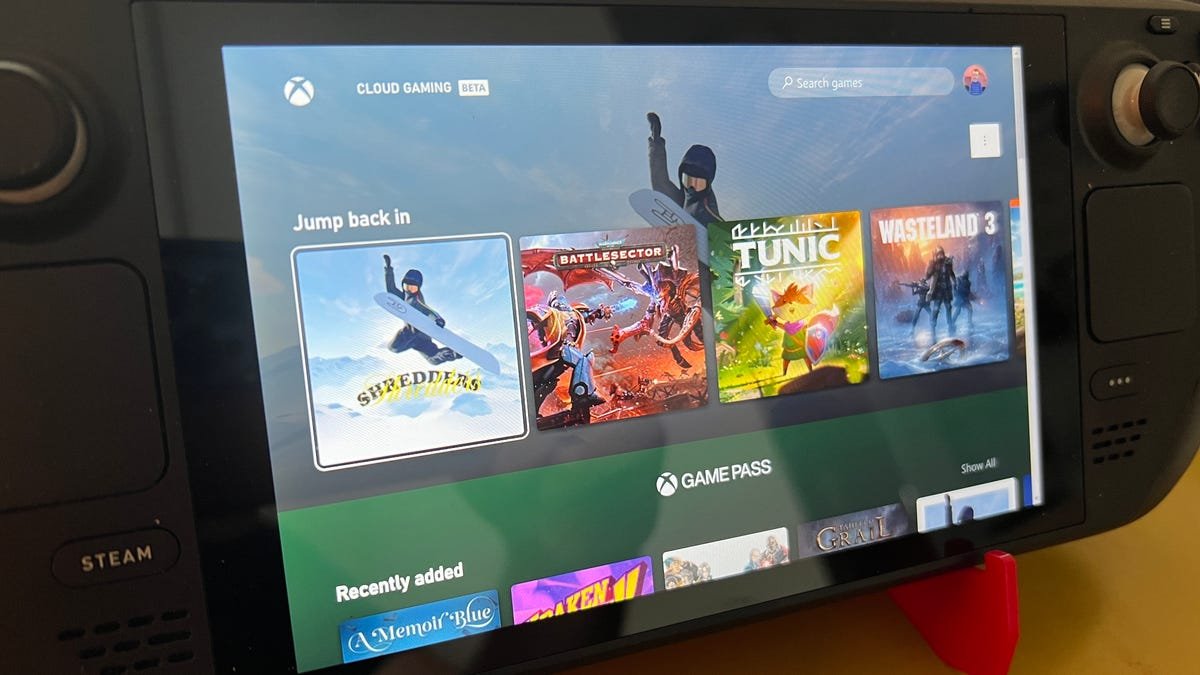
Yes, you can play game pass games on steam deck, though it requires using workarounds like cloud gaming or installing Windows.
The Steam Deck, a portable powerhouse, has gamers wondering: can you play game pass games on steam deck? This is a very common question. The device itself runs on SteamOS, a Linux-based system, which is different from the Windows environment where Xbox Game Pass typically operates.
Therefore, enjoying Game Pass titles directly isn’t immediately straightforward. You’ll need to explore options that let you circumvent this operating system difference to gain access to your favorite games on the go.

Can You Play Game Pass Games on Steam Deck?
The big question on every gamer’s mind, especially if you’re a proud owner of a Steam Deck: can you play those awesome Game Pass games on your handheld powerhouse? The short answer is, yes, but it’s not as straightforward as simply downloading an app. Microsoft’s Game Pass, with its fantastic library of titles, isn’t natively available on the Steam Deck. This means you won’t find a Game Pass app in the Steam store ready to go. But don’t worry, there are ways around this, and we are here to show you the options to get your Game Pass gaming fix on your Steam Deck. Let’s dive into how you can get this done!
Understanding the Challenge: Why Isn’t It Simple?
The Steam Deck runs on SteamOS, which is a modified version of Linux. Game Pass, however, is primarily designed for Windows and Xbox consoles. This difference in operating systems is the biggest hurdle. Think of it like trying to use a book written in English when you only have a Spanish translator – it takes some extra steps to get the information across. Microsoft and Valve, while both gaming giants, have different ecosystems. So, they haven’t created a direct link between Game Pass and SteamOS, yet.
The Cloud Gaming Solution: Xbox Cloud Gaming (xCloud)
The most direct and probably easiest way to play Game Pass games on your Steam Deck is through Xbox Cloud Gaming, also known as xCloud. This method streams the games from Microsoft’s servers to your Steam Deck, meaning the heavy lifting of running the game is done elsewhere. Your Steam Deck only needs to handle displaying the video and sending your controller inputs.
How to Access xCloud on Steam Deck
Here’s how to get started with xCloud on your Steam Deck:
- Set up your Xbox Game Pass Ultimate Subscription: xCloud is part of Game Pass Ultimate. You’ll need an active subscription to make this work. You can’t access xCloud with the standard Xbox Game Pass for Console or PC subscriptions.
- Install a Web Browser: You will need a web browser to access the xCloud website. Chrome or Firefox are popular options, and they work well on the Steam Deck.
- Go to the Steam Deck’s desktop mode.
- Open the Discover app (the blue shopping bag icon).
- Search for Chrome or Firefox and install your preferred browser.
- Add your chosen Browser as a Non-Steam Game: To make launching xCloud easier, add the browser to your Steam Library.
- Go back to desktop mode on your Steam Deck
- Find your Browser and right click and select ‘Add to Steam’.
- Go back to gaming mode and look for the browser in your library.
- Open your Browser and Navigate to xCloud: Open your browser in Gaming Mode and head over to xbox.com/play.
- Log In: Sign in using your Microsoft account that has Game Pass Ultimate.
- Start Gaming: Select a game from the available library and start playing!
Important Note: For the best experience with xCloud, you need a stable and fast internet connection. Cloud gaming is only as good as your internet. If your connection is slow or unreliable, you will likely have stuttering gameplay and input lag. Also, you might want to use an external controller for better comfort when playing some of the action games available on cloud gaming
Using the Microsoft Store (Windows) on Steam Deck
While xCloud is the easiest method, another route, though more complex, is to install Windows on your Steam Deck and then use the native Xbox app. This essentially turns your Steam Deck into a mini Windows PC that can run the Game Pass app directly. This requires a full reinstallation of your Operating System.
Steps to Install Windows on Steam Deck
Warning: Installing Windows on your Steam Deck is a bit technical and not recommended for beginners. This also potentially can void your warranty. If something goes wrong during the process you might break something. It also takes time and some technical understanding, and we recommend only proceed if you have strong technical knowledge.
Here is a simplified overview. The detailed steps can be found from lots of online tutorials:
- Prepare a Bootable Windows USB Drive: You’ll need a USB drive with a Windows installation file. You can create this using Microsoft’s media creation tool on a different computer.
- Prepare your Steam Deck:
- You will need to disable secure boot from the bios menu.
- You will need to get a USB C adapter that supports external drive and at least one other USB port for your mouse and keyboard.
- Install Windows: Boot the Steam Deck from the USB drive and follow the Windows installer. This will overwrite the default SteamOS, so make sure you back up your data if needed.
- Install Drivers: After Windows is installed, you’ll need to install specific drivers for the Steam Deck’s hardware to work properly. These drivers are available online.
Getting the Xbox App and Game Pass
Once Windows is installed on the steam deck, you can then follow these steps.
- Download the Xbox App: Download the Xbox App from the Microsoft Store
- Log In: Use your Microsoft account with your game pass subscription
- Download and Play: Download games directly onto your Steam Deck and play natively.
Important Note: Installing Windows will require some technical skill, time, and patience. Windows is not designed to be played on the Steam Deck, so some games may have problems with compatibility. Also, battery life will be decreased due to the operating system’s overhead. Some of the Steam Deck’s functionality may also be compromised.
Benefits and Drawbacks of Each Method
Each method for playing Game Pass games on the Steam Deck has its own advantages and disadvantages. Let’s compare them:
Xbox Cloud Gaming (xCloud)
- Benefits:
- Easy to set up and use.
- No need to modify your Steam Deck’s operating system.
- Access to a wide variety of Game Pass games.
- Saves space on your Steam Deck as the games aren’t installed locally.
- Drawbacks:
- Requires a strong and stable internet connection.
- Game play may be affected by latency due to the streaming nature.
- Not all Game Pass games are available through xCloud.
Installing Windows on the Steam Deck
- Benefits:
- Natively play all the games on game pass on your Steam Deck.
- No need to have a strong stable internet connection.
- Can play offline.
- Drawbacks:
- Requires technical skills.
- More complex installation process, that may take time.
- Can void your warranty.
- Potentially unstable performance on some games.
- Battery life may be shorter.
- Can decrease your storage on the device.
Which Method Should You Choose?
The best method depends on your personal preferences and technical comfort level. Here’s a quick guide:
- Choose xCloud if:
- You have a fast and reliable internet connection.
- You want the easiest and quickest setup process.
- You don’t want to mess with your Steam Deck’s operating system.
- Choose Installing Windows if:
- You want to play games natively.
- You are comfortable with technical installations.
- You have experience with installing windows.
Things to Keep in Mind
Here are some extra points to consider when playing Game Pass games on your Steam Deck:
- Internet Speed: Cloud gaming relies on a fast internet speed to stream. Ensure you have a good Wi-Fi connection or use an Ethernet adapter if needed.
- Controller Compatibility: While the Steam Deck’s built-in controls work for some games, using a dedicated controller like an Xbox controller can often provide a better experience, especially for more demanding games.
- Game Selection: Be aware that not every game on Game Pass is available via xCloud. If there is a specific game you want to play, make sure it is available for cloud play.
Playing Game Pass games on your Steam Deck is totally achievable. While it’s not a direct process, the options available still allow you to enjoy a wide library of games on your handheld device. Choosing between the xCloud method and installing windows depends on your preference for ease of use versus access to native games. Whether you choose to stream or install, there is no doubt that the world of Game Pass can be a great addition to your Steam Deck adventures.
Xbox Games on Steam Deck with Game Pass! EASY SETUP for Xbox Cloud Gaming
Final Thoughts
Yes, you can play Game Pass games on Steam Deck, although it requires some setup. You need to install Windows or use Xbox Cloud Gaming. Cloud gaming is a good option since you don’t need to install anything.
This means that playing many Game Pass titles on the device is achievable. You must install the operating system or rely on streaming. Therefore, you can play game pass games on steam deck with some effort.

