
To remove a game from your Steam library, right-click on the game, navigate to “Manage,” and then click “Remove from account.”
We’ve all been there, a game collecting digital dust in our Steam library. Maybe it’s a regrettable purchase, or perhaps you simply need to tidy things up. Knowing how to remove a game from your steam library can be very helpful when managing your collection.
It’s actually quite a straightforward process. With a few clicks, you can declutter your game list. This article guides you through these simple steps, allowing you to keep your library organized and only showing the games that actually interest you.

How to Remove a Game from Your Steam Library
Okay, so you’ve got a Steam library that’s maybe a little… crowded? Maybe you played a game once and never touched it again. Or perhaps you bought a game you didn’t like. Whatever the reason, you might want to get rid of a game from your Steam library. Don’t worry; it’s simpler than you might think. This article will walk you through all the ways you can tidy up your Steam games. Removing a game can be done for several reasons, and we’ll cover all the scenarios.
Why Remove a Game?
Before we get to the “how,” let’s talk about “why.” There are a lot of reasons why you might want to remove a game from your Steam library. These reasons can include things like keeping your library clean and organized, wanting to hide games you don’t play from friends or you’re simply looking for a fresh start.
- Organization: A huge game library can be overwhelming. Removing games you don’t play makes it easier to find what you want.
- Privacy: Maybe you played a game and didn’t enjoy it or maybe it’s something that you don’t want others to see. Removing it from your visible library can give you that extra privacy.
- Reducing Clutter: Seeing a long list of games you’ll never play isn’t that fun. Removing unused games keeps your library looking neat.
- Mental Space: A smaller library can feel less overwhelming. Getting rid of games can help you focus on games you actually enjoy.
Understanding the Different Types of Removal
It’s important to understand that there are different levels of removing a game. It’s not just a simple delete button. Steam offers a couple of options, each with its own effect.
Hiding vs. Permanently Removing
Steam allows you to either hide a game from your library or permanently remove it. These two actions are very different, and understanding their differences is important:
- Hiding a Game: Hiding a game doesn’t actually get rid of the game. It simply moves it into a hidden list, out of sight in your main library view. You can still access and play the game if you want, and it will be easily retrievable. Hiding is useful for games you might want to play in the future, but not right now.
- Permanently Removing a Game: Permanently removing a game means that it is no longer in your library, and it’s no longer linked to your account. You can’t play it anymore. If you decide to play it again, you need to purchase the game again. This action is more serious and should be used carefully.
Removing Free-to-Play Games
Free-to-play games work a little differently. They’re not “owned” like paid games, so removing them doesn’t work the same way. When you remove a free game from your account, you are mostly hiding them, not deleting or removing them from the library permanently. You won’t see them in your library unless you specifically search for them or redownload them.
How to Hide a Game on Steam
Let’s start with the less drastic option: hiding a game. This is a great way to tidy up without fully committing to removal. Hiding a game is straightforward.
Steps to Hide a Game
Here is a step-by-step guide:
- Open Steam: Launch the Steam application on your computer.
- Navigate to your Library: Click on “Library” at the top of the Steam window.
- Find the Game: Locate the game you want to hide in your list of games. You can use the search bar if you have many games.
- Right-Click: Right-click on the name of the game. A menu will pop up.
- Select “Manage”: Hover over “Manage” in the menu. Another menu will appear.
- Choose “Hide this game”: Click on “Hide this game” in the second menu.
Accessing Hidden Games
After hiding a game, it disappears from your main library view. But where did it go? Here’s how to access your hidden games:
- Go to View: In your Steam client, click “View” at the top of the window.
- Select Hidden Games: Select “Hidden Games” from the View menu. This will show the list of all the games you’ve hidden.
- Unhide a Game: To unhide a game, simply right-click the game in this hidden list, hover over “Manage,” and select “Remove from Hidden.” The game will now appear again in your main library.
How to Permanently Remove a Game from Your Steam Library
Now, let’s move to the more serious option: permanently removing a game. This method actually removes the game from your account. Remember, you cannot play the game after this action unless you repurchase it.
Understanding Account Deletion for Steam Games
The process of deleting a game from your Steam library is effectively a form of removing the license from your account. It’s not like deleting a file from your hard drive. When you purchase a game on Steam, you are buying a license to play it, and this is attached to your Steam account. When you remove a game permanently, Steam removes this license. Therefore, if you want to play that game again, you would need to purchase it again through Steam.
Steps to Permanently Remove a Game
Here is the process for permanently removing a game from your Steam library:
- Open Steam Support Page: Go to the Steam Support website. You can do this by opening your Steam application and clicking on “Help” at the top, then selecting “Steam Support.” Or, you can visit the Steam support website via browser.
- Login: If needed, log in to your Steam account.
- Select Games, Software, etc: Click on “Games, Software, etc.” from the options on the Steam Support page.
- Find Your Game: Type the name of the game you want to remove into the search bar. Select it from the search results.
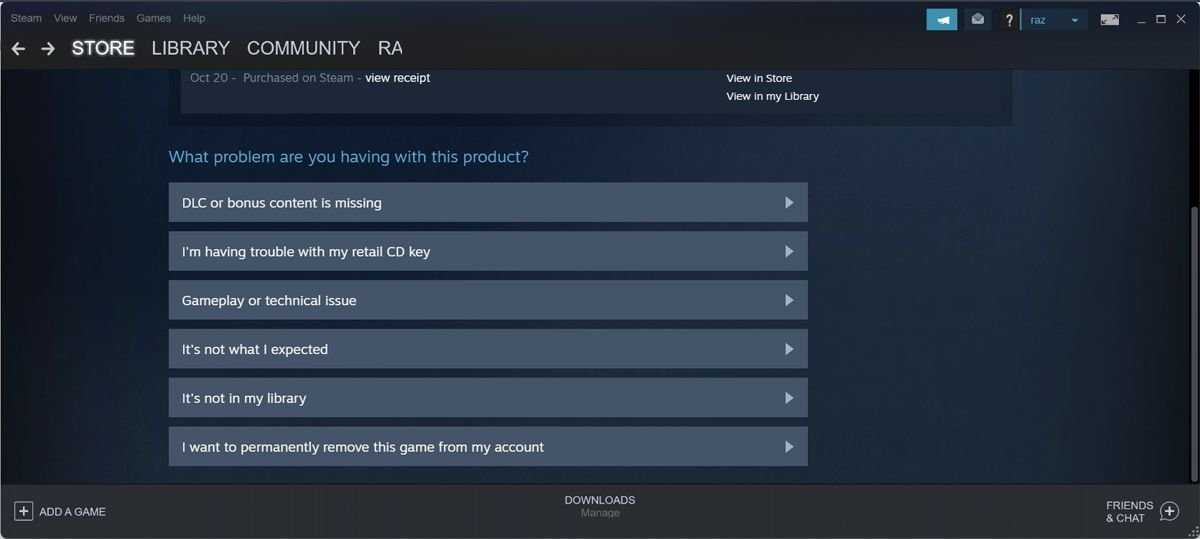
- Choose “I want to permanently remove this game from my account”: Select the option that says “I want to permanently remove this game from my account.” This is a very specific choice, so make sure you select the correct one.
- Confirm Removal: A popup window will appear asking you to confirm the action. It will mention that you won’t have access to it again and will need to buy it again to play. Click “Okay, remove the listed games from my account permanently.”
Important Points About Permanent Removal
There are some crucial points to remember when removing a game permanently:
- No Refunds: Removing a game doesn’t get you a refund. If you want to refund a game, you’ll need to request a refund from Steam Support within a certain time period of your purchase. Removing the game is different from refunding.
- Loss of Access: Once you’ve permanently removed a game, you lose all access to it. This includes saved games, achievements, and anything else related to the game.
- Requires Repurchasing: If you want to play that game again in the future, you will need to buy it again. Steam will treat it as if you never had the game on your account before.
- DLC Impact: When you remove a game, any related DLC (Downloadable Content) that was bought for the game also gets removed. You’ll have to repurchase these along with the game.
- Careful Consideration: Make sure you’re sure before you remove a game permanently, because once done, there’s no going back without paying again.
Removing Free-to-Play Games from Your Library
Free-to-play games are a bit different than the regular games you purchase. They do not come with a license that can be completely removed. Here is how you can remove them:
How to Remove a Free Game
The procedure for free-to-play titles is quite simple, here are the steps:
- Go to Your Library: Open Steam and click on “Library.”
- Find the Game: Locate the free game you want to remove from your list.
- Right-Click: Right-click on the game.
- Select Manage: Hover over “Manage” in the right-click menu.
- Choose “Remove from account”: Click on “Remove from account”.
- Confirmation: A window will pop up asking for confirmation. Click “Remove”.
What Happens When You Remove a Free Game
Removing a free-to-play game makes it disappear from your main library list. However, the game still can be found in Steam, either through search or on its product page. If you want to play it again, you need to re-install it.
- No Permanent Removal: The game is not permanently removed. It’s more of a “hide” than a real deletion.
- Easy Re-Addition: You can easily reinstall the free game at any time without needing to buy it again.
Game Removal from Different Devices
The way you manage games on Steam can vary a bit depending on whether you’re using a computer or a mobile device. Here are some points to consider:
Removing Games on a Computer
All the methods described above (hiding and permanently removing) are performed on the Steam desktop client, that you install on your computer.
Removing Games on the Steam Mobile App
The Steam mobile app has limited functionality when it comes to managing your library. You cannot permanently remove a game from the mobile app. You are only able to hide the games from your library.
Hiding a Game on the Mobile App
Here are the steps:
- Open the Steam Mobile App: Start the Steam mobile app and sign into your account if you aren’t already signed in.
- Go to your Library: Click on the “Library” icon at the bottom of the screen.
- Find the Game: Look for the game you want to hide and tap on it.
- Tap the three dots: On the game’s page, tap the three dots in the upper right-hand corner.
- Select “Hide”: From the menu that appears, select “Hide game.”
Games hidden using the mobile app can be unhidden on the desktop version of Steam.
Why You Might Not Be Able to Remove a Game
Sometimes, you might face a situation where you can’t remove a game. There are some reasons that may cause this issue:
- Game is Currently Running: If the game is running in the background, Steam won’t allow you to remove it. Close the game first.
- Family Sharing: If you are using Steam’s Family Sharing and are borrowing the game from another account, you can’t remove it.
- Game is Part of a Bundle: Sometimes games that come as part of a bundle can’t be individually removed, and you need to remove the whole bundle.
- Steam Bugs: Occasionally, Steam might have some glitches that might prevent you from removing a game. Restart Steam or your computer if you encounter this issue.
Final Words on Steam Game Management
Cleaning up your Steam library can seem small, but it can improve your overall gaming experience. Whether you want to hide games or remove them for good, Steam gives you options. Remember to think carefully before you permanently remove a game, as there is no going back. Understanding how these removal methods work will help you keep your game library organized, making sure you are only seeing the games you want to see, and playing the games you truly enjoy.
How to permanently remove a game from your Steam library
Final Thoughts
Removing games from your Steam library is straightforward. You can permanently delete them through Steam support. Navigate to the game, choose ‘I want to permanently remove this game from my account’. Confirm your choice.
Alternatively, you can hide the game. This keeps it in your account, but it’s not visible in your regular library. The process to do ‘how to remove a game from your steam library’, involves choosing manage, then hide. These two options give you control.

